

Roblox voice chat can disappear, stay muted, or fail to pick up your microphone for several different reasons. The fastest fixes are the account, experience, and in-game voice checks before you start changing Windows settings.
These steps apply to Roblox on a supported Windows PC. Roblox installs on 64-bit versions of Windows 10 or Windows 11, and launching from the Roblox website is supported in Chrome, Firefox, and Microsoft Edge.
Check account eligibility first
Open Roblox Status and check whether Player, Games, Website, or related components are Operational. If Roblox is having a service issue, voice chat or game joining can fail even when your PC settings are correct.
Your Roblox account must be 13+ and age checked before Voice Chat can be used. Roblox says Voice Chat is not enabled by default and requires ID Verification or Facial Age Estimation.
Do not use phone verification as the fix. Roblox says phone verification is not a valid method to gain Voice Chat access, so use ID Verification or Facial Age Estimation instead.
Finish Roblox age verification
Log in to Roblox and open Settings. Go to Account Info. Under your birthday and age group, select Continue with ID. Select Continue.
Allow camera access when Roblox asks. Scan your ID document. Capture your photo. Return to the original Roblox session and wait for the pass or fail status.
For Facial Age Estimation, open Settings, go to Account info, then under Age Group select Continue with selfie. If voice controls still do not appear after age checking, check the experience and regional availability next.
Open an experience that supports voice
The most common in-game cause is simple: not every Roblox experience supports Voice Chat.
Join an experience that supports Voice Chat, then click the headphone icon to connect to voice.
If the headphone icon does not appear, try another experience that supports Voice Chat. Developers choose whether to integrate Voice Chat, so the control can be missing in one experience and available in another.
When you are already inside a supported experience, open the in-experience settings and use the Voice Chat toggle to connect or disconnect. Roblox describes the states as Connected and Disconnected.
If voice connects but nobody can hear you, click the microphone icon in the upper-left side of the screen. A red slash means the Roblox mic is muted, so click the microphone icon again to unmute it.
Allow your microphone in Windows
This fixes Roblox when Windows is blocking microphone access for apps or desktop apps.
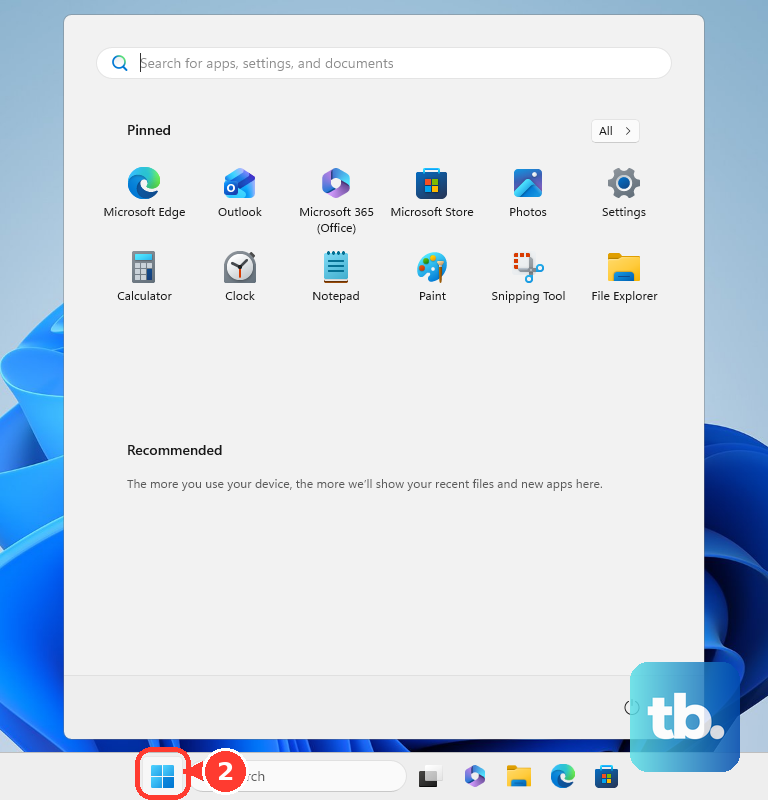
On Windows 11, open Start.
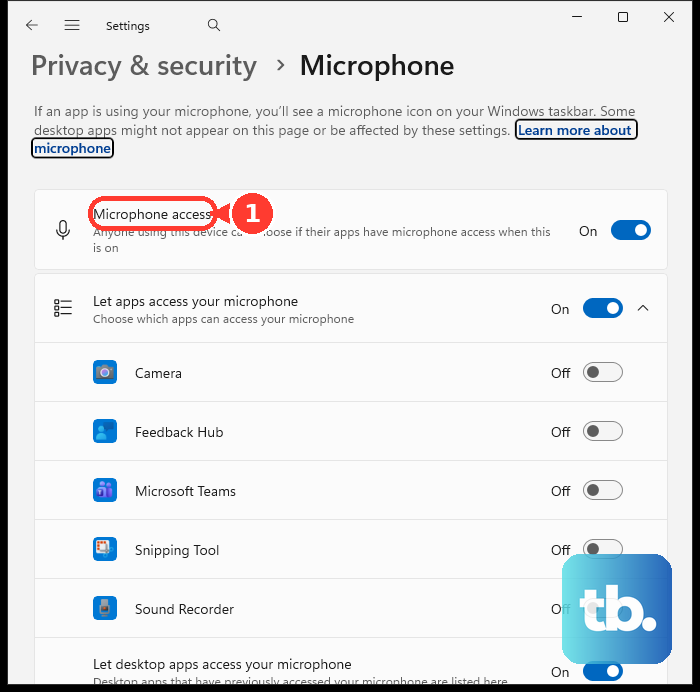
Open Settings. Go to Privacy & security. Open Microphone. Turn on Microphone access.
Turn on Let apps access your microphone. For the desktop Roblox app, turn on Let desktop apps access your microphone.
On Windows 10, open Start, then Settings, then Privacy, then Microphone. Select Change to turn on microphone access for the device, then turn on Allow apps to access your microphone and Allow desktop apps to access your microphone.
If you use the Microsoft Store version of Roblox and a Roblox app toggle appears, turn that on too.
Select the right input device
Windows may be listening to the wrong microphone, especially after switching between a headset, webcam mic, built-in laptop mic, USB mic, 3.5mm mic, or Bluetooth device.
Open Start, then Settings, then System, then Sound. Under Input, choose the microphone under Choose a device for speaking or recording.
Select > to open the device properties page, then choose Start test. Speak normally, select Stop test, and choose Play to hear the result.
If the test is too quiet, adjust Input volume. Also check your headset’s physical Mute button, and on supported Surface keyboards or type covers, use the top-row microphone key to toggle microphone muting.
If this method fails, run the Windows audio troubleshooter next because Windows may not be detecting the input device correctly.
Run Windows microphone troubleshooting
This fixes cases where the microphone is not detected or input fails across apps, including Roblox.
Open Settings. Go to System. Open Sound. Scroll to Advanced.
Under Troubleshoot common sound problems, choose Input devices. Use All sound devices under Advanced for more options. If Windows still does not detect the microphone, right-click Start. Open Device Manager.
Expand Sound, video and game controllers. Right-click the audio device and choose Uninstall device. Check Attempt to remove the driver for this device. Select Uninstall.
Restart the PC. If needed after the restart, return to Device Manager, expand Sound, video and game controllers, right-click the audio driver, and select Update driver.
Repair or reinstall Roblox
Use this order when Roblox voice chat still fails after the account, experience, and Windows microphone checks.
- 1.Restart the PC and try Roblox again, because Roblox says some desktop issues may be solved by rebooting.
- 2.For the Microsoft Store app on Windows 11, open Start, then Settings, then Apps, then Installed apps, select More next to Roblox, open Advanced options, and select Repair. On Windows 10, open Start, then Settings, then Apps, then Apps & features, select Roblox, then Advanced options under the app name, and select Repair.
- 3.If Repair is unavailable or does not fix it, select Reset.
- 4.To reinstall from the Roblox website, go to roblox.com/download, or open any experience on the Roblox website, click the green Play button, and follow the Roblox Player install prompt.
- 5.For a clean reinstall, open Start, then Settings, then Apps, then Installed apps, find Roblox, select More, choose Uninstall, restart, then install Roblox again.
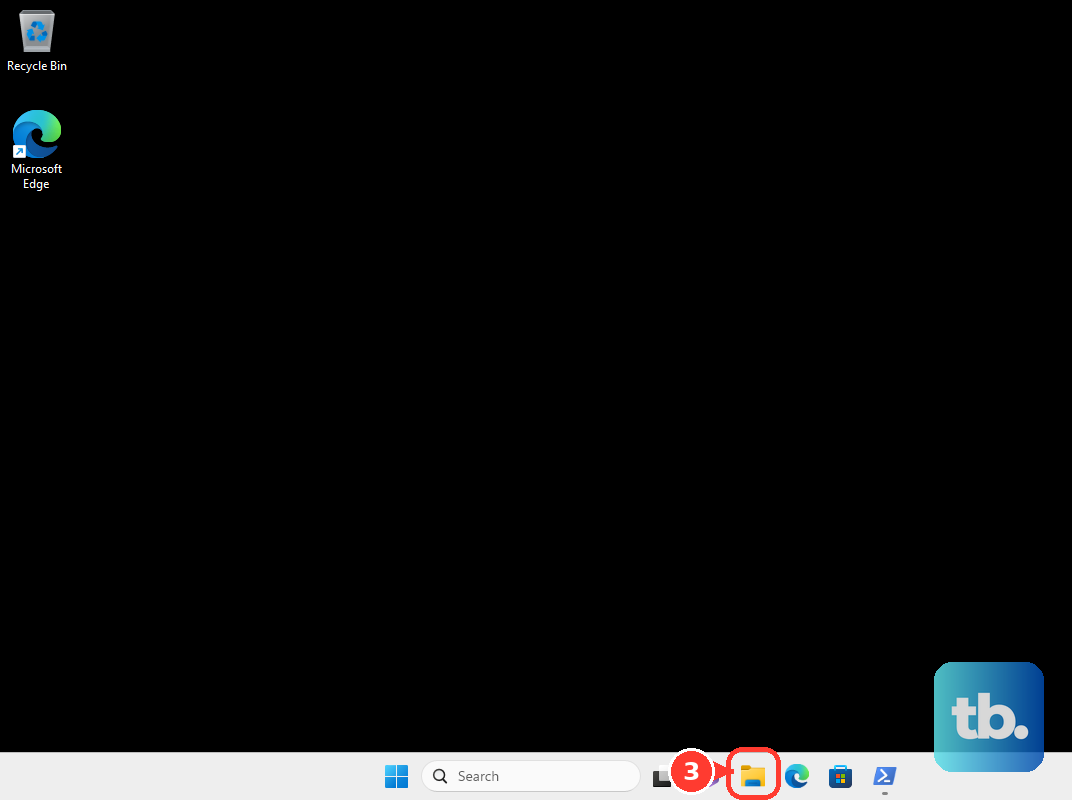
- 6.If the issue survives a normal reinstall, open File Explorer, go to C:\Users\(Your Windows Username)\AppData\Local, delete the Roblox folder, restart, and reinstall Roblox.
Clear network and security blocks
Roblox voice and game joining can fail when a firewall, antivirus app, router, or third-party program blocks the client.
Open your firewall or security program control panel, often from the taskbar or Windows Control Panel, then find the program permissions area. Find Roblox and allow unrestricted access to the internet.
Update your antivirus program. If that does not help, add Roblox to the exceptions or allow list; Roblox files are stored in C:\Users\(Your Windows Username)\AppData\Local\Roblox.
Close or uninstall third-party programs that interfere with Roblox, including auto-clickers or other game launchers, then relaunch Roblox.
If this method fails and you manage your home router, make sure Roblox connection ports are not blocked. Roblox documents the current UDP port range as UDP 49152 - 65535 and recommends contacting your ISP if ports need to be opened or activated.
Review privacy controls and managed devices
The most common account-control cause is that communication settings are set to block voice or party features.
For friend or party voice features, go to Settings, then Privacy & content maturity, then Communication, then Chat and Party with friends, then Voice Chat with friends. Choose an available option such as All friends or Trusted friends instead of No one.
For a linked child or teen account, the parent account can review communication settings under Settings, then Parental Controls, then the child account, then Settings you manage, then Communication. Review Game chat, Game direct chat, Friends chat, Party, and Group Party; for Party, choose Friends instead of No one where appropriate.
If these controls are already open, use a personal Windows PC and a network that allows Roblox before reinstalling again.
Frequently Asked Questions
Why is the Roblox voice chat button missing on PC?
The account may not be 13+ and age checked, Voice Chat may not be available in the region, or the Roblox experience may not support Voice Chat.
Does verifying my phone number unlock Roblox voice chat?
No. Roblox says phone verification is not a valid method for gaining Voice Chat access under its current guidance.
Why can I hear Roblox voice chat but nobody can hear me?
The in-experience microphone may be muted, Windows may be blocking microphone access, or Windows may be using the wrong input device.
Can Roblox voice chat fail in only one game?
Yes. Developers choose whether to add Voice Chat, so it can work in one Roblox experience and be unavailable in another.