

To turn off Outlook email notifications, disable Mail in new Outlook’s notification settings, uncheck Display a Desktop Alert in classic Outlook, or choose None for your account in Outlook mobile. You can also block Outlook through your device’s notification settings. The Windows system settings steps below use Windows 11 menus.
The short version
- New Outlook and Outlook.com: Turn off Mail under General > Notifications.
- Classic Outlook: Turn off desktop alerts and email sounds separately under File > Options > Mail.
- Outlook mobile: Choose None for each account’s mail notifications.
- Device controls: Block Outlook in your computer or phone’s notification settings to disable its app notifications.
| Where to change it | Control | What it stops |
|---|---|---|
| New Outlook for Windows | Email notifications | |
| Classic Outlook desktop alerts | Display a Desktop Alert | Email pop-ups |
| Classic Outlook sounds | Play a sound | New-mail sounds |
| Classic Outlook rules | Manage Rules & Alerts | Alerts or sounds created by rules |
| Windows 11 app settings | Outlook’s notification switch | Notifications from that Outlook sender |
| Windows 11 notification shortcut | Turn off all notifications | Notifications from the selected sender |
| Windows 11 individual controls | Banner, Notification Center and sound options | Banners, Notification Center display and sound |
| Outlook.com | Mail set to Off | Email notifications |
| Microsoft Edge | Website Notifications set to Block | Outlook browser notifications |
| Desktop Chrome | Not allowed to send notifications | Outlook browser notifications |
| Desktop Firefox | Send Notifications set to Block | Outlook browser notifications |
| Safari on Mac | Website Allow Notifications switch | Outlook website notifications |
| Outlook mobile account settings | Mail set to None | Email alerts for that account |
| Outlook mobile Quick Settings | Allow notifications and From | All alerts or selected email alerts |
| Outlook mobile sounds | Sound set to Off | Email notification sounds |
| iPhone or iPad settings | Outlook’s Allow Notifications switch | Outlook app notifications |
| Android app settings | Outlook’s notification permission | All or selected app notifications |
| Android notification shortcut | All notifications | Outlook app notifications |
| macOS settings | Outlook’s Allow notifications switch | Outlook app notifications |
| Outlook for Mac | Notifications and sounds | Desktop alerts and email sounds separately |
| Outlook mobile quiet periods | Snooze, Do Not Disturb or Quiet Time | Mail notifications temporarily |
| Windows 11 quiet periods | Do not disturb | Interruptions from apps outside allowed exceptions |
| Mac quiet periods | Do Not Disturb | Notifications outside Focus exceptions |
| Mac scheduled Focus | Silence Some Apps and Add Schedule | Outlook alerts during chosen periods |
| iPhone or iPad quiet periods | Focus | Notifications outside Focus exceptions |
| Android quiet periods | Do Not Disturb | Notifications outside allowed exceptions |
Turn off email alerts in new Outlook for Windows
Open Outlook, select View > View Settings, then choose General > Notifications. Under Notify me about, turn off Mail.
Calendar and Documents have separate switches, so leave those enabled if you only want to silence email. To stop those notification types too, turn off their switches in the same area.
Disable desktop alerts and sounds in classic Outlook
In classic Outlook, open File > Options > Mail. Under Message arrival, uncheck Display a Desktop Alert, then select OK. These steps apply to classic Outlook for Microsoft 365, Outlook 2024 and Outlook 2021.
Email sounds have their own setting. Return to File > Options > Mail, uncheck Play a sound under Message Arrival, then select OK. Disable both options to stop desktop alerts and new-mail sounds, or disable only the sound to keep visual alerts.
If alerts continue, check whether a classic Outlook rule has its own desktop-alert or sound action. Open File > Manage Rules & Alerts, select the relevant rule, then choose Change Rule. Edit its notification actions, remove the desktop-alert or sound action, and save the rule.
Rule names are user-defined, so inspect the actions rather than looking for a particular rule name. When you create a rule in Outlook, its notification actions can produce alerts in addition to the general notification settings. These rule instructions apply to classic Outlook.
Stop Outlook notifications through Windows settings
On Windows 11, open Start > Settings > System > Notifications. Under Notifications from apps and other senders, turn off your Outlook entry. If both new and classic Outlook are installed, check each Outlook entry.
You can also block Outlook directly from an existing Windows 11 notification. Press Windows + N, select the more button on an Outlook notification, then choose Turn off all notifications.
For selective control on Windows 11, open Settings > System > Notifications and select Outlook. Turn off Show notification banners, Show notifications in notification center, or Play a sound, depending on what you want to suppress. These options control where Outlook notifications appear and whether they play a sound.
Turn off Outlook.com and browser notifications
In Outlook.com, open Settings > General > Notifications. Under Notify me about, set Mail to Off. Calendar notifications are controlled separately, so change their setting too if you want to stop them.
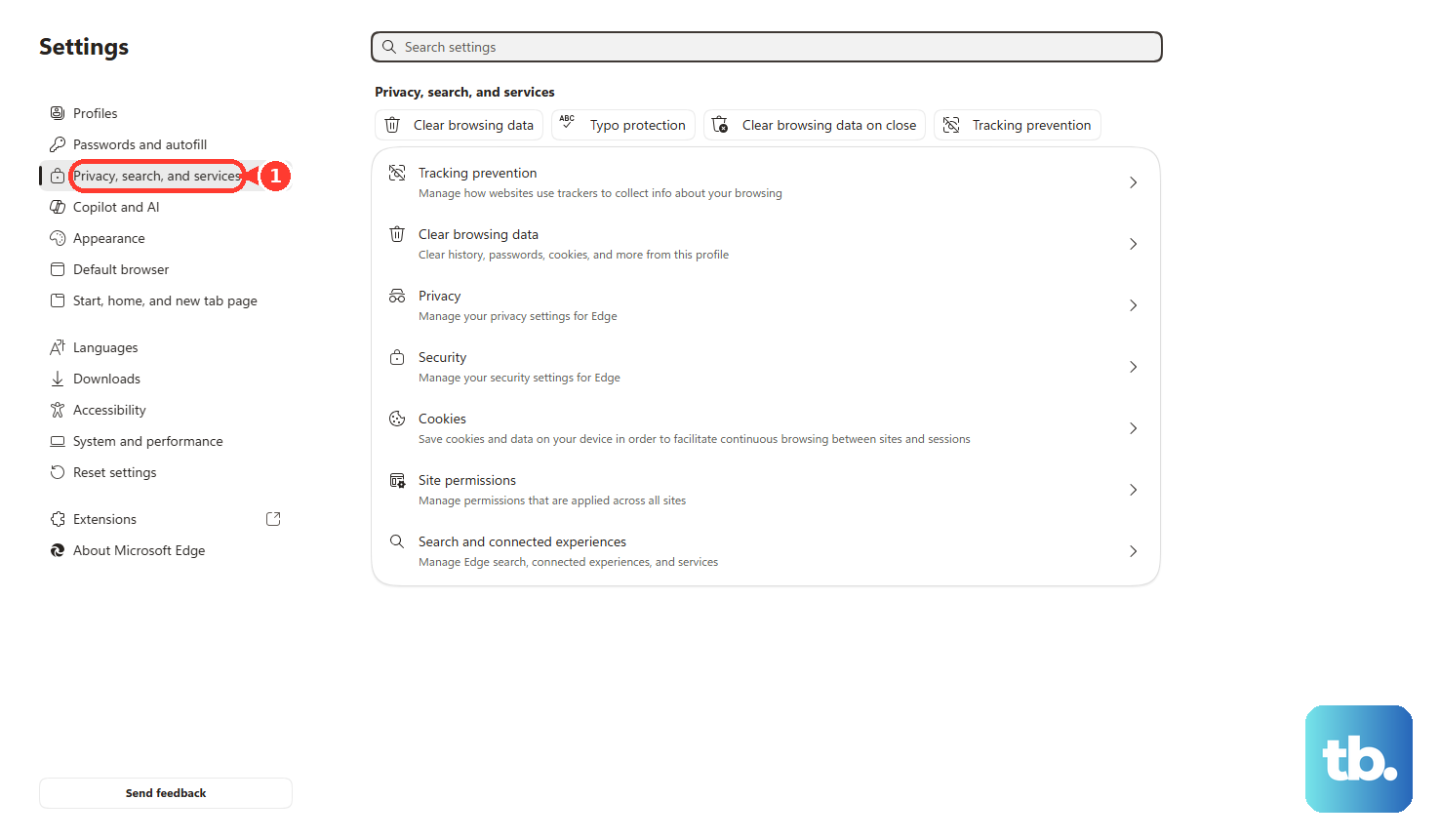
To block browser notifications from Outlook.com or Outlook on the web in Microsoft Edge, open the Outlook website and select View site information > Site settings. Set Notifications to Block. Alternatively, open Settings and more > Settings > Privacy, search, and services > Site permissions > All sites, select your Outlook website, and make the same change.
In desktop Chrome, open More > Settings > Privacy and security > Site Settings > Notifications. Beside Not allowed to send notifications, select Add. Enter the address of the Outlook website you use, then select Add again.
In desktop Firefox, open the Outlook website, then choose Tools > Page Info > Permissions. If the menu bar is hidden, press Alt to show it first. Under Send Notifications, deselect Use Default and select Block.
For Safari on a Mac, open the Apple menu > System Settings > Notifications. Under Application Notifications, select the Outlook website that has notification permission and turn off Allow Notifications. This blocks that website’s notifications even when Safari is closed.
Disable Outlook notifications on your phone or tablet
In Outlook for Android or iOS, open the left navigation menu, then choose Settings > Notifications > Mail. Select None for the relevant mail account. Repeat this for each account whose email notifications you want to stop.
If your interface shows Notifications & Sounds, start from Inbox and open Settings > Notifications & Sounds > Mail to reach the account’s notification controls. In builds with Quick Settings, open Settings > Quick Settings > Notifications and turn off Allow notifications.
For fewer alerts, the Quick Settings interface also lets you limit which messages trigger notifications. Leave Allow notifications enabled, then under From, choose Focused Inbox Only or Favourite People instead of All email.
To silence only email sounds, open Outlook’s top-left menu and tap Settings. Tap Notifications & Sounds on iOS or Notifications on Android. Under Mail, tap Sound > Off.
To block Outlook app notifications on iPhone or iPad, open Settings > Notifications > Outlook and turn off Allow Notifications. On iPhone, you can instead leave notifications enabled and adjust Alerts, Sounds, or Badges.
On Android, open Settings > Notifications > App notifications > Outlook and turn off the app’s notifications. Manufacturer labels can differ; on devices with Google’s notification controls, swipe down, touch and hold an Outlook notification, tap Settings, then turn off All notifications. If your device shows notification categories, you can disable only the unwanted categories instead.
Block Outlook notifications on a Mac
Open System Settings > Notifications. Under Application Notifications, select Outlook and turn off Allow notifications.
For Outlook’s own controls using VoiceOver, press Command + Comma in Outlook. Press Tab to reach Notifications and sounds, then press Spacebar. To disable desktop alerts, find Display an alert on my desktop and press Spacebar if it is selected. To disable the email sound, find New message and press Spacebar if it is selected.
Pause notifications for a quiet period
For a temporary pause in Outlook for Android, open the left navigation menu and tap the bell icon. Choose a snooze duration, or select Scheduled to use a schedule. Outlook for Android and iOS also offers Do Not Disturb or Quiet Time under Settings > Notifications > Mail. Mail notifications are muted during Quiet Time or Do Not Disturb, but Outlook calendar notifications continue to appear.
On Windows 11, press Windows + N and select the bell icon marked zZ to enable Do not disturb. To schedule quiet periods on Windows 11, open Settings > System > Notifications > Turn on do not disturb automatically. Review Set priority notifications so Outlook is not an allowed exception. Muted notifications still reach Notification Center.
On a Mac, open Control Center > Focus > Do Not Disturb. Check that Outlook is not allowed through that Focus.
To schedule a Focus that silences Outlook on your Mac, open System Settings > Focus and choose a Focus. Choose Silence Some Apps in its app notification controls and add Outlook. Under Set a Schedule, select Add Schedule > Time, set the times and days, then click Done.
On iPhone or iPad, open Control Center > Focus > Do Not Disturb. For an automatic schedule, open Settings > Focus, choose the Focus, then tap Add Schedule and set a time, location, or app trigger. Review allowed apps and time-sensitive exceptions, since these can let notifications through.
On Android, swipe down to open Quick Settings and tap Do Not Disturb. Review Notification filters so Outlook is not an exception. These controls vary by manufacturer, and portions of Google’s instructions require Android 14 or later.
Frequently Asked Questions
How do you turn off Outlook notifications on Apple Watch?
On your paired iPhone, open the Apple Watch app, select My Watch, then open Notifications. Find Outlook in the installed-app list and turn its switch off. For apps with Custom notification controls, choose Notifications Off.
Can you stop Outlook notifications on a Galaxy Watch?
On your phone, open Galaxy Wearable > Watch settings > Notifications > App notifications. Select All and turn off Outlook. These controls apply to supported Galaxy Watch models, and screens vary by model.
How do you disable Outlook alerts on Google Pixel Watch?
On your phone, open the Google Pixel Watch app and go to Notifications to manage which notifications reach your watch. To pause all watch notifications, swipe down on the watch face and turn on Do Not Disturb.
Can an iPhone deliver Outlook notifications in a summary instead?
Yes, when Scheduled Summary is already configured, open Settings > Notifications > Outlook. Under Notification Delivery, select Scheduled Summary. This delays eligible alerts rather than disabling them.