


To fix horizontal lines on an Android phone, restart it, install available system updates, and troubleshoot affected apps; arrange display repair if the lines persist or the screen is damaged. Brightness adjustments can help with certain kinds of flicker, while camera settings address bands in photos or videos. A factory reset cannot repair a damaged display.
The short version
- Start simply: Restart your phone and install its available system updates.
- Match the symptom: Lines inside one app, camera banding, and persistent display lines need different troubleshooting.
- Keep settings conditional: Try brightness adjustments when the problem is low-brightness flicker.
- Know when to stop: Persistent lines, especially after impact, warrant professional inspection.
| Check or fix | When to use it | Phone or limitation |
|---|---|---|
| Restart or force restart | Initial software troubleshooting | Galaxy button instructions below |
| Restart | Initial software troubleshooting | Pixel 6 and later, including Fold |
| Screenshot check | Check whether the image captures the lines | Xiaomi diagnostic clue |
| Restart an app or report its problem | Captured lines affect one app | Xiaomi phones |
| Change wallpaper or theme | Captured lines appear across screens | Xiaomi phones with these options |
| System update | Horizontal lines remain | Pixel phones |
| System update | Display problems remain | Galaxy phones |
| App updates | Possible app compatibility glitches | Galaxy phones with Google Play |
| Computer update | An update is offered through Smart Switch | Compatible Galaxy phones |
| Clear app cache | Artifacts stay inside one app | Galaxy phones |
| Clear app data | An app problem persists after cache clearing | Removes local app data and settings |
| Safe mode | A downloaded app may cause flickering | Galaxy phones |
| Safe mode | A downloaded app is suspected | Pixel app isolation |
| Uninstall suspected apps | Flickering stops in Safe mode | Removable Galaxy apps |
| Brightness adjustment | Low-brightness flicker or unstable brightness | Galaxy phones |
| Turn off Dark mode | Flickering or glitching | Galaxy phones |
| Change Motion smoothness | Display glitches, including during charging | Galaxy models offering the setting |
| Change Screen resolution | Display troubleshooting | Galaxy models offering the setting |
| Brightness adjustment | Slight horizontal stripes at low brightness | Xiaomi 14T OLED screen |
| Photo shutter adjustment | Camera bands under artificial lighting | Galaxy phones with PRO mode |
| Video camera adjustments | Lighting-related video banding | Galaxy phones with the relevant modes |
| Turn off developer overlays | Intentional crosshairs or layout boundaries | Android phones exposing those settings |
| Reset all settings | Eliminate changed system settings | Galaxy phones, personal data retained |
| Factory reset | Last software check | Galaxy phones, personal data erased |
| Professional inspection or repair | Persistent lines or physical damage | Galaxy, Pixel, and Xiaomi guidance below |
Restart your phone and look for damage
On a Samsung Galaxy, hold Side + Volume down for more than two seconds, then tap Restart. If the power menu does not appear, keep holding both keys for more than seven seconds until the phone restarts.
For a Pixel 6 or later, including Fold, hold Power + Volume up for a few seconds, then tap Restart. Check the screen again after startup.
Inspect your Galaxy screen for cracks, impact damage, black spots, or abnormal lines. Samsung recommends display repair for horizontal or vertical lines associated with screen damage. If the lines followed an impact, arrange professional inspection without treating a factory reset as a required step.
Check what a screenshot captures
On a Xiaomi phone, take a screenshot of the screen, open it in Gallery, and zoom in. Look for the same lines in the captured image. This is a diagnostic clue, not conclusive proof of a hardware fault.
If the screenshot captures lines confined to one app, restart that app or restart your phone. If the problem persists, report it to the app developer. The reporting steps depend on the app.
For captured lines across screens, Xiaomi recommends changing the wallpaper or theme. If your Xiaomi phone has these options, open Settings > Wallpaper, choose a wallpaper, tap Apply, and select Set both. Alternatively, open Themes and choose another theme.
If the screenshot does not contain the lines, Xiaomi recommends updating the system. Arrange inspection if the problem persists after updating.
Install system and app updates
On a Pixel with horizontal lines, open Settings > System > System update and install available updates. Some Pixel menus use Software updates under System; follow the label on your phone. Google recommends contacting support or arranging repair if the lines remain after updating.
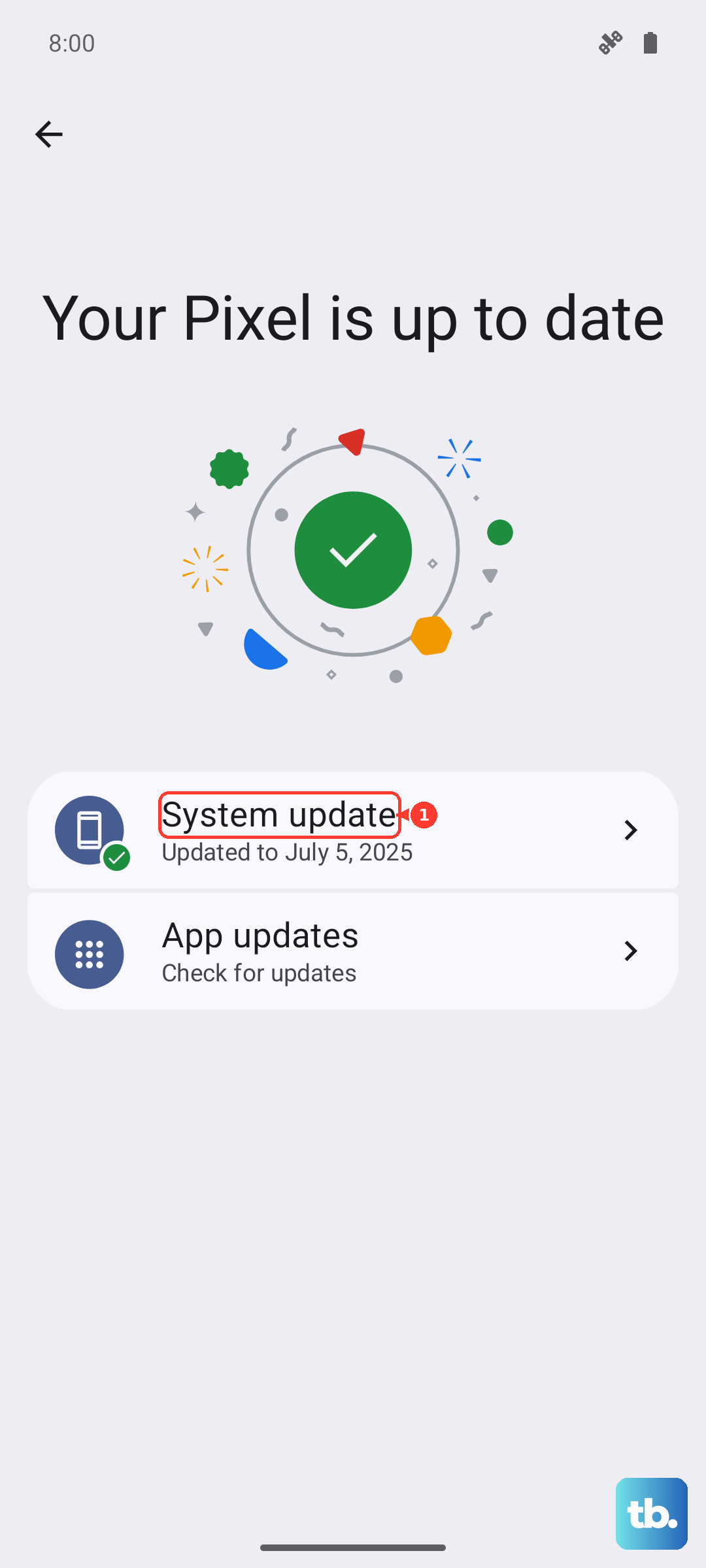
On a Galaxy, open Settings > Software Update > Check for updates and follow the instructions. Samsung says labels vary by software, model, and carrier. To address possible app compatibility glitches, also open Google Play Store, tap the account icon, select Manage apps & device, then tap Update all.
You can also update a compatible Galaxy through Samsung Smart Switch on a Windows PC or Mac when an update is available for your device. Install the computer application, connect your phone by USB, unlock it, and open Smart Switch. If offered, select Update, select OK, and keep the cable connected until the update finishes.
Isolate an app problem
When the artifact stays inside one Galaxy app, open Settings > Apps, select that app, then open Storage and tap Clear cache. Reopen the app and check the display. Cache clearing addresses app problems; it cannot repair physical display damage.
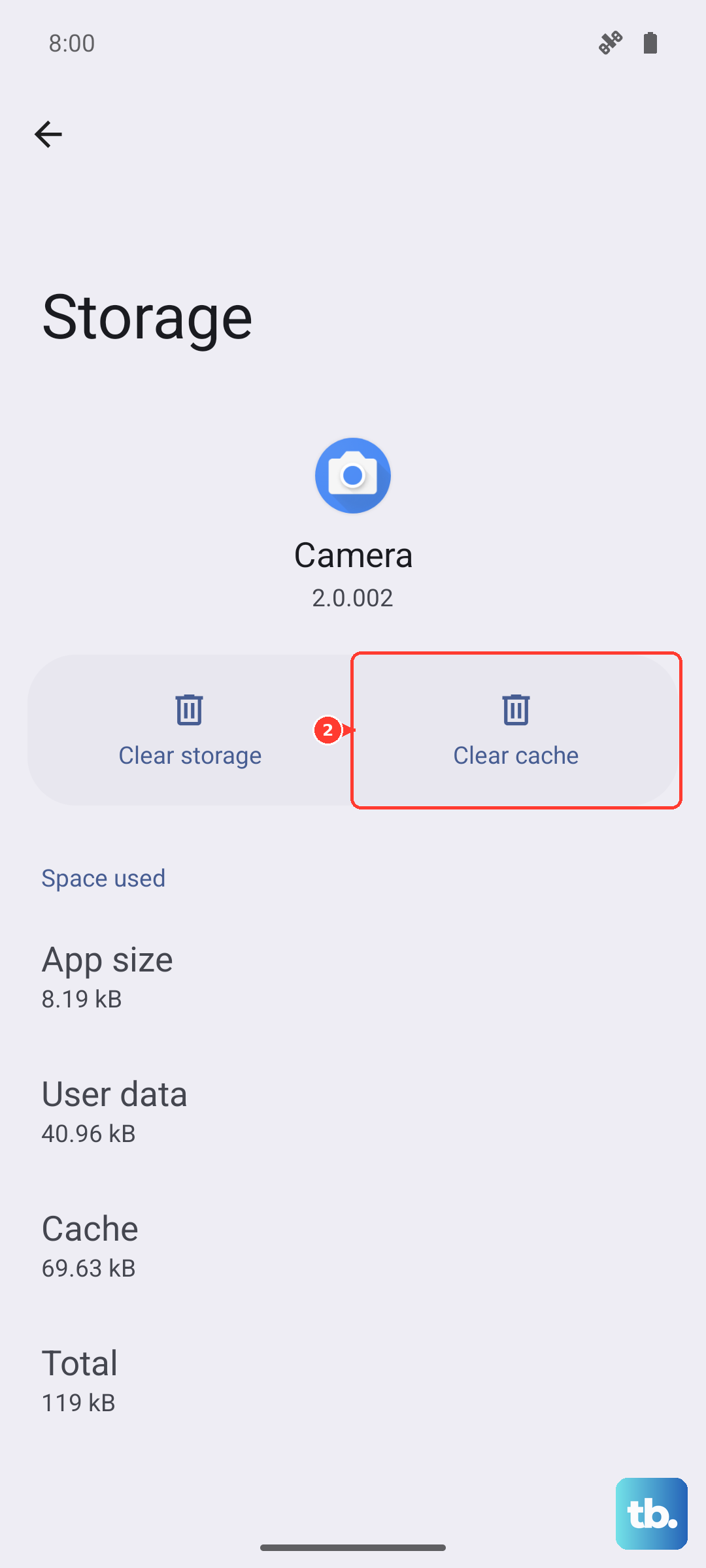
If clearing the cache fails, you can reset the affected app's data. Save needed app data first, because this removes locally stored data and settings. For a Galaxy app that permits it, return to its Storage screen, tap Clear data, then tap Delete.
If you suspect a downloaded app is causing Galaxy flickering, hold Volume down + Side until the power menu opens. Touch and hold Power off, then tap Safe mode. Check whether the flickering stops while downloaded apps are disabled.
On Pixel 6 and later, including Fold, hold Power + Volume up, then touch and hold Power off or Restart. Tap OK to enter Safe mode and check the display. Restart normally to exit. Use this to isolate an app problem, not as a repair for a damaged panel.
If Galaxy flickering stops in Safe mode, remove recently installed apps one at a time. Touch and hold a removable app's shortcut, tap Uninstall, then tap OK. Restart and check the display before removing another app.
Adjust display settings for flickering
For Galaxy flicker at low brightness or unstable brightness, open Settings > Display and turn off Adaptive brightness. Move the Brightness slider right if the flickering occurs at low brightness. For flickering or glitching, Samsung also recommends opening Settings > Display and turning off Dark mode.
On Galaxy models offering the setting, open Settings > Display > Motion smoothness and select Standard. For glitches specifically during charging, Samsung recommends securing the charging connection and trying Adaptive instead. If your phone also fails to charge, troubleshoot the phone charging problem.
If your Galaxy offers it, open Settings > Display > Screen resolution and choose a different available resolution. This is another display troubleshooting option, but it cannot repair a damaged screen.
On a Xiaomi 14T, Xiaomi recommends adjusting brightness for slight horizontal stripes on the OLED screen at low brightness. This advice applies to that specific model and symptom; persistent lines outside that condition need further troubleshooting or inspection.
Separate camera bands from screen overlays
If horizontal bands appear in Galaxy camera images under artificial lighting, adjust the camera's shutter speed. On models with the camera mode, open Camera > MORE > PRO, select the shutter speed control, and try 1/120 second or slower. This addresses lighting-related bands captured in images.
For lighting-related video banding on supported Galaxy models, open Camera > Video and disable Super steady using its icon. Alternatively, open More > Pro Video > SPEED and reduce shutter speed until the banding disappears. Adding light can also help.
If Developer options is already enabled, check whether intentional overlays explain the lines. Open it in Settings; current stock Android uses Settings > System > Developer options. Turn off Pointer Location and Show Layout Bounds if enabled, since these settings deliberately draw overlays. Removing those overlays cannot repair panel damage.
Reset Galaxy settings before erasing data
To eliminate changed system settings on your Galaxy, open Settings > General management > Reset > Reset all settings. Tap Reset settings, then tap Reset. This retains your accounts, personal data, apps, and downloaded-app settings.
Consider a factory reset only as a last software check, because it erases personal data. Back up your data and retain your account credentials before proceeding. If your display is damaged, arrange repair instead.
On Galaxy, open Settings > General management > Reset > Factory data reset and tap Reset. Confirm with Delete all, and enter your screen-lock credentials and Samsung account password when requested. Check the display before reinstalling suspected apps; if the lines persist, arrange inspection.
Arrange repair when lines remain
For persistent Galaxy lines, use Samsung Repair Services to arrange walk-in or mail-in repair, or visit a Samsung Authorized Service Center. Cracks, black spots, impact damage, and abnormal lines are reasons for professional display inspection.
If your Pixel still has horizontal lines after available system updates, contact Google support or arrange repair. For Xiaomi lines absent from screenshots, arrange inspection if updating has not resolved the problem.
Frequently Asked Questions
Can Samsung Members check whether the touch screen also has a problem?
You can check touch response in Samsung Members > Diagnostics > Phone diagnostics > Touch screen. Fill the test's empty areas with your finger and review the result. This checks touch response, not whether the display panel has horizontal lines.
How can you report intermittent Galaxy display glitches?
Touch and hold the Samsung Members icon, select Error reports, choose a category, and describe the problem. Select Attach to include supporting evidence and select Send system log data to include logs, then tap Send. This reporting option is useful for intermittent or update-related glitches.
Do horizontal lines qualify for the Pixel 8 extended repair program?
Horizontal lines alone are not a stated qualifying condition. The Pixel 8 program covers eligible devices within three years of original retail purchase with a qualifying vertical line or display flicker. Inspection determines qualification.
Can Google's computer repair tool fix Pixel software without erasing everything?
Updating through Google Pixel Update and Software Repair may preserve your data, but reinstalling resets the phone and erases data. The tool supports Pixel 4a and later, including Fold, subject to its compatibility check. It provides software recovery and cannot repair a damaged display.