

To silence an incoming call on your iPhone, press the side button once or press either volume button. The call stays available to answer until it reaches voicemail. For future calls, enable Silent mode, or use Do Not Disturb to control which callers can interrupt you.
The short version
- One ringing call: Press the side button once or either volume button to silence it without declining it.
- Future calls: Enable Silent mode using your iPhone’s switch, configured Action button, or supported onscreen controls.
- Caller exceptions: Turn on Do Not Disturb and review its allowed callers and repeated-call settings.
- Unknown numbers: In current Phone settings, choose Silence under Screen Unknown Callers to send unsaved-number calls quietly to voicemail.
| Method or control | What it does |
|---|---|
| Press the side button once or either volume button | Silences the current call while leaving it answerable |
| Press the side button twice or swipe up on the call banner | Declines the current call |
| Move the Ring/Silent switch | Enables Silent mode on switch-equipped iPhones |
| Hold the configured Action button | Enables Silent mode on supported models |
| Silent mode in Settings | Silences ringing through the iOS 27 sound settings |
| Silent mode in Control Center | Silences ringing through the iOS 27 control |
| Do Not Disturb | Silences calls subject to your Focus exceptions |
| Allow Notifications From | Lets you select permitted contacts in a Focus |
| Silence Notifications From | Silences selected contacts while the Focus is active |
| Turn off Emergency Bypass | Removes a contact’s exception to Silent mode or Focus |
| Leave Intelligent Breakthrough & Silencing off | Prevents that feature from allowing interruptions it considers important |
| Turn off Vibration | Stops vibration, including emergency-alert vibration |
| Add Schedule | Activates a Focus by time, location, or app |
| Sleep Focus | Uses a sleep schedule to control quiet time |
| Screen Unknown Callers > Silence | Sends unsaved-number calls quietly to voicemail |
| Silence Unknown Callers in FaceTime | Silences unknown FaceTime callers separately |
| Spam filtering | Silences carrier-identified spam or fraud calls |
| Block Caller in Phone | Blocks a caller from their call details |
| Blocked Contacts in Settings | Lets you add a blocked contact on iOS 26 and later |
Silence the call ringing right now
While the call is ringing, press the side button once or press either volume button. The ringing stops, and you can still answer before the call reaches voicemail. Use this when you want to quiet the current call without rejecting it.
Pressing the side button twice quickly declines the call, as does swiping upward on the incoming-call banner. Keep to a single button press if you want the call to remain answerable. Depending on your region, declining can disconnect the call instead of sending it to voicemail.
Turn on Silent mode for future calls
On an iPhone with a Ring/Silent switch, move the switch toward the back of the phone to enable Silent mode. This suppresses ringing, although vibration may remain enabled. If your iPhone has an Action button, configure it using the following steps.
Open Settings > Action Button, then swipe to Silent Mode. Press and hold the Action button to enable it. This applies to iPhones with that button, including iPhone 15 Pro models and supported later models.
On iOS 27, you can also open Settings > Sounds & Haptics and turn on Silent mode. Another route in Apple’s iOS 27 instructions is to open Control Center and tap the Silent mode button. Controls can differ on older software and by model, so if you do not see the onscreen control, use your phone’s switch or configured Action button.
Use Do Not Disturb for quiet time
On iOS 15 and later, open Control Center by swiping down from the upper-right corner on a Face ID iPhone, or up from the bottom on an iPhone SE. Touch and hold Focus, then tap Do Not Disturb. Its caller permissions determine which calls can still interrupt you.
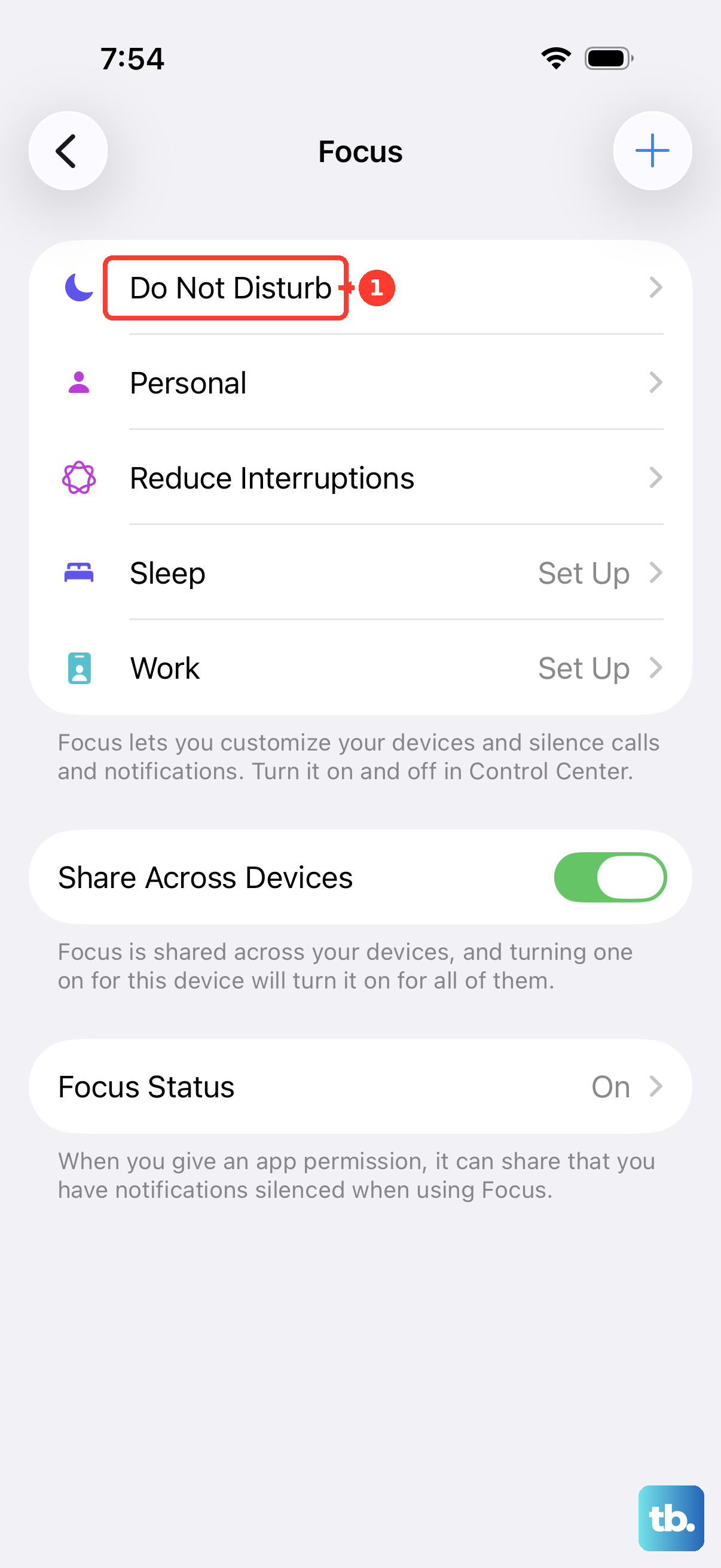
To choose permitted callers, open Settings > Focus > Do Not Disturb, then open People or select Choose People. Select Allow Notifications From and add only the contacts you want to permit. Review the call-group options too, and keep repeated calls disabled when another attempt from the same person should remain silent. Activate Do Not Disturb when you want those rules to apply.
Silence selected contacts with a Focus
Open Settings > Focus, select the Focus you want, then open People or select Choose People. Tap Silence Notifications From, tap the add button, and select the contacts you want to silence. Leave Allow Calls From Silenced People off, then activate that Focus.
The selected contacts are silenced while that Focus is active. If you want to choose permitted contacts instead, select Allow Notifications From, add those contacts, and configure the call-group and repeated-call options. Choose the setting that matches whether you want to specify people to silence or people to allow.
Stop vibration and calls that still sound
If a particular contact still makes your phone sound, open Contacts, select that person, then tap Edit > Ringtone. Turn off Emergency Bypass. This removes an exception that can let that contact sound through Silent mode or a Focus.
On supported Apple Intelligence iPhones, Intelligent Breakthrough & Silencing can allow interruptions it considers important. For predictable silence, leave it off under Settings > Focus > Do Not Disturb. Availability depends on the model, language, and region.
If your phone still vibrates, first enable Silent mode to suppress ringing. Turning off vibration alone does not silence the ringtone. You can then disable vibration separately if you want both to stop.
Turning off Vibration also disables vibration for emergency alerts. Open Settings > Accessibility > Touch, then turn off Vibration.
Schedule when calls should stay quiet
Open Settings > Focus, select your Focus, then tap Add Schedule. Configure a time, location, or app to activate it; location-based activation requires the relevant location functionality. Configure the Focus’s caller permissions separately, because the schedule determines when it activates.
For a sleep schedule, open Settings > Focus > Sleep, then tap Open Sleep in Health. Configure the sleep schedule that controls Sleep Focus. Set your desired caller exceptions within that Focus so the schedule uses those permissions.
Silence unknown numbers and spam calls
On iOS 26 and 27, open Settings > Apps > Phone. Under Screen Unknown Callers, select Silence. Calls from unsaved numbers are silenced and routed to voicemail, so consider whether you need an unsaved caller to ring through before choosing this option.
FaceTime has a separate unknown-caller control. Open Settings > Apps > FaceTime, then turn on Silence Unknown Callers. Configure this separately when you also want to silence unknown FaceTime callers.
With a supporting carrier, you can also stop spam calls on iPhone using carrier-identified filtering. Open Settings > Apps > Phone and enable Spam under Call Filtering. Calls identified as spam or fraud are silenced and routed to voicemail. This filter relies on your carrier to identify those calls; if your aim is to silence all unsaved numbers, use Silence under Screen Unknown Callers.
Block a caller when silencing is not enough
To block a number on iPhone, open Phone > Recents and open the caller’s details. In Classic view, use the Info button to open those details. Scroll down and tap Block Caller.
On iOS 26 and later, you can see numbers you have blocked under Settings > Privacy & Security > Blocked Contacts. To add someone there, tap Add Blocked Contact, enter the contact, then tap Block Contact. Blocking also affects other supported communications. Blocked callers can still leave voicemail, but you will not receive a notification.
Frequently Asked Questions
How can you silence unknown WhatsApp calls separately?
In WhatsApp, open Settings > Privacy > Calls and enable Silence unknown callers. This affects WhatsApp calls, not ordinary cellular calls.
How do you stop iPhone calls from ringing on other Apple devices?
Open Settings > Apps > Phone > Calls on Other Devices. Turn off Allow Calls on Other Devices, or disable individual devices. This stops call relay to those devices; it does not silence the iPhone itself.
Does call screening keep unknown calls completely silent?
Choosing Ask Reason for Calling under Settings > Apps > Phone > Screen Unknown Callers initially handles the call without ringing. Your phone can ring after the caller responds. Screening depends on language and region and does not operate while roaming.
How can you make the ringtone quieter instead of silencing calls?
On iOS 27, open Settings > Sounds & Haptics and lower the volume slider under Ringtone. Enable Change with Buttons if you want the physical volume buttons to adjust ringer volume when appropriate. Lowering the slider reduces volume but does not guarantee completely silent ringing.