

To sign out of OneDrive on your PC, unlink your account through the desktop app’s Account settings, which stops syncing and leaves downloaded files on your computer. Online-only files remain accessible through the OneDrive website. These desktop steps apply to the current OneDrive sync app on Windows 11 and Windows 10 22H2.
Your browser session is separate, so sign out on the OneDrive website too if you use both. Sign in only through Microsoft’s own app or website, and never share a code, password, or remote access with someone who contacts you.
The short version
- Desktop sign-out: Select Unlink this PC in OneDrive account settings to disconnect syncing.
- Files stay: Downloaded files remain on your PC, while online-only files remain accessible through the website.
- Browser sign-out: Select your profile photo on the OneDrive website, then select Sign out.
- Temporary stops: Pausing or quitting OneDrive leaves your account connected.
| Option | What it does | When it applies |
|---|---|---|
| Unlink the desktop app | Disconnects the account from PC syncing | Desktop sync app |
| Sign out of the website | Ends the website session | PC browser |
| Sign out everywhere | Signs out across browsers and apps except Xbox consoles | Personal Microsoft account |
| Sign out of the viewing app | Disconnects that separate app | Windows 10 viewing app with its account menu |
| Uninstall through Windows Settings | Removes the installed sync app | PCs exposing an uninstall option |
| Uninstall through Start | Opens Windows app removal | OneDrive entry with an uninstall action |
| Uninstall through Control Panel | Removes the registered app | OneDrive listed among installed programs |
| Quit OneDrive | Stops the app while keeping the account connected | Desktop sync app |
| Pause syncing | Stops syncing temporarily | Desktop sync app |
| Disable startup through Windows Settings | Changes future automatic startup | OneDrive listed among startup apps |
| Disable startup through Task Manager | Changes future automatic startup | Windows 11 with OneDrive listed |
| Hide OneDrive after unlinking | Changes folder visibility | Windows 10 or Windows 11 |
| Disable OneDrive file storage by policy | Restricts OneDrive on the device | Administrators on supported Windows editions |
| Block personal syncing by policy | Stops personal-account syncing | Managed Windows PCs |
| Restrict organization syncing by policy | Controls which organizations can sync | Managed work or school accounts |
| Administrator session sign-out | Invalidates Microsoft 365 sessions | Authorized work or school administrator |
| Download OneDrive again | Provides the sync app for reinstallation | Supported desktop platforms after removal |
Unlink your PC from OneDrive
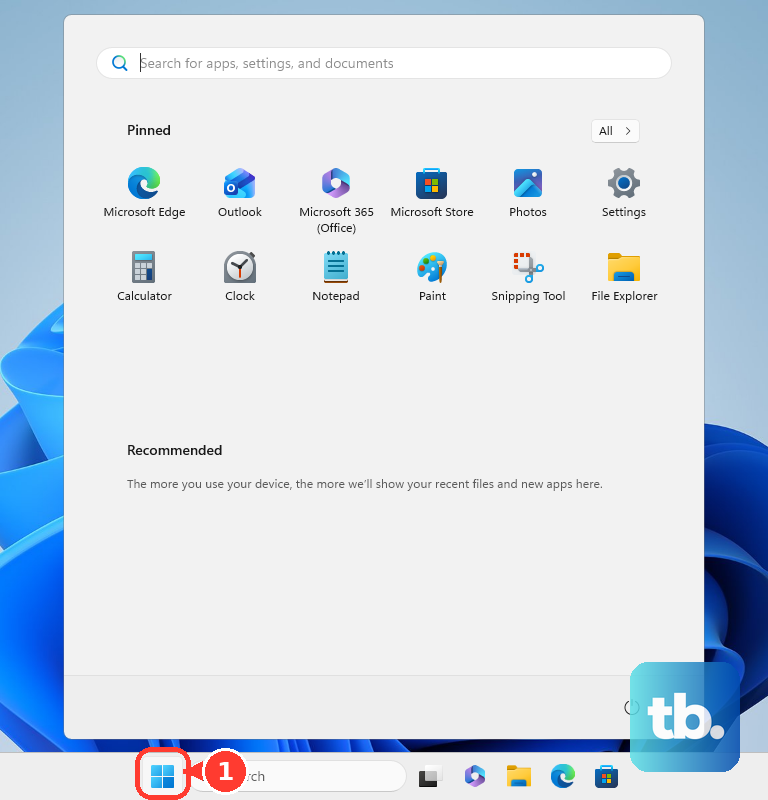
Unlinking disconnects the account from PC syncing, but downloaded files stay on the computer and online-only files remain accessible through the website. Select the OneDrive cloud icon in the taskbar notification area. If it is hidden, select Show hidden icons; if OneDrive is not running, open Start, search for OneDrive, and open it.
On Windows 11 and Windows 10 22H2, select the gear labeled Help & Settings, then open Settings > Account. Select Unlink this PC, then select Unlink account. If multiple accounts are connected, open the cloud icon for the account you want to disconnect and repeat these steps for each account you want to unlink.
Downloaded confidential files remain locally available after unlinking, so this does not clear the computer’s contents. You can still use OneDrive to access your files through the website. On a managed work or school PC, organizational policies may restrict settings; ask your administrator for help if you cannot change them.
Sign out of OneDrive in your browser
Signing out ends your OneDrive website session. On the OneDrive website, select your profile photo, then select Sign out. This applies to personal and work or school accounts accessed through a PC browser.
The desktop sync app stays connected until you unlink it separately. Likewise, unlinking the desktop app leaves your browser session separate, so complete both procedures when you want to disconnect both places.
Sign out of the separate viewing app
These steps apply only to the separate OneDrive viewing app for Windows 10 devices, version 19.X and later, when it is installed and exposes its account menu. Signing out disconnects the selected account from that viewing app.
Open the app and select My Accounts in the upper-right corner. Find the relevant account and select Sign out. If you are using the desktop sync client through the taskbar cloud icon, follow the unlinking procedure instead.
Sign out from another device
For a personal Microsoft account, signing out everywhere ends sessions across browsers and apps, except Xbox consoles, rather than disconnecting just one PC. Open your Microsoft account security dashboard from another device and access Additional security options. Find Sign out everywhere, then select Sign out.
Microsoft says this account-wide sign-out can take up to 24 hours, as checked in October 2026. Use desktop unlinking when you have access to the PC and want to disconnect only its OneDrive syncing.
For a work or school account, an administrator with the necessary permissions can invalidate Microsoft 365 sessions beyond OneDrive. In the Microsoft 365 admin center, select Users > Active users, then select the user. Open Account and select Sign out of all sessions.
Microsoft also identifies the PowerShell cmdlet Revoke-MgUserSignInSession as an administrative alternative. Session invalidation does not remove local files or unlink the desktop app, so ask your organization’s administrator for help with a work or school account you cannot manage yourself.
Pause or quit when you only need a break
Pausing keeps your account connected while temporarily stopping syncing. On Windows 11 or Windows 10 22H2, right-click the OneDrive taskbar icon and select Pause syncing. Choose 2 hours, 8 hours, or 24 hours.
To stop the running app, right-click the OneDrive taskbar icon and select Pause syncing > Quit OneDrive. Your account remains connected, and reopening OneDrive allows syncing to resume. If you want to turn off OneDrive without losing files, choose between these temporary stops and unlinking based on whether the account should remain connected.
Stop OneDrive from opening automatically
On Windows 11 and Windows 10 22H2, open Start > Settings > Apps > Startup. If Microsoft OneDrive is listed, turn its toggle to Off. Quit the running OneDrive app separately if you also want it to stop now.
On Windows 11, you can instead right-click Start and select Task Manager. Select Startup apps, select Microsoft OneDrive if listed, then select Disable. Older Task Manager layouts use a Startup tab.
Both controls affect future startup and leave the account linked. An organization can enforce automatic startup, so ask your administrator for help if the setting is controlled on your work or school PC.
Hide OneDrive after unlinking
Hiding OneDrive changes its visibility without signing out the account. First unlink the account using the desktop procedure above, which stops syncing while leaving downloaded files on the PC.
On Windows 10 or Windows 11, open File Explorer, right-click OneDrive, and select Properties > General. Under Attributes, check Hidden. Quit OneDrive to remove its running notification-area icon, keeping in mind that folder visibility also depends on File Explorer’s hidden-item settings.

Remove or reinstall the OneDrive app
Uninstalling removes the installed OneDrive sync app and stops its use on the PC. It does not perform a remote account sign-out, and you can stop after unlinking if disconnecting the account is all you need. These removal routes apply only where Windows exposes the relevant uninstall option.
On Windows 11, open Start > Settings > Apps > Installed apps. Find Microsoft OneDrive, open More (the three dots), and select Uninstall.
On Windows 10 22H2, open Add or remove programs and find Microsoft OneDrive under Apps & features. Select Uninstall to remove the app.
If your Windows installation displays the OneDrive Start-menu entry and its uninstall action, select Start > All apps. Find Microsoft OneDrive, right-click it, and select Uninstall. If Windows opens the installed-programs interface, select Microsoft OneDrive there and select Uninstall.
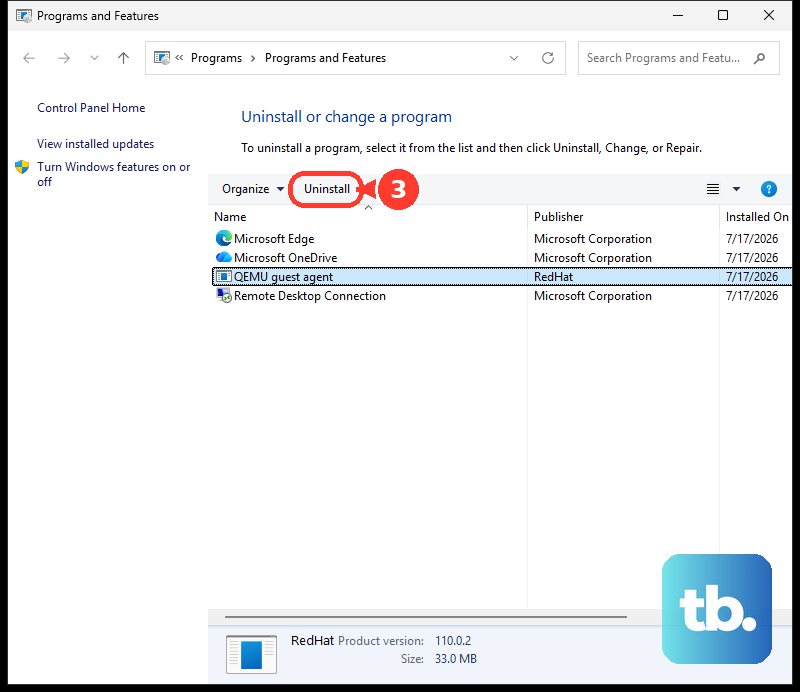
On Windows 11 or Windows 10 22H2, another entry point is Control Panel, which you can find through taskbar search. Open it and select Programs > Programs and Features. If Microsoft OneDrive is listed, right-click it and select Uninstall; on a managed PC, administrator assistance may be required.
If you later need the sync app again on a supported desktop platform, open Microsoft’s OneDrive download page and select Download OneDrive. Downloading or reinstalling is not required to sign out.
Restrict syncing on managed PCs
If you administer Windows PCs, device and account policies let you restrict OneDrive syncing. These controls change syncing permissions rather than ending website sessions. Use them only within the Windows editions and account types supported by each policy.
On supported Windows Pro, Enterprise, Education, and IoT Enterprise editions, including Windows 11, open Group Policy and follow Computer Configuration > Administrative Templates > Windows Components > OneDrive. Open Prevent the usage of OneDrive for file storage and select Enabled. This restricts OneDrive file storage and syncing on the device.
Before changing the registry, back it up because modifying it can have unintended consequences. The registry mapping is HKLM\Software\Policies\Microsoft\Windows\OneDrive, with the value DisableFileSyncNGSC. For MDM, set ./Device/Vendor/MSFT/Policy/Config/System/DisableOneDriveFileSync to integer 1. Microsoft lists the CSP policy for Windows 10 version 1703 and later, but the current OneDrive client requires Windows 10 22H2 or Windows 11.
To stop personal-account syncing on managed Windows PCs running the current sync app, use OneDrive administrative templates or Intune to enable Prevent users from syncing personal OneDrive accounts. Back up the registry before changing it. The equivalent registry value is HKCU\SOFTWARE\Policies\Microsoft\OneDrive\DisablePersonalSync, set to DWORD 1. Existing personal-account syncing stops and local files remain, while the OneDrive website session is unaffected.
For work or school accounts, use Group Policy or Intune to enable Block syncing OneDrive accounts for specific organizations. Under Options, select Show and enter the organization tenant IDs. Alternatively, configure Allow syncing OneDrive accounts for only specific organizations with the permitted tenant IDs. Already-connected accounts outside the permitted scope stop syncing, but these controls do not sign them out of the website.
Frequently Asked Questions
Does signing out of Microsoft Office also sign out of OneDrive?
Signing out of Office does not sign out the OneDrive sync client. You need to disconnect the account in the OneDrive desktop app separately.
Should you reset OneDrive to stay signed out?
Resetting OneDrive is a troubleshooting operation followed by a full sync. It is not a reliable way to remain signed out.
Do folder backup settings or Personal Vault locking sign you out?
Folder-backup toggles, Choose folders, Windows Backup settings, and Personal Vault locking are not account sign-out mechanisms. Changing those controls does not replace unlinking the desktop account.
Does signing out of the OneDrive mobile app disconnect your PC?
Signing out of the mobile app affects that mobile app. Your PC’s desktop sync connection needs to be managed separately.