


To shut down Windows 11, select Start > Power > Shut down. You can click or tap these controls, or reach them with your keyboard. These steps use Windows 11 menus.
The short version
- Everyday shutdown: Select Start > Power > Shut down.
- Keyboard shortcut: On an English Windows interface, press Windows + X, then U, then U.
- Full shutdown: Hold Shift while selecting Shut down to bypass Fast Startup once.
- Unresponsive computer: Reserve a forced power-off for when normal shutdown cannot work, because unsaved work can be lost.
| Method | What to use | Main consideration |
|---|---|---|
| Start menu | Start > Power > Shut down | Standard shutdown route |
| Quick Link menu | Windows + X, then U, then U | Letter sequence requires English menus |
| Desktop dialog | Windows + D, then Alt + F4 | Desktop must have focus |
| Security screen | Ctrl + Alt + Delete | Power controls can be hidden by policy |
| Sign-in screen | Power > Shut down | Depends on security policy |
| Update and shut down | Update and shut down | Appears for applicable pending updates |
| One-time full shutdown | Shift while selecting Shut down | Bypasses Fast Startup once |
| Disable Fast Startup | Power settings | Affects subsequent shutdowns |
| Configure the power button | Control Panel | Requires configurable button actions |
| Configure buttons or lid | Settings | Controls depend on hardware |
| Immediate shutdown command | Run or a command window | Requires shutdown permission |
| Delayed shutdown | A shutdown command with a timer | Can discard unsaved work |
| Forced software shutdown | A command that forces apps closed | Windows must still accept commands |
| Other command variants | Fast Startup or app restoration options | Behavior depends on configuration |
| Desktop shortcut or pin | A shortcut you create | Pinning options vary by build |
| Custom keyboard shortcut | An available key combination | Other shortcuts can conflict |
| Slide to Shut Down | A sliding shutdown panel | Lenovo documents Windows 11 support |
| PowerShell shutdown | Built-in Windows PowerShell 5.1 | Supports local and configured remote computers |
| Recurring shutdown | Task Scheduler command interface | Account and task conditions affect execution |
| Remote shutdown | A command or remote shutdown dialog | Requires authorization and network configuration |
| Voice access | Spoken commands for the normal controls | Must be configured and listening |
| Emergency power-off | The physical power button | Unsaved work can be lost |
| Restore missing menu controls | Group Policy | Requires an administrator and a supported edition |
| Restore sign-in shutdown | Local Security Policy | Managed policy can override local settings |
Shut down from the Start menu
Open Start, select Power, then choose Shut down. To reach these controls without a mouse, press Windows, navigate with Tab and the arrow keys, and press Enter to select each control.
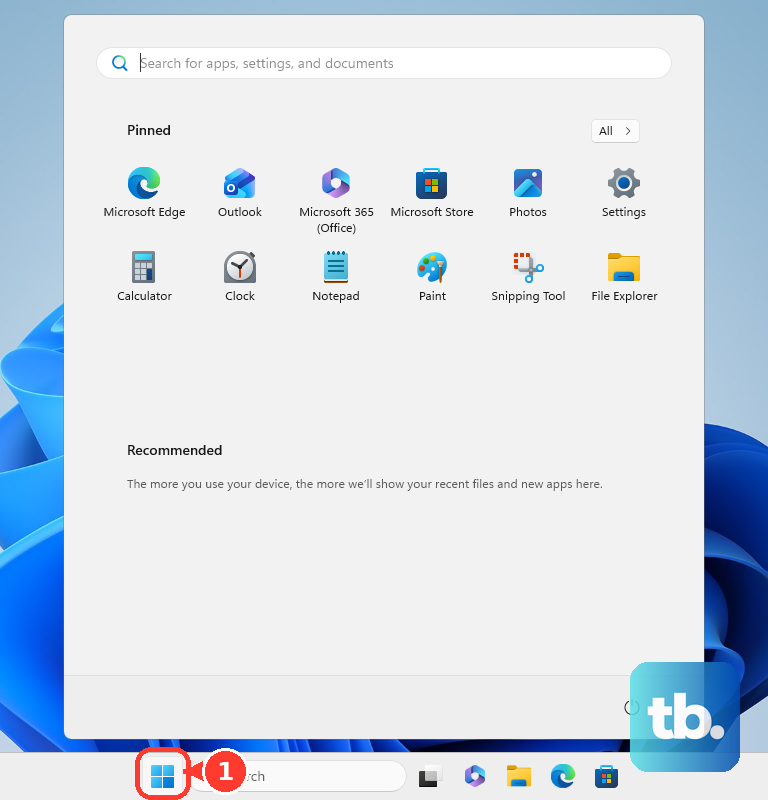
When applicable updates are pending, select Start > Power > Update and shut down. Allow the update process to finish.
Use keyboard shortcuts or the sign in screen
Press Windows + X, then select Shut down or sign out > Shut down. You can also open this menu by right-clicking Start. On an English Windows interface, press Windows + X, then press U twice, separately. Letter shortcuts depend on your interface language, so select the menu options directly if your menus use another language.
For the desktop shutdown dialog, press Windows + D to display the desktop, then press Alt + F4. Because Windows + D both displays and hides the desktop, check that the desktop is showing before you press Alt + F4. In Shut Down Windows, select Shut down and press Enter. Some keyboards require Fn to access F4. If an application has focus, Alt + F4 closes it instead, so return to the desktop with Windows + D before trying again.
Another route is to press Ctrl + Alt + Delete, select Power at the bottom right, then choose Shut down. You can navigate those controls with Tab and the arrow keys, then select them with Enter. Policy can hide the power controls on this screen.
At the sign-in screen, select Power > Shut down. If the lock-screen picture is showing, dismiss it first. You can shut down without signing in when security policy permits it; if the control is missing, the policy fixes below explain the administrator settings involved.
Perform a full shutdown
Open Start > Power for a one-time shutdown that bypasses Fast Startup. Hold Shift while selecting Shut down. This applies only to that shutdown.
To change Fast Startup settings for subsequent shutdowns, search for Choose a power plan and open it. Select Choose what the power button does, then select Change settings that are currently unavailable. Uncheck Turn on fast startup (recommended) and select Save changes. Afterward, shut down through Start > Power > Shut down.
This setting is available only on devices that expose Fast Startup controls, and administrative permission may be required. If you cannot change it, use the Shift method for a single full shutdown.
Set the power button or laptop lid to shut down
On computers with configurable power-button actions, open Control Panel > Hardware and Sound > Power Options > Choose what the power buttons do. Under When I press the power button, choose Shut down for the applicable power states, then select Save changes. Briefly press the physical power button to shut down after configuring it.
If your device exposes the corresponding Settings section, open Settings > System > Power & battery > Lid, power & sleep button controls. Under Plugged in and On battery, choose Shutdown for the relevant power-button, sleep-button, or lid action. You can then press that button or close the lid to shut down.
Available controls depend on your hardware. If this Settings section is missing, use the Control Panel route on computers with configurable power-button actions. Otherwise, use the Start menu.
Use a shutdown command or timer
Press Windows + R to open Run. Enter the following command and press Enter to shut down immediately:
shutdown /s /t 0You can also run this command in Command Prompt or a PowerShell tab in Windows Terminal. Your account needs shutdown permission, and Windows must still respond to commands.
A positive shutdown timeout forces applications to close and can discard unsaved work. To shut down in one hour, open Run, enter the following command, and press Enter:
shutdown /s /t 3600You can cancel the pending shutdown before its timer expires. Open Run again, enter this command, and press Enter:
shutdown /aFor a shutdown that prepares your PC for Fast Startup, run the following command. Its behavior depends on your Fast Startup configuration:
shutdown /s /hybrid /t 0Another variant shuts down with registered-app restoration at your next sign-in, subject to Automatic Restart Sign-On. Run this command for that behavior:
shutdown /sg /t 0Create a desktop or keyboard shortcut
Right-click the desktop and choose New > Shortcut. Enter the following command as the shortcut's location:
shutdown /s /t 0Select Next, name the shortcut, then select Finish. Open the completed shortcut to shut down. Dell also describes right-clicking it and choosing Pin to Start or Pin to Taskbar, although menu availability varies by build. If those options are missing, use the desktop shortcut.
To assign a key combination, right-click the shortcut and open Properties > Shortcut. Select Shortcut key, enter an available combination such as Ctrl + Alt + S, and select OK. Press that combination to shut down. If another shortcut conflicts with it, choose a different available combination.
Schedule shutdowns or turn off a remote computer
To schedule a daily shutdown at 23:00, run the following command in Command Prompt. It creates a task through the built-in Task Scheduler command interface:
schtasks /create /sc daily /tn "Daily shutdown" /tr "shutdown.exe /s /t 0" /st 23:00The task's account needs shutdown permission. Power, sign-in, and task conditions affect whether the scheduled shutdown runs.
For a remote computer you are authorized to shut down, replace PCNAME with its name in the following command. The target must have the required remote permissions and network configuration:
shutdown /s /m \\PCNAME /t 0You can also open Microsoft's Remote Shutdown dialog with a command. Run the following to open it:
shutdown /iRestore missing shutdown controls
On Windows 11 editions with Group Policy management, such as Pro, Enterprise, and Education, an administrator can adjust the policy that hides shutdown controls. Open Run with Windows + R, enter the following command, and press Enter:
gpedit.mscOpen User Configuration > Administrative Templates > Start Menu and Taskbar > Remove and prevent access to the Shut Down, Restart, Sleep, and Hibernate commands. Select Disabled or Not Configured to permit the controls, subject to other policies. Windows 11 Home lacks the Local Group Policy Editor, so this route applies only to editions that include it.
For a missing sign-in-screen shutdown control, an administrator can open Local Security Policy > Local Policies > Security Options > Shutdown: Allow system to be shut down without having to log on. Select Enabled to permit shutdown without signing in. This applies to editions exposing Local Security Policy, and managed-device policy can override the local setting. On a managed computer, an administrator must address the applicable policy.
Turn off a computer that will not respond
If normal shutdown cannot work but Windows still accepts commands, you can force applications to close. This can discard unsaved work. Press Windows + R, enter the following command, and press Enter:
shutdown /s /f /t 0The alternative command below powers off the local computer immediately and forcibly closes applications. It can discard unsaved work. Run it only while Windows still responds to commands:
shutdown /p /fIf Windows is unresponsive and normal shutdown cannot work, use your computer's hardware forced-off function. Unsaved work can be lost. Hold the physical power button until the computer turns off, following your model's instructions because timing and behavior vary.
Frequently Asked Questions
Do you need to download an app to shut down Windows 11?
No download is required for these built-in shutdown methods. You do not need Windows installation or upgrade tools to use them.
Can you shut down Windows 11 with your voice?
Yes, when Voice access is available, configured, and listening in a supported language, say Show numbers. Say Click <number>, replacing <number> with the displayed number for Start. The numbers disappear after you select an item, so say Show numbers and Click <number> again for Power, then for Shut down. These general Voice access commands operate the normal shutdown controls.
Can Cortana still shut down Windows 11?
Microsoft has retired the standalone Cortana experience in Windows. Replace older Cortana shutdown instructions with a current method such as the Start menu.
What is the PowerShell command to turn off your PC?
Open the built-in Windows PowerShell 5.1 and run Stop-Computer to shut down your local computer. For an authorized remote computer, run Stop-Computer -ComputerName PCNAME -Credential (Get-Credential), replacing PCNAME with its name. Remote use requires suitable permissions, connectivity, and remote-management configuration.
How do you use Slide to Shut Down?
Press Windows + R, enter slidetoshutdown, and press Enter. Drag the displayed panel downward to shut down. Lenovo documents this utility for Windows 11 PCs and tablets; availability across every hardware configuration is not guaranteed.