


To disable Fast Startup in Windows 11, open Control Panel, select Hardware and Sound > Power Options > Choose what the power buttons do, select Change settings that are currently unavailable, then uncheck Turn on fast startup (recommended) and select Save changes. You can enable it again from the same page. Administrator authorization may be required.
The short version
- Permanent change: Uncheck Turn on fast startup (recommended) in Control Panel and select Save changes.
- Unavailable checkbox: Select Change settings that are currently unavailable before changing the setting.
- Missing option: Fast Startup requires compatible hardware and available hibernation support.
- One full shutdown: Hold Shift while selecting Shut down to bypass Fast Startup once.
| Method | What it changes | When to use it |
|---|---|---|
| Control Panel checkbox | Saved Fast Startup preference | Turn Fast Startup off or on |
| Search for Choose a power plan | Same checkbox through Search | Reach power controls directly |
Run with control | Same checkbox through Control Panel | Start with a keyboard shortcut |
| Registry Editor | Local registry preference | Edit the value directly |
reg add | Local registry preference | Use an administrator command |
| Windows PowerShell | Local registry preference | Use PowerShell or a script |
| Registration file | Local registry preference | Import a reusable configuration |
| Registry Editor import | Values from a saved file | Apply or restore a configuration |
| Disable hibernation | Hibernation and Fast Startup availability | Turn off both features |
| Reduced hibernation file | Hibernation file capabilities | Keep Fast Startup without normal Hibernate |
| Group Policy | Requirement to use Fast Startup | Require it or release the requirement |
| MDM policy | Requirement on managed devices | Manage the requirement remotely |
| Group Policy Preferences | Local registry preference on targeted PCs | Deploy the disabled preference centrally |
| Shift with Shut down | One shutdown only | Request a full shutdown |
| Shutdown command | One shutdown only | Choose full or hybrid shutdown |
| Desktop shortcut | One shutdown per use | Reuse a full shutdown command |
| Restart | Current Windows session | Perform a full shutdown and boot cycle |
Turn Fast Startup off or on in Control Panel
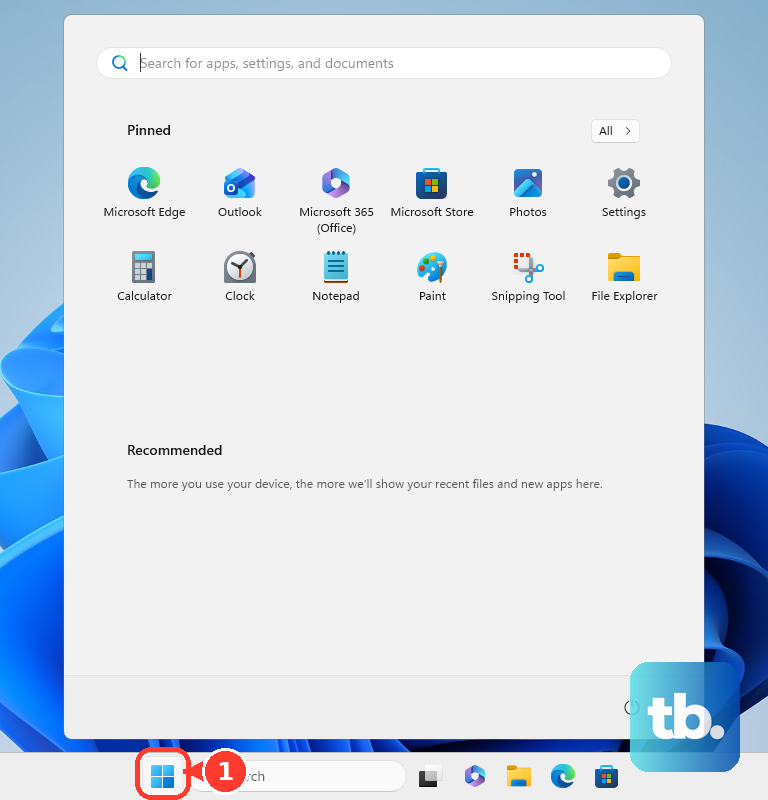
Open Start, search for Control Panel, and open it. Select Hardware and Sound, then choose Power Options. Select Choose what the power buttons do to reach the Fast Startup checkbox.
Click Change settings that are currently unavailable to make the shutdown controls editable. Under Shutdown settings, uncheck Turn on fast startup (recommended). Select Save changes to keep your choice.
To enable it again, return to Control Panel > Hardware and Sound > Power Options > Choose what the power buttons do. Select Change settings that are currently unavailable, then check Turn on fast startup (recommended). Select Save changes; Fast Startup still needs available hibernation support to operate.
This checkbox changes the preference for the PC while leaving hibernation available. Startup apps have separate controls, so changing Fast Startup will not stop apps from opening on startup.
Reach the same setting through Search or Run
Search Windows for Choose a power plan and select Open. Choose Choose what the power buttons do, then select Change settings that are currently unavailable. Uncheck Turn on fast startup (recommended) and select Save changes.
You can also open Control Panel from the Run dialog. Press Windows + R and enter this command:
controlPress Enter, then follow Hardware and Sound > Power Options > Choose what the power buttons do. Select Change settings that are currently unavailable, uncheck Turn on fast startup (recommended), and select Save changes. Both routes reach the same preference, so you only need one.
Restore a missing option or change hibernation support
If the checkbox is missing, check whether hibernation is available. Search for Command Prompt, select Run as administrator, and run this command to inspect available power states and reported restrictions:
powercfg /aThe output describes power capabilities, but it does not tell you whether the Fast Startup checkbox is selected. If hibernation was disabled and you want to restore it, run:
powercfg.exe /hibernate onReturn to the Fast Startup checkbox and choose its setting separately. If the option remains unavailable, check the restrictions reported by powercfg /a; enabling hibernation cannot replace missing hardware support.
If you want to disable hibernation as well as Fast Startup, you can do that from the administrator Command Prompt. This also removes normal Hibernate availability and prevents hybrid sleep from working:
powercfg.exe /hibernate offTo reverse that change, run powercfg.exe /hibernate on, then revisit the Fast Startup checkbox. If you only want Fast Startup disabled, unchecking its checkbox preserves hibernation.
You can also retain Fast Startup support without normal Hibernate by using a reduced hibernation file. In an administrator Command Prompt, run these commands in order:
powercfg /hibernate on
powercfg /hibernate /size 0
powercfg /hibernate /type reduced
A reduced file supports Fast Startup only, and you still need to select its checkbox separately if necessary. To restore a full hibernation file, run:
powercfg /hibernate /type fullRequest a full shutdown without changing the setting
For one full shutdown, save your work and select Start > Power. Hold Shift while selecting Shut down. This leaves the saved Fast Startup preference unchanged.
You can request the same shutdown with a command. Save your work, press Windows + R, and enter:
shutdown /s /t 0Press Enter to shut down the PC. You can also run the command in Command Prompt or Windows PowerShell. For a hybrid shutdown instead, where supported and available, save your work and run:
shutdown /s /hybrid /t 0These commands choose the behavior for that shutdown without editing the saved preference. Your account needs shutdown rights, and hybrid shutdown requires available Fast Startup support.
To create a reusable full shutdown shortcut, right-click an empty desktop area and select New > Shortcut. Enter the following command as the location:
shutdown /s /t 0Select Next, enter a name such as Full shutdown, and select Finish. Save your work before opening the shortcut, because each use requests a full shutdown.
If you want to reload Windows and drivers immediately, save your work and select Start > Power > Restart. Microsoft says restarting performs a full shutdown and boot cycle regardless of the Fast Startup preference, leaving the checkbox unchanged. If you cannot use the power menu because the PC is frozen, follow the steps to restart a computer that is unresponsive.
Change the preference in Registry Editor
You can edit the local Fast Startup preference directly with administrator access. Press Windows + R, enter regedit, and press Enter. Navigate to this key:
HKEY_LOCAL_MACHINE\SYSTEM\CurrentControlSet\Control\Session Manager\PowerBack up the key before changing it. Select the key, choose File > Export, enter a File name, and select Save.
Double-click HiberbootEnabled, which uses the REG_DWORD type. Set Value data to 0 and select OK to disable Fast Startup. Use 1 to enable the local preference, provided hibernation support is available.
To restore your exported configuration or import another saved configuration, open Registry Editor as an administrator and select File > Import. In Import Registry File, select the saved .reg file containing the intended HiberbootEnabled value, then select Open. Organizational policy can override the local preference.
Change the preference with an administrator command
The command line lets you change the same registry value while preserving hibernation. Back up the registry key as described above, search for Command Prompt, select Run as administrator, and run:
reg add "HKLM\SYSTEM\CurrentControlSet\Control\Session Manager\Power" /v HiberbootEnabled /t REG_DWORD /d 0 /fTo enable the local preference again, run the same command with /d 1 instead of /d 0. You can also run this command in an elevated PowerShell session or an administrator-managed script.
For a PowerShell alternative, search for Windows PowerShell and select Run as administrator. Run this command to set the local preference to disabled:
New-ItemProperty -Path 'HKLM:\SYSTEM\CurrentControlSet\Control\Session Manager\Power' -Name HiberbootEnabled -PropertyType DWord -Value 0 -ForceTo enable it, substitute -Value 1 for -Value 0. Both command methods write the same preference as the checkbox, so hibernation availability and organizational policy still determine whether Fast Startup can operate.
Save a reusable registry file
A registration file packages the same preference for later import. Back up the registry key first, then create a text file named DisableFastStartup.reg with these contents, including the blank line:
Windows Registry Editor Version 5.00

[HKEY_LOCAL_MACHINE\SYSTEM\CurrentControlSet\Control\Session Manager\Power]
"HiberbootEnabled"=dword:00000000
Search for Command Prompt and select Run as administrator. Run this import command, replacing the example path with your file's actual path:
reg import "C:\path\DisableFastStartup.reg"To enable the local preference with the file, change its DWORD data from 00000000 to 00000001 before importing it. You can also import the file through Registry Editor using File > Import.
Release or require Fast Startup through Group Policy
If your organization requires Fast Startup, changing the local checkbox may not control its behavior. An administrator must release that requirement before the local disabled preference can apply. The policy named Require use of fast startup does not force Fast Startup off when you select Disabled.
To change the policy locally on a supported edition, press Windows + R, enter gpedit.msc, and press Enter. Open Computer Configuration > Administrative Templates > System > Shutdown, then open Require use of fast startup.
Select Enabled to require Fast Startup, then select Apply > OK. To return control to the local preference, select Disabled or Not Configured, then select Apply > OK. To turn Fast Startup off afterward, uncheck Turn on fast startup (recommended) in Control Panel and select Save changes.
Deploy settings to managed computers
If you administer domain-joined PCs, Group Policy Preferences can deploy the actual disabled local setting. In Group Policy Management Console, edit a GPO targeting the computers. Open Computer Configuration > Preferences > Windows Settings > Registry, then select Action > New > Registry Item.
Set Action to Update and Hive to HKEY_LOCAL_MACHINE. Set Key Path to SYSTEM\CurrentControlSet\Control\Session Manager\Power and Value name to HiberbootEnabled. Set Value type to REG_DWORD and Value data to 0, then select OK. Release any enabled Require use of fast startup policy as well.
For MDM-managed devices, configure the device policy ./Device/Vendor/MSFT/Policy/Config/ADMX_WinInit/Hiberboot through your MDM service. This ADMX-backed policy uses string-format SyncML: deploy <enabled/> to require Fast Startup, or deploy <disabled/> or delete the policy to leave the local preference in control. If you send raw SyncML, use <Format>chr</Format> and XML-encode the <enabled/> or <disabled/> payload, or put it in CDATA if your MDM supports that. Disabling the MDM policy releases the requirement; you must still change the local preference to turn Fast Startup off.
Frequently Asked Questions
Can you change Fast Startup in Windows 11 Home?
Yes, Windows 11 Home supports the Control Panel method on compatible PCs, as do Pro, Enterprise and Education. Local Group Policy Editor is unavailable in Home; the documented policy options apply to Pro, Enterprise, Education and applicable IoT Enterprise editions.
Is firmware Fast Boot the same as Windows Fast Startup?
No, firmware Fast Boot and Windows Fast Startup control different features. Edge startup boost, Advanced startup and msconfig startup controls are also separate from the Fast Startup preference.
Can you change Fast Startup from your Microsoft account or a browser?
The documented controls are in Windows itself, such as the Control Panel checkbox, plus the Group Policy and MDM options above for managed PCs. You do not need to download or uninstall anything to change the Windows setting.
Does holding the physical power button disable Fast Startup?
No, holding the physical power button is an emergency power-off action. It does not change your saved Fast Startup preference.