

To send an email in Gmail, select Compose, enter the recipient’s email address, add a subject and message, then select Send. On a computer, the send button is at the bottom of the message; in the Android, iPhone, and iPad apps, the send arrow is at the top. Saving a draft does not send it, and choosing Schedule send holds the message until the time you select.
The short version
- Computer: Open Gmail, click Compose, enter the recipient, subject, and message, then click Send.
- Phone or tablet: Open the Gmail app, tap Compose, fill in your message, and tap the Send arrow.
- Files and photos: Use Attach to add content before sending your message.
- Send later: Choose Schedule send and select a sending time.
- Quick correction: Select Undo immediately after sending to cancel within Gmail’s short cancellation window.
| Where you use Gmail | Start a message | Send the message |
|---|---|---|
| Computer browser | Click Compose | Click Send at the bottom |
| Android app | Tap Compose at the bottom right | Tap the Send arrow at the top |
| iPhone or iPad app | Tap Compose at the bottom right | Tap the Send arrow at the top |
Send an email from your computer
Sign in to Gmail at mail.google.com, then click Compose to open a new message. Enter the recipient’s email address in To, type a subject in Subject, and write your message in the body below it. Check the address, message, and any attachments, then click Send at the bottom.
For more writing space, click Full screen in the upper-right corner of the compose window. To open a separate window, hold Shift while clicking that control. Complete the message and click Send normally.
Send an email from your phone or tablet
On Android, open the Gmail app and tap Compose at the bottom right. Enter the recipient in To, add your subject and message, then tap the Send arrow at the top. If you need to install or update Gmail, use the official Google Play listing.
On iPhone or iPad, open Gmail, tap Compose at the bottom right, and fill in the recipient, subject, and message. Tap the Send arrow at the top when you are finished. You can install or update the app from the official App Store listing, which requires iOS or iPadOS 18.0 or later.
If you use multiple accounts in the app, switch to the account you want to send from before composing. To add another Gmail account, tap your profile picture, select Add another account, and choose Google. Finish signing in, then switch to that account and start your message.
Add recipients with To Cc and Bcc
Enter your recipients in To, separating multiple addresses with commas. You can also include recipients in Cc or Bcc. Choose Bcc when recipients should not see the other Bcc addresses, and check which field contains each address before sending.
Attach files and photos
On a computer, click Attach in the compose window, select your files, and click Open. You can also drag an image into the message. To send a picture of something on your screen, take a screenshot on your device, then attach the saved image.
With a personal Gmail account, you can attach files totaling up to 25 MB per message. If the total is larger, Gmail replaces the attachments with Google Drive links. If you use a work or school account, your Workspace administrator sets the attachment limits.
To include a file from Drive yourself, click Insert files using Drive and select the file. Choose Drive link or Attachment, then click Insert; Google-format files are sent as links. Review the recipient’s access to the file, finish your message, and click Send.
In the Android app, tap Attach at the top right and choose Photos, Camera, Files, or Drive. Select your content or take the photo, finish the email, and tap the Send arrow.
On iPhone or iPad, tap Attach, select the attachment type, and choose your content. For a single photo inserted into the message, use Send as attachment to change how it is included. Review the completed email, then tap the Send arrow.
Reply to or forward an existing email
Open the email you want to answer and select Reply beneath the message. Write your response, then select Send. You use the same labels on the web and in the mobile apps.
Choose Reply all when your answer needs to go to the sender and the recipients in the original To and Cc fields. Check that audience before writing your response and selecting Send, especially when the original email went to several people.
To pass an email to someone else on the web, open it and click Forward. Add the new recipient, include your own message, and click Send. For an individual message inside a conversation, open that message’s More menu and choose Forward, then add the recipient and send.
Finish an email saved in Drafts
Gmail automatically saves unfinished messages, so you can return to an email before sending it. On the web, open Drafts and select the saved message. Finish editing the recipients, subject, body, or attachments, then click Send.
Schedule an email to send later
On a computer, write and address the email as usual, then click the down arrow beside Send to open More send options. Choose Schedule send and select the sending time. Your message waits for that time instead of going out immediately.
In the Gmail mobile app, compose your email and tap More at the top right. Select Schedule send, then choose a time. You can have up to 100 scheduled messages, and scheduling uses the selected time zone.
To change a scheduled email on the web, open Scheduled, select the message, and choose Cancel send. Edit the email, then schedule it again. On mobile, open Menu > Scheduled, select the message, and tap Cancel send before editing and scheduling it again.
Cancel an accidental send
Immediately after sending an email, select Undo to cancel it within Gmail’s cancellation window. You have only a brief opportunity to act. Once that window closes, you cannot use Undo to recall a delivered message.
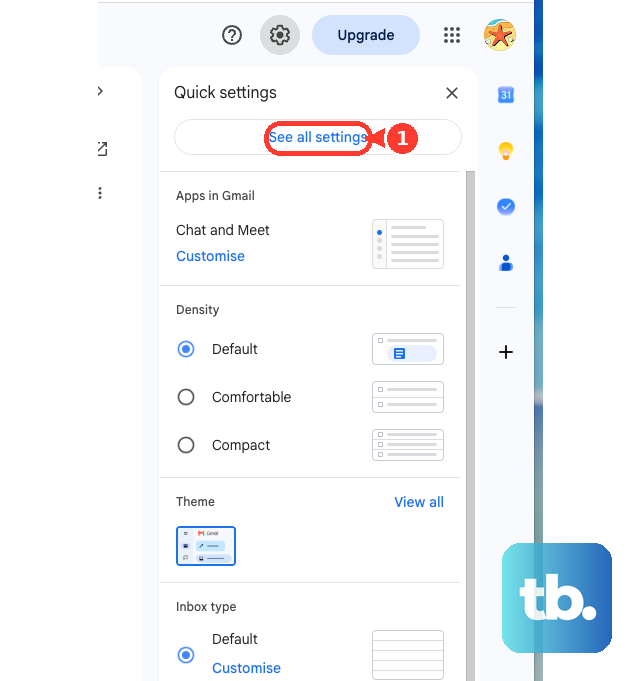
To give yourself more time, open Settings > See all settings on the web and find Undo Send. Set Send cancellation period to 5, 10, 20, or 30 seconds, then click Save Changes. Choose 30 seconds for the longest available cancellation window.
Frequently Asked Questions
Can you send an email in Gmail without an internet connection?
You can queue a message using Gmail offline in a regular desktop Chrome window, but delivery requires reconnection. In Gmail’s offline settings, select Enable offline mail, choose your synchronization settings, and click Save changes. Compose and send normally while offline; your message stays in Outbox until connectivity returns. Configure each account separately, and use a regular window because Gmail offline does not work in Incognito.
What keyboard shortcut sends an email in Gmail?
On the Gmail website, press Ctrl + Enter on Windows, Linux, or ChromeOS, or Command + Enter on Mac. To start a message with c, first open Settings > See all settings, find Keyboard shortcuts, select Keyboard shortcuts on, and click Save Changes.
Can Gmail ask you to confirm before sending an email?
You can enable confirmation before sending in the Android Gmail app. Open Gmail’s general settings, find Action confirmations, and enable confirmation for sending messages. Confirm the send when prompted.
Can you send an email that expires?
Yes, you can set an expiration with confidential mode. On the web, click Toggle confidential mode in the composer, select an expiration, choose No SMS passcode or SMS passcode, and click Save. Finish and send the message, providing the recipient’s phone number if you choose SMS access. Confidential mode restricts recipient actions but cannot prevent screenshots, and your Workspace administrator can control its availability.
Can you start a new email from Gmail on a watch?
On a compatible Wear OS watch, you can reply to existing emails but cannot compose a new one. Open a message, choose Reply or Reply all, and use Microphone for dictation or Keyboard for text before completing the watch’s sending flow. The final controls vary by watch, and you need a personal @gmail.com account because work and school accounts are not supported.