

To restore a missing Wi-Fi option on a Dell laptop, turn off Airplane mode, enable the wireless adapter, restart WLAN AutoConfig, and reinstall the matching Dell wireless driver if needed. Start with the wireless controls and continue until the option returns. Windows 11 paths appear first, with Windows 10 alternatives where they differ.
The short version
- Check the controls: On Windows 11, press Windows + A, find Wi-Fi, and turn off Airplane mode.
- Enable the adapter: Check whether the wireless adapter is disabled in Device Manager.
- Restart the service: Restart WLAN AutoConfig, or start it if it is stopped.
- Prepare the driver: Download the correct Dell wireless driver before uninstalling the existing device.
- Escalate carefully: Use network reset, BIOS wireless settings, and hardware diagnostics when the earlier fixes fail.
| Fix | When to use it |
|---|---|
| Find the wireless control | Wi-Fi may be on another page of Quick Settings |
| Turn off Airplane mode and enable Wi-Fi | The wireless adapter is detected but wireless is off |
| Check the physical wireless switch | Your Dell model has a switch |
| Enable Wi-Fi in Settings | The Windows 11 network interface is disabled |
| Enable the device in Device Manager | The wireless device is listed but disabled |
| Restart Windows | The option remains missing after checking the controls |
| Restart or start WLAN AutoConfig | The wireless service needs attention |
| Run the Get Help troubleshooter | You need guided diagnosis on current Windows 11 |
| Select Diagnose network problems | Your taskbar network menu offers diagnosis |
| Install the Dell wireless package | You need the driver for your exact laptop |
| Install an extracted driver through Device Manager | You already have the matching driver folder |
| Uninstall and redetect the wireless device | Driver installation has not resolved the problem |
| Disable adapter power saving | The driver exposes Power Management |
| Perform a clean boot | A third-party service or application may be involved |
| Reset networking | Earlier Windows repairs have failed |
| Enable WLAN in BIOS | Wireless may be disabled in firmware |
| Run preboot diagnostics | The adapter remains undetected or unusable |
Find and turn on the wireless controls
On Windows 11, press Windows + A to open Quick Settings, or select the taskbar’s network, volume, or battery area. Look for Wi-Fi; the taskbar network icon can represent Ethernet instead of wireless. If you have the scrollable Quick Settings interface introduced in Windows 11 24H2, scroll through the controls before treating Wi-Fi as missing.
If the wireless controls are present, turn off Airplane mode, then turn on Wi-Fi. Switching off Airplane mode can leave Wi-Fi switched off, so check both controls. If the Wi-Fi control is still missing, continue to the adapter checks below.
Dell advises disconnecting Ethernet before checking wireless controls. If your laptop has a physical wireless switch, move it to the on position. This switch is model dependent, so continue with the Windows checks if your laptop does not have one.
Enable the wireless adapter and restart Windows
On Windows 11, open Settings > Network & Internet > Advanced network settings. If the Wi-Fi adapter is disabled, select Enable beside it. If Wi-Fi is not listed there, check for the wireless device in Device Manager.
On Windows 11 or Windows 10, open Device Manager and expand Network adapters. Right-click the wireless adapter and select Enable device if it is disabled. If the wireless adapter is missing from that category, move on to the Dell driver installation.
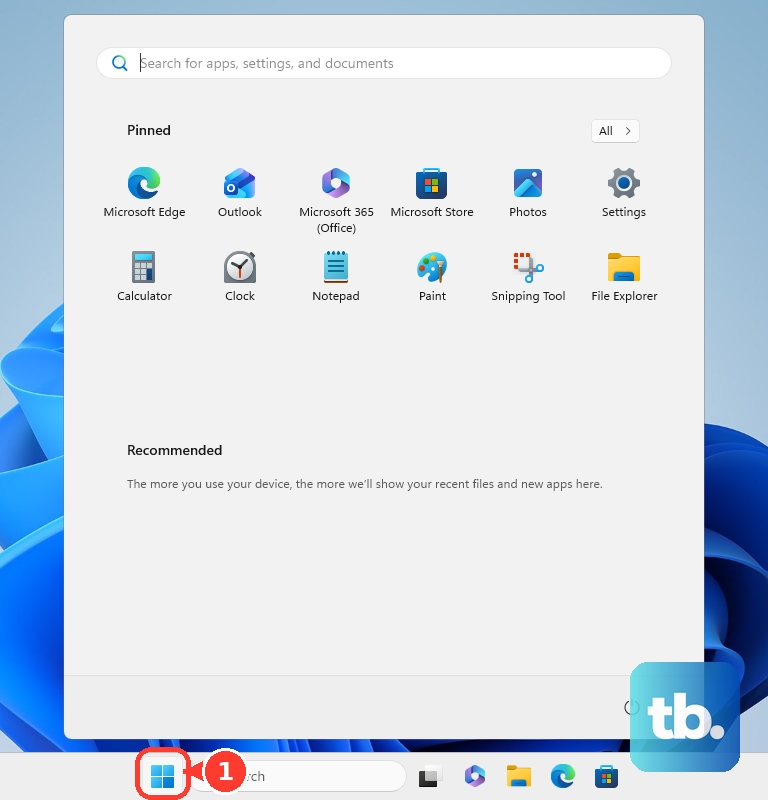
Save your work before you restart your Windows computer. Select Start > Power > Restart, then check the wireless controls again. This restart route applies to Windows 11 and Windows 10.
Restart the wireless service and run diagnosis
On Windows 11 or Windows 10, press Windows + R to open Run. Enter the following command, then press Enter:
services.mscFind WLAN AutoConfig, right-click it, and select Restart. If the service is stopped, select Start instead. Check whether the Wi-Fi option has returned before moving on.
On current Windows 11, open Settings > System > Troubleshoot > Other troubleshooters, then choose Network and Internet to launch the Get Help troubleshooter. Follow its prompts to diagnose the connection. Microsoft has replaced the corresponding legacy troubleshooter with Get Help, so use this route instead of old MSDT commands.
You can also right-click the taskbar network icon and select Diagnose network problems if that option appears. If diagnosis does not restore the option, continue with the wireless driver. You can transfer the matching Dell driver from another computer if the laptop cannot connect to the internet.
Install the matching Dell wireless driver
Open Dell Drivers & Downloads and identify your laptop by its Service Tag or model. Open Network, choose the matching wireless package, and select Download. Match the package to your laptop’s hardware and operating system.
Run the downloaded installer to install the driver. If the Dell laptop is offline, download the package on another computer and transfer it by USB. Keep that installer available if you need to reinstall the wireless device next.
For a downloaded and extracted driver on Windows 11 or Windows 10, open Device Manager > Network adapters, right-click the wireless adapter, and select Update driver. Select Browse my computer for drivers, select Browse..., choose the extracted folder, then select OK and Next. The package must match the adapter, operating system, and processor architecture.
Reinstall the wireless device if the driver fix fails
Uninstalling removes the wireless device from Windows, and Windows may need the saved Dell driver to restore it, so download that replacement before proceeding. On Windows 11 or Windows 10, open Device Manager > Network adapters. Right-click the wireless adapter, select Uninstall device, then select Uninstall.
Restart Windows so it can detect the device again. If Windows cannot restore it, install the Dell driver you saved earlier. If the adapter is still missing from Device Manager, continue to the BIOS and hardware checks below.
Check power saving and software conflicts
On Windows 11 or Windows 10, open Device Manager > Network adapters, right-click the wireless adapter, and select Properties. If the driver exposes a Power Management tab, open it and uncheck Allow the computer to turn off this device to save power. If that tab is absent, continue with the other troubleshooting options.
A clean boot on Windows 11 or Windows 10 helps you investigate a possible third-party service or application conflict. It temporarily disables third-party services and startup applications so you can identify the conflicting item. Open Run and enter this command:
msconfigOpen Services, check Hide all Microsoft services, then select Disable all. Open Startup and select Open Task Manager, then disable apps that open on startup. Close Task Manager, select OK, and restart Windows.
If Wi-Fi returns during the clean boot, restore the disabled items in groups to identify the conflicting software. Update the offending software and restore normal startup after diagnosis. If the clean boot makes no difference, restore normal startup and continue with the remaining checks.
Reset Windows networking
Use network reset after the earlier Windows fixes have failed. On Windows 11, open Settings > Network & internet > Advanced network settings > Network reset. On Windows 10, open Settings > Network & Internet > Status > Network reset.
Network reset resets Windows networking, and VPN software may need reinstallation afterward. Select Reset now, select Yes, and allow the computer to restart. Check for Wi-Fi afterward; if the option remains missing, check whether wireless is enabled in the laptop’s firmware.
Check whether WLAN is enabled in BIOS
To open the BIOS on your PC, restart the Dell laptop and press F2 at the Dell logo. On models with a Connection menu containing WLAN, open Connection and check WLAN. Save your changes and exit.
BIOS layouts vary by Dell model. If yours uses a different layout, consult the model’s manual for its wireless setting. If WLAN is already enabled and the correct driver has not restored the adapter, proceed to hardware diagnostics.
Run Dell hardware diagnostics
On Dell laptops with preboot diagnostics, restart, press F12, and select Diagnostics. The individual wireless tests depend on the diagnostic implementation, so the available checks vary. Record any failure code for Dell support. A failed wireless adapter may require replacement, and resetting Windows cannot repair failed Wi-Fi hardware.
Frequently Asked Questions
Which keyboard shortcut turns on Wi-Fi on a Dell Latitude?
On the Dell Latitude 7490, press Fn + PrtScr to toggle wireless on. This is a model-specific shortcut, so do not assume it applies to every Dell laptop.
Can Windows Update install a missing wireless driver?
On Windows 11, connect through Ethernet or another working connection, then open Settings > Windows Update and select Check for updates. On Windows 11, continue through Settings > Windows Update > Advanced options > Optional updates, select an applicable wireless driver, and select Download and install. Restart afterward.
Should I use Dell Update or Alienware Update to fix the driver?
Use SupportAssist for ongoing updates on compatible Dell PCs. Dell ended support for Dell Update and Alienware Update on December 31, 2024. SupportAssist replaces those retired utilities for supported ongoing updates.
What should I check if my Dell laptop runs Ubuntu?
Press Ctrl + Alt + T and run sudo lshw -c network to check whether Ubuntu detects the wireless card. Dell directs detected-card cases toward driver reinstallation and undetected-card cases toward hardware diagnosis. Driver packages and repair procedures depend on the exact model. For a replaceable card, use the exact model’s service manual or Dell service for reseating or replacement.