

To restart Google Drive for desktop, click its icon in the Windows system tray or Mac menu bar, choose Settings > Quit, then reopen Google Drive. On Windows, launch it from Start; on a Mac, open Finder > Applications and double-click Google Drive. If Drive will not quit normally, close its process using the Windows or Mac controls below, then reopen it.
The short version
- Normal restart: Choose Settings > Quit from the Drive menu, then reopen Google Drive.
- Frozen Windows app: Forced termination can interrupt unsaved work, so use Task Manager to end the Drive process only when normal quitting fails.
- Frozen Mac app: Try Quit in Activity Monitor before using Force Quit, which can lose unsaved changes.
- Sync controls: Choose Pause syncing and then Resume syncing when you only need to stop and resume sync activity.
| Option | When to use it | Result |
|---|---|---|
| Drive menu | Drive responds normally | Quits Drive so you can reopen it |
| Windows Task Manager | Drive will not quit normally | Ends the selected Drive process |
| Mac Activity Monitor | Drive is unresponsive in the background | Quits or force quits its process |
| Mac Force Quit Applications | Drive appears in the application list | Force quits Drive before you reopen it |
| Windows computer restart | Restarting Drive has not resolved the problem | Restarts Windows before you reopen Drive |
| Mac computer restart | Restarting Drive has not resolved the problem | Restarts macOS before you reopen Drive |
| Mac power button fallback | The Mac cannot restart normally | Forces a shutdown before startup |
| Drive sync settings | You only need to suspend and resume syncing | Controls syncing without restarting Drive |
| Redesigned homepage | Your Drive homepage shows Pause | Suspends syncing from the homepage |
| Latest Drive installer | The problem persists after restarting | Installs the latest Drive application |
| Drive automatic launch setting | You want Drive to open after login | Enables future automatic launches |
| Windows startup controls | Drive appears in the startup application list | Enables launch at the next sign-in |
| Windows Startup folder | Drive is absent from startup settings | Adds Drive to future sign-ins |
| Mac login and background items | You need to enable login launch or background activity | Controls future launches and background availability |
Quit Google Drive and open it again
Click the Google Drive icon in the Windows system tray or macOS menu bar to open the Drive menu. Click Settings, then choose Quit.
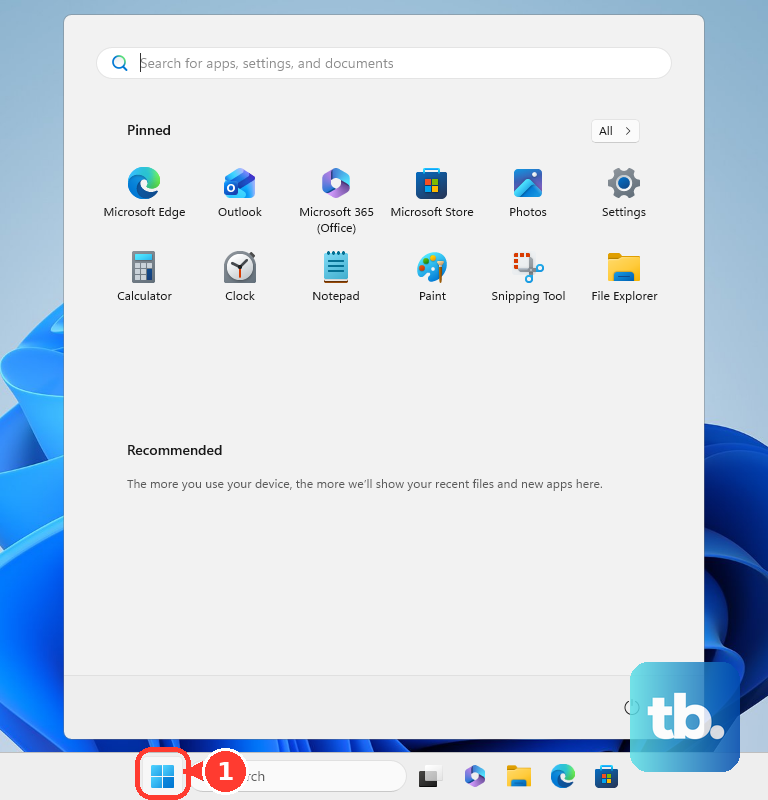
On Windows, open Start and launch Google Drive. On a Mac, open Finder, choose Applications, then double-click Google Drive. Use these same reopening steps after closing an unresponsive Drive process.
Close a frozen Drive process on Windows
If Google Drive will not respond to the normal quit command, open Task Manager on Windows 11 or Windows 10. Press Ctrl + Shift + Esc, or right-click Start and select Task Manager.
Forced termination can interrupt unsaved work. Under Processes, select the process that belongs to Google Drive and click End task. Open Start and launch Google Drive again.
Quit an unresponsive Drive process on Mac
Open Activity Monitor, select Google Drive's process in the Process Name list, and click the Stop button. Choose Quit first.
If the process remains unresponsive, select it again and click Stop. Force quitting terminates the process immediately and can lose unsaved changes. Click Force Quit, then reopen Google Drive from Applications.
You can also press Option + Command + Esc, or open the Apple menu and choose Force Quit. If Google Drive is absent from the application list, use Activity Monitor instead.
Force quitting can lose unsaved changes. If Google Drive appears in the application list, select it and click Force Quit. Reopen it from Applications afterward.
Restart your computer if Drive still has problems
If restarting Drive does not resolve the problem, save your work before restarting your computer. On Windows 11 or Windows 10, select Start > Power > Restart, then sign back in. If Drive does not launch automatically, open Google Drive from Start.
On a Mac, choose the Apple menu > Restart, then click Restart. Log back in when the Mac starts, then open Google Drive from Applications if it does not launch automatically.
If your Mac is unresponsive and normal restarting fails, you can use its power button to restart a computer that is unresponsive. A forced shutdown can lose unsaved work. Hold the power button for up to 10 seconds until the Mac turns off; on a Mac laptop with Touch ID, hold the Touch ID button.
Press and release the power button to start the Mac again. Log in, then reopen Google Drive.
Pause and resume syncing without restarting Drive
If you only want to stop syncing temporarily, click the Drive icon, open Settings, and choose Pause syncing. To continue, click the Drive icon again, open Settings, and choose Resume syncing. These controls stop and resume sync activity without restarting the application process.
If you have the redesigned Drive interface, you can also select Pause on its homepage to suspend syncing. To continue, use Settings > Resume syncing.
Install the latest Google Drive application
If the problem persists after restarting, Google recommends downloading and installing the latest Drive for desktop application. Open the official Google Drive download page. Under Sync your desktop with Drive, select Download Drive for desktop.
On Windows, open the downloaded GoogleDriveSetup.exe file. On a Mac, open GoogleDrive.dmg. Complete the installer, then open Google Drive. If you use a work or school installation, you may need your administrator's assistance.
Make Google Drive open automatically after login
Open the Drive menu and select Settings > Preferences > Advanced Settings. Check Launch Google Drive when you login to your computer. This enables future automatic launches without restarting an already running process, unless your administrator's policy overrides the preference.
On Windows 11, open Start > Settings > Apps > Startup and turn on Google Drive if it is listed. Alternatively, open Task Manager > Startup apps, select Google Drive, and select Enable. These controls affect the next sign-in; open Drive manually if you need it running now.
If Drive is absent from startup settings on Windows 11 or Windows 10, right-click Start and choose Run. Enter shell:appsfolder and press Enter. Open another Run dialog, enter shell:startup, and press Enter. Drag Google Drive from the application list into the Startup folder to launch it at subsequent sign-ins.
On macOS versions using Login Items & Extensions, choose the Apple menu > System Settings > General > Login Items & Extensions. Click Add, select Google Drive, and click Add again. If Drive's listed background activity is disabled, enable that entry. These controls govern future launches and background availability; reopen Drive manually for an immediate launch.
Frequently Asked Questions
Can you reopen Google Drive from a taskbar or Dock shortcut?
Yes, you can use an existing pinned Google Drive shortcut on the Windows taskbar or Mac Dock. Click that shortcut after quitting Drive to reopen it.
Can the Windows Startup folder apply to all users?
Yes, Microsoft also provides shell:common startup for the Startup folder that applies to all users. The shell:startup command opens the folder for your own user account.
Do older Backup and Sync or Drive File Stream instructions still apply?
Backup and Sync and the original Google Drive for Mac/PC client were discontinued, so use current Drive for desktop instead. Drive File Stream is the former name of Drive for desktop. Follow the current Google Drive interface labels, even if the older name appears in an installation path.
Does disconnecting your account do the same thing as restarting Drive?
No, disconnecting and signing in again resets your account connection rather than restarting the application process. Disconnecting a streaming account removes its offline files. Preserve unsynced files before disconnecting.