You need the router admin page, but the address on the label, the old shortcut, or the app you remember is not getting you to the login screen. The fix starts with the router you are connected to and the management method that router supports. Start with the browser route, then switch to the app path when your router brand or internet provider uses one.
1. Start with the local router address
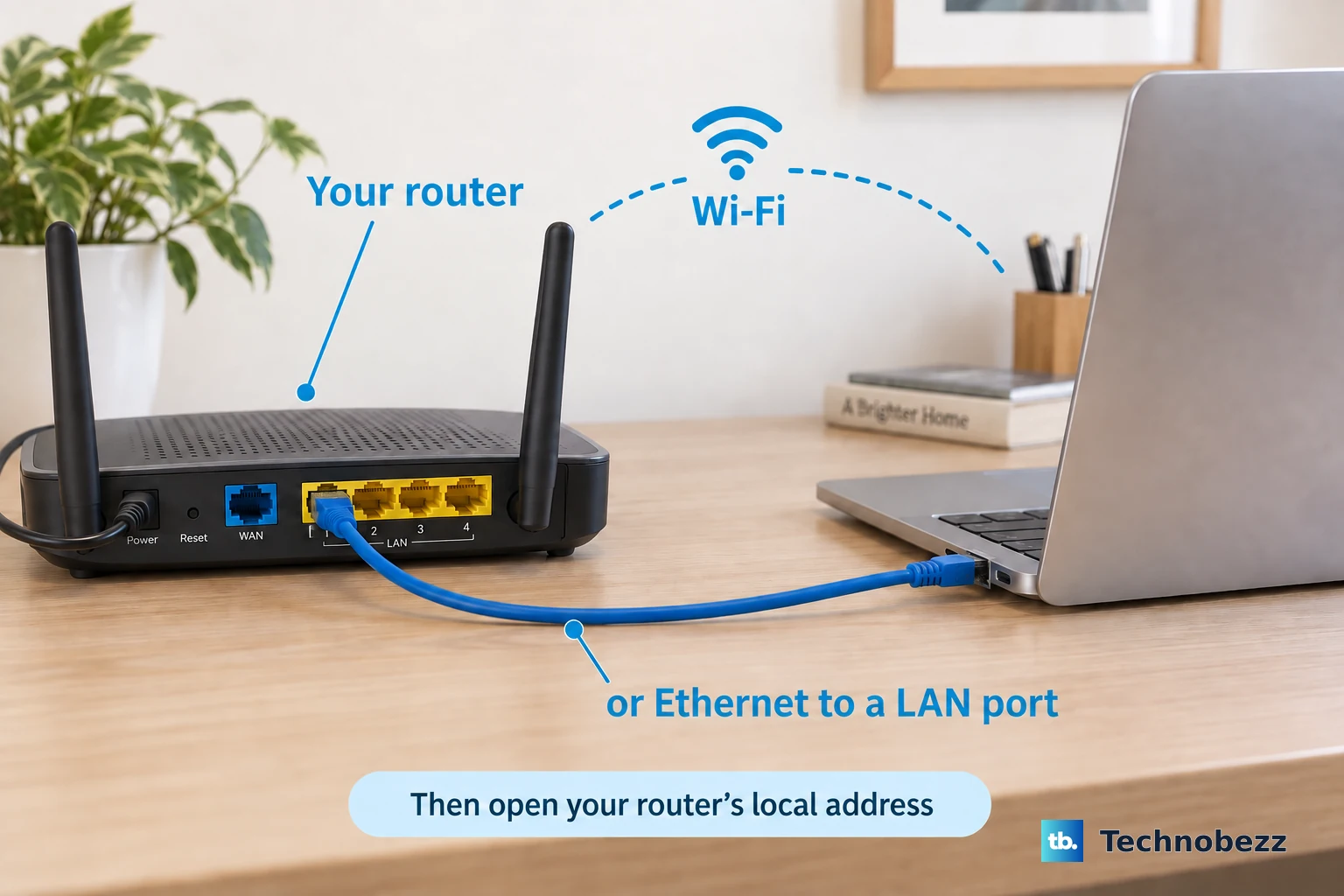
Connect to the router first.
- 1.Use the router's Wi-Fi network or plug in with Ethernet.
- 2.Open Chrome, Firefox, Edge, Safari, or another browser.
- 3.Click the browser address bar.
- 4.Type the router address directly, not into search.
- 5.Press Enter.
- 6.Sign in with the local admin password, router account, or credentials shown on the login screen.
If a TP-Link or ASUS local page shows a certificate warning, choose Advanced, then choose Proceed to open the router's local page.
2. Use the address for your router brand
TP-Link: use tplinkwifi.net or 192.168.0.1; fallback 192.168.1.1.
TP-Link Deco: use tplinkdeco.net or 192.168.68.1 on Deco models that support web management. TP-Link calls the Deco app the primary management tool and says not all Deco models support web management yet, so manage the network in the Deco app if the page does not load.
NETGEAR Nighthawk: use routerlogin.net or http://192.168.1.1.
NETGEAR Orbi: use orbilogin.com.
ASUS: use http://www.asusrouter.com or a LAN IP such as http://192.168.50.1.
Linksys: use myrouter.local or 192.168.1.1.
D-Link: use http://dlinkrouter.local or 192.168.0.1.
Verizon: use myfiosgateway.com or 192.168.1.1.
AT&T: use http://192.168.1.254.
Xfinity: open http://10.0.0.1 after allowing Admin Tool online access in the Xfinity app.
3. Find the router IP on Windows or Mac
Brand shortcuts are not the only route. Your computer can show the exact router address for the network you are using.
On Windows 11 or Windows 10: select Search on the taskbar, type command prompt, select Run as administrator, choose Yes, type ipconfig, and press Enter. Find Default gateway under the active Wi-Fi or Ethernet adapter, then type that IP address in your browser.
On Mac: open Apple menu > System Settings > Wi-Fi > Details next to the connected network, then read Router. You can also Option-click the Wi-Fi status menu in the menu bar and read the Router address under the connected network.
4. Pull the gateway from your phone
iPhone or iPad: when it is already connected to the router's Wi-Fi, open Settings > Wi-Fi, tap the Info button next to the connected Wi-Fi network, then use the network or router address shown there in Safari.
Pixel or Android: when it is already connected to the router's Wi-Fi, open Settings > Network & internet > Internet, tap the connected network or the Settings gear, then use the gateway or router address shown there in Chrome.
On other Android phones, use the matching Internet or Wi-Fi network details page and look for the gateway or router address.
5. Sign in with the right credentials
Match the field names on the login screen instead of reusing a Wi-Fi password by habit.
TP-Link: enter the local admin password or the TP-Link ID credentials shown on the screen. Older models use admin / admin; newer models require a custom admin password.
TP-Link Deco: sign in with the owner TP-Link ID password.
NETGEAR Nighthawk: enter admin as the user name and the password specified during setup.
Linksys: enter Router Password, then click Sign In. The default local password is admin until changed.
D-Link: for the referenced D-Link router, enter admin as the user name and leave the password blank until changed.
AT&T: enter the Device Access Code from the gateway label when the gateway asks for it.
6. Switch to the app for app-managed routers
App-managed routers and ISP gateways: some current routers and ISP gateways put the supported admin controls in an app or account portal. Use that route when it matches your hardware.
eero: open the eero app, sign in, select the eero network, and manage settings there. eero networks are managed in the mobile app and are not configured through a browser on Windows, Linux, or Intel-based Macs.
Google Nest Wifi, Nest Wifi Pro, and Google Wifi: open Google Home > Home > Wifi > Network settings or Settings. The old Google Wifi app no longer makes changes; migrated networks use Google Home.
Spectrum Advanced WiFi: open My Spectrum > Services, select the router under Equipment, then choose Advanced Settings.
Xfinity: open Xfinity > WiFi > View WiFi equipment > Advanced settings > Admin Tool online access, turn on Allow Admin Tool access, choose Save, then open http://10.0.0.1 in a browser.
Verizon, AT&T, Linksys, TP-Link, ASUS, NETGEAR, Orbi, Deco, and AmpliFi: use the documented provider or companion app path for supported models. Verizon uses My Verizon for basic Wi-Fi settings, and AT&T uses Smart Home Manager for compatible gateways.
7. Remove blocks when the page will not load
When the address is right but the page still fails, clear the connection path and retry the same local address.
Turn off active VPN or proxy services.
Temporarily disable pop-up blockers, firewalls, and ad-blocking software while troubleshooting router access errors.
Click the browser address bar and enter the router IP or vendor URL directly.
Connect by Ethernet or the router's own Wi-Fi, then reload the page.
8. Recover a forgotten admin password
TP-Link: use TP-Link ID password recovery when the router is linked to a TP-Link ID. If it is not linked, use a factory reset.
NETGEAR: open routerlogin.net for Nighthawk or orbilogin.com for Orbi, enter incorrect credentials three times, then use Router Password Reset when it appears.
Linksys: on supported models, choose Reset password, enter the recovery key, choose Submit, enter a new router password and optional hint, then choose Reset.
Factory reset: for TP-Link, hold Reset for more than 10 seconds. For ASUS, hold RESET for 5 to 10 seconds until the power LED flashes. For Linksys mesh, hold the reset button for 10 seconds. For D-Link, hold the rear reset button for 10 to 12 seconds depending on model. Then reconnect using the default Wi-Fi or admin details from the label or manual and set a new admin password.
Use password recovery before a factory reset. A factory reset erases custom settings, so keep it for the end.
9. Avoid old admin shortcuts
NETGEAR says the Genie app is no longer updated, so use the Nighthawk app or Orbi app for supported NETGEAR systems. If your router is not supported by the Nighthawk app, NETGEAR says you can still use Genie app features.
Do not use the old Google Wifi app to change settings. Use Google Home. Do not use a browser IP page to configure eero from Windows, Linux, or Intel-based Macs. Use the eero app.
Do not rely on generic Spectrum browser login instructions at 192.168.1.1 or 192.168.0.1 for current Spectrum Advanced WiFi routers. Use My Spectrum. Google OnHub support ended in 2023, so OnHub has no current admin-management method.
Frequently Asked Questions
Why does my router address open search results instead of the login page?
The address was entered into search instead of the browser address bar. Connect to the router's Wi-Fi or Ethernet, click the browser address bar, type the router IP or vendor URL directly, and press Enter.
What is the easiest way to find my router admin address?
On Windows, use the Default gateway from ipconfig. On Mac, use the Router address in Wi-Fi details. On phones, open the connected Wi-Fi network details and use the router or gateway address shown there.
Can I access router admin from my phone?
Yes. Connect the phone to the router's Wi-Fi, then open Safari or Chrome and enter the router address. For eero, Google Wifi/Nest Wifi, Spectrum Advanced WiFi, and supported ISP gateways, use the companion app or provider account instead.
Does WPS open the router admin page?
No. WPS helps connect a device to Wi-Fi, but it does not open the router admin page or authenticate you as the router administrator.