Your new router is plugged in, but the internet connection and Wi-Fi still need setting up. Start with the cable connection, then use the app or browser setup for your model to enter your internet settings and name your network. The steps below cover standalone routers, mesh systems, and adding an access point while keeping your existing router.
Connect your router to the internet feed
For an Ethernet-WAN router, connect the hardware in this order.
- 1.Disconnect your old standalone router and turn off the modem.
- 2.Connect the modem’s Ethernet output to the new router’s WAN or Internet port. If your ISP supplies a suitable Ethernet wall outlet, connect that directly to WAN; no separate modem is needed.
- 3.Restart the modem and wait approximately two minutes before powering on the router. With a direct Ethernet handoff, power on the router after connecting the cable.
- 4.Join the router’s default Wi-Fi using the credentials printed on its label, or connect a computer to a LAN port for browser setup.
- 5.Start the matching app or browser setup below. For Orbi, leave the satellites unplugged until the app prompts you to connect them.
Use the app that matches your router
Use this route for a TP-Link, ASUS, or NETGEAR router that supports its companion app. Check compatibility for your exact model first; TP-Link compatibility also depends on the hardware revision.
For TP-Link, open Tether while your phone is connected to the Wi-Fi printed on the router’s label.
Select your router.
Create its administrator password.
Configure the internet connection with your ISP’s connection type and any required credentials or VLAN details.
Confirm the MAC-address choice.
Set your Wi-Fi name and password.
Configure update scheduling.
Apply the settings.
Complete the connection test.
For ASUS, open ASUS Router and select Setup > ASUS Router > Start.
Grant the requested discovery permissions.
Choose your internet connection type.
Enter the ISP information required for that connection.
Set your Wi-Fi credentials, using Next to continue.
Create your administrator credentials, using Next to continue.
Rejoin the new Wi-Fi if your phone disconnects during the change.
For a compatible NETGEAR router, install Nighthawk.
Attach any supplied antennas before starting installation.
Open Nighthawk.
Follow the installation prompts, scanning the router’s QR-code label and entering its printed Wi-Fi credentials when requested.
Prefer a browser setup
A supported TP-Link, ASUS, or NETGEAR router also lets you complete installation in a browser. Keep your computer connected to the router’s Wi-Fi or a LAN port throughout setup.
For TP-Link, open tplinkwifi.net or 192.168.0.1.
Select your time zone and click Next.
Choose AUTO DETECT, or select your ISP’s connection type: Dynamic IP, PPPoE, or Static IP.
Enter the credentials or address settings your ISP requires.
If your ISP requires VLAN information, enter it under Special ISP Settings (IPTV/VLAN).
Configure the MAC-address option.
Set your Wi-Fi name and password.
Run the connection test.
Choose your firmware-update preference to finish the wizard.
For ASUS, open asusrouter.com or the router’s LAN IP address.
Select Create A New Network.
Allow internet detection, or choose Manual Setting to configure DHCP, PPPoE, or Static IP with your ISP’s information.
Enter your Wi-Fi credentials and select Apply.
Create the administrator credentials and select Next.
Check Internet Status.
For NETGEAR, open routerlogin.net.
Scroll down and select If you don’t have a compatible smartphone, click here.
Complete the wizard’s internet detection and configuration prompts.
If browser setup fails, try the companion app supported by your exact model. If setup stops at internet configuration, check the connection type, credentials, and required VLAN settings against the details supplied by your ISP.
Mesh systems have their own setup flow
For TP-Link Deco, install Deco. The app is required for initial setup.
Sign into your TP-Link ID.
Select Let’s begin, or + > Create a Network.
Power the main Deco and wait for its light to pulse blue.
Connect your phone to the Deco’s default Wi-Fi, or use Bluetooth discovery on a model that supports it.
Connect the Deco to your modem or Ethernet handoff as directed in the app.
Choose the Deco’s location.
Select your internet connection type.
Enter any required VLAN details under Advanced Settings > IPTV/VLAN.
Create your Wi-Fi name and password.
Reconnect to the new network.
For bundled Wi-Fi 6-or-newer Deco units, power the additional units in the same room after configuring the main Deco. They join automatically within approximately two minutes. Use the additional-unit procedure for separately purchased units.
For Nest Wifi or Nest Wifi Pro, open Google Home on a phone or tablet running Android 9 or later or iOS/iPadOS 17 or later. Setup requires a Google Account and the current app.
Select Add > Device, or use the offered Set up screen.
Scan the router’s QR code. If scanning fails, select Use setup code to enter the code, or Add a different way to search for the device.
Complete the connection prompts.
Set the network name and password.
Assign the router to a room.
Add compatible mesh units through Add > Device. Nest Wifi Pro meshes only with other Pro units; Nest Wifi can combine with Google Wifi.
Complete the mesh test.
For eero, connect an Ethernet-equipped eero to your modem, ONT, or gateway. An Ethernet-free extender cannot serve as the primary gateway.
Power the eero and the upstream equipment.
Open the eero app’s setup flow.
Enter the serial number if requested.
Assign the eero a location.
Create your Wi-Fi name and password.
Select Finish Setup or Add another eero.
For Orbi, open the Orbi app.
Sign into MyNETGEAR.
Select Set up an Orbi.
Scan the router’s QR code.
Complete the cabling and power prompts, leaving satellites unplugged initially.
Join the router’s default Wi-Fi.
Configure your network name and password.
Create the administrator password.
Set the recovery questions.
Power and position compatible satellites when prompted.
Finish satellite discovery.
Follow your mesh system’s timing for adding extra units, since Deco and Orbi use different installation sequences.
If you are keeping your existing router
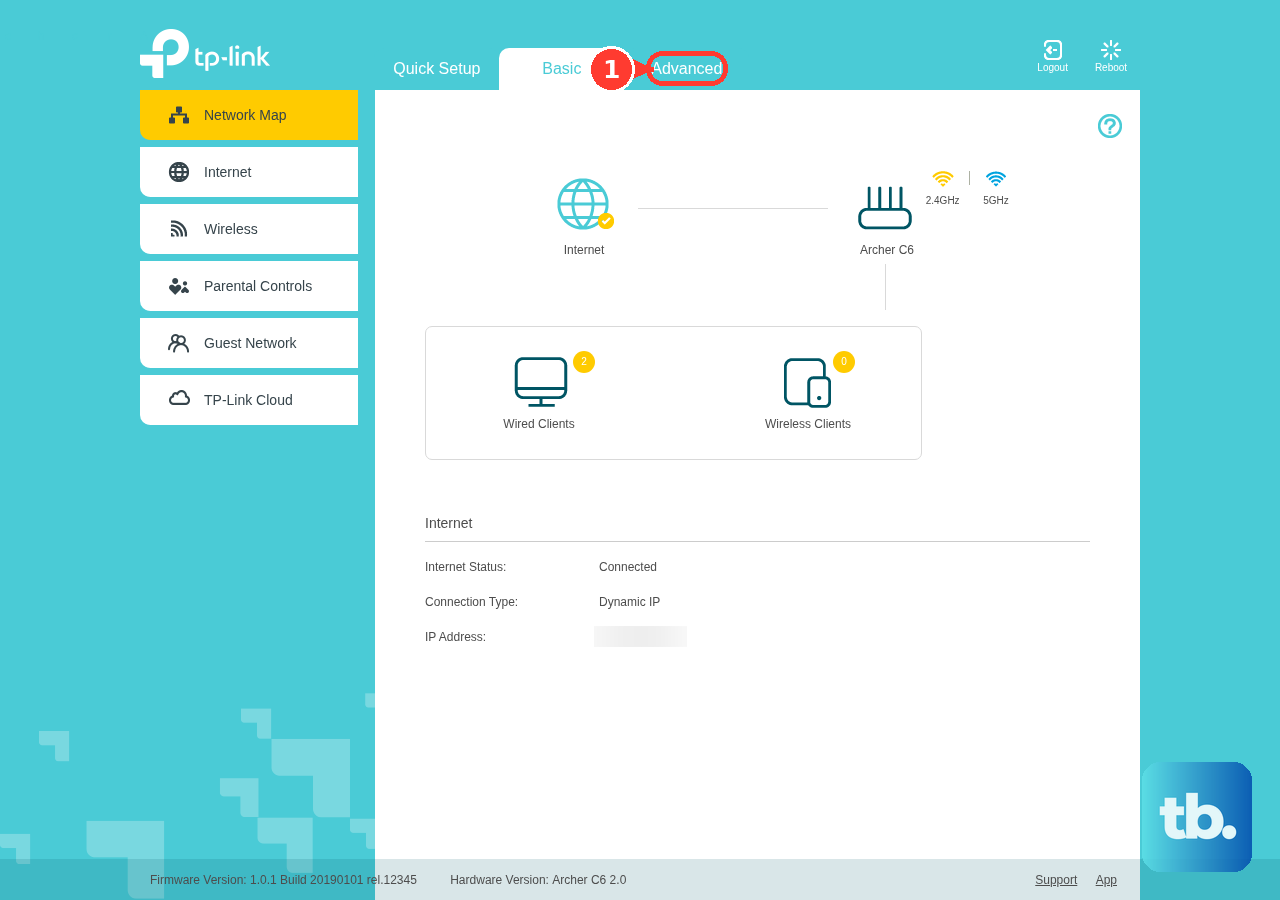
Use the operation-mode selector to turn a supported TP-Link router into an access point connected to your existing wired router.
- 1.Connect to the new TP-Link router and open tplinkwifi.net.
- 2.Open Advanced > Operation Mode. Depending on the model, the path is Advanced > System > Operation Mode, or Change Mode.
- 3.Select Access Point Mode and allow the router to restart.
- 4.Complete Quick Setup.
- 5.Connect the access point to your existing wired router using the ports specified in your model’s installation instructions.
When setup cannot find or finish configuring the router
On an iPhone or iPad, the router app needs local-network permission to discover devices. Tap Allow when it requests access.
If you previously declined, enable the router app under Settings > Privacy & Security > Local Network.
For Nest Wifi discovery trouble, close and reopen Google Home.
On iOS, temporarily disable an active VPN during setup.
If discovery still fails, reinstall Google Home.
Repeat the setup flow.
If the router remains undiscovered, restart it.
Try setup with another supported phone if the restart does not resolve discovery.
Factory-reset a previously configured Nest unit before adding it to a new network.
For a Deco that is not ready for setup, check your model’s reset instructions. On models covered by TP-Link’s one-second reset procedure, press Reset for one second. This clears the configuration, so use it when you intend to set the unit up again.
Wait through the yellow indication until the light pulses blue, approximately two minutes.
Repeat setup in Deco.
If setup still fails, use the installation instructions for your exact router model and hardware version. For Xfinity activation blocked by an inactive cable outlet, select Try Another Outlet. If no alternative is available, select I Don’t Have Another Outlet to schedule a technician.
Frequently Asked Questions
Can I keep my old Wi-Fi name and password?
Yes. During eero setup, reuse your previous network name and password to let existing devices reconnect.
Can I restore my old ASUS router settings to a new router?
ASUS supports restoring saved configurations only to the same router model. A backup from a different model is unsupported.
Do I need to activate an Xfinity modem or gateway separately?
Yes. Use the Xfinity app to activate an Xfinity gateway or an approved customer-owned modem. Sign in as the Primary user or a Manager, then select Get Started or Account > Set up equipment or devices > Xfinity Gateway or Modem. This activation path excludes customer-owned Ethernet routers in fiber-to-unit communities.
Can I install an Orbi system without the app?
Yes. Connect to the wired and powered router’s default Wi-Fi. Open the address for your model: orbilogin.local or 10.168.168.1 for newer models, and orbilogin.com or 192.168.1.1 for older models. Select If you don’t have a compatible smartphone, click here. Complete internet detection, satellite discovery, administrator credentials, recovery questions, and Wi-Fi configuration. Reconnect to the network and install offered firmware updates.