

Restart your router to refresh its connection, then flush your device’s DNS cache to clear cached network lookups on that device. Router restarts, DNS clearing and removing saved Wi-Fi connections are separate tasks, so choose the method that matches what you need to refresh. The Windows steps below use Windows 11 menus.
The short version
- Start with power: Disconnect your router for one minute, reconnect it and let it finish starting, unless its model instructions specify otherwise.
- Separate equipment: Restart the modem first and wait for its lights to stabilize before powering the router back on.
- Clear the right data: A computer DNS flush clears that computer’s cached lookups, while browser cache clearing removes saved webpage assets.
- Save resets for last: A factory reset erases router configuration and requires setup again.
| Method | What it refreshes or removes | When to choose it |
|---|---|---|
| Router power cycle | Router connection | First refresh step |
| Modem and router restart | Both devices in sequence | Separate modem and router |
| Companion app restart | Selected router or mesh network | Compatible app and equipment |
| Browser administration restart | Supported NETGEAR router | Connected to its local network |
| Omada DNS cache clearing | Gateway DNS entries | Compatible gateway and controller |
| Windows DNS flush | PC DNS cache | Remove cached name lookups |
| DHCP renewal | Computer IP configuration | Refresh a DHCP connection |
| Pixel Wi-Fi toggle | Wireless connection | Reconnect before removing saved details |
| Forget a Wi-Fi network | Saved network credentials | Recreate a device connection |
| Chrome cache clearing | Cached webpage assets | Router administration page misbehaves |
| Windows network reset | Network adapters and settings | Earlier PC steps fail |
| Router factory reset | Router configuration | Last resort requiring setup again |
Restart the router and modem
A restart interrupts services using the gateway, including Xfinity Voice emergency calling. Choose a time when you can tolerate that interruption. Use the power cable or your model’s restart control, since reset-button actions differ between manufacturers.
Disconnect your router or combined modem/router gateway from power, wait one minute, then reconnect it. Allow the device to finish starting before using the connection again. Follow the timing supplied for your particular model when it differs.
With a separate modem and router, disconnect both devices from power. If a removable backup battery keeps the modem running, remove that battery. Wait at least 30 seconds, then restore the modem’s battery and power first. Wait for its lights to stabilize, then reconnect the router and let it start.
On NETGEAR models covered by its power-cycle instructions, press the Power On/Off button, wait 30 seconds, then press it again. For those NETGEAR models without that button, disconnect power for 10 seconds and reconnect it. Nest Wifi Pro, Nest Wifi and Google Wifi devices use a 10 to 20 second power disconnection, followed by one to two minutes for startup.
Restart through your router app
A companion app can restart compatible equipment without reaching its power cable. Choose the instructions for your equipment below; you only need one restart method. If the app cannot complete the restart, use the power-cycle procedure for your model.
For a compatible NETGEAR router with remote connectivity available, open Nighthawk and tap Connect remotely. Tap the home icon at the upper left, tap REBOOT, then select Reboot. Allow up to two minutes for the router to reboot.
For Nest Wifi or Google Wifi, open Google Home and select Home > Wifi > Network settings > Restart entire network. To restart an individual point, open Home > All devices, touch and hold its tile, then select Settings > Restart Wifi point. Use Google Home for current network management in place of the old Google Wifi app.
In the eero app, open Home, select the eero, open the upper-right more-options icon and select Restart. To restart the whole network, open Settings > Advanced networking, open the upper-right more-options icon and select Restart Network. Complete the confirmation that follows.
For Deco systems using these app menus, open Network, open the network map, select your Deco, open its upper-right menu and select Reboot. For the entire mesh, open Network, open the network map, open the upper-right menu and select Reboot Network. Software and provider variants can differ; use your model’s power-cycle instructions when the app menus differ.
Use the router administration page
On supported NETGEAR models, including compatible RAX-series routers, connect to the router and open www.routerlogin.net in your browser. Sign in with the router administrator credentials, then select Advanced > Reboot. On Nighthawk Pro Gaming routers, open the upper-right three-dot menu and select Reboot instead.
If your router uses 192.168.0.1 as its administration address, you can log in to 192.168.0.1 router settings. For equipment using 192.168.1.1, follow the steps to log in to 192.168.1.1 admin. The restart menu depends on your router model, so follow its instructions.
Clear DNS entries on a compatible Omada gateway
Compatible Omada gateways let you clear an actual gateway DNS cache through the Controller 6.1.0 interface. Availability depends on your gateway, controller and region. Use these steps only when your equipment exposes the DNS cache controls.
Open the Omada controller, select your site, then open Device Config > Gateway > DNS > DNS Cache. Alternatively, open Devices > Device List, select the gateway, then open Manage Device > Config > Advanced > DNS > DNS Cache.
Refresh the DNS Cache Table to check the current cache status, then select Clear to remove the cached DNS information if necessary.
Clear the Windows DNS cache
A Windows DNS flush acts on your PC, not your router. Use it to remove cached DNS lookups on that computer after refreshing the network connection. Renewing an IP address and forgetting a Wi-Fi password are separate operations.
Flushing DNS removes the PC’s cached DNS entries. On Windows 11, open Command Prompt with Run as administrator and select Yes. Run this command:
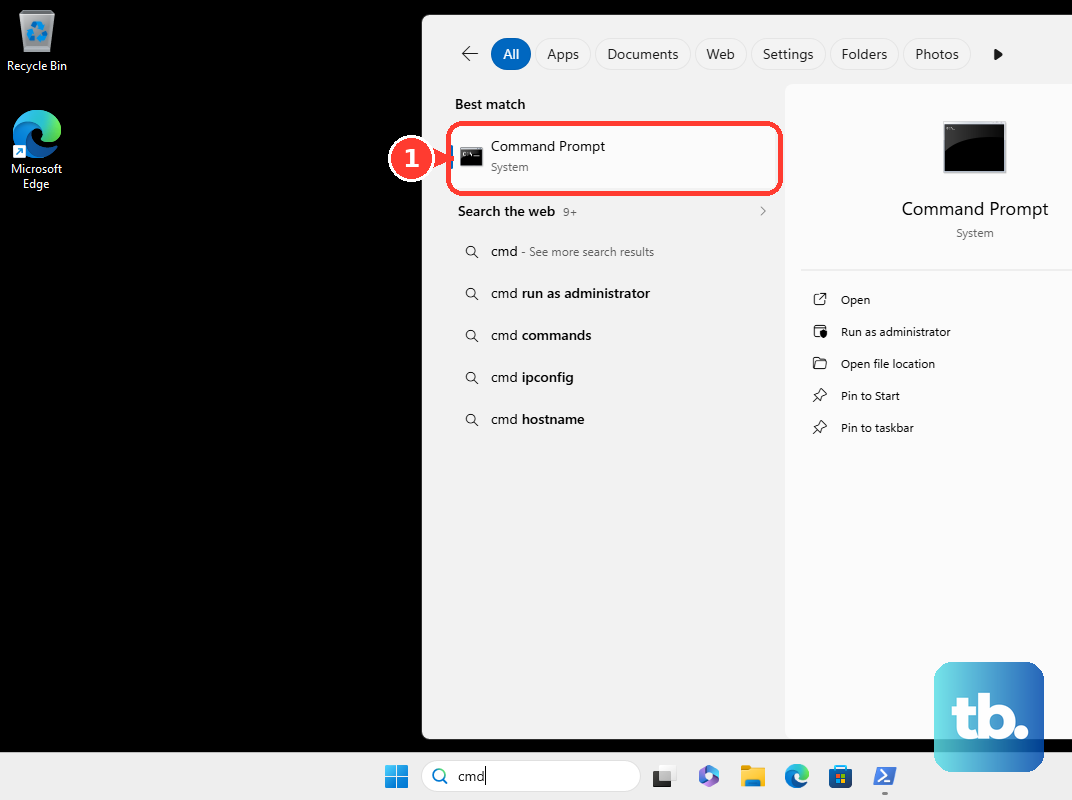
ipconfig /flushdnsTry the connection again after the command completes. If you also need to refresh the computer’s IP configuration, continue with DHCP renewal below.
Renew your computer connection
On Windows 11, releasing the current IP configuration temporarily interrupts the PC’s connection until it obtains a new configuration. In the administrator Command Prompt, run the following commands in order to release and renew the DHCP configuration:
ipconfig /release
ipconfig /renew
For a DHCP-configured connection on macOS 27, open the Apple menu > System Settings > Network and select your network service. Open Details > TCP/IP, select Renew DHCP Lease, then click OK. This refreshes the Mac’s DHCP lease rather than clearing router data.
Remove and recreate a saved Wi-Fi connection
Forgetting a network removes its saved connection credentials, so have the Wi-Fi password ready before proceeding. On Windows 11, open Settings > Network & internet > Wi-Fi > Manage known networks. Select the network, click Forget, then reconnect with its password.
On iPhone or iPad, forgetting a network removes its saved credentials, and iCloud Keychain can synchronize that removal across your devices. Open Settings > Wi-Fi > Edit, tap the network’s More Info button and select Forget This Network. Tap Forget, then rejoin using the password. If a managed network prevents removal, consult your administrator.
On a Pixel phone, first try opening Settings > Network & internet > Internet and switching Wi-Fi off, then on. This refreshes connectivity without guaranteeing a DNS-cache flush. If you still need to recreate the saved connection, continue with the next step.
Forgetting the Pixel’s network removes its saved connection details. Open Settings > Network & internet > Internet > Saved networks, select the network and tap Forget. Return to Internet, tap Add network, enter its details and tap Save.
Clear Chrome cache for a faulty router page
Use browser cache clearing when the router’s administration page misbehaves in Chrome desktop. This removes cached webpage assets, not router memory or DNS records.
Clearing this category deletes cached images and files from Chrome. Open More > Delete browsing data, choose All time and check Cached images and files. Leave unrelated categories unselected, select Delete data, then reopen the router’s administration page.
Reserve network and factory resets for last
A Windows network reset resets network adapters and settings; VPN clients or virtual networking may need reconfiguration afterward. If the earlier PC steps fail, on Windows 11 open Settings > Network & internet > Advanced network settings > Network reset. Select Reset now, select Yes and let Windows restart.
A router factory reset erases configuration and requires setup again. For NETGEAR routers covered by its factory-reset instructions, first confirm that your specific model uses the seven-second procedure. With the Power light on, use a paper clip to hold Restore Factory Settings or Reset for seven seconds, then release it.
Other router models use different reset actions and timings, so follow the instructions for your exact hardware. Treat a factory reset as a last resort rather than a routine cache-clearing step. Once it completes, set up the router again.
Frequently Asked Questions
Do Omada DNS cache entries expire automatically?
Yes, cached entries expire when their time to live, or TTL, runs out. On compatible Omada gateways using Controller 6.1.0, leaving the cache TTL unspecified uses each DNS message’s TTL.
Can you schedule router restarts?
Yes, compatible ASUS routers support scheduled restarts, and Deco M5 plus other Deco models with suitable firmware offer Reboot Schedule. Support depends on your model and firmware, so check whether your equipment exposes the scheduler before planning recurring restarts.
How is an eero soft reset different from a factory reset?
An eero soft reset restarts the unit and restores its default Wi-Fi channel while retaining logs and advanced settings. A hard reset erases user data and configuration. On Ring Alarm Pro, use a restart instead of the eero soft-reset procedure, which that model does not support.
Does resetting Google Wifi with its hardware button delete cloud data immediately?
No, a hardware factory reset does not immediately delete associated app or cloud data. A factory reset through Google Home removes configuration and the associated app and cloud data.