

Press the side button once to lock your iPhone immediately. Set a passcode to protect access when the phone is locked. If Always On Display is enabled, the screen can remain visible after locking. The settings below use iOS 27 menus unless another version is specified.
The short version
- Lock now: Press the side button once.
- Protect access: Set a passcode in Settings under Face ID & Passcode or Touch ID & Passcode.
- Lock automatically: Choose an interval under Settings > Display & Brightness > Auto-Lock.
- Use an alternative: AssistiveTouch and Voice Control let you lock without pressing the physical button.
- Lock a missing phone: Use Lost Mode if device finding was enabled before the iPhone went missing.
| Option | What it does | Main condition |
|---|---|---|
| Press the side button | Locks immediately | Phone is within reach |
| Set a passcode | Protects access after locking | Complete passcode setup |
| Auto-Lock | Locks after inactivity | Select a time interval |
| Low Power Mode | Sets automatic locking to 30 seconds | Mode remains enabled |
| AssistiveTouch menu | Locks through an onscreen action | Enable AssistiveTouch |
| AssistiveTouch gesture | Locks with a tap or press | Assign the screen-lock action |
| Voice Control | Locks with a spoken command | Complete initial setup |
| Temporarily disable Face ID | Locks and requires the passcode next | Face ID iPhone |
| Open Find My on iPhone or iPad | Remotely enables Lost Mode | Device finding previously enabled |
| iCloud Find Devices | Remotely locks through a browser | Device finding previously enabled |
| Open Find My on Mac | Sends a Lost Mode command | iPhone previously added |
| Apple Watch unlock alert | Relocks and requires the passcode next | Appears after a Watch-assisted unlock |
| Apple Vision Pro unlock notification | Relocks the paired iPhone | Appears after an assisted unlock |
| Lock an app | Requires authentication for that app | Eligible app on iOS 18 or later |
| Hide and lock an app | Moves the app to the authenticated Hidden folder | Eligible downloaded app on iOS 18 or later |
| Guided Access | Restricts the iPhone to one app | Configure a session |
| Allow Access When Locked | Restricts accessible Lock Screen features | Adjust passcode settings |
| Activation Lock | Protects reactivation and ownership | Turn on Find My iPhone |
| Administrator device lock | Remotely locks a managed iPhone | Compatible enrolled device |
| Managed Lost Mode | Locks a supervised iPhone | Eligible Apple Business enrollment |
| Administrator passcode policy | Controls automatic locking and grace periods | Supported managed device |
Lock immediately and set a passcode
A single press of the side button locks current iPhones, including Face ID models, iPhone SE, and iPhone Duo. An ordinary button lock leaves biometric unlocking available. You do not need to hold the button.
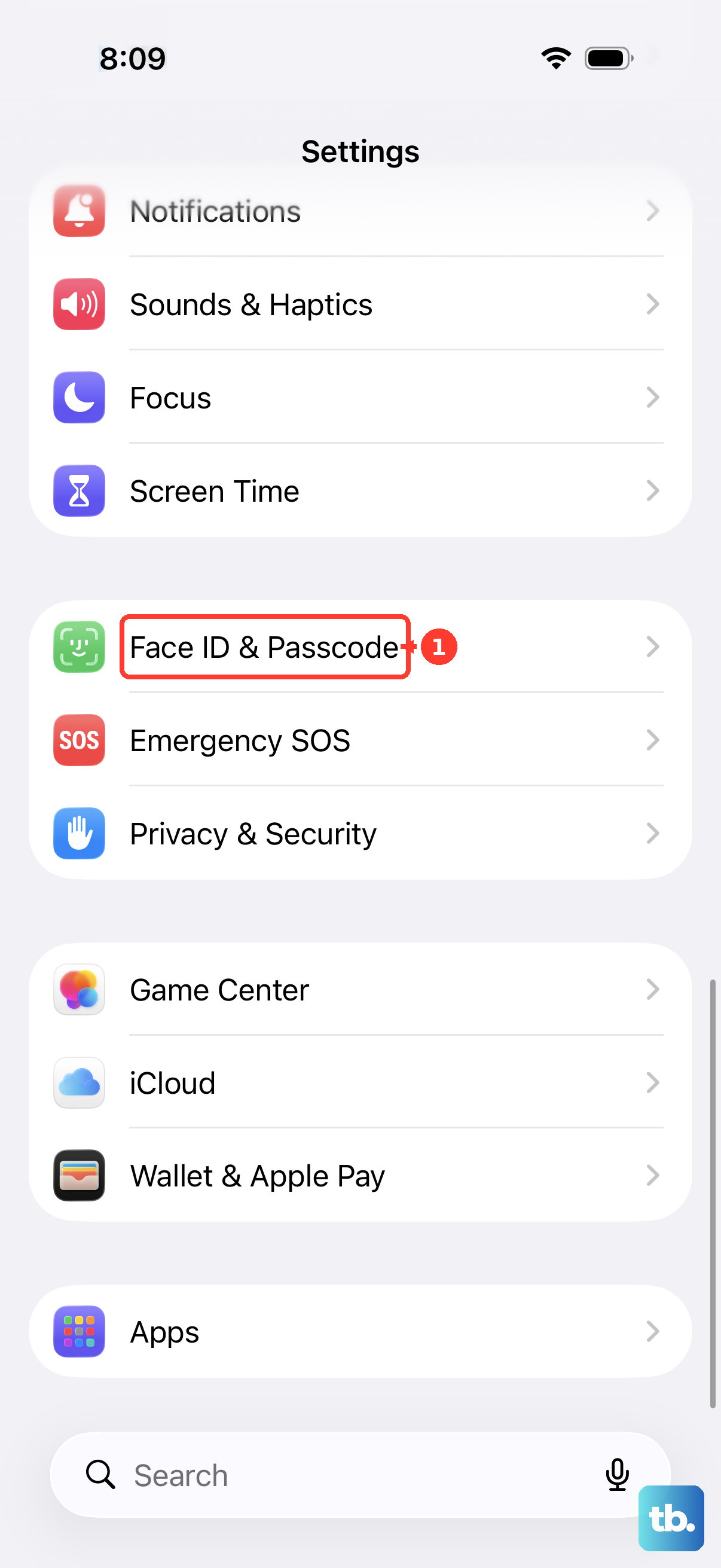
To set a passcode, open Settings > Face ID & Passcode. On iPhone SE or iPhone Duo, open Settings > Touch ID & Passcode instead. Tap Turn Passcode On and follow the onscreen prompts.
For a different passcode format, tap Passcode Options, then choose Custom Alphanumeric Code or Custom Numeric Code. Setting a passcode configures authentication but does not immediately lock the screen. Once setup is complete, press the side button or let Auto-Lock take over.
Choose when your iPhone locks automatically
Open Settings > Display & Brightness > Auto-Lock and select a time interval. Leave the phone inactive to let it lock automatically. Attention Aware Features can prevent locking while the phone detects that you are looking at it, so press the side button when you want to lock immediately.
For a 30-second inactivity timer, turn on Low Power Mode. On iPhone 15 and later, open Settings > Battery > Power Mode and turn on Low Power Mode. On iPhone 14 and earlier, open Settings > Battery and turn on Low Power Mode.
You can also use its battery control in Control Center, or say Siri, turn on Low Power Mode. This changes the inactivity timer; it does not immediately lock the iPhone.
Lock without pressing the physical button
If the physical button is difficult to operate, open Settings > Accessibility > Touch > AssistiveTouch and turn on AssistiveTouch. Open the floating menu and use its screen-lock action. To make that action easier to reach, open Customize Top Level Menu in the same settings, tap an icon, and assign the screen-lock action.
For a gesture shortcut, stay in Settings > Accessibility > Touch > AssistiveTouch. Under Custom Actions, choose Single-Tap, Double-Tap, or Long Press, then assign the screen-lock action. Perform the selected gesture on the floating AssistiveTouch button to lock.
To lock by speaking, open Settings > Accessibility > Voice Control, then tap Set up Voice Control. Allow the initial language download to finish, then say Lock screen while Voice Control is listening. This method works on iOS 13 and later in supported languages and regions.
Control access while your iPhone is locked
Open Settings > Face ID & Passcode, or Settings > Touch ID & Passcode on iPhone SE or iPhone Duo. Under Allow Access When Locked, turn off the features you do not want accessible from the Lock Screen. These settings strengthen an existing lock but do not lock the device themselves.
On a Face ID iPhone, you can temporarily require the passcode for the next unlock. Hold the side button and either volume button for 2 seconds. When the sliders appear, release both buttons and press the side button to lock immediately. Entering the passcode on the next unlock enables Face ID again.
To enable Activation Lock on an iPhone signed in to your Apple Account, open Settings, tap your name, then open Find My. Open Find My iPhone and turn on Find My iPhone; Activation Lock turns on automatically. Leave device finding enabled to preserve this protection, which protects reactivation and ownership rather than replacing a screen lock or Lost Mode.
Remotely lock a missing iPhone
You can use Lost Mode when device finding was enabled before the iPhone went missing. The iPhone needs a Wi-Fi or cellular connection for the command to take effect; an offline phone receives it when it reconnects. Sign in only through Apple’s own app or website, and never share a code, password, or remote access with someone who contacts you.
On another trusted iPhone or iPad signed in to the same Apple Account, open Find My and tap Devices. Select the missing iPhone, tap More, scroll to Lost [Device], and turn on Lost Mode. Follow the prompts to add optional contact information, then tap Activate. You can also use a Family Sharing member’s device when your iPhone appears there.
From a browser on another phone or computer, open iCloud Find Devices and sign in to your Apple Account. If asked for a verification code, select Find Devices to access the service without that code. Select your iPhone from the device list, choose Mark As Lost, and follow the onscreen instructions. Create a passcode when prompted if the iPhone does not already have one.
On a Mac, open Find My, click Devices, and select the previously added iPhone. Click More, then click Lost Mode in Lost [Device]. Complete the onscreen instructions and click Activate.
Relock after a Watch or Vision Pro unlock
After a Watch-assisted unlock, tap Lock iPhone in the alert on your Apple Watch. The next iPhone unlock requires its passcode. This control appears after that assisted unlock rather than acting as a general remote-lock button. Apple documents it for Face ID iPhones with iOS 14.5 or later and Apple Watch Series 3 or later with watchOS 7.4 or later.
After Apple Vision Pro automatically unlocks a compatible paired iPhone, select Lock iPhone in the resulting notification. Automatic unlocking must already be configured for the paired devices.
Lock or hide an individual app
On iOS 18 and later, you can require authentication for an eligible app without locking the entire iPhone. Touch and hold the app on the Home Screen, then tap Require Face ID, Require Touch ID, or Require Passcode, matching the option shown. Tap that same option again to confirm. The app requires authentication when opened and locks again after you quit it.
If you want to hide apps on your iPhone, hiding applies to eligible separately downloaded apps. Preinstalled apps cannot be hidden, and restrictions also apply to the default browser and default app marketplace.
To hide an eligible app, touch and hold it on the Home Screen, then tap Require Face ID, Require Touch ID, or Require Passcode. Next, tap the matching Hide and Require Face ID, Hide and Require Touch ID, or Hide and Require Passcode option. Authenticate, then tap Hide App. You can find hidden apps on iPhone in the authenticated Hidden folder.
Keep your iPhone in one app
Use Guided Access when you want to restrict the iPhone to one app rather than apply an ordinary device lock. Emergency services and Crash Detection are unavailable during the session. On iOS 27 or iOS 26, open Settings > Accessibility > Guided Access, turn on Guided Access, and configure Passcode Settings.
Open the desired app and triple-click the side button, or the Home button on a model with one. Select Guided Access if the accessibility panel appears. Use Session Settings to configure restrictions, turning off Touch if you want the screen to ignore touches, then tap Done and tap Start.
Some earlier interfaces call Session Settings Options, so use that label when it appears. A previously configured app can start the session immediately. To control inactivity locking during a session, use Display Auto-Lock in the Guided Access settings.
Lock a managed work or school iPhone
For a compatible enrolled iPhone, ask your administrator to issue the Lock device management command. The console menus and confirmation wording depend on the management provider. This is an administrative control rather than a personal Apple Account setting.
If you are an authorized administrator using Apple Business built-in device management, you can enable Managed Lost Mode for a supervised iPhone enrolled through Device Enrollment or Automated Device Enrollment. Open Devices > Inventory, select the iPhone, and select Lost Mode. Enter a contact phone number and Lock Screen message, plus an optional message shown after unlocking.
The iPhone must connect to the internet to receive the command, and device finding does not need to be enabled. An administrator must end Managed Lost Mode.
If your available lock settings are constrained on a managed iPhone, your administrator can check the deployed passcode policy. Administrators configure the Passcode payload, including Maximum Auto-Lock (in minutes) and Maximum grace period for device lock, then deploy it through the management service. These controls apply to devices supporting the relevant payload settings, and their implementation and console paths vary by provider.
Frequently Asked Questions
Why does my iPhone lock sooner on the Home Screen?
Apple says inactivity on the Home Screen halves your selected Auto-Lock interval. Your iPhone can therefore lock sooner there without a change to the interval you chose.
Why did Low Power Mode turn off after charging?
Apple says Low Power Mode turns off when charging reaches 80% or higher. Its enforced 30-second Auto-Lock behavior applies while the mode is enabled.
Can Voice Control lock my iPhone without Wi-Fi?
Yes, Voice Control can operate without Wi-Fi after its initial setup. Complete the initial language download before relying on it without that connection.
Can a child in Family Sharing lock individual apps?
Children under 13 in Family Sharing cannot use app locking. The age threshold varies by region, so that cutoff is not identical everywhere.
How does Apple Vision Pro send the relock command?
Apple Vision Pro sends the lock command to the paired iPhone over Bluetooth Low Energy. This is the command sent when you select Lock iPhone in the notification following an assisted unlock.