You need Command Prompt when a Windows fix, command, or support page tells you to run cmd. Windows gives you several built-in ways to open it, from quick Search and Run shortcuts to recovery tools when Windows will not start normally. Start with the fastest route, then use the folder, admin, Terminal, or recovery path that matches what you are trying to do.
1. Start with taskbar Search
The everyday path is Search on the taskbar > Command Prompt. Select Search, type Command Prompt or cmd, then select Command Prompt.
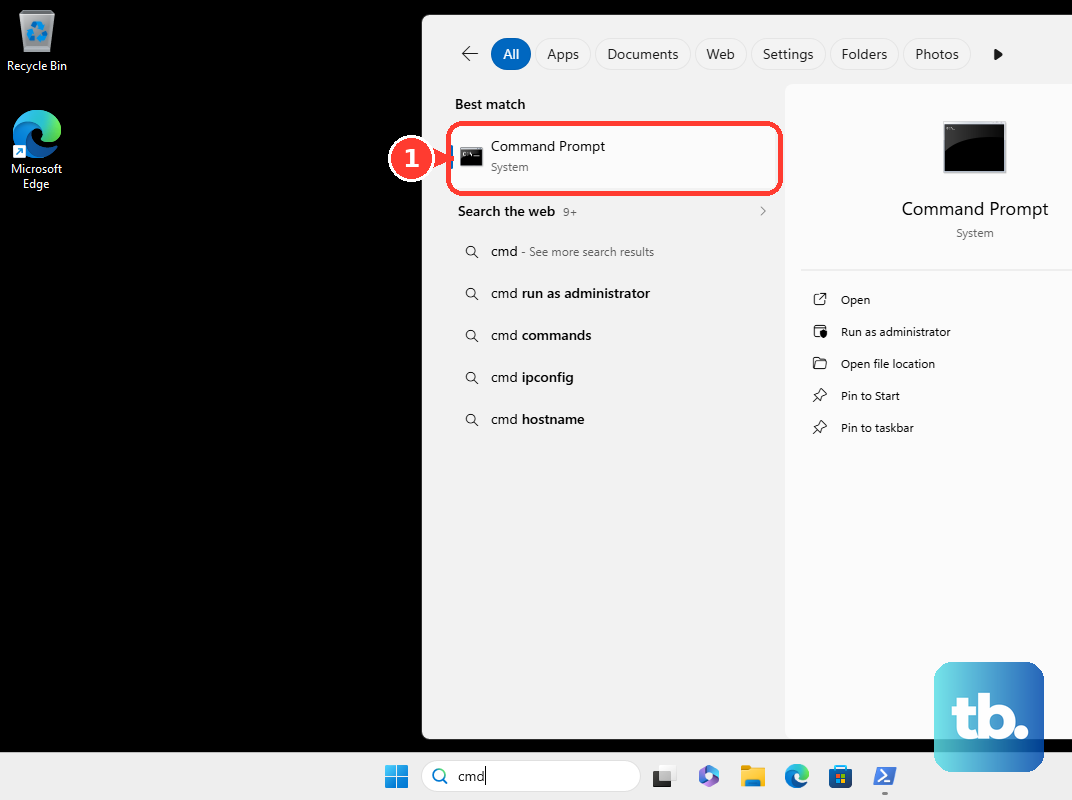
This works on current Windows 11, and the same search behavior still works on Windows 10, though Windows 10 is out of support as of October 14, 2025.
2. Launch it with the Windows key
Press the Windows key, then type Command Prompt or cmd. Select Command Prompt, or press Enter when Command Prompt is selected. Typing cmd is the shortest version of the same Windows Search path.
3. Open it from the Run box
Press Windows logo key + R. In Open, type cmd, then select OK or press Enter.
4. Run Command Prompt as administrator
Select the Search box on the taskbar, then type command prompt. Right-click or press and hold Command Prompt, select Run as administrator, then select Yes in User Account Control. Use Run as administrator when the command you need requires elevated permissions.
5. Switch to Command Prompt in Windows Terminal
This fixes the case where Windows opens Terminal and you need the Command Prompt profile. Open Windows Terminal, select the down arrow next to +, then select Command Prompt.
6. Open it inside a folder from File Explorer
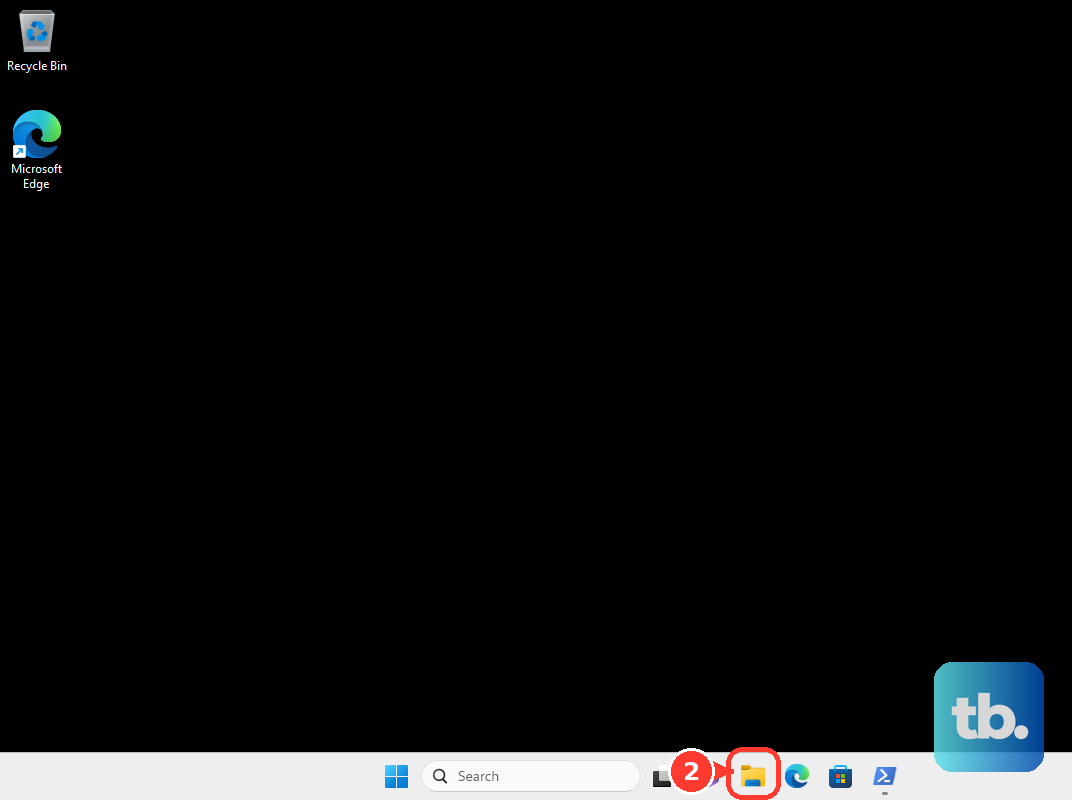
Open File Explorer, then navigate to the folder where Command Prompt should start. Select the address bar, or press Alt + D. Type cmd, then press Enter.
7. Use Task Manager when Start is stuck
This fixes situations where Task Manager opens but Start or Search does not respond. Press Ctrl + Shift + Esc, select Run new task, type cmd, then select OK. To open it with administrator permissions, check Create this task with administrative privileges. Then select OK.
8. Reach Command Prompt from recovery options
- 1.Select Start > Settings > System > Recovery. On Windows 10, go to Settings > Update & Security > Recovery instead.
- 2.Under Recovery options, next to Advanced startup, select Restart now.
- 3.Select Troubleshoot > Advanced options > Command Prompt.
For the restart shortcut, hold Shift while selecting Power > Restart. Then choose Troubleshoot > Advanced options > Command Prompt.
9. Avoid older Command Prompt shortcuts
Older tutorials point to Windows logo key + X > Command Prompt and File Explorer's old File > Open command prompt menu. On current Windows 11, use Windows logo key + X > Terminal or Terminal (Admin), then choose the Command Prompt profile. On a managed work or school PC, policy can block Cmd.exe, so contact your IT administrator when Command Prompt does not open.
Frequently Asked Questions
Is Command Prompt still included in Windows?
Yes. Microsoft identifies cmd.exe as the built-in Windows command interpreter for Windows 11 and Windows 10.
What is the fastest command to type?
Type cmd, then press Enter. It works from Windows Search, the Run box, File Explorer's address bar, PowerShell, and another terminal shell.
Why does Terminal open instead of Command Prompt?
Current Windows can use Windows Terminal as the host for console apps. Open Windows Terminal and choose Command Prompt from the new-tab dropdown.
Can I open Command Prompt if Windows will not start normally?
Yes. Open Windows Recovery Environment, then select Troubleshoot, Advanced options, and Command Prompt.