Background apps can keep running after you close their windows, using battery, memory, and attention in places you never asked for. Windows 11 does not have one current consumer switch that shuts every background app off, but you can stop the apps that matter through the right Windows, browser, and app settings.
Start with the app’s own Windows permission, then move through startup, browser, and power controls if it keeps coming back.
Turn Off a Store App’s Background Permission
Use this when a Microsoft Store-style app keeps working in the background after you close it. The control appears only for supported Windows apps, so classic desktop programs may not show it.
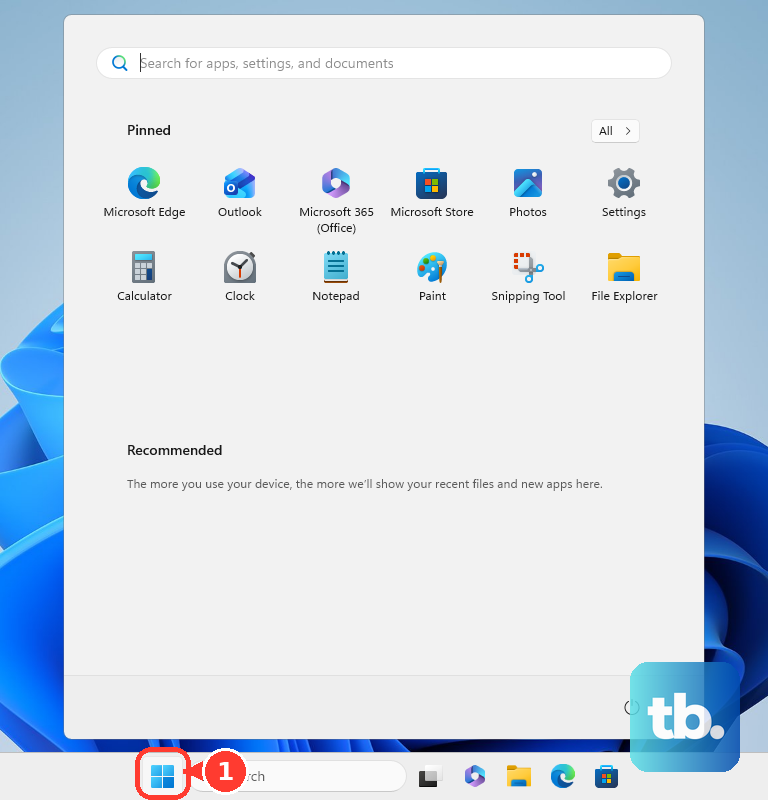
Open Start, choose Settings, select Apps, then open Installed apps.
Find the app, select More options, choose Advanced options, then look for Background app permissions.
Under Let this app run in background, choose Never.
Use Battery Usage When the App Appears There
Some apps expose the same kind of background control from the battery screen.
- 1.Open Start, then go to Settings.
- 2.Select System, then open Power & battery.
- 3.Choose Battery usage.
- 4.Find the app, select More options, then choose Manage background activity.
- 5.Set Let this app run in the background to Never.
Stop Apps From Launching With Windows
An app can reopen at sign-in even when it has no background permission switch. Open Start, go to Settings, select Apps, then choose Startup. Turn the app’s toggle Off.
Task Manager gives you another route to the same setting. Right-click Start, open Task Manager, choose Startup apps, select the app, then choose Disable. You can also open it with Ctrl + Shift + Esc.
If the app still opens at sign-in, remove its Startup folder shortcut next.
Remove Startup Folder Shortcuts
This fixes apps that start because Windows is launching a shortcut at sign-in.
Right-click Start and choose Run.
Type shell:startup and press Enter.
Delete the shortcut for the app you do not want to open automatically.
For shortcuts that apply to every user on the PC, open Run, type shell:common startup, press Enter, then delete the app shortcut there.
Change the App’s Own Background Setting
Windows does not control classic desktop apps through Background app permissions, so the app’s own settings decide whether it keeps running.
Open the app and go to its Settings or Preferences. Turn off any option for background running, tray behavior, launch at startup, or keeping the app open after you close its window.
For Microsoft Teams, open your profile picture, choose Settings and more, select Settings, open General, then go to System. Turn off Auto-start Teams and change the related options so Teams does not keep running in the background or continue after you close the window.
Stop Edge or Chrome After Closing Them
Use this when the background processes are coming from a browser, extension, or installed web app. These controls are separate from the Windows background app permission screen.
In Microsoft Edge, open Settings and more, choose Settings, then go to System and performance. Turn off Continue running background extensions and apps when Microsoft Edge is closed.
For Edge’s startup behavior, open edge://settings/system/manageSystem and turn Startup boost off.
For an installed Edge web app, open edge://apps, choose Details on the app card, then turn off Auto-start on device login. If you do not need it, choose Uninstall, confirm the prompt, then select Uninstall.
In Google Chrome, open Settings, go to System, and turn off Continue running background apps when Google Chrome is closed.
Use Energy Saver for a Broader Limit
Energy saver limits background processes across Windows while it is active, but it does not permanently change each app’s own permission. On Windows 11 24H2 or later, open Start, go to Settings, select System, open Power & battery, choose Energy saver, then turn Always use energy saver On.
You can also select the Battery icon in the notification area and choose Energy saver. For a quieter power profile, open Start, go to Settings, select System, open Power & battery, choose Power mode, then select Best power efficiency when it appears on your PC.
Handle Apps That Keep Coming Back
An app can keep coming back when it has more than one way to launch, such as a startup task plus its own background setting.
Stop the current running process first. Right-click Start, open Task Manager, choose Processes, right-click the app or process, then select End task. This only stops the current session, so the app can return after restart, sign-in, a scheduled trigger, a service trigger, or a manual launch.
If you no longer need the app, remove it. Open Start, go to All apps, right-click the app, then choose Uninstall.
You can also open Start, go to Settings, select Apps, open Installed apps, select More for the app, then choose Uninstall.
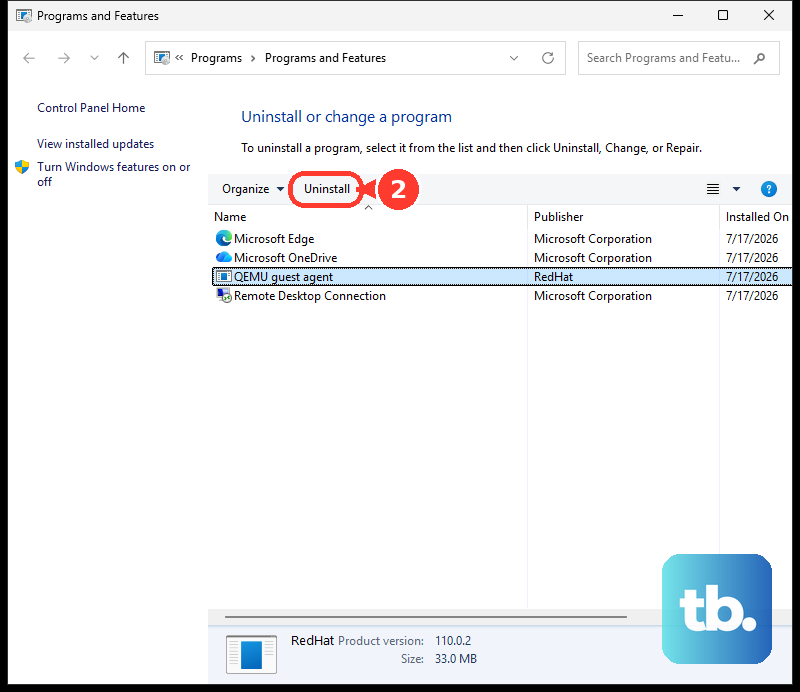
For some classic desktop programs, search the taskbar for Control Panel, open Programs, choose Programs and Features, right-click the program, then choose Uninstall or Uninstall/Change.
Older Windows 10 instructions may mention a global Background apps switch, and older Windows 11 tutorials may point to Apps & features. Current Windows 11 uses Installed apps, Battery usage, startup controls, app settings, browser settings, and managed-device policies.
Frequently Asked Questions
Can I turn off all background apps in Windows 11 with one switch?
No. Current consumer Windows 11 uses per-app permissions, startup controls, app settings, browser settings, and power options instead of one global background-app switch.
Why do some apps not show Background app permissions?
That setting appears only for supported Microsoft Store or UWP-style apps. Classic desktop apps usually need to be controlled from the app’s own settings.
Does End task stop an app permanently?
No. End task only closes the app or process for the current session. It can run again after restart, sign-in, a trigger, or manual launch.
What if this is a work or school PC?
Managed Windows PCs can enforce background app rules through administrator policies. If the setting is locked or keeps reverting, contact your organization’s IT admin.