Your Windows 11 taskbar just stopped responding, and nothing happens when you click the Start button, your pinned apps, or the system tray. Sometimes the bar freezes mid-session; other times it vanishes entirely and you are left staring at an empty desktop.
The good news is that most taskbar failures come from a stalled shell process or a fixable system glitch, and you can usually clear them up in a few minutes. Work through the fixes below in order, starting with the quickest and safest, and stop as soon as your taskbar comes back to life.
Restart Windows Explorer to Reload the Taskbar Shell
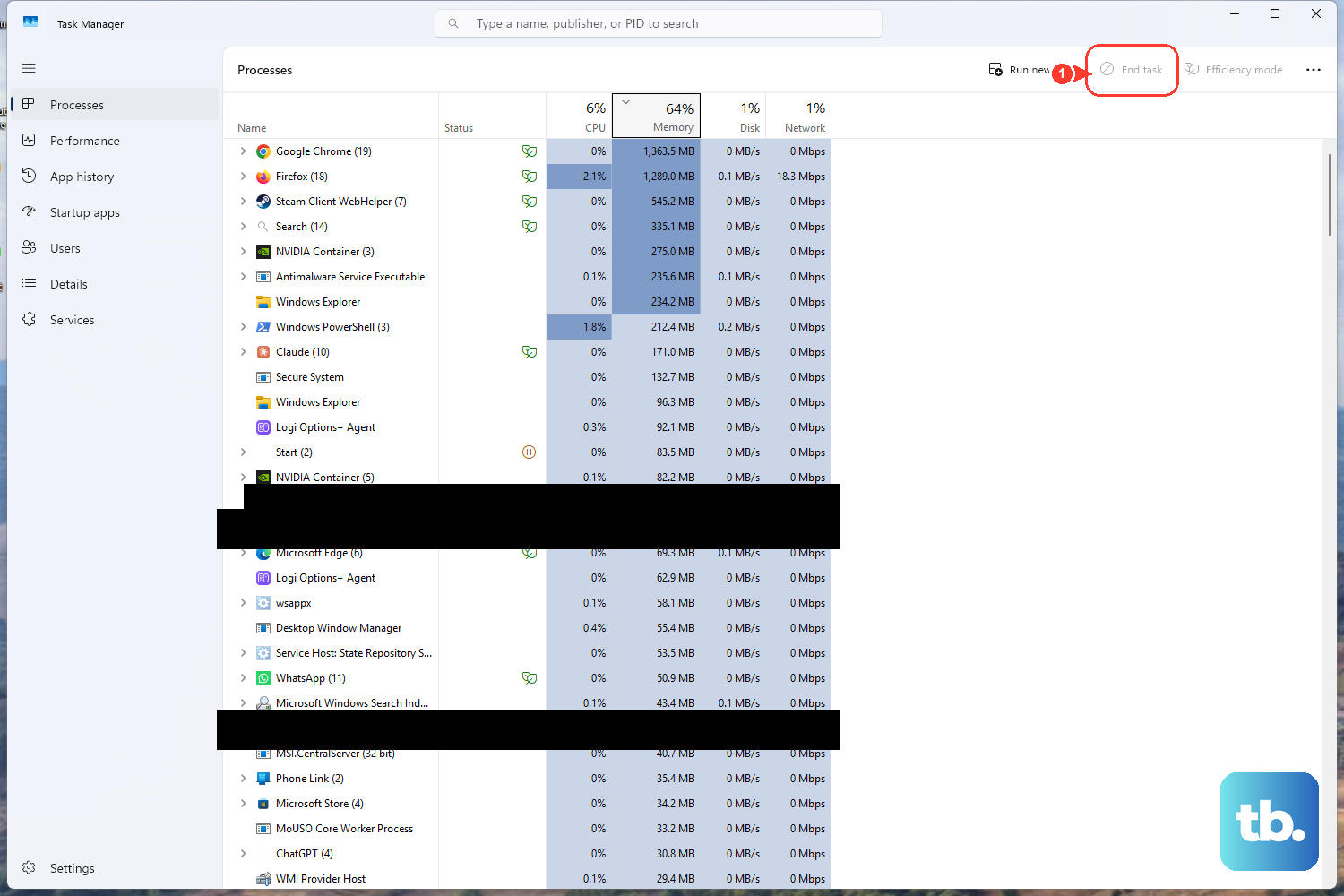
The taskbar and Start menu are drawn by the explorer.exe shell process. When that process hangs, the bar stops responding even though Windows itself is running fine. Restarting Explorer reloads the shell without rebooting your PC, which is why this should always be your first move.
- 1.Press
Ctrl + Shift + Escto open Task Manager directly. - 2.Open the Processes tab and scroll down to Windows Explorer.
- 3.Select Windows Explorer, then select Restart.
Your taskbar and Start menu may briefly disappear while the shell reloads, then reappear within a few seconds. If they come back and respond normally, you are done. If nothing changes, move on to a full restart.
Restart Your PC to Clear Temporary System Errors
A plain restart is more powerful than people expect. It clears temporary system errors that can freeze the taskbar, Start menu, search, or sign-in, and it also installs any updates that were waiting on a reboot. Restarting your device can also help with sign-in trouble and File Explorer problems.
If your Start button responds, use the normal restart path from the power menu. If the taskbar is completely unresponsive, you can press Ctrl + Shift + Esc to reach Task Manager, or sign out and back in, then restart from the sign-in screen. Once the system comes back up, test whether the taskbar behaves before going further.
Check for Windows Updates That Repair Shell Components
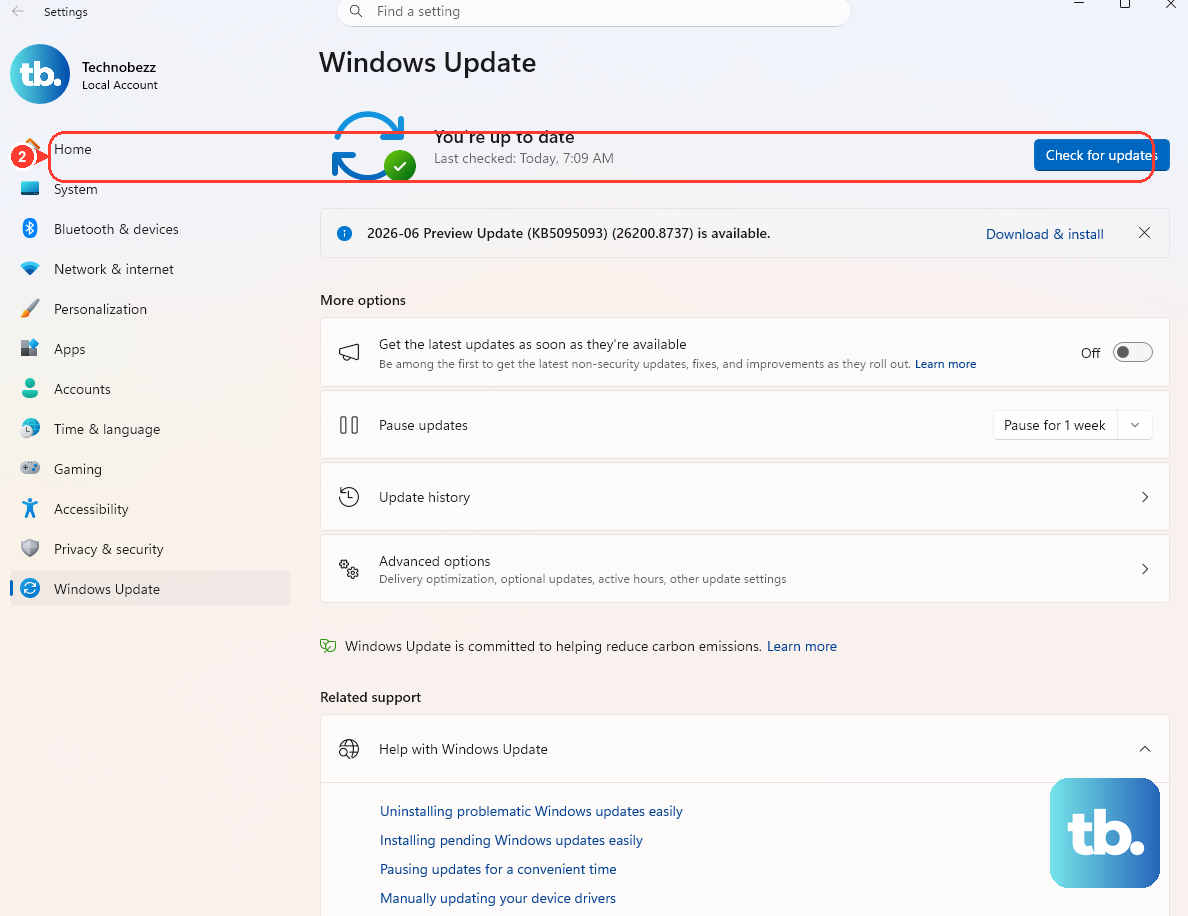
Microsoft regularly ships fixes for shell components like the taskbar, Start menu, Search, and File Explorer through Windows Update. If a recent bug is behind your problem, installing the latest update may resolve it without any deeper troubleshooting.
On Windows 11, select Start > Settings > Windows Update > Check for Windows updates, then choose Download & install and restart if prompted. On Windows 10, the path is slightly different: select Start > Settings > Update & Security > Windows Update > Check for updates, then Download & install. Let the update finish and restart so any shell fixes take effect.
Repair Corrupted System Files With DISM and SFC
If the taskbar is still broken, corrupted system files may be the cause. Windows includes two official repair tools for this: DISM, which repairs the underlying Windows image, and System File Checker, which restores missing or damaged system files. Run DISM first and System File Checker afterward, so follow that order exactly.
To open an elevated Command Prompt, type cmd in Search, right-click Command Prompt, and choose Run as administrator. Then run these commands one at a time.
- 1.Run the image repair first (this can take several minutes):
DISM.exe /Online /Cleanup-image /Restorehealth - 2.If you need to point DISM at a custom repair source, use this variant instead, replacing
C:\RepairSource\Windowswith the location of your repair source:DISM.exe /Online /Cleanup-Image /RestoreHealth /Source:C:\RepairSource\Windows /LimitAccess - 3.After DISM completes, run the file checker:
sfc /scannow
Leave the Command Prompt window open until sfc /scannow reaches 100 percent verification; closing it early can interrupt the repair. When both tools finish, restart your PC and check whether the taskbar is working again.
Use a Clean Boot to Catch a Conflicting App or Service
Sometimes a third-party app or background service is interfering with the shell. A clean boot starts Windows with only essential drivers and startup programs, so you can confirm whether something you installed is the culprit. Sign in as an administrator before you begin.
- 1.In Search, type
msconfigand open System Configuration. - 2.On the Services tab, select Hide all Microsoft services, then select Disable all, and select Apply.
- 3.On the Startup tab, select Open Task Manager.
- 4.On the Startup apps tab, disable each item that shows as Enabled, keeping track of which items you disable so you can restore them later.
- 5.Close Task Manager, select OK in System Configuration, and restart your PC.
If the taskbar works normally in this clean environment, a third-party app or service is causing the problem; you can re-enable items in small groups to pinpoint which one. To return to your normal setup, open msconfig again, choose Normal startup on the General tab, re-enable your services and startup apps, and restart.
Test a New Administrator Account to Rule Out a Broken Profile
If the taskbar fails for you but Windows otherwise seems healthy, your user profile may be corrupted. Creating a fresh local administrator account and testing the taskbar there tells you whether the profile is to blame.
On Windows 11, go to Start > Settings > Accounts > Other users. Under Add other user, select Add account, then choose Add a user without a Microsoft account to create a local account. On Windows 10, the equivalent path is Settings > Accounts > Family & other users.
To give the new account administrator rights, select the account, choose Change account type, pick Administrator, and select OK. Sign in to the new account and check the taskbar and Start menu. If they work there, your original profile is the problem, and you can begin moving your files into the new account.
What to Do When You Cannot Sign In to Reach the Taskbar at All
Occasionally the taskbar problem is tied up with sign-in trouble, leaving you stuck before the desktop even loads. From the sign-in screen you still have several options. You can restart the device, select a different account in the lower left to sign in with another profile, or select Network on the lock screen to check your internet connection. If only one profile fails to load, a corrupted user profile is the likely cause, and the new-account fix above applies once you get back in.
If you are blocked by a forgotten password, you can reset it. For a Microsoft account, select I forgot my password at the sign-in screen, or reset from any browser at account.live.com; choose how to receive a verification code, confirm it, and set a new password. For a local account, select OK at the sign-in screen, then Reset password, and answer the security questions you set when you created the account.
Frequently Asked Questions
Is there a built-in troubleshooter just for the taskbar?
No. There is no dedicated taskbar, Start menu, or Search troubleshooter. The official Windows troubleshooters cover areas like Audio, Bluetooth, Camera, Network and internet, Printer, Video playback, and Windows Update, accessed through the Get Help app, but none of them target the taskbar specifically.
Why does my taskbar disappear when I restart Windows Explorer?
The taskbar and Start menu are drawn by the Explorer shell, so when you restart it from Task Manager the bar briefly disappears while the shell reloads. This is expected behavior, and the taskbar should reappear within a few seconds once Explorer is running again.
Do I have to run DISM before SFC?
Yes. Run DISM.exe /Online /Cleanup-image /Restorehealth first to repair the Windows image, then run sfc /scannow to repair system files. Running them in that order gives the file checker a healthy source to restore from.
How do I undo a clean boot once I am finished?
Open msconfig again, go to the General tab, choose Normal startup, then re-enable any services and startup apps you turned off, and restart. This returns Windows to its normal startup configuration.
What if the taskbar works in a new account?
If the taskbar and Start menu work in a freshly created administrator account, your original user profile is corrupted. You can continue using the new account and migrate your personal files over to it, since the profile, not Windows itself, is the source of the problem.