Windows Explorer keeps crashing, and now your folder windows keep closing or your desktop has disappeared. Start with a quick Explorer restart, then tackle the action that brings the crash back. The steps below cover File Explorer and the explorer.exe desktop shell on Windows 11 and Windows 10, with separate menu paths where needed.
Get Explorer running again
Press Ctrl+Shift+Esc to open Task Manager. If that shortcut fails, press Ctrl+Alt+Del. Select Task Manager from that screen.
Right-click Windows Explorer in Task Manager. Select Restart.
If Windows Explorer is missing, select Run new task instead. Older Task Manager layouts place this under File.
Run explorer.exe by entering it and pressing Enter. If the crashes return, select Start > Power > Restart, even if Windows hasn't requested a restart.
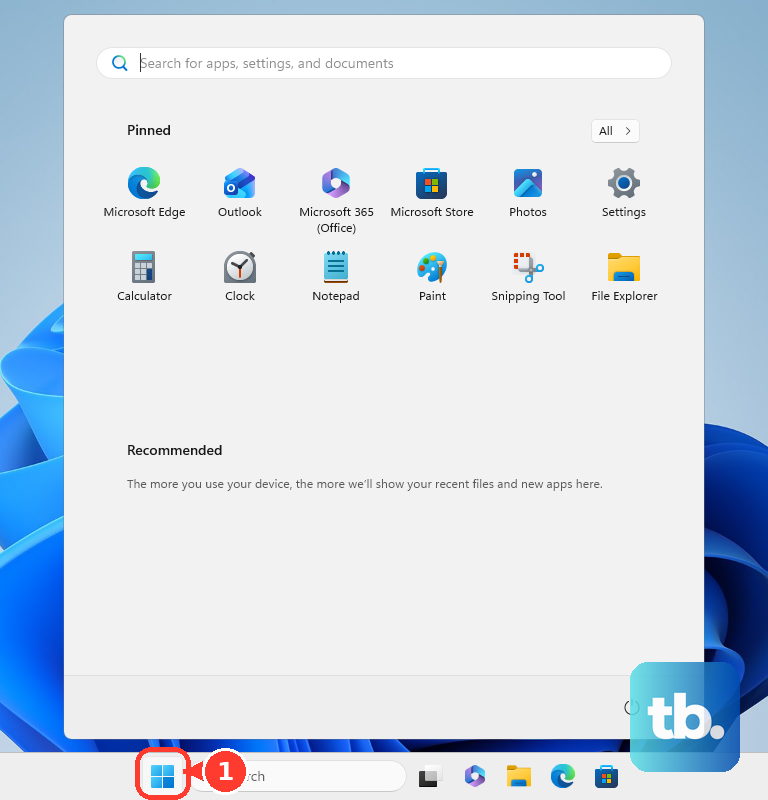
After signing in, press Windows+E to reopen File Explorer. Tip: Restarting Explorer restores the shell temporarily, so keep going if the same action brings the crash back.
Check for Windows updates
If Explorer keeps crashing after a restart, check for Windows updates before changing more settings. Microsoft recommends this as part of File Explorer troubleshooting.
On Windows 11, select Start > Settings > Windows Update > Check for updates. On Windows 10, select Start > Settings > Update & Security > Windows Update > Check for updates. General support ended on October 14, 2025; update availability depends on servicing and Extended Security Updates eligibility.
Install the applicable updates offered to your PC. Then restart Windows through Start > Power > Restart after installation.
Bypass a troublesome opening page
If Explorer crashes as soon as it opens, set it to open to This PC to bypass the landing page Windows 11 calls Home and Windows 10 calls Quick access.
In Windows 11 File Explorer, open See more > Options. On Windows 10, use View > Options.
Set Open File Explorer to to This PC. Select Apply. Reopen File Explorer to test the change.
If a particular pinned folder triggers the crash, right-click that folder. Select Unpin from Quick access. This bypasses the troublesome location; it doesn't repair the underlying fault. Test Explorer again after removing the pin.
Test folders without previews
If selecting a file or opening a particular folder triggers the crash, check whether previews or details are involved.
- 1.With File Explorer focused, press Alt+P to hide an open Preview pane. On Windows 11, press Alt+Shift+P to hide an open Details pane.
- 2.Retry the folder or file that caused the crash. Treat this as a test of whether displaying its preview or details contributes to the failure.
- 3.If preview-related crashes continue, open See more > Options > View on Windows 11. On Windows 10, open View > Options, then select the View tab.
- 4.Under Advanced settings, clear Show preview handlers in preview pane and select Apply. Test the affected files again.
- 5.If you use PowerToys, open PowerToys Settings > File Explorer add-ons. Turn off the preview or thumbnail extension for the troublesome file type, then retest. Restart Windows if necessary for thumbnail changes to take effect.
Isolate an Explorer add-on or startup app
Does Explorer crash when you right-click? That's a reason to check third-party add-ons. Microsoft Sysinternals Autoruns lets you disable a suspect extension and turn it back on after testing.
Open Microsoft's Autoruns download page. Select Download Autoruns and Autorunsc. Run Autoruns. Filter out Microsoft entries.
Inspect the Explorer category for a suspect third-party extension. Clear that extension's checkbox. Test one suspect entry at a time so you can track which change matters. Restart Windows Explorer through Task Manager, using the steps above.
Repeat the action that caused the crash. Reenable entries that don't resolve the problem. There's no need to delete their registrations.
If you suspect an application that starts with Windows, open Start > Settings > Apps > Startup. Switch the suspect application Off. Restart Windows through Start > Power > Restart. Repeat the action that caused Explorer to crash.
Once testing identifies a troublesome application, open Start > Settings > Apps > Installed apps on Windows 11. Open that application's More menu. Select Uninstall.
For a Windows 10 desktop program, open Control Panel > Programs > Programs and Features instead. Right-click the identified program. Select Uninstall or Uninstall/Change. Restart Windows after removing the application.
Test Explorer again. If these checks don't stop the crashes, try repairing Windows system files next.
Repair damaged Windows system files
Run these repair commands in order, letting DISM finish successfully before starting System File Checker.
- 1.Search for Command Prompt, right-click it, and select Run as administrator.
- 2.Select Yes to approve the administrator prompt.
- 3.Enter
DISM.exe /Online /Cleanup-image /Restorehealthand press Enter. - 4.After DISM completes successfully, enter
sfc /scannowand press Enter. - 5.Wait for verification to finish, then test File Explorer again.
Repair Windows if crashes persist
A Windows 11 repair reinstall repairs Windows while keeping your applications, files, and settings.
Open Start > Settings > System > Recovery > Fix problems using Windows Update > Reinstall now. This requires Windows 11 22H2 or later with the February 2024 optional update or later; availability also depends on whether your organization manages updates.
Keep the PC connected to power and the internet throughout installation. Select OK to confirm the reinstall. Restart Windows after installation.
If that option is absent, or crashes followed a recent system change, press Windows+R to begin opening System Restore. You'll need an existing restore point; personal files are retained. Run rstrui.exe by entering it and pressing Enter. Select Next.
Choose a restore point from before the crashes began. Select Scan for affected programs to review which software the restore affects. Select Next. Select Finish to begin the restore.
Back up your files before using a Windows reset as a last resort. Even Keep my files removes applications and settings. Open Settings > System > Recovery > Reset PC on Windows 11. On Windows 10, use Settings > Update & Security > Recovery > Reset this PC > Get started.
Choose Keep my files to retain personal files. Select Cloud download or Local reinstall. Cloud download requires an internet connection. Complete the reset prompts, providing your BitLocker recovery key if requested.
Frequently Asked Questions
What if Explorer crashes only in OneDrive folders?
Pause syncing to test whether OneDrive activity is involved. Right-click the OneDrive notification-area icon and select Pause syncing. Choose 2 hours, 8 hours, or 24 hours, then retest the folder. Another option is Quit OneDrive; restart it afterward by searching for OneDrive from Start.
What can I do if the desktop is too unstable to open recovery settings?
Hold Shift while selecting Power > Restart to enter Windows Recovery Environment. Select Troubleshoot > Advanced options > System Restore to restore from an available restore point. Have your BitLocker recovery key available on an encrypted device.
Does running File Explorer in a separate process stop crashes?
The setting doesn't repair the underlying cause or guarantee a unique process for every tab or window. To enable it on Windows 11, open File Explorer > See more > Options > View. Select Launch folder windows in a separate process, then Apply. Close and reopen Explorer.
How do I report a crash that keeps returning?
Search Start for Feedback Hub, open it, and select Report a problem. Describe the action that triggers the crash and your Windows version, then follow the diagnostic prompts. Windows+F also opens Feedback Hub and captures a screenshot, so review that image before submitting. Reporting a crash doesn't repair it immediately.