

Your Windows 11 PC locks up mid-task, the cursor stops moving, and clicking does nothing while you wait for the machine to wake back up. Freezing usually comes from something quietly eating your CPU, memory or disk, and you can usually clear it without any special tools. The fixes below start with the safest, fastest checks and move on to deeper diagnostics only if the freezing keeps coming back.
Catch the Culprit With Task Manager First
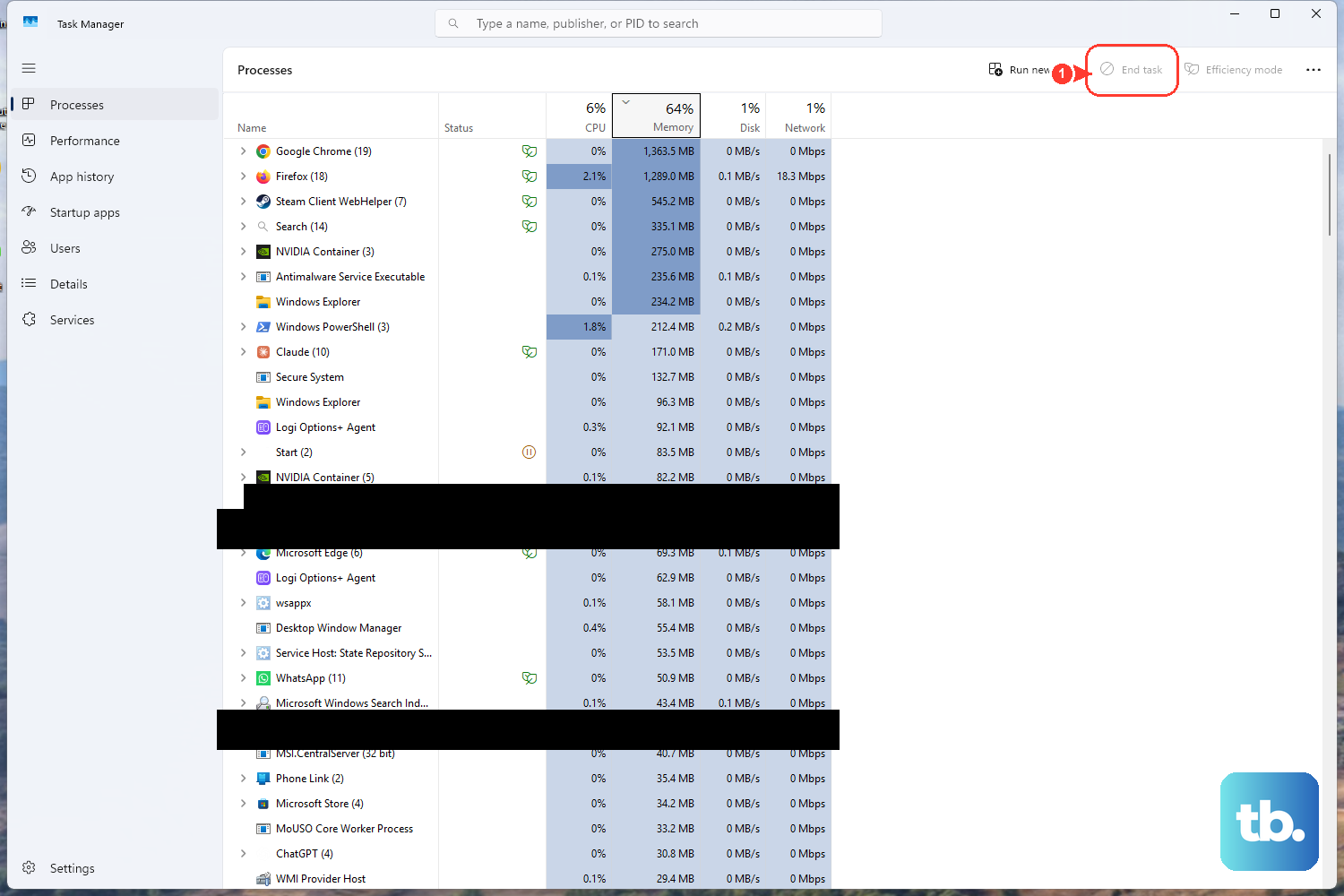
Before you change any settings, find out what is actually choking your system when it freezes. Task Manager shows live CPU, memory and disk usage for each process, which makes it the quickest way to spot a runaway app.
- 1.Press
Ctrl + Shift + Escto open Task Manager. It opens on the Processes page. - 2.Select the CPU column header to sort, and make sure the arrow points down so the heaviest processes are at the top.
- 3.Sort by Memory and Disk the same way to see what uses the most of each.
- 4.Note the top process the next time the PC freezes. If it is stuck, select it and choose End task.
Once you know the offender, the rest of the fixes are much easier to aim.
Close What You Are Not Using, Then Restart
Running many apps and browser tabs at once slows performance, so close anything you do not need right now. Browser tabs tend to pile up and hold onto memory the rest of the system could use.
If closing apps does not help, give the system a clean slate. Select Start > Power > Restart to clear out whatever was tangled up in the background.
Install Every Pending Windows Update
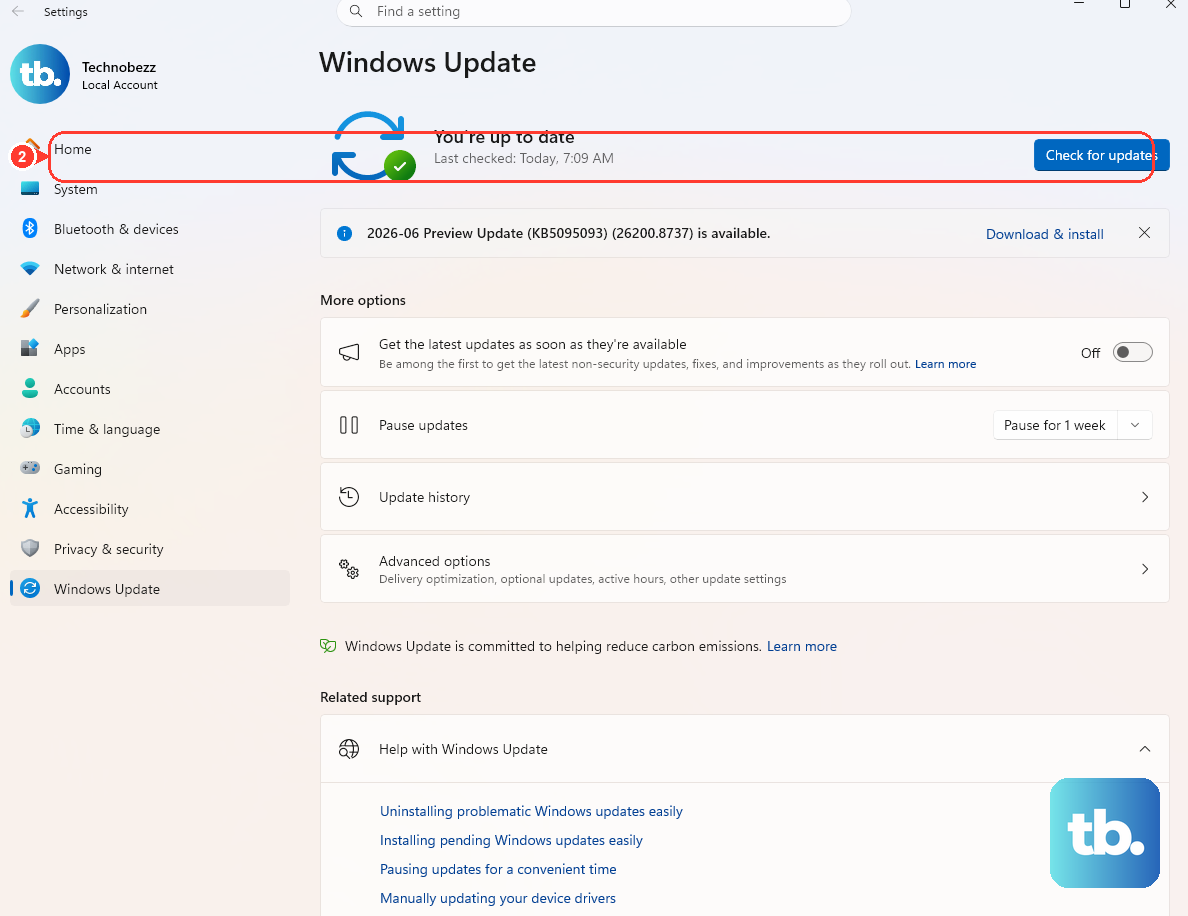
Updates often include stability and performance fixes that stop freezing directly. Keeping Windows current is one of the easiest and most useful steps you can take.
Go to Start > Settings > Windows Update > Check for updates, then download and install whatever is offered and restart if prompted. On a Windows 10 PC, the path is Settings > Update & Security > Windows Update. Windows 10 support ended on October 14, 2025, so it now gets security updates only if the PC is enrolled in Extended Security Updates.
Rule Out Malware With a Windows Security Scan
Malicious software can run heavy hidden processes that drag your PC to a crawl, so scan early. Windows already includes the tool you need.
Go to Start > Settings > Privacy & security > Windows Security > Virus & threat protection, then select Quick scan. A Quick scan checks the places threats most often hide and is usually enough to rule out malware before you move on.
Trim the Apps That Launch at Startup
Too many programs starting with Windows can slow the whole PC, especially in the first minutes after you sign in. Disabling the ones you do not need frees up resources when the system is under the most strain.
- 1.Press
Ctrl + Shift + Escto open Task Manager. - 2.Select Startup apps from the left-hand menu.
- 3.Right-click any app you do not need at launch and choose Disable.
You can undo this at any time by re-enabling an app on the same page.
Rein In Background Apps and Notifications
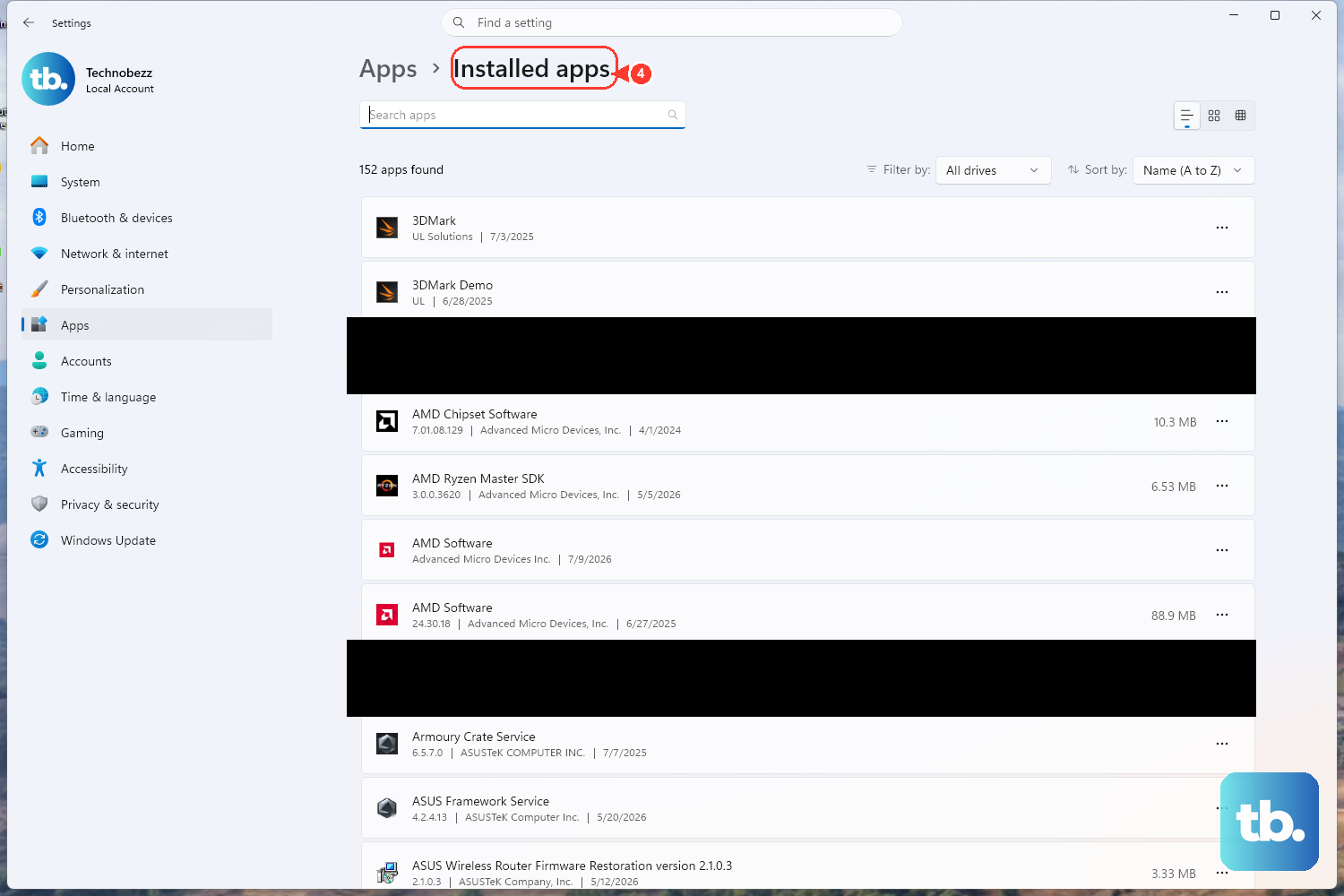
Some apps keep working in the background even when you are not using them, quietly drawing on CPU and memory. Limiting that activity can smooth out a system that stutters and freezes.
Go to Start > Settings > Apps > Installed apps, find an app you rarely use, select More options (…), then Advanced options. Under Background app permissions, choose Never. Not every app shows this option. If you no longer need an app at all, uninstall it from the same menu.
Next, go to Settings > System > Notifications and turn off notifications for apps you do not need. Trimming both cuts the steady background load that adds up to stutters.
Free Up Disk Space So Windows Can Breathe
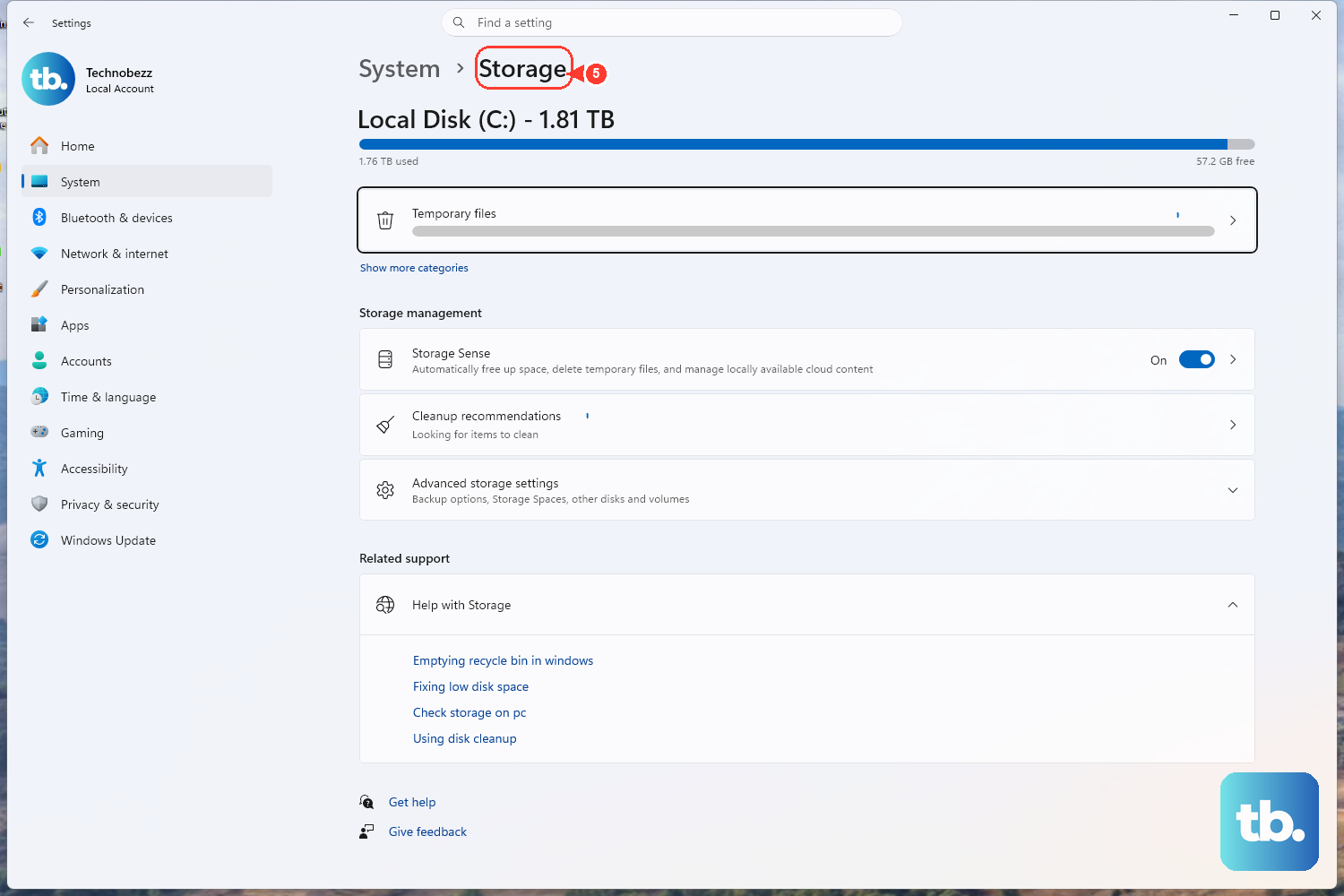
A drive with little free space leaves Windows no room to work, which can show up as sluggishness and freezing. Clearing the clutter often restores responsiveness on its own.
Go to Start > Settings > System > Storage. Select Storage Sense, then Run Storage Sense now. You can also open Temporary files on the Storage page to remove files you no longer need.
Lighten the Load From Visual Effects
Animations, shadows and other visual touches look nice but cost processing power your PC could spend elsewhere. Turning them down can make an older or busy machine feel quicker.
Select Start, type Adjust the appearance and performance of Windows and open it. On the Visual Effects tab, select Adjust for best performance, then select Apply.
Switch the Power Mode to Best Performance
If Windows is holding back performance to save energy, raising the power mode tells it to prioritize speed. This can help when a desktop or plugged-in laptop freezes under load.
Go to Start > Settings > System > Power & battery, open the Power mode dropdown, and choose Best performance. This uses more power, drains a laptop battery faster and can make the device run warmer, so use it where heat and battery life are not concerns.
Optimize Your Drives
Optimizing helps Windows arrange data on your drive so it can be read efficiently. It is routine maintenance that can help a slow system.
Select Start, type Defragment and Optimize Drives and open it. Select your drive, then choose Optimize. Let the process finish before you put the drive under heavy use again.
Track Down a Stubborn Process With Resource Monitor
When Task Manager shows something is wrong but not exactly what, Resource Monitor gives you a more detailed view of each process.
- 1.Select Start, type
resmon, then open Resource Monitor. - 2.On the CPU tab, select the Average CPU header to sort processes from highest to lowest.
- 3.Identify the process driving usage up so you can close or investigate it.
Resource Monitor also breaks down disk and memory activity, so it is useful when freezing happens during heavy file access rather than pure CPU spikes.
Leave the Page File on System Managed
Windows uses a page file as overflow when physical memory fills up, and a system-managed page file grows automatically as needed. If the commit charge reaches the commit limit, that alone can cause freezing and crashing. You can watch the committed memory figure on the Task Manager Performance page under Memory.
For everyday use, leave virtual memory set to System managed and let Windows handle the sizing. Typical users do not need a custom value, and setting one too small can make freezing worse.
Capture Diagnostics If the Freezes Keep Returning
If you have worked through the steps above and your PC still locks up, gather hard evidence about what is happening.
Open Event Viewer and review the System and Application logs for errors that line up with the times your PC froze. You can also generate a System Diagnostics report by running perfmon /report, which collects detailed data on what your system was doing. The report and the event logs give you, or a technician, something concrete to act on.
Frequently Asked Questions
What is the fastest way to find what is freezing my Windows 11 PC?
Press Ctrl + Shift + Esc to open Task Manager and sort the Processes page by CPU, Memory and Disk so the heaviest users appear at the top. Note which process spikes when the freeze happens. For a more detailed view, type resmon at Start to open Resource Monitor and sort by the Average CPU header.
Can disabling startup apps actually stop freezing?
It can help, because too many apps launching with Windows compete for resources right after you sign in. Open Task Manager with Ctrl + Shift + Esc, select Startup apps, and right-click to disable apps you do not need. You can re-enable them later.
Should I change my virtual memory settings to fix freezing?
For most users, no. A system-managed page file grows automatically as needed, which is the recommended setting. If freezing relates to memory, you may see the committed memory nearing its limit on the Task Manager Performance page, but the fix is to keep the page file on System managed rather than forcing a custom size.
Is it safe to set the power mode to Best performance?
Yes, but it has trade-offs. Best performance uses more power, drains laptop batteries faster and can make the device run warmer. It suits desktops and plugged-in laptops where heat and battery life are not a concern.
What should I do if none of these steps fix the freezing?
Capture diagnostics so you can pinpoint the cause. Review the System and Application event logs for errors that match the freeze times, and generate a System Diagnostics report with the perfmon /report command. These give you concrete data that points toward the underlying problem.