


To fix your PC when it cannot project to another screen, check the display cable, press Windows + P to choose a projection mode, then update or reinstall the graphics driver if projection still fails. For wireless projection, also check Miracast support and the receiving device. The Settings steps use Windows 11 menus.
The short version
- Choose an output: Press Windows + P and select Duplicate, Extend, or Second screen only.
- Check the connection: Secure the cable, select the display's matching input, and test without a dock or hub.
- Repair the graphics driver: Install a compatible driver, or roll back a recent driver update when the failure started afterward.
- Check wireless compatibility: Press Windows + K and confirm that the PC supports wireless projection before troubleshooting the receiver.
| Fix | When to use it | What to do |
|---|---|---|
| Projection mode and detection | The display is connected but unused | Choose an output and detect the display |
| Cable and input checks | A wired display stays blank | Test the cable, port, and display input |
| Graphics reset and restart | Projection stopped unexpectedly | Reset the graphics driver and restart Windows |
| Graphics driver update | The error persists or Windows uses a generic driver | Install a compatible graphics driver |
| Driver rollback or reinstallation | An update caused trouble or updating did not help | Restore the previous driver or reinstall it |
| Display compatibility checks | One display works but another fails | Check resolution, refresh rate, and display limits |
| Wireless connection repair | You are projecting without a cable | Check Miracast, Wi-Fi, and receiver pairing |
| Windows system-file repair | Connection and driver checks have not helped | Run DISM followed by SFC |
| Windows repair reinstallation | Other repairs fail on an eligible Windows 11 PC | Reinstall through Windows Update |
| Graphics hardware replacement | No compatible graphics driver is available | Consider an upgrade if the PC permits it |
Choose a projection mode and detect the display
Press Windows + P, then select Duplicate to show the same content on both screens, Extend for an extended desktop, or Second screen only to use the external screen. These options require a working display connection. Retry projection after each change before moving to the next fix.
Next, ask Windows to look for the monitor. On Windows 11, open Start > Settings > System > Display, expand Multiple displays, and select Detect. If Windows still cannot find it, check the physical connection before moving on to driver repairs.
Check the cable and the display input
Secure both ends of the display cable, then use the monitor's buttons, joystick, or remote to open Input or Source. Choose the port connected to your PC, such as HDMI, DisplayPort, or USB-C. The exact controls depend on the display model, so follow its manual for the button sequence.
Disconnect docks, dongles, adapters, and other accessories, then try the simplest supported connection between the PC and display. Test another compatible cable and another video output on the PC. You can also disconnect the monitor from its electrical outlet, reconnect it, and retry.
A USB-C connection needs a PC port, cable, and display or adapter that all support the same video-capable Alternate Mode, such as DisplayPort, HDMI, MHL, or Thunderbolt. Check those capabilities and connect directly to the appropriate PC port without an intervening hub. If the connection still fails, test the monitor with another computer to help isolate which part needs attention.
Reset the graphics driver and restart Windows
Press Windows + Ctrl + Shift + B to reset the graphics driver, then retry projection. If the error remains, save your work and select Start > Power > Restart.
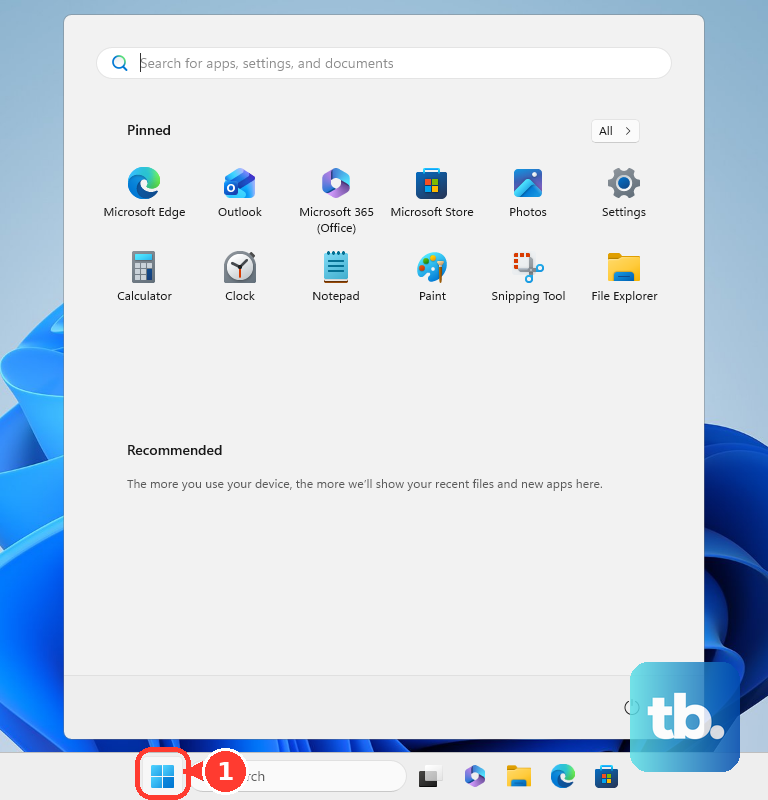
After Windows restarts, reconnect the external display and choose your projection mode again. If restarting does not help, select Start > Power > Shut down, then turn the PC on again. If Windows has stopped responding and you cannot reach those controls, follow the steps to restart a computer that is unresponsive.
Install the correct graphics driver
Right-click Start, select Device Manager, and expand Display adapters. Look for Microsoft Basic Display Adapter. That name identifies the generic display driver, so obtain the manufacturer's compatible graphics driver through Windows Update or its official support site.
On Windows 11, open Settings > Windows Update and select Check for updates. Install the available updates and restart. To check optional drivers, on Windows 11 open Settings > Windows Update > Advanced options, turn on Receive updates for other Microsoft products, and open Optional updates.
Select the relevant graphics driver update and choose Download and install, then restart. Optional drivers are not installed automatically. For wireless projection trouble, check for a relevant network driver update there too.
If Windows Update does not supply the driver you need, find and update your graphics driver using the package that matches your graphics hardware, Windows version, and architecture. Download it from the PC or graphics manufacturer's official support site and extract it if needed.
For a manual installation from an extracted folder, right-click the adapter under Display adapters in Device Manager and select Update driver. Select Browse my computer for drivers, select Browse..., and choose the extracted driver folder. Select OK, then Next, and finally Close.
Roll back or reinstall a faulty graphics driver
When projection stopped working immediately after a graphics driver update, try restoring the previous driver first. In Device Manager, expand Display adapters, right-click the adapter, and select Properties > Driver > Roll Back Driver. Choose the applicable reason, select Yes, and restart if requested.
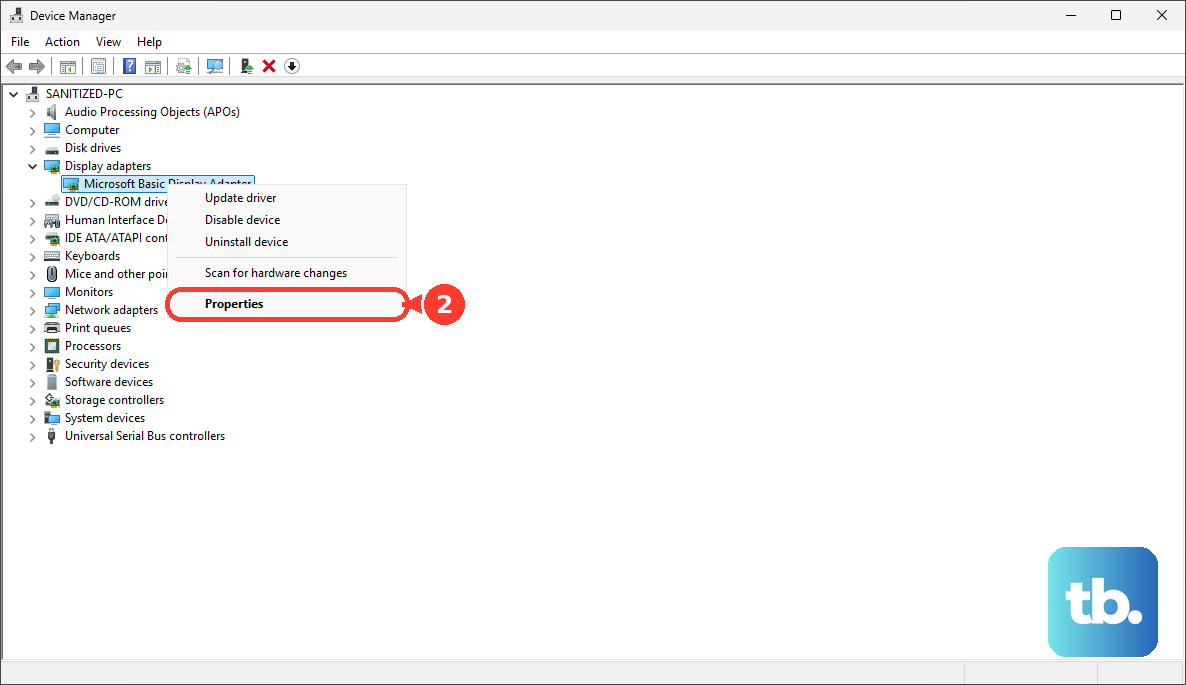
Rollback requires administrator access and an available previous driver. If there is no previous driver, or rollback does not resolve the error, save your work and return to Display adapters. Right-click the adapter, select Uninstall device, then select Uninstall and restart.
Windows attempts to reinstall the driver after restarting. If it returns to the generic adapter or projection still fails, install the compatible manufacturer driver. To also remove the existing driver package on Windows 11, repeat the uninstall procedure and select Attempt to remove the driver for this device, when offered, before selecting Uninstall. Restart and install the compatible package.
Check display settings and hardware limits
When Windows detects the display but the selected video mode fails, try a supported resolution. On Windows 11, open Settings > System > Display, select the affected screen, and start with the value marked (Recommended) under Display resolution. Once the picture returns, you can address a blurry computer screen after connecting if the image still looks unclear.
A supported refresh rate is another check for a detected screen that cannot display the selected mode. On Windows 11, open Settings > System > Display > Advanced display. Select the affected display and a supported value under Choose a refresh rate.
For several external monitors, disconnect them all and reconnect them one at a time. Check the graphics hardware's supported simultaneous-display count. A signal splitter cannot create independent extended desktops, so additional independent displays need a compatible dock or video adapter within the PC's supported limits.
Repair a wireless projection connection
Press Windows + K to check wireless projection support. If Windows reports that the PC cannot support wireless projection, use a supported wired connection. Adding a receiver dongle to the TV does not add missing Miracast capability to the sending PC.
Turn on Wi-Fi from the taskbar's Network, Sound, or Battery area, and enable Miracast reception on the display using its model-specific controls. A display without Miracast needs a compatible Miracast adapter connected to its HDMI port. Turn on the receiver, press Windows + K, and select its name.
If a saved wireless display will not reconnect, restart both the PC and the receiver or adapter. On Windows 11, open Settings > Bluetooth & devices > Devices. Under Wireless displays & docks, select the receiver, choose Remove device, then reconnect with Windows + K.
When another Windows PC is the receiver, install the receiving feature on that PC. On the receiving Windows 11 PC, open Settings > System > Projecting to this PC > Optional features > View features. Search for wireless display, select Wireless Display, then select Next and Install.
On Windows 11 version 22H2 and later, open Wireless Display from Windows Search and keep it running while connecting from the sender. The receiving PC also needs Wi-Fi turned on. Installing Wireless Display is not required merely to send your screen to a TV.
Repair Windows after the connection checks fail
If connection checks and graphics driver repairs have not resolved the error, try Windows system-file repair. Install available updates and restart first, then search for Command Prompt, select Run as administrator, and select Yes. Run this command:
DISM.exe /Online /Cleanup-image /RestorehealthAfter it succeeds, run the following command and wait for completion. These tools repair Windows corruption, but they do not guarantee a fix for projection:
sfc /scannowFor eligible Windows 11 installations, open Settings > System > Recovery. Under Fix problems using Windows Update, select Reinstall now, then select OK. Keep power and internet connected, and restart after installation. This option may be unavailable when your organization manages Windows updates.
If Windows Update and the manufacturer offer no compatible graphics driver, Windows repairs cannot supply that missing support. Consider a graphics card upgrade only when the PC supports replacing it.
Frequently Asked Questions
Can Chrome cast a desktop when Windows wireless projection does not work?
Yes, Chrome can mirror your desktop to a compatible Google Cast receiver when both devices use the same Wi-Fi network. In Chrome, select More > Cast, save, and share > Cast…, then select Sources > Cast screen and choose the receiver. This separate casting method does not repair Windows projection or create an extended desktop.
What should you check if Device Manager reports Code 22 for the graphics adapter?
Code 22 means the device is disabled. In Device Manager, select the disabled adapter under Display adapters, then select Action > Enable Device.
How can you identify the graphics driver with the DirectX Diagnostic Tool?
Right-click Start, select Run, enter dxdiag.exe, and select OK. Inspect the Name field on every Display tab to identify the graphics adapters and look for a generic or incorrect driver.
How close should your PC be to a Microsoft Wireless Display Adapter?
Microsoft recommends moving within 7 meters of the receiver when troubleshooting the adapter. Move the adapter away from household electronics that can cause interference, then retry the connection.
Can a Dell monitor test itself without relying on the PC connection?
You can use built-in diagnostics or a self-test on supported Dell monitors to help isolate a display problem. On Dell Support, identify your monitor, open Documentation > Manuals and Documents, and select View PDF for its User Guide. Open Troubleshooting and follow the Built-in diagnostics or Self-test instructions, because button sequences vary by model.