


To fix a USB drive when Windows cannot complete the format, reconnect it directly to your PC, close apps using it, then retry formatting through Disk Management. If formatting still fails, check for write protection before rebuilding the drive’s partitions.
Copy or recover any files you need before formatting or removing partitions, because these operations erase data. Before every destructive step, verify the USB drive’s identity and capacity so you do not erase another disk.
The short version
- Start simply: Connect the USB directly to your computer and close files and apps using it.
- Try Disk Management: Format an existing volume or create a volume when its space is unallocated.
- Check write protection: Release a physical lock or clear a software read-only attribute before retrying.
- Erase carefully: Rebuilding partitions removes every partition on the selected disk.
- Know when to stop: A drive that reports no media, zero capacity, or persistent errors may need replacement.
| Fix | When to try it | Main limitation |
|---|---|---|
| Check connections | Drive disconnects or is detected inconsistently | Cable and power checks depend on the device |
| Close apps | Drive is in use or access is denied | Save open work first |
| Restart and rescan | Detection problems persist | Cannot repair failed hardware |
| Try another computer | Determine whether the problem follows the USB | Formatting still erases data |
| File Explorer format | USB appears with a drive letter | Erases the selected volume |
| Change file system | Current format is unsuitable | Other devices must support your choice |
| Full format | Quick formatting fails | Takes longer and cannot repair failing flash |
| Disk Management format | File Explorer formatting fails | Requires an existing volume |
| Create a volume | Space is marked Unallocated | Recover needed data first |
| Bring the disk online | Disk is marked Offline | Applies only to an offline disk |
| Initialize the disk | Disk is marked Not Initialized | Some USB disks do not support this |
| Release a physical lock | Device has a write-protect switch | Switch must actually be present |
| Clear software read-only status | Disk has a read-only attribute | Cannot override hardware or policy locks |
| Resolve a policy restriction | Managed computer blocks removable-drive writes | Requires the administrator |
| CHKDSK repair | Recognizable file system has errors | Does not repair RAW or unallocated storage |
| File Explorer error checking | Mounted volume offers error checking | RAW volumes may not support it |
| DiskPart partition rebuild | Layout is damaged or boot partitions remain | Removes every partition on the disk |
| Rufus restore | Previously bootable USB needs ordinary storage | Cannot bypass hardware write protection |
| Driver reinstall | USB works on another computer | Select only the affected device |
| Replacement or warranty service | Failures persist across computers | Preserve readable files first |
Check the connection and close apps using the USB
Reconnect the USB drive directly to your computer, bypassing hubs and extension cables. Try another USB port, and use another compatible cable if the drive has a detachable one. For external storage that requires separate power, check that connection too, then retry formatting.
Close files, File Explorer windows, backup apps, and command prompts using the drive. If an app is frozen, force quit the frozen Windows app before retrying. A command prompt still using the USB must change away from that drive or close.
Restart Windows, then reconnect the drive and try again. If the PC is unresponsive, follow the steps to restart a computer that is frozen. Connect the USB to another computer and retry formatting there after preserving needed files. Failure on multiple computers points toward the drive rather than the original Windows installation.
Retry formatting with suitable settings
Press Windows + E, select This PC, then right-click the USB drive and choose Format. Choose a File system, retain the default Allocation unit size, and enter a Volume label.
Choose exFAT for exchanging files between Windows and Mac computers, or NTFS for Windows-focused use. Check that any other device you plan to use supports your choice. FAT32 limits individual files to less than 4 GB.
Select Start and confirm the warning after checking the selected drive. If a quick format fails, uncheck Quick Format and select Start again for a full format. This takes longer and cannot repair physically failing flash memory. If formatting still fails, check the disk’s status in Disk Management.
Use Disk Management to format or create a volume
Disk Management requires administrator access. Press Windows + R to open Run, enter the following command, then select OK.
diskmgmt.mscSelect Action > Rescan Disks, then check whether the USB disk and its capacity appear correctly. Identify the USB, right-click its existing volume, and select Format. Choose your settings, select OK, then select OK again to confirm.
For space marked Unallocated, right-click that space and choose New Simple Volume, then select Next. Accept the required volume size, select Next, choose a drive letter, and select Next again. Choose the formatting settings, select Next, then select Finish.
If the disk is marked Offline, right-click its disk label and select Online. Retry volume creation or formatting once it is online.
For a disk actually marked Not Initialized, right-click the correct disk and choose Initialize Disk. Select GPT or MBR as required, then select OK before creating and formatting a volume. Microsoft says some USB disks cannot be initialized this way. If your disk does not support initialization, continue with the checks that match its reported error.
Remove write protection before retrying
Disconnect the USB and check for a physical write-protect switch. If it has one, move it to the unlocked position, reconnect, and retry formatting. For an SD card connected through a USB reader, check the card or adapter’s lock switch.
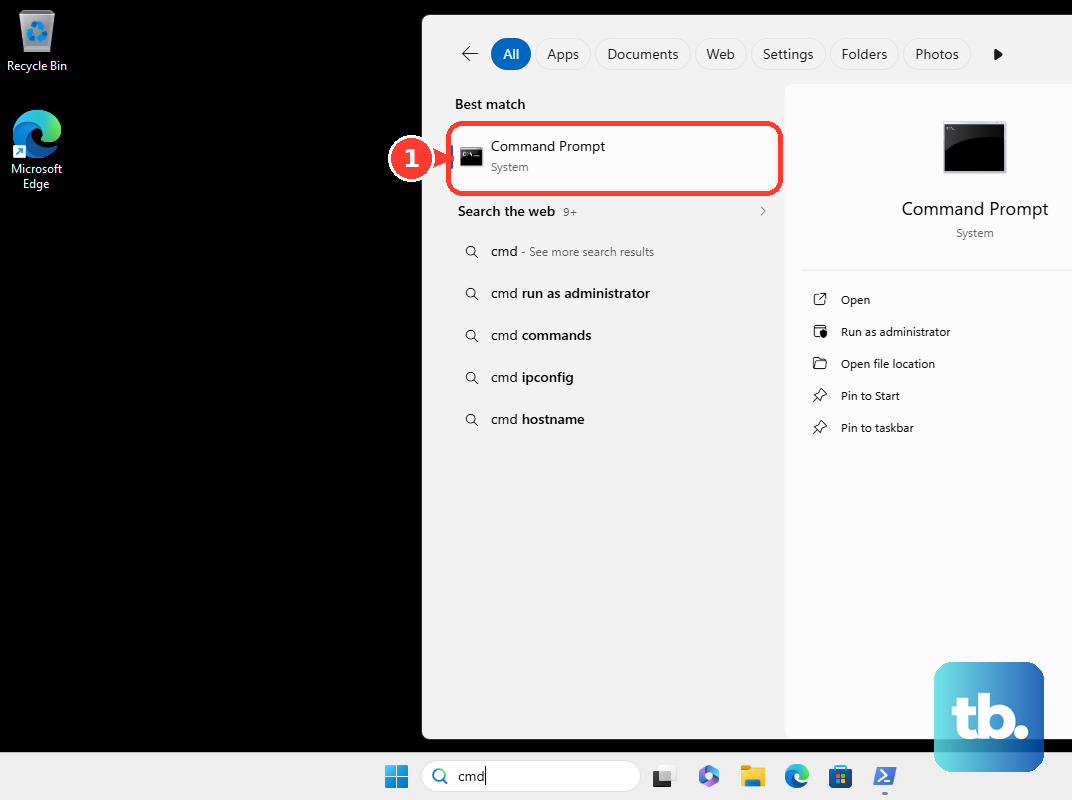
To check a software read-only attribute, open Start, search for Command Prompt, and select Run as administrator. Run these commands one at a time to open DiskPart and list the connected disks.
diskpart
list disk
Identify the USB by its capacity, then replace N below with its disk number. Run the commands separately and inspect the disk details before continuing.
select disk N
detail disk
attributes disk
Once you have confirmed the correct USB is selected, run the commands below to clear its software read-only attribute and exit DiskPart. Then retry formatting through File Explorer or Disk Management.
attributes disk clear readonly
exit
This change cannot override a physical lock, an enforced policy, or a controller-level failure. On a managed work or school computer, ask your administrator to check removable-storage write restrictions before proceeding. If the drive remains write-protected on another computer after those restrictions are excluded, preserve readable files and contact its manufacturer.
Repair a recognizable file system
If the USB still has a recognizable file system, repair its errors before another formatting attempt. Back up readable files and close apps using the drive first. CHKDSK does not fix unallocated space or an unrecognized RAW file system.
Open Command Prompt with Run as administrator and replace X below with the USB’s verified drive letter. Run this command to check and repair file system errors, then retry formatting when it finishes.
chkdsk X: /fFor a graphical alternative, open File Explorer > This PC, right-click the USB, and choose Properties > Tools. Under Error checking, select Check, then Scan drive, and follow any repair option offered before retrying formatting. RAW volumes may not support this operation. Move to partition rebuilding only after copying or recovering needed files and deciding the remaining data can be erased.
Rebuild damaged USB partitions with DiskPart
A damaged layout, unwanted boot partitions, or incorrect usable capacity can require removing the partition information and starting again. The DiskPart clean command removes every partition on the selected disk. Proceed only after copying or recovering needed files.
Open Command Prompt with Run as administrator and run the commands below separately. Use the disk list to identify the USB by capacity.
diskpart
list disk
Replace N with the USB disk number, then run these commands. Read the details and confirm the selected disk is the USB before issuing any erase command.
select disk N
detail disk
After confirming the disk identity, run the following commands one at a time. They remove the partition layout, create a primary partition, format it as exFAT, assign a drive letter, and exit DiskPart.
clean
create partition primary
format fs=exfat quick
assign
exit
The formatting command above performs a quick format; omit quick for a full format. If the drive reports persistent input/output errors or cannot complete the operation on another computer, stop repeating the erase process. A partition rebuild cannot repair dead flash memory.
Restore a previously bootable USB with Rufus
Rufus provides another way to return a previously bootable USB to ordinary storage, particularly when boot partitions leave less usable space. Download the build matching your computer from the official Rufus download page. A portable build is also available.
Open Rufus and verify the USB selected under Device. Set Boot selection to Non bootable, choose the File system, then select START. Accept the destructive-operation confirmation only after checking the device again.
Rufus cannot bypass hardware write protection or failing storage. If it reports that another process is preventing exclusive access, inspect its log to identify the process and close the app involved before retrying. For repeated hardware errors, check the drive on another computer.
Check the driver or replace a failing drive
A USB that works on another computer may have a driver or detection problem on the original PC. Right-click Start, open Device Manager, and expand Disk drives. Identify the affected USB device carefully before changing anything.
Right-click that device, choose Uninstall device, then select Uninstall. Restart Windows so it attempts to reinstall the driver, then reconnect the USB and retry formatting. Remove only the affected device.
Replace or seek warranty service for a drive that continues failing across computers after connection and write-protection checks. No Media, zero capacity, persistent input/output errors, and permanent controller write protection can indicate a problem that consumer formatting tools cannot fix. Preserve any files you can still read before further attempts.
Frequently Asked Questions
Can Windows format a USB drive larger than 32 GB as FAT32?
Yes, Windows 11 24H2 and 25H2 with KB5083631 or a superseding update support command-line FAT32 formatting up to 2 TB. Use the updated command-line formatter for that larger limit; do not assume File Explorer or Disk Management offers the same capability.
What should you do if the USB drive is locked with BitLocker?
Unlock it with its password or recovery password before attempting repairs, then copy any accessible files you need. If you previously backed up its recovery key to your Microsoft account, you may be able to retrieve it there. Unlocking the drive does not itself repair or format it.
Should you download the old Kingston Format Utility?
No, Kingston identifies that utility as a specialized tool for one specific 2015 drive model. Kingston directs you to current operating-system formatting tools for general USB formatting.
Can you format the USB on a Chromebook instead?
Yes, if the Chromebook recognizes the storage and it is writable. Back up accessible files, select Launcher, open Files, then right-click the USB storage device in the left pane and select Format device. This erases its contents.