


To fix time synchronization failed in Windows 10, turn on Set time automatically in Date & time, then select Sync now. If synchronization still fails, try another time server and restart Windows Time. The Settings steps below use Windows 10 22H2 menus.
The short version
- Start with Settings: Enable Set time automatically and select Sync now.
- Check local time: Correct the time zone and manually correct the date and time when needed.
- Try another server: On a PC outside a domain, use Internet Time in Control Panel to change servers.
- Escalate carefully: Restart Windows Time, inspect its configuration, and address the specific connection or startup failure.
| Option | When to use it |
|---|---|
| Automatic time and synchronization | First attempt at fixing the error |
| Time zone correction | Displayed local time is wrong |
| Manual date and time | Clock needs correction while synchronization fails |
| Internet time server selection | Current server fails on a PC outside a domain |
| Windows Time restart | Retry synchronization after starting the service |
| Source and status queries | Inspect configuration before further changes |
| NTP source configuration | Standalone PC needs its source corrected |
| Domain synchronization | Domain member needs its intended time source restored |
| Local Group Policy | NTP client policy needs correction on a supported edition |
| Device management policy | Organization manages the time settings |
| DNS and UDP checks | Time server connection is failing |
| Network startup trigger | Workgroup PC has the specific service startup problem |
| Automatic service startup | Workgroup PC needs Windows Time at startup |
| Delayed automatic startup | Workgroup PC needs the alternative startup workaround |
| System file repair | Corruption may be causing the failure |
| Malware scan | Settings or services appear tampered with |
| Internet reconnection | Date jumps backward on an isolated network without SSL servers |
| Windows Time re-registration | Secure Time Seeding causes incorrect clock rollback |
| RTC or CMOS battery service | Covered HP PC repeatedly loses time |
Enable automatic time and correct the clock
On Windows 10, open Start > Settings > Time & language > Date & time. Turn on Set time automatically, then under Synchronize your clock, select Sync now. If synchronization succeeds but the displayed local time remains wrong, check the time zone next.
On the same page, turn on Set time zone automatically, or turn it off and choose the correct Time zone. Where applicable, turn on Adjust for daylight saving time automatically. These settings correct displayed local time but do not repair a failed connection to a time server.
If the date or time needs correcting, turn off Set time automatically, then under Set the date and time manually, select Change. In Change date and time, correct Date and Time, then select Change. Turn on Set time automatically again and select Sync now. Manual correction also provides a temporary workaround while synchronization remains unavailable.
Try a different Internet time server
On a PC that is not joined to a domain, search for and open Control Panel, then open Date and Time > Internet Time > Change settings. Check Synchronize with an Internet time server and select Update now. If synchronization fails, choose a different server and select Update now again, then select OK.
If another server also fails, restart Windows Time next. On a domain-joined computer, the Internet Time tab is unavailable. Coordinate with IT and use the domain synchronization steps below instead of choosing a public server.
Restart Windows Time and inspect its source
Search for cmd, right-click Command Prompt, and select Run as administrator. Run the following commands separately to stop Windows Time, start it again, and request synchronization with rediscovery of the time source. If Windows reports that the service is already stopped, proceed to the start command:
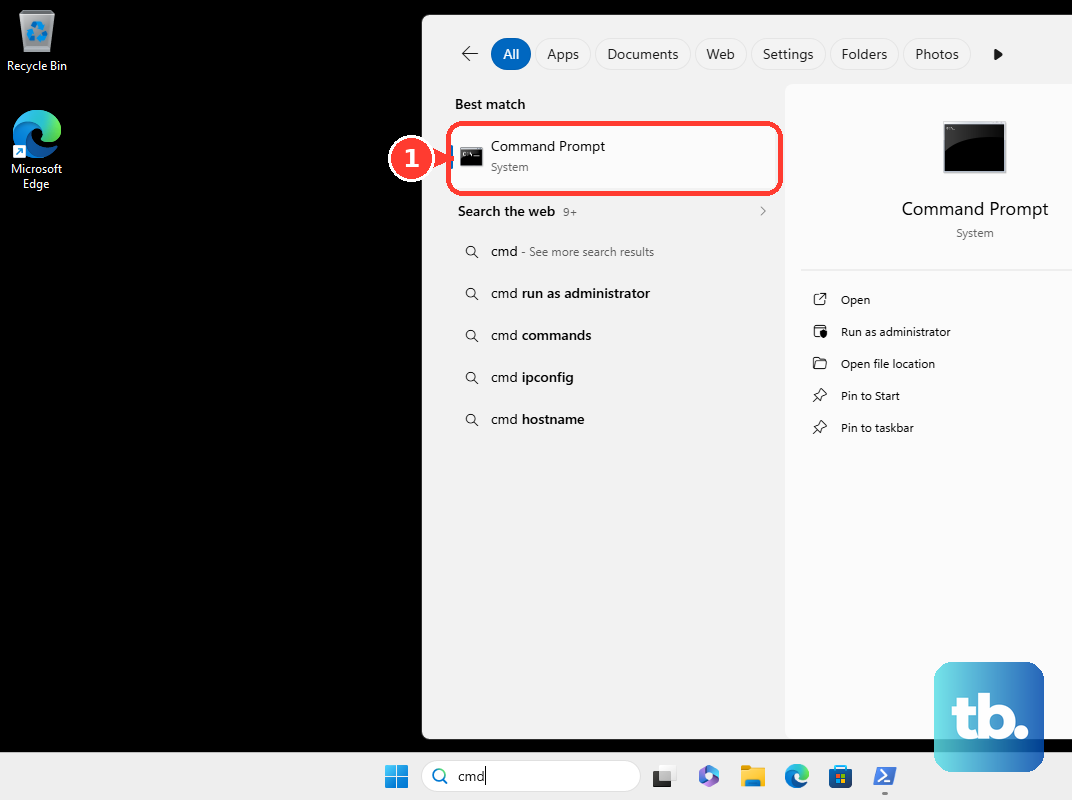
net stop w32time
net start w32time
w32tm /resync /rediscover
If synchronization fails, keep the administrator Command Prompt open and inspect the configuration before making further changes. Run these commands separately to display the time source, synchronization status, and configuration:
w32tm /query /source
w32tm /query /status
w32tm /query /configuration
These queries provide diagnostic information; they do not repair synchronization themselves. Use the results to identify the configured source before correcting it or checking its network connection.
Restore the intended time source and policy
On a standalone PC, you can configure Windows Time to use time.windows.com, substituting an approved reachable NTP hostname when necessary. In the administrator Command Prompt, run the configuration command first, followed by the resynchronization command:
w32tm /config /manualpeerlist:"time.windows.com,0x8" /syncfromflags:manual /update
w32tm /resync /rediscover
On an Active Directory domain member running Windows 10 Pro, Enterprise, or Education, coordinate with IT before changing the time source. Domain members should normally use their domain hierarchy. To restore that configuration, run these commands separately in an administrator Command Prompt:
w32tm /config /syncfromflags:domhier /update
net stop w32time
net start w32time
If client policy needs correction, Windows 10 Pro, Enterprise, and Education provide Local Group Policy Editor. Open it by running this command:
gpedit.mscOpen Computer Configuration > Administrative Templates > System > Windows Time Service > Time Providers. Open Enable Windows NTP Client and select Enabled. Review Configure Windows NTP Client for an incorrect server or synchronization type, and have IT restore the intended policy.
Managed policies can override local configuration, so involve your device administrator when your organization controls these settings. On managed Windows 10 Pro, Enterprise, Education, or IoT Enterprise devices, have the administrator review ADMX_W32Time/W32TIME_POLICY_ENABLE_NTPCLIENT and ADMX_W32Time/W32TIME_POLICY_CONFIGURE_NTPCLIENT under ./Device/Vendor/MSFT/Policy/Config/. The administrator should correct the client-enable and server settings through the organization's MDM platform.
Resolve time server connection problems
Verify that the configured NTP hostname is correct and resolves through your network's DNS service. Windows Time uses UDP port 123, so have your network or firewall administrator check that traffic while you request synchronization. Keep the investigation focused on the configured server and the connection that is failing.
You can review how to check open ports on Windows, keeping the UDP requirement in mind. While the administrator checks the traffic, run:
w32tm /resync /rediscoverCorrect the identified block or unavailable NTP source, then retry synchronization. Firewall and router menus vary by product, so the necessary change depends on where the connection fails.
Fix a confirmed workgroup service startup problem
On a Windows workgroup PC with the specific Windows Time startup problem, you can make the service start when a network address becomes available. In an administrator Command Prompt, run:
sc triggerinfo w32time start/networkon stop/networkoffThis configures Windows Time to start when the network becomes available and stop when it becomes unavailable. After addressing the startup problem, return to Date & time and select Sync now.
If your workgroup PC instead needs Windows Time at startup, automatic startup is an alternative workaround. The next command removes the domain-membership trigger:
sc triggerinfo w32time deleteOpen Services > Windows Time > Properties. Set Startup type to Automatic and select Apply. Treat this as an alternative for the startup problem, rather than a required default configuration.
Another alternative is to open Services > Windows Time > Properties, set Startup type to Automatic (Delayed Start), and select Apply. Then open Task Scheduler > Task Scheduler Library > Microsoft > Windows > Time Synchronization and disable Synchronize Time. Microsoft pairs this task adjustment with delayed startup to prevent the task from stopping the service.
Repair corrupted Windows components and files
System file repair can help when corruption is causing the failure. It is a general Windows repair whose usefulness depends on that cause. For more help using Command Prompt to repair Windows, follow this repair sequence.
Search for Command Prompt, right-click it, select Run as administrator, and select Yes. Run this command first:
DISM.exe /Online /Cleanup-image /RestorehealthWait for DISM to succeed before proceeding. Then run System File Checker and allow verification to finish:
sfc /scannowCorrect a date that jumps backward
If the date jumps backward after restarting on an isolated network without SSL servers, use the troubleshooting route for Secure Time Seeding. Reconnect the affected computer to an internet-connected network that permits outbound SSL traffic. Keep this workaround limited to that rollback pattern.
Microsoft also provides Windows Time re-registration for incorrect clock rollback caused by Secure Time Seeding. Run the following commands separately in an administrator Command Prompt. Re-registration removes the existing service configuration, so back up that configuration before proceeding:
net stop w32time
w32tm.exe /unregister
w32tm.exe /register
net start w32time
w32tm.exe /resync /force
Reapply any required custom configuration afterward. Keep this reset and its resynchronization command limited to the Secure Time Seeding rollback problem.
Investigate a clock that repeatedly loses time
On an HP desktop, notebook, or all-in-one covered by model-specific service instructions, investigate the real-time clock or CMOS battery if the clock repeatedly loses time. Use the exact model's service instructions for diagnosis and replacement, or arrange manufacturer service. Battery access and replacement depend on the model, so follow its instructions rather than a generic removal procedure.
Frequently Asked Questions
Does a stopped Windows Time service always mean something is wrong?
No, a stopped Windows Time service alone is not evidence of a fault on a Windows workgroup PC. Use a startup workaround only when you have the specific service startup problem.
Should I enable desktop interaction for Windows Time?
Do not use the older desktop-interaction recipe as a Windows 10 time synchronization fix. Microsoft states that services cannot directly interact with users beginning with Windows Vista and advises against interactive-service techniques.
Can a malware scan help if time settings keep changing?
A scan can help you investigate suspected tampering with settings or services, but it is general troubleshooting rather than a specific cure for synchronization failure. With Microsoft Defender Antivirus active, open Windows Security > Virus & threat protection > Scan options, select Full scan, then select Scan now. Review the results and recommended actions.
Can an administrator manage time policy on older Windows 10 versions?
Yes, Microsoft's time policy CSP supports Windows 10 versions 2004, 20H2, and 21H1 with KB5005101 and later versions, including 22H2. This applies to managed Pro, Enterprise, Education, and IoT Enterprise devices. Have your device administrator check the version and update requirement before applying those policies.