


To check open ports on your Windows PC, open Command Prompt and run netstat -ano, then look for TCP rows marked LISTENING. For a graphical list with application names, open Resource Monitor and expand Listening Ports under Network. Both tools are built into Windows 11 and Windows 10.
A listening port shows that an application or service is waiting for connections. It does not prove that another device can reach it through your firewall or router. Start with the local list, identify the application, then test access from another computer if you need to confirm network reachability.
The short version
- Quick command: Run
netstat -anoand read TCP rows markedLISTENING. - Graphical option: Open Resource Monitor, select Network, then expand Listening Ports.
- Application ownership: Match the reported PID to a process in Task Manager or with
tasklist. - Network access: Test a specific TCP port from another computer to confirm access from that device.
| Method | Best use | Main limitation |
|---|---|---|
| Netstat | List local ports and owning PIDs | Executable names require sufficient privileges |
| Task Manager or tasklist | Identify a reported PID | Does not enumerate listening ports |
| Resource Monitor | Inspect ports in a built-in graphical tool | Does not prove remote access |
| Windows PowerShell | Filter TCP or UDP results by port | Local results do not prove reachability |
| TCPView | Monitor endpoints and owning apps | Requires a separate download |
| Test-NetConnection | Test access to one TCP port | Does not test UDP |
| Windows Firewall | Inspect applicable port rules | An allowance does not create a listener |
Check open ports with Netstat
Press Windows + R to open Run. Enter the following command, then press Enter to open Command Prompt.
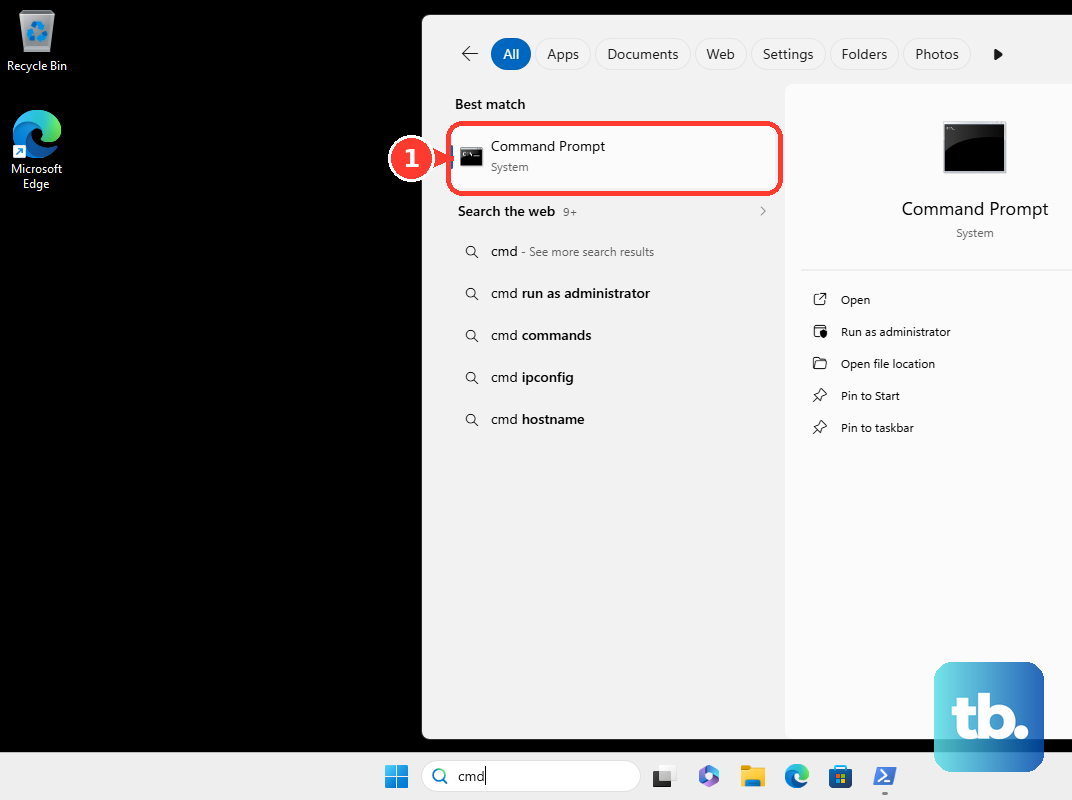
cmdRun the command below and press Enter. It displays local TCP connections, TCP listeners, UDP endpoints, and their owning process IDs.
netstat -anoFind the Local Address column and read the port number after its final colon. For example, an address ending in :8080 uses local port 8080. Check the State column for LISTENING when you want TCP ports waiting for incoming connections.
For executable names alongside the results, open Command Prompt using Run as administrator. Run this variant, which requires sufficient privileges to display executable information.
netstat -abnoIf executable information cannot be displayed, use the PID from the first command to identify the process separately. For a list that refreshes every five seconds, run the command below; press Ctrl + C to stop it.
netstat -ano 5Read the addresses and connection states
Read the local address, state, and protocol together before deciding what a result means. A TCP row marked LISTENING represents a local listener, while ESTABLISHED represents an existing connection. An established connection alone does not show that the port accepts incoming connections.
UDP rows do not have a TCP-style LISTENING state. They represent locally bound UDP endpoints, so the absence of that word does not mean the UDP port is unused. Check UDP separately when the application you are investigating uses it.
A listener bound only to a loopback address does not imply access from other devices on your home network. A firewall allowance also cannot confirm that an application is listening. A successful connection from another device confirms reachability from that particular device and network path.
Find the app behind a port
Note the PID at the end of the relevant Netstat row. In Command Prompt, run the following command, replacing 1234 with that PID, to identify the owning process.
tasklist /fi "PID eq 1234"If you need to see services hosted by that process, run the variant below. It adds service information to help you identify what is using the port.
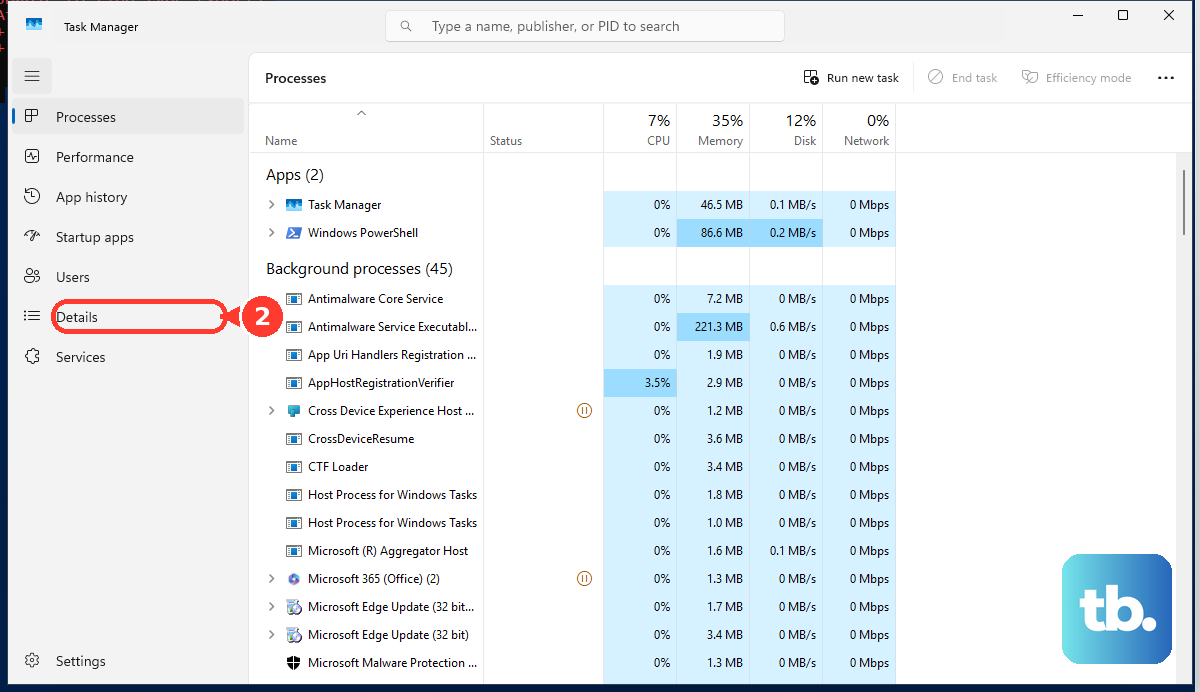
tasklist /svc /fi "PID eq 1234"For a graphical alternative, press Ctrl + Shift + Esc to open Task Manager. Select Details and match the PID to the process. Task Manager identifies ownership, but it does not enumerate listening ports on its own.
View listening ports in Resource Monitor
Use Resource Monitor when you want a built-in graphical view of ports and their applications. Press Windows + R, enter the command below, and press Enter.
perfmon /resSelect Network, then expand Listening Ports. Review the listed entries to connect a port with its application. Expand TCP Connections separately to inspect existing TCP connections.
If the launcher does not open the tool, select Start, enter the command below, and select Resource Monitor from the search results. It opens the same Resource Monitor, where you can select Network and expand Listening Ports.
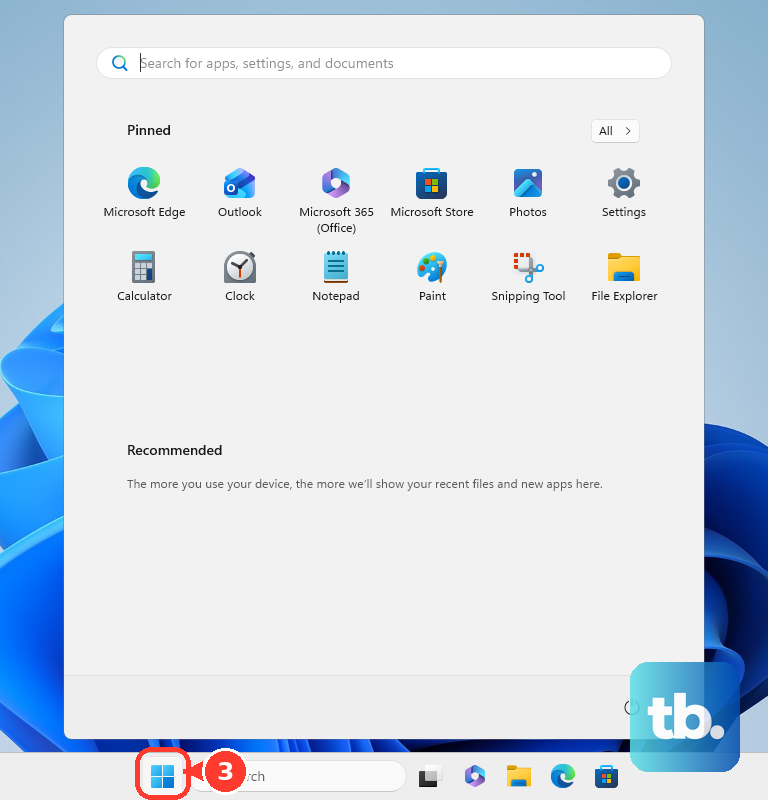
resmonResource Monitor's list does not establish whether another device can reach a port, so use a connection test to check remote access. To keep a visual record of the displayed rows, take a screenshot on Windows while they are visible.
Filter a specific port with PowerShell
Use Windows PowerShell to narrow the results to a particular port. Press Windows + R, enter the command below, and press Enter to open the built-in shell.
powershellRun the following command to display TCP listeners. The selected columns show each listener's local address, port, state, and owning PID.
Get-NetTCPConnection -State Listen | Select-Object LocalAddress,LocalPort,State,OwningProcessTo check one TCP port, run the command below and replace 8080 with your port number. If no matching listener is returned, run the broader command above to inspect the other listening ports.
Get-NetTCPConnection -State Listen -LocalPort 8080For UDP, run its separate endpoint command below. It displays local addresses, port numbers, and owning PIDs without a TCP connection-state column.
Get-NetUDPEndpoint | Select-Object LocalAddress,LocalPort,OwningProcessTo filter UDP by a particular local port, run the command below with your port number in place of 5353. Use the reported owning PID with tasklist or Task Manager to identify the process.
Get-NetUDPEndpoint -LocalPort 5353Monitor ports with TCPView
For an optional graphical monitor, open Microsoft's TCPView download page and select Download TCPView. Extract the ZIP package before starting TCPView. Microsoft lists support for Windows 8.1 and higher, which includes Windows 10 and Windows 11.
TCPView automatically lists active TCP and UDP endpoints with their owning processes and services. Inspect the local address, port number, and TCP state to distinguish listeners from established connections. If you need to confirm remote access, follow the connection test below.
Test whether another computer can connect
After finding a listener, test its TCP port with Windows PowerShell. Run the following command to check port 8080 through your PC's loopback address, replacing the port number with the one you found.
Test-NetConnection -ComputerName 127.0.0.1 -Port 8080Read TcpTestSucceeded in the result. A value of True means the TCP connection succeeded, but a loopback success does not establish access from your home network or the internet.
To test home-network access, run the command on another Windows computer and substitute the target PC's LAN address. For example, the command below tests a PC whose LAN address is 192.168.1.50.
Test-NetConnection -ComputerName 192.168.1.50 -Port 8080A successful result confirms access from that other computer. If the test fails, check the local port list again to confirm that the port is still listening, then inspect its firewall rules. This command tests TCP only and does not automatically scan every port.
Check firewall rules when access fails
Open Windows Security > Firewall & network protection and inspect the active network profile. Select Allow an app through firewall to review application exceptions. These settings show firewall configuration rather than which applications are currently listening.
For port-specific rules, press Windows + R, enter the command below, and press Enter. This opens Windows Defender Firewall with Advanced Security.
wf.mscSelect Inbound Rules, open the relevant rule's Properties, and inspect Protocols and Ports. Also review its action, applicable profiles, and address scope. Review Outbound Rules when you need to check outbound restrictions.
Compare the rule with the port, protocol, and active network profile you are checking. An allowance does not start an application or create a listener, so confirm both the local listener and the remote connection result. Disabling the firewall or adding rules changes the configuration rather than simply checking it.
Frequently Asked Questions
Can ping tell you whether a port is open?
No, ping alone does not test a TCP or UDP port. A successful ping cannot confirm that a particular application port accepts connections.
Why does the PID no longer match the application?
PIDs are temporary and can be reused. Obtain a fresh port listing and match its PID to the process before relying on an earlier result.
Does a default Nmap scan check every TCP port?
No, a default Nmap scan checks its selected 1,000 TCP ports. You must explicitly select ports 1 through 65535 to test that full TCP port range.
Can TCPView save results and change how often they update?
Yes, open Options > Refresh Rate to adjust updates. Select Save to preserve the displayed information.
What does an open|filtered UDP scan result mean?
An open|filtered result is inconclusive. Nmap has not distinguished an open UDP port from filtering, so that result alone does not confirm that the port is open.