


Fix TikTok verification codes that are not working by checking the linked contact, finding filtered messages, or correcting your phone’s clock for authenticator codes. Choose the fix based on whether your code never arrives or TikTok rejects the code you enter.
Start with the delivery method TikTok requests on the login screen. Keep any accessible TikTok session open, because changing contact information and setting up another login method require account access.
The short version
- Missing texts: Check the correct SIM, cellular service, and your messaging app’s filtered folders.
- Missing emails: Search spam and trash, then check rules and mailbox storage.
- Rejected authenticator codes: Use the correct TikTok entry and enable automatic date and time.
- Lost account access: Try an established login method, friend verification, or TikTok’s account support form.
| Fix | When to use it | Main limitation |
|---|---|---|
| Check the linked contact | The code goes to an outdated number or inbox | Contact changes require access to the required contacts |
| Check SMS delivery and filtering | The text never arrives | Carrier blocking needs carrier help |
| Check email folders and delivery settings | The email never arrives | Full storage can prevent delivery |
| Correct the authenticator entry and clock | TikTok rejects an authenticator code | The correct TikTok token must already be enrolled |
| Restore internet connectivity | Requesting or submitting a code fails | Wi-Fi repairs do not necessarily fix SMS delivery |
| Repair the TikTok app | The app freezes or its login screen malfunctions | Storage clearing and reinstallation can erase local data |
| Use an established login alternative | One login route is unavailable | Additional verification may still be required |
| Recover access or contact support | No usable login method remains | Friend recovery needs at least two connected friends |
| Add another access method | You have regained account access | Setup must be completed before you need the alternative |
Check where TikTok is sending the code
Confirm that you are checking the inbox or phone number associated with the intended account. If you are still signed in, open Profile > Menu ☰ > Settings and privacy > Account > User Information, then select Email or Phone number. TikTok also uses the submenu name Account Information.
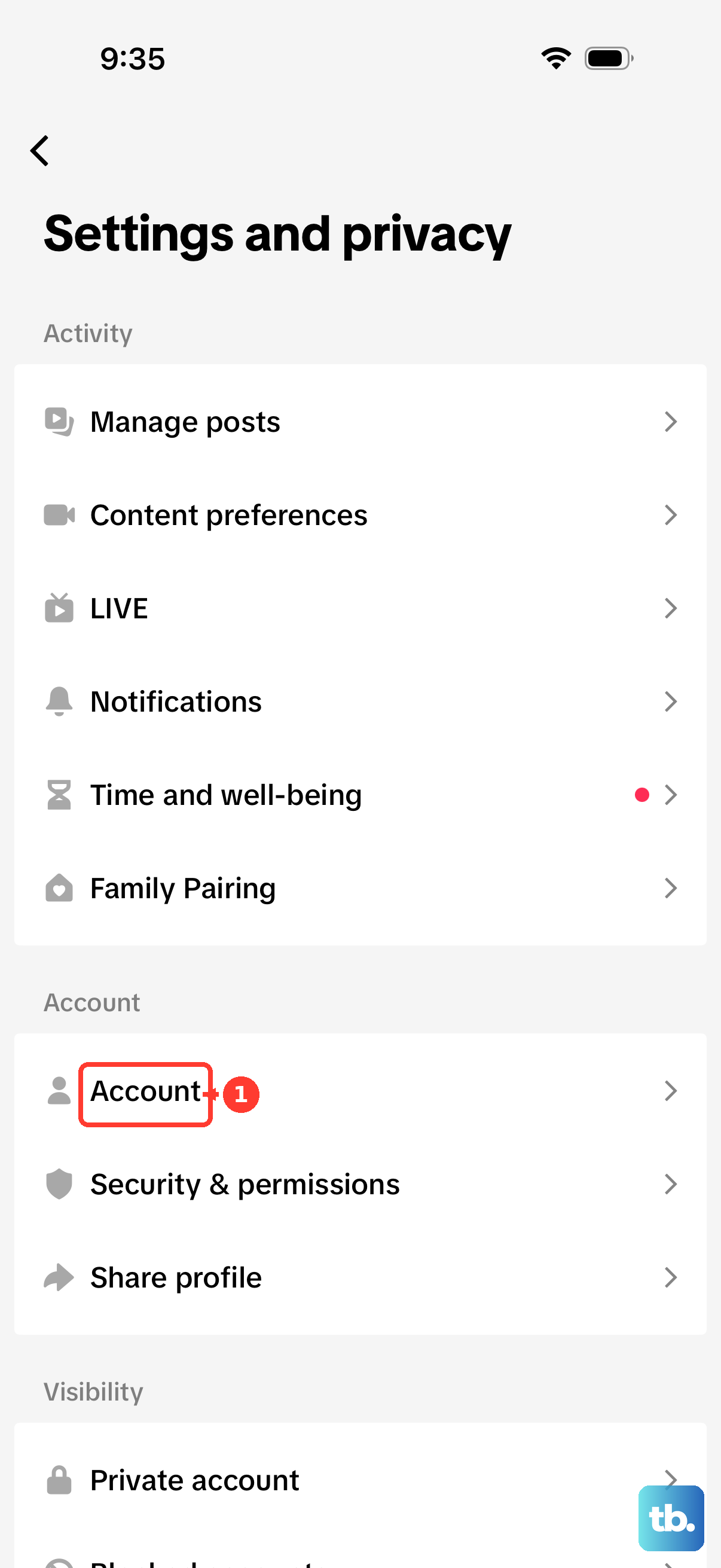
To replace an outdated contact, choose Email > Change email or Phone number > Change phone under Account Information. Enter the replacement, select Send code, and complete verification. TikTok requires both the old and new contacts to remain active and verified, so move to account recovery if you cannot access the required contact.
Find missing SMS codes
Check your messaging app directly instead of waiting for a notification. On Android, confirm cellular signal, an active SMS-capable plan or credit balance, and that Airplane mode is off. Check the physical SIM’s placement if your phone uses one, and free device space if Messages reports insufficient storage.
For an iPhone showing SOS, No Service, or Searching, open Settings and turn Airplane Mode on for at least 15 seconds, then turn it off. With multiple SIMs, open Settings > Cellular, select the line linked to TikTok, and enable Turn On This Line. Contact your carrier if that line is missing.
In Google Messages, open your profile photo or icon, then More options > Spam & blocked. Select a legitimate code conversation and choose Unblock. For Samsung Messages, open More options > Settings > Block numbers and spam and review the blocked list.
On iOS 26 or 27, open Messages > Filter > Unknown Senders, and inspect Transactions if text filtering is enabled. Open a legitimate message and choose Mark as Known. To unblock a sender, open Settings > Privacy & Security > Blocked Contacts, select the unidentified number, swipe left on it, and tap Unblock.
If security texts remain missing, ask your carrier to check account activation, service outages, and commercial-message blocking. If you use T-Mobile, check the phone containing the primary SIM directly, because most short codes are delivered only to the primary SIM and may not appear in DIGITS companion surfaces. T-Mobile also says short-code messages are unavailable overseas.
Find missing email codes
Sign in to your email provider’s website to check delivery directly. In Gmail, open Show search options, change All Mail to Mail & Spam & Trash, enter TikTok, and select Search. For a legitimate message in Spam, select it and choose Not spam.
If the message is missing, open Gmail’s Settings > See all settings > Filters and Blocked Addresses. If the actual sender is blocked, select it and choose Unblock selected addresses. Edit or delete relevant filters that use Delete it or Skip Inbox.
In Outlook.com, inspect Other and Junk Email, then right-click a legitimate junked message and select Mark as not junk. In iCloud Mail on the web, open Junk, select the message, and use Mark or More > Move to Inbox; on mobile, select messages through Edit first. Review forwarding and inbox rules if Gmail or Outlook.com messages continue disappearing.
Full storage can stop Gmail or Outlook.com from receiving email. Remove messages or files you no longer need, and review trash before emptying it. Once delivery resumes, request a fresh TikTok code; Google storage recalculation can take time.
If the message appears on your provider’s website but not in Apple Mail, open Settings > Apps > Mail > Mail Accounts > Fetch New Data and review the retrieval schedule. Apple says Automatically fetches in the background only while charging on Wi-Fi. Read the code on your provider’s website while addressing the setting.
Correct rejected authenticator codes
Open your authenticator and select the entry for the correct TikTok account. Enter its current code before it expires, and make sure the login screen requests an authenticator code. An SMS or email code does not substitute for that challenge.
On iPhone or iPad, connect to the internet and open Settings > General > Date & Time, then enable Set Time Automatically. Apple’s instructions also call it Set Automatically. On Android using Google Clock, open Clock > More > Settings > Change date and time, then enable Automatic date and time and, under Time zone, Automatic time zone.
Google Authenticator removed its in-app time-correction setting in version 7.0, so adjust your device’s clock instead. If your TikTok entry disappeared after changing phones, open Google Authenticator’s profile icon and sign in to the Google account holding your synchronized codes. If the entry was never synchronized, you need an accessible old device to transfer it.
On the old Android device, open Google Authenticator’s Menu > Transfer codes > Export codes, select TikTok, and tap Next. On the new device, open Menu > Transfer codes > Import codes and scan the export QR code. On iOS, use Transfer accounts > Export accounts on the old device and Transfer accounts > Import accounts on the new one.
If autofill is missing, copy the enrolled code manually. In Apple Passwords, open the intended TikTok account, select its verification code, choose Copy Verification Code, and paste it into TikTok. In 1Password, open the correct TikTok login item and copy its current one-time password. If it is rejected, correct the clocks on both devices when code generation and login happen on separate devices.
Restore the connection used to submit codes
A connection problem can interrupt TikTok’s code request or submission even when you can receive texts. On iPhone or iPad, open Settings > Wi-Fi, enable Wi-Fi, and join a working network. Try another network to check whether the failure follows your connection.
If multiple devices fail on the same router, unplug and reconnect the router and modem. When reception is weak, fix a weak Wi-Fi signal before trying the request again. These steps address internet access; missing carrier SMS needs the cellular checks above.
Repair an unresponsive TikTok app
Update TikTok if the app freezes or its login screen malfunctions. On iPhone or iPad, open App Store > your profile icon > App Updates and install the available TikTok update. On Android, open Google Play Store > your profile icon > Manage apps & device > Updates available > See details, then tap Update beside TikTok.
Close and reopen an unresponsive app before taking more disruptive steps. On a Face ID iPhone, swipe up from the Home Screen’s bottom and pause, find TikTok, then swipe its preview upward; on a Home-button iPhone, double-click Home and swipe the preview upward. Reopen TikTok afterward. On Pixel, open Settings > Apps > See all apps > TikTok > Force stop > OK, then reopen it.
For persistent Android app problems, clear TikTok’s cache. On Pixel, use Settings > Apps > See all apps > TikTok > Storage & cache > Clear cache. On Galaxy, use Settings > Apps > TikTok > Storage > Clear cache.
Keep storage clearing or reinstallation for persistent app malfunction, after confirming a usable login route and preserving needed local data. Both can erase local app data, and neither restores access to an old number or inbox. Do not clear an authenticator’s storage or reinstall it without confirmed token backups.
To reset TikTok’s local storage on Pixel, return to Storage & cache, select Clear storage or Clear data, and confirm with OK. On Galaxy, return to Storage, select Clear data, and tap Delete.
To reinstall on iPhone or iPad, touch and hold TikTok, then choose Remove App > Delete App > Delete and download it again from the App Store. On Android, open Google Play Store > your profile icon > Manage apps & devices > Manage > TikTok > Uninstall, then reinstall it through Google Play. If the app works but verification still fails, use account recovery or support.
Try an established alternative login method
Return to a device TikTok already trusts, especially one with an accessible session. For password recovery, open the login screen’s Use phone/email/username > Email/Username > Forgot password?, then choose your accessible linked phone number or email. Password recovery can still leave a separate security challenge to complete.
You can also open TikTok’s browser login, enter your email or username and password, and select Log in. If you already linked your Google account, choose Continue with Google on TikTok’s login page and authenticate with that account. Additional TikTok verification may still be required.
If you previously created a passkey, accept the saved-passkey prompt and authenticate with your device’s biometric or unlock credential. With an accessible mobile session, browser login also offers Use QR code; scan the displayed code with your mobile device’s camera and confirm the login there. These routes depend on access you already established.
Recover access or contact TikTok
When ordinary login and password reset fail, open TikTok’s Help > Recover your account. Enter your username or email and select Search, or use Search by phone number. Select your account, then choose Can't access these? > Ask friends to verify > Start > Share.
At least two connected friends must verify within the allowed period, and daily request limits apply. Your friends may need to update TikTok before completing verification. If that option is unavailable or unsuccessful, contact TikTok for account help.
To contact TikTok, open TikTok’s account support form and set Topic to Account access / security. Fill in Username, Contact email, and Additional details; you can take a screenshot of the error and add it through Upload in the optional Attachments section. Complete Declaration and select Submit.
Add another way to access your account
After regaining access, add a working alternative contact through Profile > Menu ☰ > Settings and privacy > Account > Account Information. Select Email or Phone number, enter the contact information, choose Send code, and complete verification. The new contact must be accessible.
For multiple verification methods, open Settings and privacy > Security & permissions > 2-step verification. Select at least two of Phone, Email, Authenticator, and Password, then select Turn on and complete setup. For Authenticator, scan TikTok’s enrollment QR code or enter its setup key in your authenticator, then enter the generated confirmation code in TikTok.
On a supported device, create a passkey through Settings and privacy > Account > Passkey > Set up and complete the device prompts. After successful verification on a new device, choose to remember it. Review trusted devices through Settings and privacy > Security & permissions > Manage devices.
Frequently Asked Questions
How long should you wait after too many TikTok code requests?
Follow any retry restriction shown on your login screen. For TikTok for Business advertiser accounts, TikTok says to wait at least one hour after “Maximum attempts reached” and contact Business support if it continues after 24 hours. Those timings do not establish a waiting period for the consumer app.
Why does TikTok say your phone number or email is already in use?
Your phone number or email address can belong to only one TikTok account. Use a different contact or change its association on the existing account. If you delete that account, the contact becomes available after 30 days.
Why do verification messages disappear after autofill on iPhone?
Your iPhone can delete verification messages after using their codes. Open Settings > General > Autofill & Passwords and turn Delete After Use off under Verification Codes. Keeping the message does not extend the code’s validity.
What can you do if your work or school mailbox blocks TikTok emails?
Ask your organization’s email administrator to check delivery restrictions or policy blocks. You cannot override an administrator’s Gmail policy yourself. If delivery is failing across your mailbox, ask the provider or administrator to check for an outage.
Can Microsoft Authenticator restore TikTok codes on a different phone platform?
You must restore Microsoft Authenticator backups on the same device type, iOS to iOS or Android to Android. On the replacement device, open Authenticator before signing in, choose Restore from backup or Begin recovery, and authenticate with your backup’s recovery account. Your TikTok time-based credentials can return if they were included in that backup.
Can you still use Authy Desktop for TikTok verification?
You need a supported mobile authenticator installation instead. Twilio ended Authy Desktop support on March 19, 2024, and invalidated its installations.