


To fix a screen saver that is not working in Windows 11, select an active screen saver, set a one-minute wait time, and make sure the display and sleep timers are longer. Test its preview, then check input devices and open apps if it still will not start automatically. These steps use Windows 11 menus.
The short version
- Start with settings: Choose a screen saver other than (None) and set Wait to one minute for testing.
- Compare preview and idle behavior: A working Preview helps separate a rendering problem from an automatic activation problem.
- Check competing timers: Keep screen-off and sleep delays longer than the screen saver delay.
- Isolate interference: Disconnect optional input devices and close suspected apps before trying drivers or Windows repairs.
| Fix | When to try it |
|---|---|
| Enable a screen saver and set its delay | No screen saver starts automatically |
| Preview a built-in screen saver | You need to distinguish rendering from idle activation |
| Reverse an energy recommendation | The screen saver became disabled after applying recommendations |
| Adjust display and sleep timers | The screen goes dark first |
| Adjust Presence Sensing | The display turns off when you leave |
| Restart Windows | You need to check behavior before reopening apps |
| Disconnect optional input devices | Preview works but automatic activation fails |
| Check the implicated device and USB connection | Disconnecting a device restores activation |
| Close suspected applications | The failure occurs with certain software open |
| Close browser tabs or exit the browser | You need to isolate browser activity |
| Disable a conflicting startup app | The identified app returns after restarting |
| Uninstall a confirmed conflicting utility | You have identified software that causes the failure |
| Correct the Photos folder | Other screen savers work |
| Download OneDrive pictures locally | The selected pictures are stored in OneDrive |
| Install Windows updates | Basic checks have not resolved the problem |
| Install an applicable optional driver update | Earlier checks implicate a graphics or input device |
| Reset the graphics driver | Preview fails and the desktop remains responsive |
| Search for a newer graphics driver | A graphics fault remains likely |
| Install a compatible manufacturer driver | You need a driver package for the affected hardware |
| Roll back a driver | The failure began immediately after its update |
| Perform a clean boot | A background software conflict remains unidentified |
| Repair system files | Targeted checks fail and system corruption is suspected |
| Repair Windows through Windows Update | The problem persists alongside broader Windows faults |
Enable a screen saver and test its preview
Open Start > Settings > Personalization > Lock screen > Screen saver. In Screen Saver Settings, choose an option other than (None) from the Screen saver menu. Set Wait to one minute, select Apply, then select OK.
Leave the computer untouched beyond that minute, including its mouse, keyboard, and controller. If nothing happens, reopen the same window, choose a built-in option such as 3D Text, and select Preview. Stop moving the mouse after selecting it so input does not immediately interrupt the preview.
A successful preview shows that the selected screen saver can render, which directs your next checks toward idle activation. Select Apply and OK to save the built-in selection, then test automatic activation again. If only a third-party screen saver fails, keep the built-in option selected while troubleshooting that software.
Energy recommendations can explain why a previously working screen saver became disabled. Open Settings > System > Power & battery > Energy recommendations and find Turn off my screen saver. Applying that recommendation, including through Apply all, disables the feature. Re-enable it through Screen Saver Settings and set Wait again.
Give the screen saver time to appear
Open Settings > System > Power & battery > Screen, sleep, & hibernate timeouts. Where battery and plugged-in controls appear, select Turn my screen off after and choose a delay longer than the screen saver wait time. Then select Make my device sleep after and choose a longer delay too.
For a simple test, pair a one-minute screen saver with five-minute display and sleep timers. Some Microsoft instructions call the timeout group Screen and sleep instead. Screen saver animation, display power-off, and system sleep are separate features, so a dark screen alone does not show whether the screen saver started.
On a PC with Presence Sensing, expand the screen and sleep controls and temporarily turn off Automatically turn off my screen when I leave. Alternatively, select More options beside that setting, then select Then, turn off my screen after this amount of time and choose a longer delay. Repeat the idle test to see whether the display now stays on long enough.
Restart and isolate input devices
Save your work, then open Start > Power > Restart. After signing in, test the screen saver before reopening optional applications.
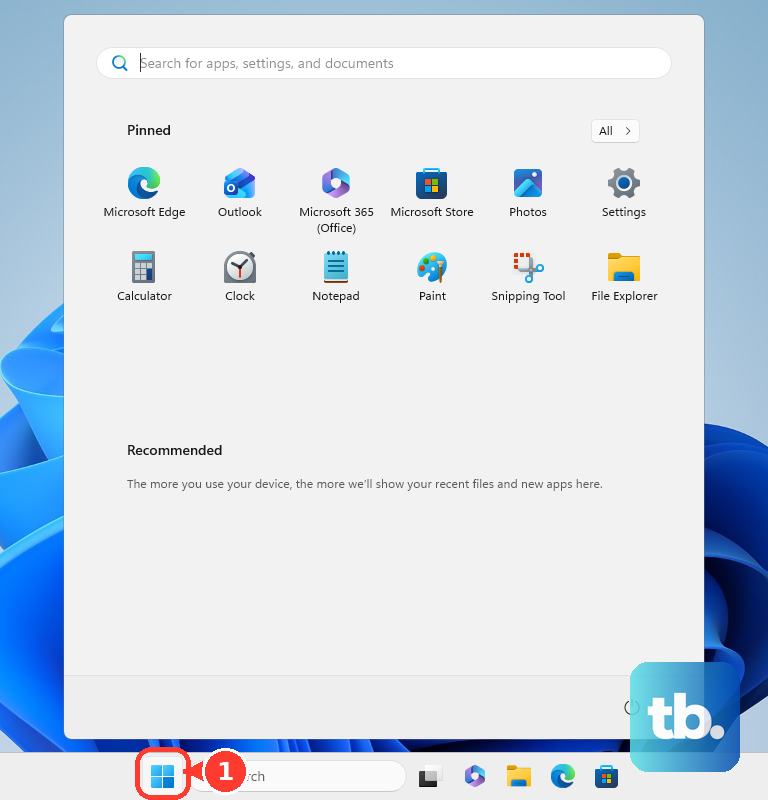
Windows screen saver activation depends on keyboard and mouse inactivity. Temporarily disconnect optional input devices and receivers, including a suspect mouse, keyboard, controller, or dock, then leave the computer untouched beyond the configured wait time. If the screen saver starts, reconnect devices individually and repeat the test until the problem returns.
Inspect the implicated device for dirt obstructing keys or sensors, and replace depleted batteries. Unplug its USB connection or receiver, wait briefly, then reconnect it directly to another port rather than through an external hub. If the device has a Reset button, follow its documented reset procedure, and retest after each change. If connections also fail during normal use, troubleshoot USB ports in Windows 11 before repeating the idle test.
Close apps that interfere with activation
Save your work and close suspected games, media players, presentation software, remote-session tools, and input-automation utilities. Exit their notification-area components too, then test from the desktop. Applications can intercept the screen saver notification, so reopen them individually if closing them restores automatic activation.
Include your browser when isolating applications. In Chrome, press Ctrl + W to close a suspect tab, or select More > Exit to close the browser. Test again with playback stopped and the browser closed.
Once you identify a conflicting app, open Settings > Apps > Startup and turn that app off. You can stop apps from opening on startup to keep it from returning after each restart. Restart and repeat the screen saver test before deciding whether removal is necessary.
For a confirmed conflicting utility or broken third-party screen saver, open Settings > Apps > Installed apps. Locate the application, select More > Uninstall, and complete its removal prompts. Restart Windows and select a built-in screen saver again.
Fix the Photos screen saver folder
If built-in animations work but Photos does not, reopen Screen Saver Settings and select Photos > Settings.... Under Use pictures from, select Browse and choose the intended folder containing accessible pictures. Save the configuration, then select Preview.
Pictures stored in OneDrive may need to be downloaded locally. Open File Explorer, locate the OneDrive picture folder selected for the screen saver, right-click it, and select Always keep on this device. Wait for the download to finish before testing again.
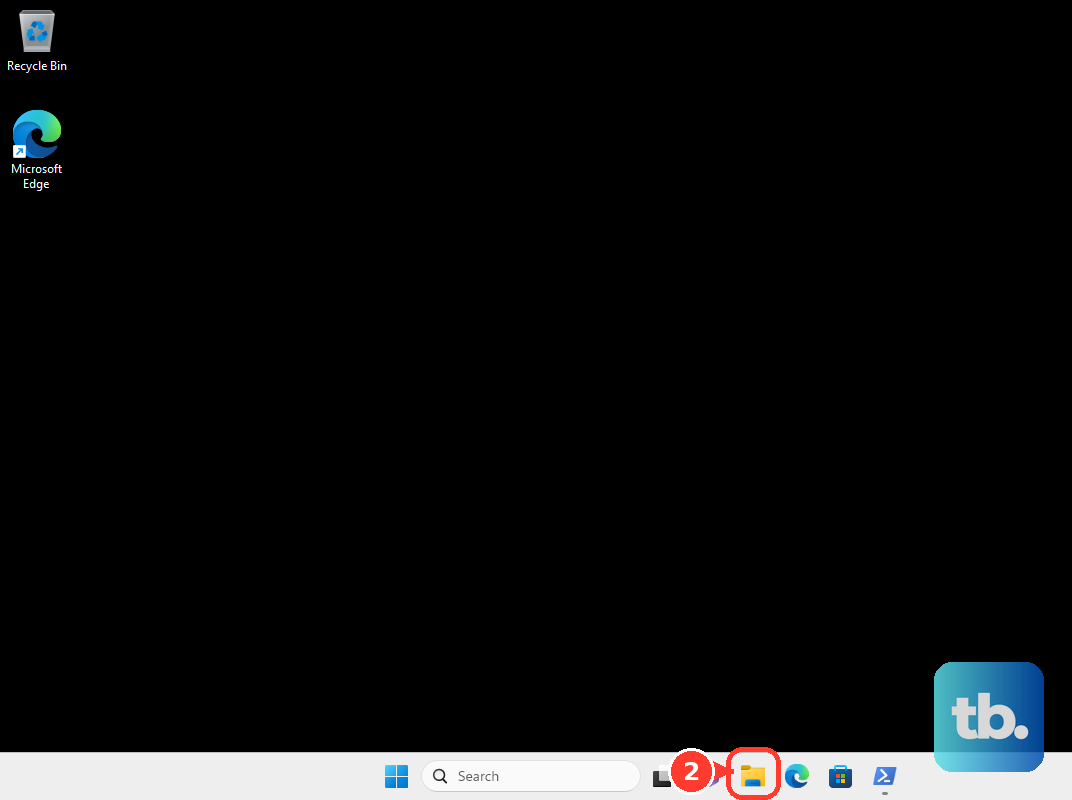
Update Windows and the affected driver
Open Settings > Windows Update and select Check for updates. Install applicable updates, accept a supported feature update offered for your device, and restart. Recheck the screen saver selection and wait time afterward.
For a graphics or input device implicated by earlier checks, open Settings > Windows Update > Advanced options > Optional updates. If driver updates are listed, select the update matching the affected device, then select Download and install. Restart after installation.
A failing preview makes the graphics driver a more relevant suspect. With the desktop responsive, press Windows + Ctrl + Shift + B to reset the graphics driver, then test Preview again. This shortcut addresses graphics faults; it does not directly repair the screen saver's idle timer.
To search for a newer graphics driver, open Start, search for Device Manager, and open Device Manager. Expand Display adapters, right-click your graphics adapter, and select Update driver > Search automatically for drivers. Complete the search and restart if required.
If you need to find and update your graphics driver manually, obtain and extract the package from the hardware manufacturer's official support page. Match the device, Windows version, and processor architecture. In Device Manager, right-click the affected device and select Update driver, then select Browse my computer for drivers and Browse.... Select the extracted folder, select OK and Next, then close the wizard after installation.
If the failure began immediately after a driver update, use an administrator account and open the affected device's Properties > Driver > Roll Back Driver. Choose a reason when prompted, select Yes, and restart. That option is unavailable when Windows has no previous driver package.
Use a clean boot to find background conflicts
A clean boot helps you isolate background software when closing visible apps has not identified the cause. Sign in as an administrator, search for msconfig, and open System Configuration > Services. Check Hide all Microsoft services before selecting Disable all > Apply.
Open Startup > Open Task Manager, then select Startup apps. Record which items are enabled and select each enabled item followed by Disable. Close Task Manager, select OK in System Configuration, and restart.
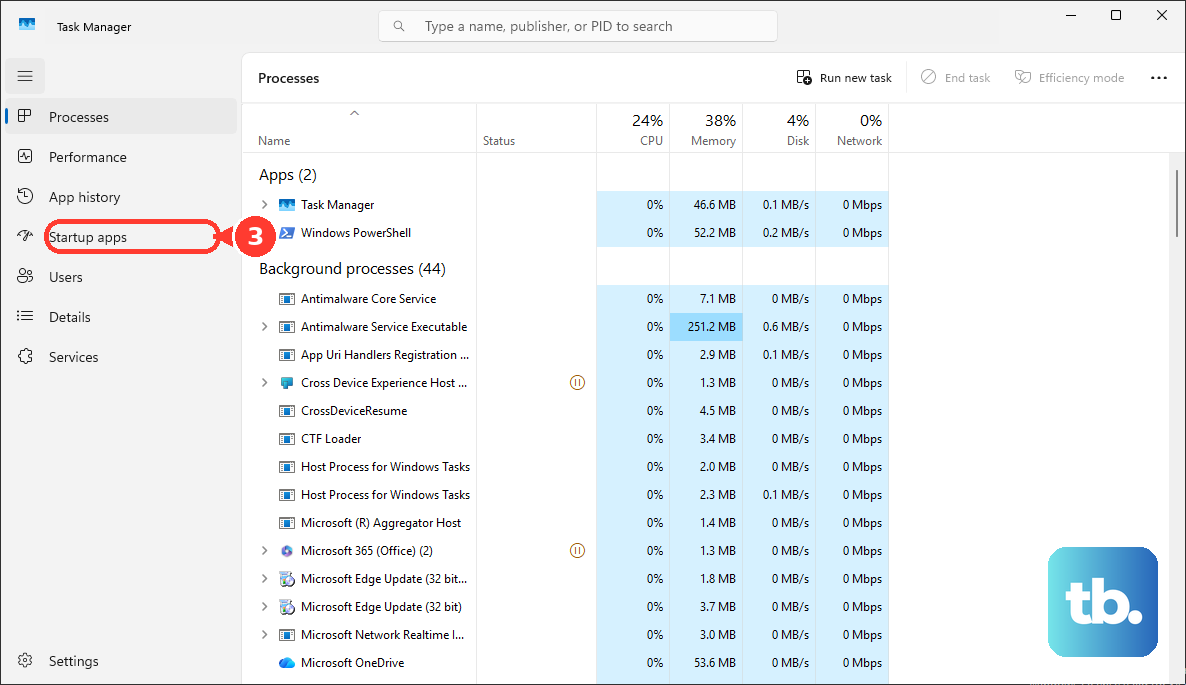
Test the screen saver before opening additional software. If it works, re-enable the disabled services and startup items in groups, restarting and retesting to narrow down the conflict. Afterward, restore General > Normal Startup, restore services, and re-enable the startup items you disabled.
Repair Windows when targeted fixes fail
If the problem persists after configuration, input, app, and driver checks, repair Windows system files when you suspect corruption. Install Windows updates and restart first, then search for Command Prompt, right-click Command Prompt, and select Run as administrator. Select Yes and run this command:
DISM.exe /Online /Cleanup-image /RestorehealthWait for DISM to complete successfully before starting System File Checker. To run System File Checker in Windows, enter the following command and let verification finish:
sfc /scannowRestart Windows and test the screen saver again. These commands repair Windows components and system files, so they may help when corruption causes the failure.
If the problem persists alongside broader Windows faults, open Settings > System > Recovery. On eligible installations, under Fix problems using Windows Update, select Reinstall now, then select OK. Keep the PC powered and online, and restart when installation finishes; Microsoft says this repair preserves apps, files, and settings. The option can be unavailable on work or school computers managed by an organization.
Frequently Asked Questions
Why does the screen saver work without asking me to sign in afterward?
You need to enable sign-in protection separately from the animation. Open Settings > Personalization > Lock screen > Screen saver, check On resume, display logon screen, then select Apply and OK.
Will changing my Windows theme restore the screen saver?
Changing or reapplying a theme will not restore its associated screen saver because Microsoft removed screen saver functionality from Themes. Configure your screen saver separately through Settings > Personalization > Lock screen > Screen saver.
Should I run the old Power troubleshooter?
Use the current settings and device checks instead. Microsoft lists the legacy Power, Hardware and Devices, and System Maintenance troubleshooters for removal, so you should not rely on their availability.
Does a power request prove an app is blocking the screen saver?
No, a power request concerns display or sleep behavior and does not establish that the app prevents screen saver activation. Microsoft says SetThreadExecutionState does not stop the screen saver. You should isolate the application before treating PowerToys Awake, browser wake locks, or audio streams as the cause.
Can another Windows account help identify the cause?
Yes, you can use a separate account to check for a per-user configuration problem. Open Settings > Accounts and go to the other users page. Under Add other user, select Add account and add another account, then sign into it and configure a screen saver. If it works there, that suggests the original profile's configuration is involved; you do not need to delete the original account.