System File Checker repairs missing or corrupted protected Windows system files when Windows features crash, fail to open, or act wrong. The current consumer route is still the built-in Sfc.exe command run with administrator privileges. Start with the standard Windows 11 repair path, then use the targeted and recovery options only when you need them.
1. Prepare Windows before running SFC
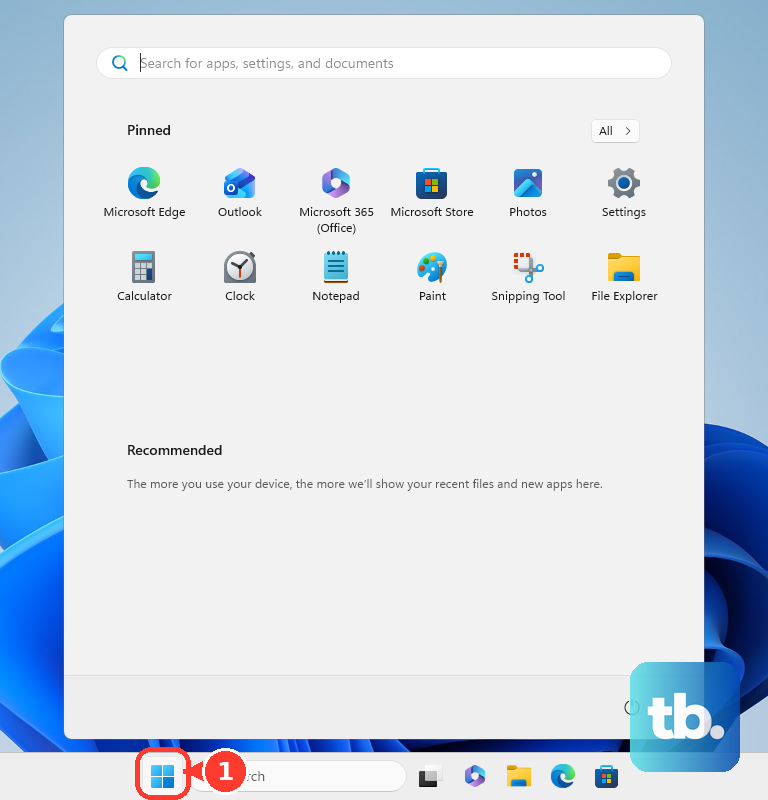
Select Start, open Settings, then select Windows Update. Select Check for Windows updates, and if updates are available, select Download & install. Restart your PC when Windows asks you to.
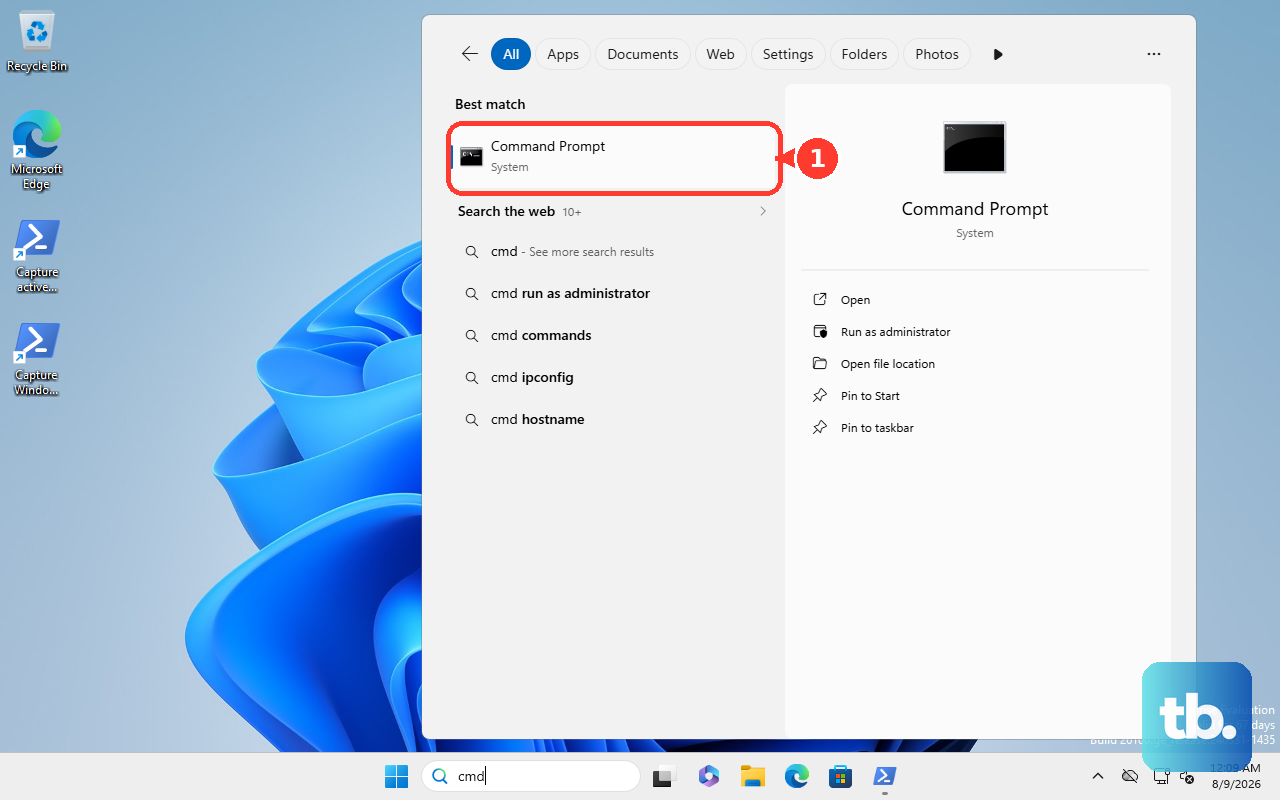
In the search box on the taskbar, type command prompt. Right-click or press and hold Command Prompt. Select Run as administrator, then select Yes.
2. Run the standard repair scan
This fixes missing or corrupted protected Windows system files after Windows repairs the component store SFC uses. In the administrator Command Prompt, type DISM.exe /Online /Cleanup-image /Restorehealth. Press Enter, then wait for The operation completed successfully.
Type sfc /scannow. Press Enter. After Verification 100% complete, type exit, then press Enter.
3. Open an admin shell faster
Press Windows key + S or Windows key + Q, search for Command Prompt, then select Run as administrator. You can also press Windows key + X, which matches right-clicking Start, and choose the administrator terminal entry shown on your build. If Command Prompt is pinned to the taskbar, use Ctrl + Shift while selecting its icon to open it as administrator.
4. Check system files without repairing them
Open an elevated Command Prompt, PowerShell, Windows Terminal, or administrative script host. Confirm the account is a member of the Administrators group. Type sfc /verifyonly, then press Enter.
Use this when you want SFC to verify protected system files and leave them unchanged.
5. Scan one protected system file
Open an elevated command-line shell. Type sfc /scanfile=<file>, replacing <file> with the full path and filename. For example, type sfc /scanfile=C:\Windows\System32\kernel32.dll, then press Enter.
6. Verify one protected file only
Open an elevated command-line shell. Type sfc /verifyfile=<file>, replacing <file> with the full path and filename. For example, type sfc /verifyfile=C:\Windows\System32\kernel32.dll, then press Enter.
This is the targeted version of verify-only mode, so it checks one file without repairing it.
7. Use Safe Mode when SFC cannot run
Access Windows Recovery Environment. Select Troubleshoot, then select Advanced options. Select Startup Settings, then select Restart.
On Startup Settings, select Enable Safe Mode or Safe Mode with Command Prompt. Open an elevated Command Prompt if needed. Type sfc /scannow, then press Enter.
8. Run SFC when Windows will not start
Boot to Windows Recovery Environment. Select Troubleshoot, then select Advanced options. Select Command Prompt.
Run BCDEdit, then note the drive letter shown next to osdevice. Type SFC /scannow /offbootdir=D:\ /offwindir=D:\windows, replacing D: with the Windows volume identified by BCDEdit. Press Enter.
You can reach Windows Recovery Environment from Settings > System > Recovery > Advanced startup > Restart now, with Shift + Restart, through Automatic Repair, from a USB recovery drive, or from Windows installation media.
9. Read the SFC repair log
This shows which files SFC verified, repaired from backup, repaired from the store, or could not repair. Open an elevated Command Prompt. Type findstr /c:"[SR]" %windir%\Logs\CBS\CBS.log >"%userprofile%\Desktop\sfcdetails.txt", then press Enter.
Open Sfcdetails.txt from the desktop. Check the date and time entries for your most recent SFC run.
For a work or school PC, administrator access may be controlled by your organization. If Run as administrator is blocked, contact your IT administrator.
Frequently Asked Questions
What does System File Checker do?
System File Checker checks protected Windows system files and can repair missing or corrupted ones when you run sfc /scannow from an elevated command-line shell.
Should I run DISM before SFC?
Yes. Microsoft’s standard repair sequence runs DISM.exe /Online /Cleanup-image /Restorehealth first, then sfc /scannow after DISM reports that the operation completed successfully.
Can I use System File Checker without repairing files?
Yes. Run sfc /verifyonly from an elevated command-line shell to check protected system files without making repairs.
Does System File Checker work if Windows will not boot?
Yes. Start Windows Recovery Environment, open Command Prompt, identify the Windows volume with BCDEdit, then run SFC with /offbootdir and /offwindir.