


To fix the Bluetooth Remove Failed error in Windows, turn Bluetooth off for 10 seconds, turn it back on, and retry removing the accessory in Settings. If removal still fails, run the Bluetooth troubleshooter before moving to device and driver repairs.
Start with the Windows 11 instructions, with Windows 10 paths included for applicable repairs. Removing a pairing, uninstalling a device instance, and deleting a driver package are different operations, so retry pairing removal after each applicable repair.
The short version
- Start small: Turn Bluetooth off for 10 seconds, turn it back on, and retry removal.
- Use diagnostics: Run the Bluetooth troubleshooter through Get Help before changing drivers.
- Target the accessory: Uninstall only identified accessory entries when checking hidden devices.
- Prepare another input method: Reinstalling the Bluetooth adapter temporarily disconnects Bluetooth peripherals.
| Fix or option | When to use it | Main consideration |
|---|---|---|
| Windows 11 pairing removal | After each applicable repair | Removes the accessory’s pairing |
| Bluetooth toggle in Settings | First attempt | Wait 10 seconds before switching it on |
| Taskbar Bluetooth toggle | Alternative on Windows 11 | Requires a functioning adapter |
| Bluetooth troubleshooter | Removal still fails | Complete the interactive diagnostics |
| Windows restart | Initial repairs fail | Save your work first |
| Full PC shutdown | Windows 11 radio stops responding | Wait one minute before powering on |
| Airplane mode check | Windows 11 radio is unavailable | Turn it off if enabled |
| Accessory charging and power cycle | Battery-powered accessory | Power controls vary by model |
| Accessory instance uninstall | Identified accessory entries remain | May leave the pairing record |
| Bluetooth Support Service restart | Bluetooth is unstable | General Bluetooth repair |
| Power management adjustment | Power-related disconnects | Requires Power Management |
| Windows updates | Earlier repairs fail | Restart when requested |
| Optional Bluetooth driver | Matching Windows 11 update is offered | Select the applicable package |
| Device Manager driver update | Windows 11 adapter trouble | Use the automatic driver search |
| Adapter reinstall | Adapter repairs are needed | Temporarily disconnects Bluetooth peripherals |
| Driver rollback | Trouble follows a driver change | Requires a retained previous driver |
| PnPUtil instance removal | Stubborn identified accessory instance | Does not guarantee pairing deletion |
| PnPUtil adapter restart | Administrative adapter repair | Use the adapter’s exact instance ID |
| Driver package deletion | Faulty third-party package | Affects every device using that package |
| Vendor application uninstall | Separately installed device software | Use its supplied uninstaller |
| Intel driver download | Supported Intel adapter | Check the supported-products list |
| Intel Driver & Support Assistant | Automatic Intel update detection | Requires supported hardware |
| OEM firmware check | Windows 11 radio remains missing | Follow model-specific instructions |
| Managed Bluetooth policy review | Managed PC has reconnection restrictions | Ask your IT administrator |
Restart Bluetooth and retry removal
On Windows 11, open Start > Settings > Bluetooth & devices. Turn Bluetooth off, wait 10 seconds, then turn it on again. On Windows 10, use the toggle under Settings > Devices > Bluetooth & other devices.
Alternatively, on Windows 11 with a functioning adapter, select the taskbar Network, Sound, or Battery icon. Use the Bluetooth tile to switch Bluetooth off and back on, then retry removal.
Removing the accessory deletes its Bluetooth pairing from Windows. On Windows 11, open Start > Settings > Bluetooth & devices > Devices, then select More options beside the accessory. Choose Remove device, then select Yes.
For a battery-powered accessory, charge it, switch it off, then switch it back on near your PC. Follow the accessory manufacturer’s instructions for its power control because the buttons vary by model. Retry removal after powering it back on.
Save your work before restarting Windows. To restart your Windows computer, open Start > Power > Restart. After signing in, retry removing the accessory.
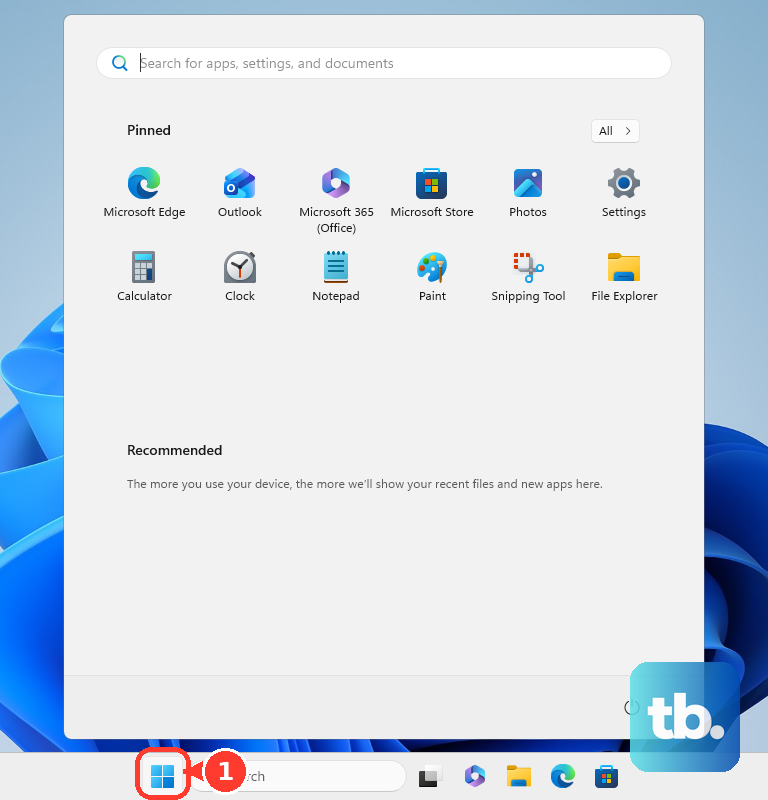
Run the Bluetooth troubleshooter
On Windows 11, open Start > Settings > System > Troubleshoot > Other troubleshooters. Select Run beside Bluetooth and complete the interactive diagnostics. Retry removal when the process finishes.
You can also open Microsoft’s Bluetooth troubleshooting page and select Run the troubleshooter in Get Help. Microsoft also provides this route for Windows 10. If removal still fails, check the service and drivers next.
Check the Bluetooth service and power settings
Microsoft recommends restarting Bluetooth Support Service for Bluetooth instability on Windows 11 and Windows 10. If Bluetooth is also unstable when removal fails, try this repair and then retry removal. Press Windows + R, enter the following command, then press Enter.
services.mscRight-click Bluetooth Support Service and select Restart. Retry removing the accessory afterward.
If the accessory also has power-related disconnects, open Device Manager, expand Bluetooth, and open the affected device’s Properties > Power Management. Uncheck Allow the computer to turn off this device to save power, restore the connection, then retry removal. This adjustment applies to Windows 11 and Windows 10 only when the driver exposes Power Management; otherwise, continue to the update checks.
Update Windows and the Bluetooth driver
On Windows 11, open Start > Settings > Windows Update and select Check for updates. Install available updates and restart when requested. On Windows 10, open Settings > Update & Security > Windows Update, with update availability depending on your servicing entitlement.
For optional Bluetooth drivers on Windows 11, open Settings > Windows Update > Advanced options > Optional updates. If a matching Bluetooth driver is offered, select it by its displayed package name, choose Download and install, then restart. Package names vary by hardware.
Another Windows 11 route is to right-click Start and open Device Manager. Expand Bluetooth, right-click the Bluetooth radio, and choose Update driver, then select the automatic search option. Complete the search and restart if requested, then retry accessory removal.
For a supported Intel adapter, check the supported-products list on Intel’s Bluetooth driver download page before downloading and launching the matching package. Prefer your PC manufacturer’s customized driver when applicable. Some discontinued Intel adapter families require the model-specific links on that page. If your PC has an Intel Wireless-AC 9560, 9462, or 9461 adapter and you are upgrading from driver versions 23.10.x through 23.50.x, Intel requires you to disconnect and unpair all previously paired Bluetooth devices before installing the current package. If an accessory still cannot be removed, resolve that first or follow your PC manufacturer’s guidance instead.
Intel also offers Driver & Support Assistant through that page as an automatic-detection alternative for supported hardware. Follow that option to Intel’s utility page, select Download now, and install the utility. Open Support Assistant to inspect hardware-specific updates.
Uninstall the affected accessory entry
Search Windows for Device Manager and open it, then select View > Show hidden devices. Find the affected accessory in its relevant device category, targeting only entries you can identify. These steps apply to Windows 11 and Windows 10, and administrative permissions may be required.
Uninstalling an entry removes that device instance, but it does not guarantee deletion of the Bluetooth pairing record. Right-click the identified accessory entry, select Uninstall device, then confirm the removal in the dialog that appears. Restart if required and check the device list again. If the pairing remains, continue with the applicable adapter repair instead of deleting unrelated hidden devices.
Reinstall or roll back the Bluetooth adapter
Reinstalling the Bluetooth adapter temporarily disconnects Bluetooth peripherals, so have another input method available first. In Device Manager, expand Bluetooth and right-click the adapter. Choose Uninstall device, then confirm the removal in the dialog that appears.
Restart Windows so it can reinstall the adapter, then retry removing the accessory. This repair applies to Windows 11 and Windows 10.
If the trouble began after a Bluetooth driver change, rolling back replaces the current driver with a retained previous version. Using an administrator account, open the adapter’s Properties > Driver > Roll Back Driver in Device Manager. Choose the applicable reason, select Yes, and restart if requested. Rollback requires a retained previous driver; without one, continue to the next applicable repair.
Use PnPUtil for a stubborn device instance
PnPUtil can remove a Plug and Play device instance on Windows 11 and Windows 10 version 2004 onward, but Microsoft does not promise that it clears every orphaned pairing. Open Command Prompt using Run as administrator, then run this command to list Bluetooth instances.
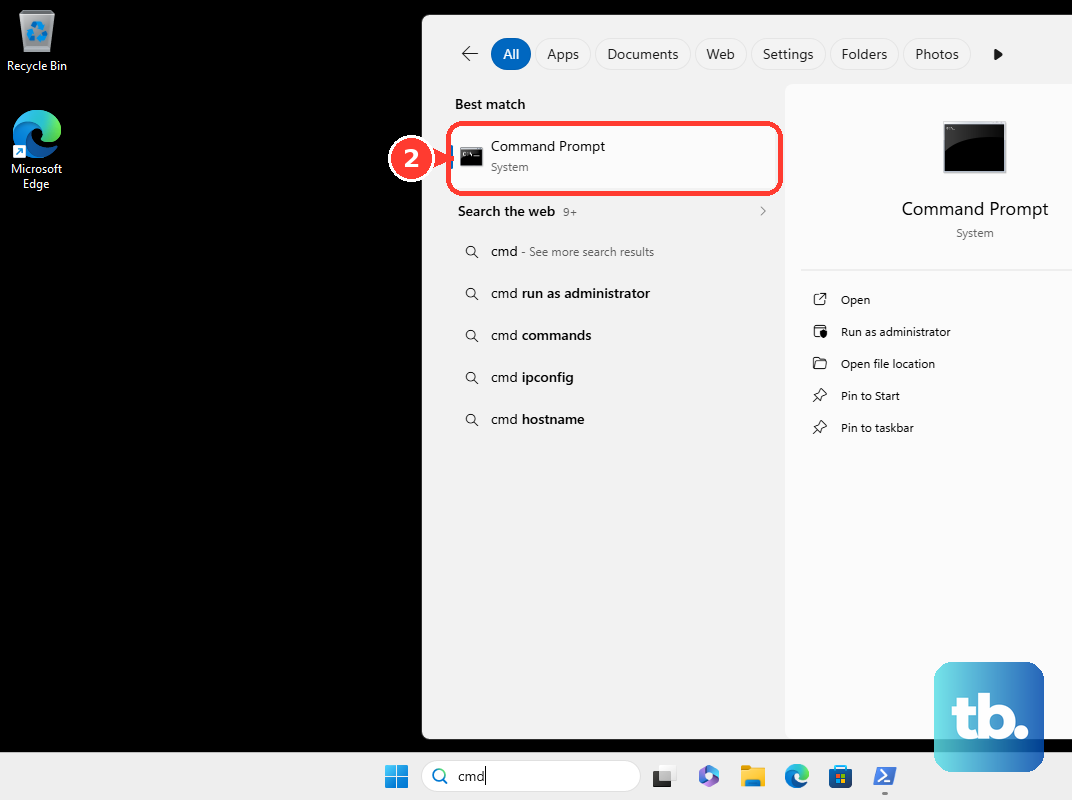
pnputil /enum-devices /class BluetoothIdentify the affected accessory and its exact instance ID in the results. Replace INSTANCE_ID below with that exact value before running the command. The command removes the specified Plug and Play device instance.
pnputil /remove-device "INSTANCE_ID"Restart if requested, then check whether the accessory remains listed. A remaining pairing may need further Bluetooth troubleshooting even after its device instance is removed.
As a separate adapter repair on the same Windows versions, you can restart the Bluetooth adapter through PnPUtil. Use the enumeration command above to identify the adapter, then replace INSTANCE_ID in the following command with the adapter’s exact ID. Run it in the administrator command prompt, then retry removal.
pnputil /restart-device "INSTANCE_ID"Remove faulty vendor software or driver packages
If your device has a separately installed software package, search Windows for Add or remove programs and find the relevant device or driver application. Uninstalling that package removes the vendor’s device or driver software. Use the package’s supplied uninstaller; confirmations vary by installer. This option applies to Windows 11 and Windows 10.
Deleting a faulty third-party driver package is an advanced repair that affects every device using it, so prepare a compatible replacement driver first. In an administrator Command Prompt, run the following command and identify the exact package.
pnputil /enum-driversReplace oemNN.inf below with the package’s exact published INF name. The next command deletes that driver package and uninstalls it from devices using it.
pnputil /delete-driver oemNN.inf /uninstallReinstall the appropriate vendor driver afterward, then retry accessory removal. Use this repair only for an identified faulty package, rather than as an ordinary unpairing step.
Restore a missing radio or check managed restrictions
If the Bluetooth toggle disappears or stops responding on Windows 11, restore radio availability before retrying removal. Press Windows + A and turn off Airplane mode if it is enabled. Ensure Bluetooth is on before another removal attempt.
For an unresponsive radio, save your work, then hold Shift while selecting Start > Power > Shut down. Wait one minute after shutdown before powering the PC on. Retry removal once Bluetooth returns.
For persistent missing or unresponsive hardware on Windows 11, open Settings > Windows Update > Advanced options > Optional updates and look for firmware applicable to your PC. If none is available, consult your PC manufacturer’s model-specific support page for BIOS, UEFI, or firmware updates. Follow the instructions for your exact model.
On a managed PC, ask IT to review Bluetooth policy if restrictions prevent reconnection. A Bluetooth allowlist can block required profiles, and any correction belongs in the organization’s management policy. A policy correction addresses access restrictions; it does not forcibly remove the pairing.
Frequently Asked Questions
Why might a Windows 10 PC receive different update options?
Ordinary Windows 10 support ended on October 14, 2025. Your update availability depends on the PC’s servicing entitlement.
Should you use an old MSDT command for Bluetooth troubleshooting?
Use the Bluetooth troubleshooter in Get Help instead. Microsoft lists the old Bluetooth troubleshooter for redirection and the Hardware and Devices troubleshooter for retirement.
Which Windows versions support PnPUtil driver package deletion?
The driver package deletion command applies to Windows 11 and Windows 10 version 1607 onward. Its minimum Windows 10 version differs from the device removal and restart commands, which require version 2004 onward.
Does the Intel Bluetooth download support every Windows PC?
No, the package is for supported Intel adapters on Windows 11 or Windows 10 64-bit. Your adapter must appear in the applicable supported-products list.
Does the managed Bluetooth policy apply to Windows Home?
The Bluetooth management policy is not a Windows Home consumer setting. On Windows 11, it applies to managed Pro, Enterprise, Education, and IoT Enterprise devices.