

To fix Snapchat notifications on iPhone, turn on Allow Notifications in iPhone settings, enable Snapchat's notification categories, and turn off any Focus or chat mute blocking alerts. If notifications arrive late or silently, check scheduled delivery and sound settings. Start with the fix that matches the alerts you are missing.
The short version
- Permission first: Enable Snapchat notifications and choose where alerts appear in iPhone settings.
- Check inside Snapchat: Turn on the notification categories you want and unmute affected conversations.
- Delayed or silent alerts: Review Focus, scheduled delivery, sound settings, and Apple Watch routing.
- Persistent problems: Restart and update Snapchat before clearing its cache or reinstalling.
| Fix | When to use it |
|---|---|
| Enable iPhone notification permission | No visible Snapchat alerts |
| Restore notification previews | Alerts arrive with hidden contents |
| Undo a temporary notification mute | Snapchat was muted through Notification Center |
| Enable Snapchat notification categories | Specific notification types are missing |
| Enable Story notifications | You want alerts from selected accounts |
| Unmute a friend | One friend's chats, calls, or Stories are muted |
| Restore group notifications | A group chat is silent |
| Review contact permissions | A particular sender cannot reach you |
| Disable an active Focus | Alerts stop while a Focus is active |
| Allow Snapchat through Focus | You want to keep the Focus active |
| Review Focus schedules and sharing | A Focus keeps returning |
| Remove scheduled delivery | Alerts arrive in a scheduled summary |
| Enable notification sounds | Alerts appear silently |
| Exit Silent mode | Sound remains muted |
| Raise alert volume | Notification sounds are too quiet |
| Enable haptics and vibration | Visible alerts produce no vibration |
| Review Apple Watch routing | Alerts appear on your watch |
| Compare Wi-Fi and cellular | Snapchat content also fails to load |
| Repair Wi-Fi connectivity | Snapchat fails on a particular network |
| Restart Snapchat | Notification settings are already correct |
| Update Snapchat | An app update is available |
| Restart your iPhone | The problem continues after restarting Snapchat |
| Force restart your iPhone | The phone is unresponsive |
| Update iOS | Your iPhone offers a software update |
| Clear Snapchat's cache | Earlier app troubleshooting has failed |
| Check the Memories backup and reinstall | The app still malfunctions after narrower fixes |
| Report a bug | Notifications still fail after troubleshooting |
Allow Snapchat notifications in iPhone settings
Open Settings > Notifications > Snapchat and turn on Allow Notifications. Under Alerts, select Lock Screen, Notification Center, and Banners for the places you want alerts to appear. Turn on Badges if you also want an indicator on the app icon.
If alerts arrive but hide their contents, open Settings > Notifications > Snapchat and tap Show Previews if it appears. Select Always if you want Snapchat previews visible while your phone is locked. If you locked Snapchat with Face ID, Touch ID, or a passcode, its information won’t appear in notification previews; to remove the lock, touch and hold the Snapchat icon, tap Don’t Require Face ID (or Touch ID or Passcode), then authenticate.
On iOS 26 and iOS 27, you can undo a temporary mute from an existing Snapchat notification in Notification Center. Swipe left on the notification, tap Options, then tap Unmute. To reach Snapchat's system notification controls from the same place, tap Options > View Settings.
Enable the notification types you want in Snapchat
Snapchat has its own notification controls alongside the iPhone permission. Open Snapchat, tap the profile icon, then tap the gear icon to open Settings. Tap Notifications and turn on each notification type you want.
For Story alerts from selected accounts, open Manage Story Notifications from that notification screen. Tap the accounts you want, then tap Done. Snapchat also needs notification permission in iPhone settings for those alerts.
Unmute individual friends and group chats
If only one friend's chats or calls are quiet, swipe right from Snapchat's Camera screen and hold the friend's name. Tap Chat and Notification Settings > Notification Settings, then turn off Mute Chats and Mute Calls as needed. For a muted Story, hold the friend's name, open Story Settings, and turn off Mute Story.
For a group, swipe right from the Camera screen, hold the group, and tap Notification Settings. Turn off Mute Chats, then open Chat Notifications and select Chats and Snaps. If the menu uses All Messages instead, select that option.
When a particular person's messages do not reach you at all, review who can contact you. Tap the profile icon and gear icon, then under App & Privacy, tap Contact Me. Select Friends for people you have added, or Friends and Contacts to include phone contacts. Add the intended sender as a friend when appropriate.
Stop Focus and scheduled delivery from holding alerts
An active Focus can silence Snapchat even when notification permission is enabled. Open Control Center by swiping down from the upper-right corner on a Face ID iPhone, or up from the bottom on a model with a Home button. Tap the active Focus icon to disable it, including when you need to turn off Do Not Disturb.
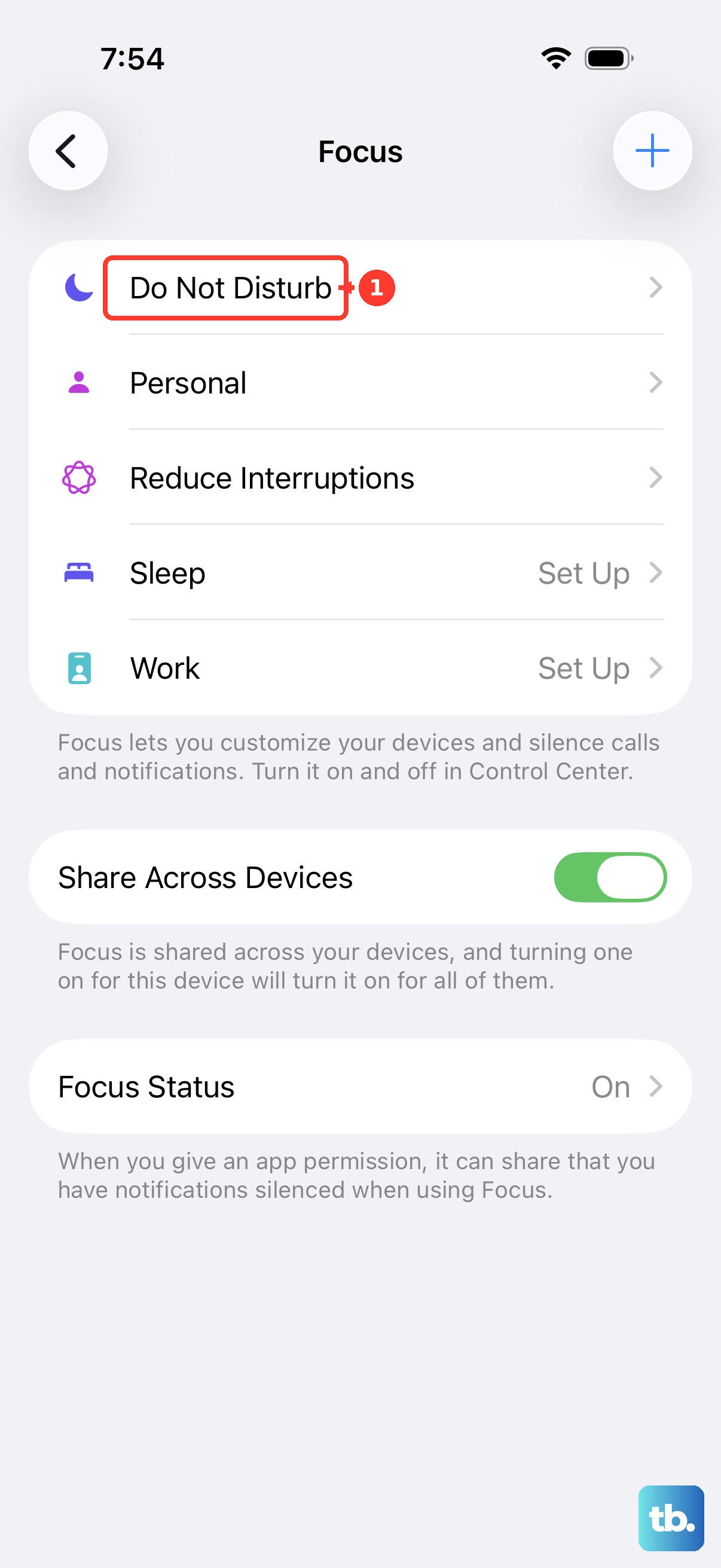
To keep a Focus active while allowing Snapchat, open Settings > Focus, select that Focus, and open Apps or Choose Apps. Under Allow Notifications From, add Snapchat using the add-app control. If the Focus uses Silence Notifications From, remove Snapchat from that list so the Focus no longer silences its alerts. Repeat for each Focus you use.
If Do Not Disturb keeps returning, open Settings > Focus > Do Not Disturb and disable unwanted active schedules under Set a Schedule. On iOS 16 and later, also review Customize Screens for a linked Lock Screen. If another Apple device is activating the Focus, open Settings > Focus and turn off Share Across Devices.
For delayed alerts on iOS 15 and later with scheduled summaries enabled, open Settings > Notifications > Scheduled Summary. Exclude Snapchat or turn off Scheduled Summary. Alternatively, open Settings > Notifications > Snapchat and select Immediate Delivery under Notification Delivery if shown.
Restore notification sound and vibration
When Snapchat alerts appear silently, open Settings > Notifications > Snapchat and tap Sounds to turn on audio alerts. On iOS 27, select a sound after tapping Sounds if Snapchat supports it. That setting cannot override Silent mode or low alert volume.
On an iPhone with a Ring/Silent switch, move the switch toward the front of the phone. If the Action button controls Silent mode, hold Action to disable it. Otherwise, use Settings > Sounds & Haptics > Silent mode, or the Silent mode control in Control Center where available.
On iOS 27, open Settings > Sounds & Haptics and adjust the ringtone volume. Under Alerts and System Sounds, adjust the separate slider when Match Ringtone Volume is disabled. Turn off Change with Buttons if accidental button presses keep lowering your alerts.
On the earlier sound settings layout, including iOS 26, open Settings > Sounds & Haptics and raise Ringtone and Alerts. Tap Haptics and select Always Play if you want vibrations in both ringing and silent modes. If notifications appear without any vibration, also open Settings > Accessibility > Touch and turn on Vibration.
Check whether your Apple Watch receives the alerts
Apple normally sends notification alerts to either your iPhone or your paired Apple Watch. Check for alerts with your iPhone unlocked, when they normally arrive on the phone. When the iPhone is locked or asleep, alerts normally go to your unlocked Apple Watch.
To review Snapchat's watch alerts, open Watch, then open My Watch and tap Notifications. Find Snapchat under Mirror iPhone Alerts From. Turn its switch off if you do not want Snapchat notifications on the watch.
Check the connection when Snapchat also fails to load
If content is not loading either, try Snapchat on a different connection by switching between Wi-Fi and cellular data. For cellular access, open Settings > Cellular, enable Cellular Data, and enable Snapchat in the app list. Tap Show All when you need to expand the list.
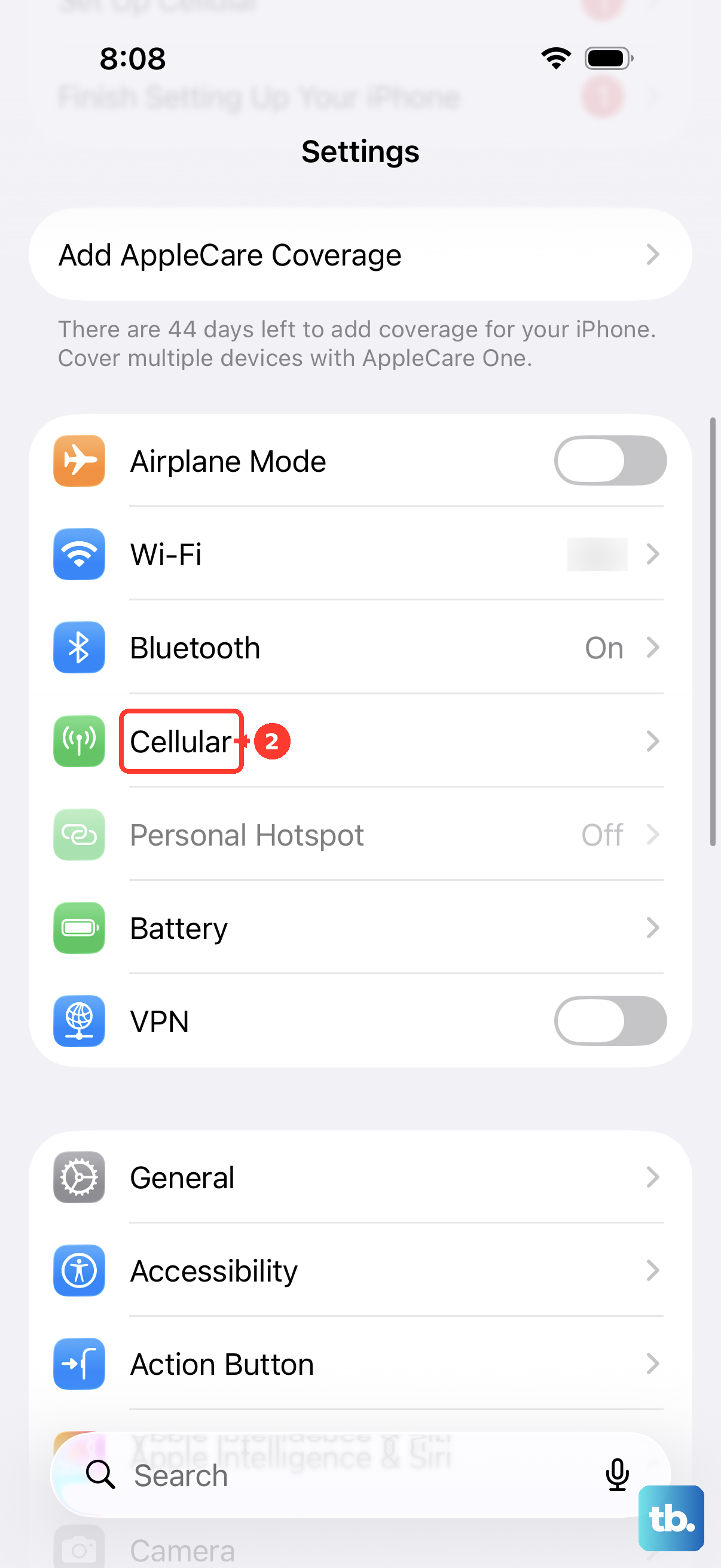
For a failing Wi-Fi connection, open Settings > Wi-Fi, enable Wi-Fi, and select a working network. Check that Airplane Mode is off, and restart your own router and modem by disconnecting and reconnecting their power. Try another network to isolate the fault. If only one network fails, contact its provider.
Restart Snapchat and install updates
Close and reopen Snapchat before moving to more involved repairs. Swipe upward from the bottom of the screen and pause to open the app switcher, or double-click Home on a model with that button. Swipe Snapchat's preview upward, then reopen the app.
Next, update Snapchat on your iPhone through the App Store. Tap the profile icon, tap App Updates, find Snapchat, and tap Update. On the layout that shows pending updates directly on the profile screen, scroll to Snapchat there instead.
Restart the phone if the problem continues. On Face ID models, hold either Volume Up or Volume Down together with Side until the power slider appears; on iPhone SE models from the second or third generation, hold Side. Drag the slider, wait 30 seconds, then hold Side until the Apple logo appears.
If the phone is unresponsive and cannot restart normally, force restart your iPhone. On iPhone 8 and later, including the second- and third-generation SE, briefly press and release Volume Up, then press and release Volume Down. Hold Side until the Apple logo appears, then release it.
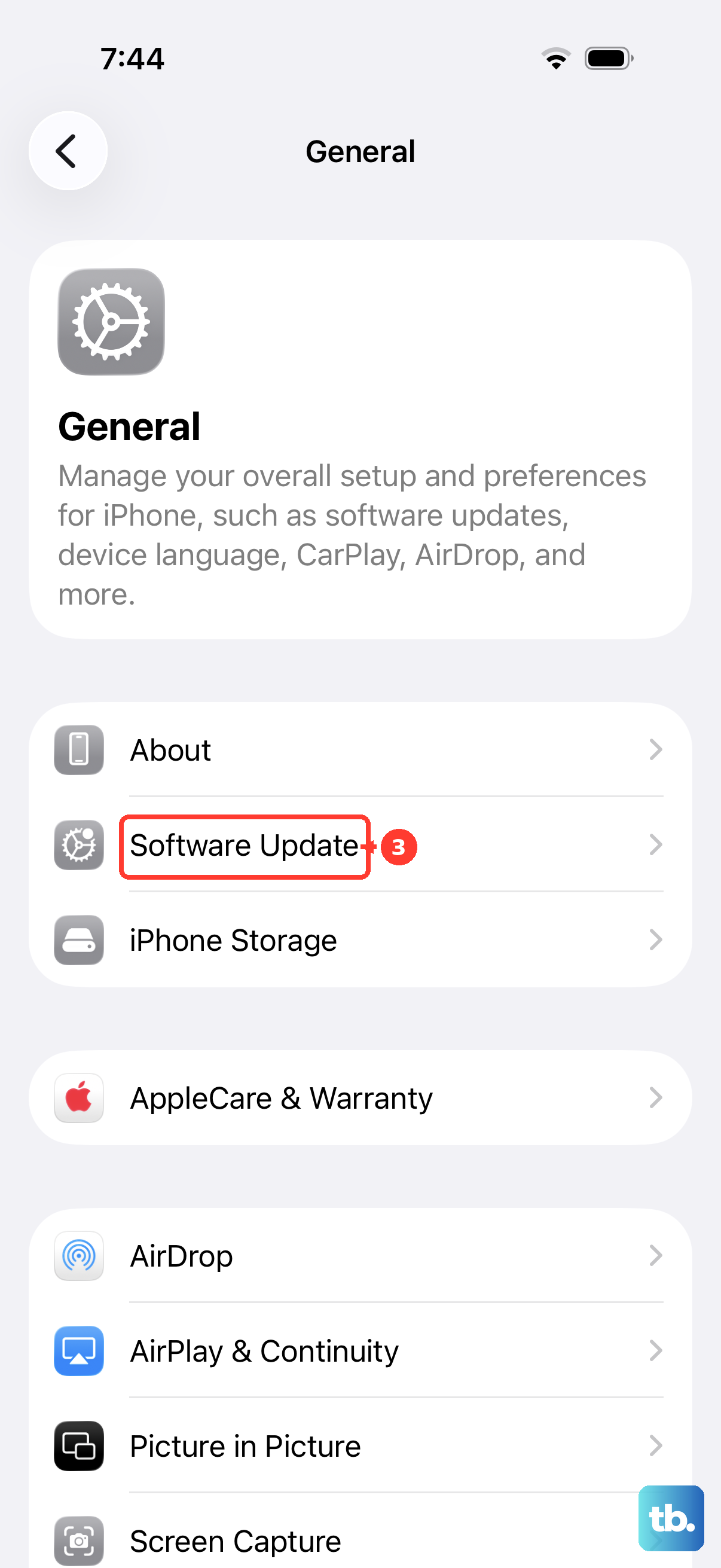
For an iOS update, back up your iPhone and connect it to power and Wi-Fi first. Open Settings > General > Software Update, tap Download and Install when an update is offered, and follow the displayed installation prompts.
Clear the cache or reinstall Snapchat
Clearing Snapchat's cache removes cached data while preserving Memories, Snaps, and Chats. Open My Account in Snapchat and tap the gear icon; under App & Privacy, tap My Privacy & Data. Then, under Manage My Data, tap Clear Cache, then tap Clear. Snapchat says clearing the cache can help troubleshoot some issues.
Reinstalling can lose local app data and unbacked-up Memories, so check your Memories backup before deleting Snapchat. Open My Account, tap the gear icon, and under Apps & Privacy, open My App. Then, under Customise My App, tap Memories and check that Backup Progress displays Complete. Do not uninstall while the backup is incomplete.
After confirming the backup, locate Snapchat in App Library and hold its icon. Tap Delete App, then Delete, and redownload Snapchat from its official App Store listing. Sign in and recheck both the iPhone and Snapchat notification settings.
If alerts still fail, report the problem in Snapchat. Open My Account and tap the gear icon, then under Support and Safety, open Bugs and Suggestions > Report a Bug. Include the notification problem and the results of the troubleshooting you completed.
Frequently Asked Questions
Can Screen Time interfere with Snapchat notifications?
Downtime on earlier Screen Time layouts can block notifications. On those layouts, open Settings > Screen Time > Always Allowed and tap the plus control beside Snapchat. On iOS 27, manage app availability through Settings > Screen Time > Always Allowed > Add Apps, then review Screen Time Schedule and Time Allowances if use remains restricted. A parent managing the restriction must make the change where applicable.
Why are Snapchat notifications missing during screen sharing?
For SharePlay or Screen Mirroring sessions, notification visibility is controlled under Settings > Notifications > Screen Sharing. Shared-screen viewers may see your alerts when you enable them. Turn on Allow Notifications there if you want alerts during the session.
How can I find Snapchat notifications that have already arrived?
Swipe upward from the middle of the Lock Screen to inspect delivered notifications. On other screens, swipe down from the top-left corner on iOS 27, or from the top center on iOS 26. Tap a notification stack to expand it. On iOS 16 and later, select List under Settings > Notifications to make existing alerts easier to see.
Why does Snapchat alert volume drop when I look at my iPhone?
On Face ID iPhones, attention detection can lower alert volume while you look at the device. Open Settings > Face ID & Passcode and turn off Attention Aware Features if you want to stop that behavior. On iOS 27, you can also reach the control through Settings > Accessibility > Face ID & Attention.