

Here’s how to free Up Storage Space on Samsung Galaxy S20 5G.
Delete Unused Apps
Your Galaxy S20 likely has apps you no longer use taking up valuable space. Start by removing these unnecessary applications.
Go to your Home screen and find the app you want to remove. Tap and hold the app icon, then select "Uninstall" from the menu. Confirm the deletion when prompted.
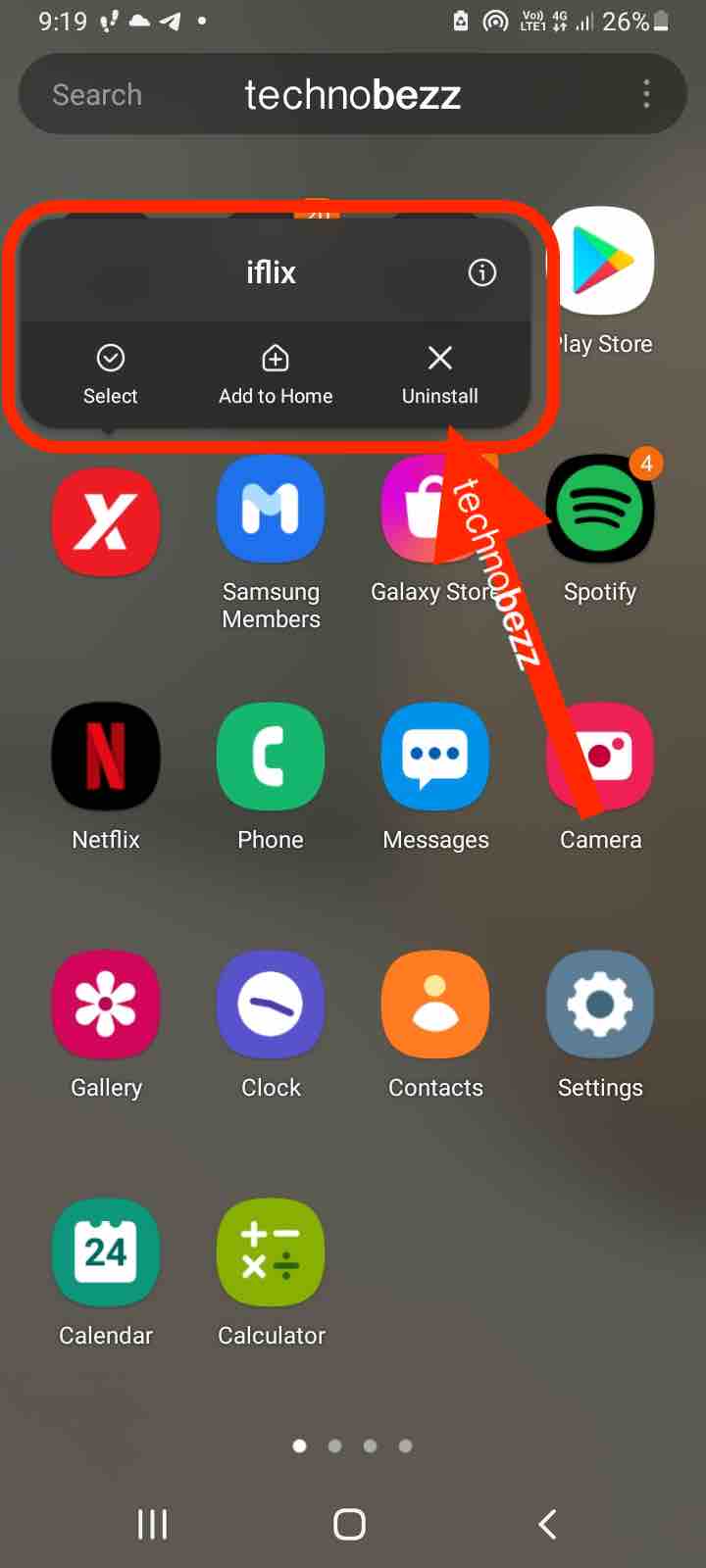
Repeat this process for every app you don't need. For pre-installed apps that can't be removed, you can often disable them instead.
Clear App Cache and Data
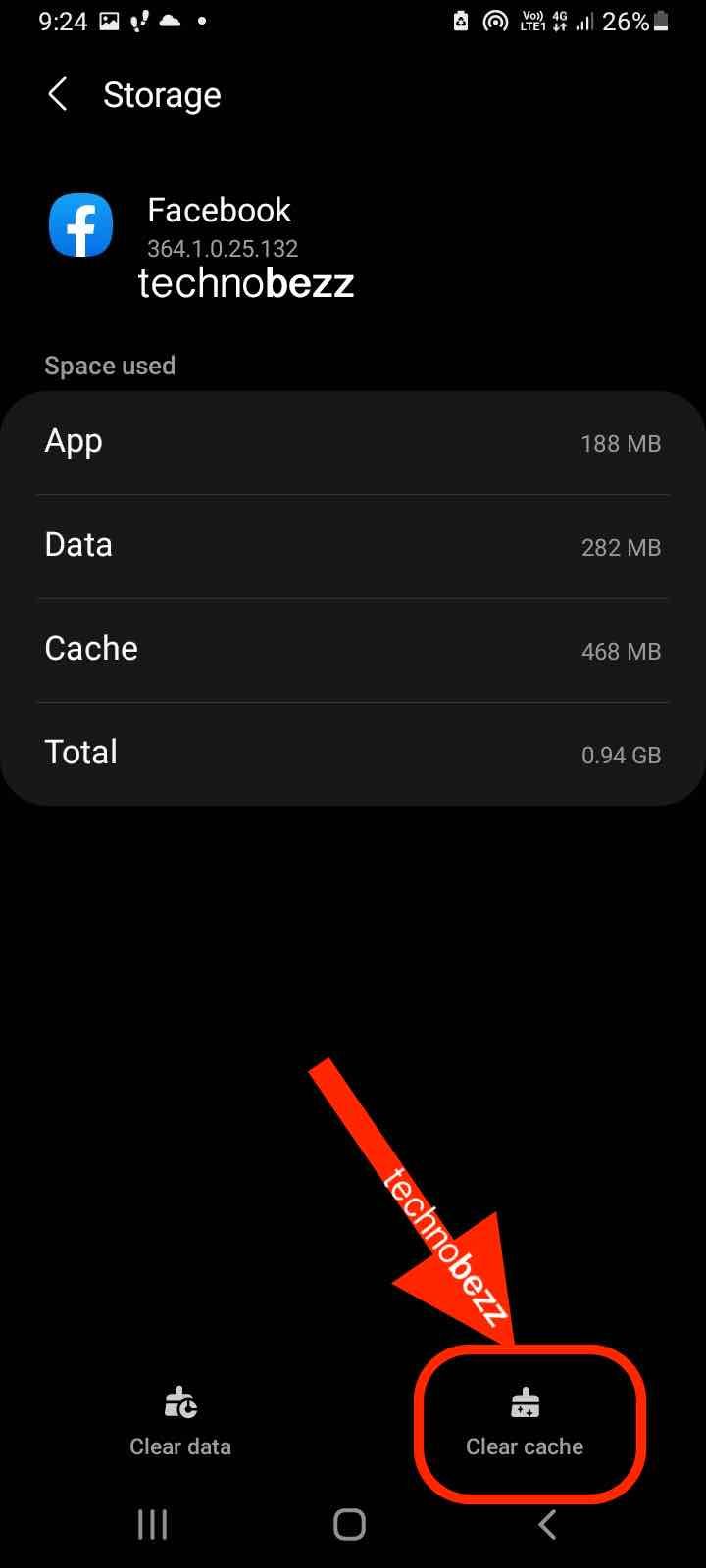
Apps accumulate temporary files called cache that can take up significant space over time. Clearing cache is safe and won't affect your personal data.
Open Settings > Apps, then select the app you want to clean. Tap "Storage" and choose "Clear cache". For apps using excessive space, you can also tap "Clear data" - but note this will reset the app and you'll need to log in again.
Manage Photos and Videos
Photos and videos are often the biggest storage hogs. A single photo can take 2-5 MB, while videos consume much more.
Use cloud services like Google Photos or Samsung Cloud to back up your media. After backing them up, delete photos and videos you no longer need. Use the "My Files" app to sort files by size and delete the largest ones first. Enable automatic backup so you can safely delete local copies.
Use Device Care Feature
Your Galaxy S20 has a built-in storage management tool called Device Care that makes cleanup easy. Open Settings, then scroll down and tap "Device Care". Select "Storage", review the storage breakdown and tap "Clean now". This feature automatically identifies junk files, cached data, and unused apps you can safely remove.
Move Apps to SD Card
If your Galaxy S20 has an SD card slot, you can move compatible apps to external storage. Go to Settings > Apps and select the app you want to move. Tap "Storage" and, if available, tap "Change" and select "SD card". Not all apps support this feature, but it can free up significant internal storage for those that do.
Factory Reset (Last Resort)
If you've tried everything and still need more space, a factory reset will wipe your device completely. Make sure to back up all important data first.
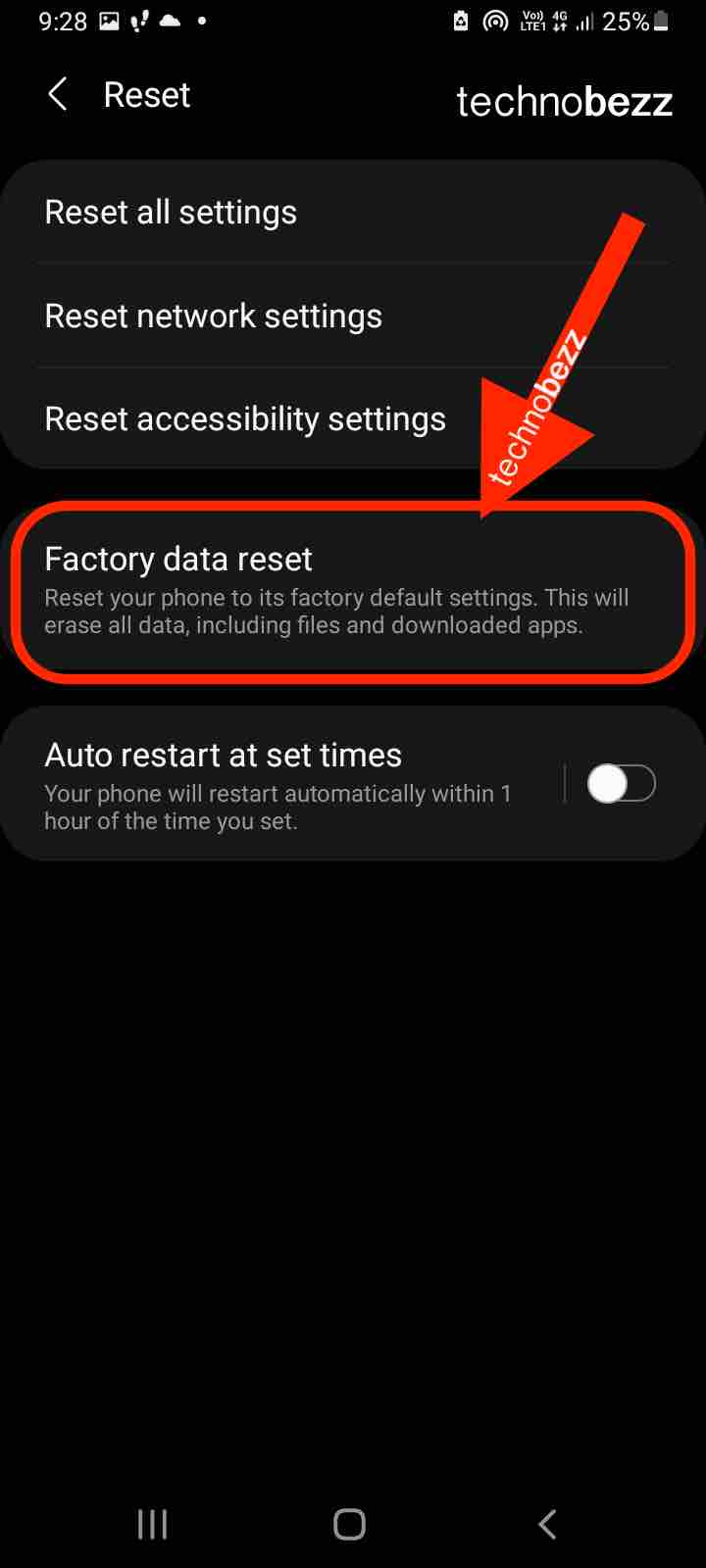
- 1.Go to Settings > General Management
- 2.Tap "Reset"
- 3.Select "Factory data reset"
- 4.Tap "Reset" to confirm
The process may take several minutes. After completion, you'll set up your device as new.
By regularly using these methods, you can keep your Samsung Galaxy S20 5G running smoothly with plenty of storage for what matters most.