

PDF preview not working in File Explorer usually comes down to one of three things: the preview pane is hidden, Windows is blocking the file, or the PDF preview handler is missing or broken. Start with the Windows settings first, then move into Acrobat, PowerToys, and thumbnail fixes only if you need them.
Turn on the Preview pane
This fixes File Explorer when the preview area is simply hidden.
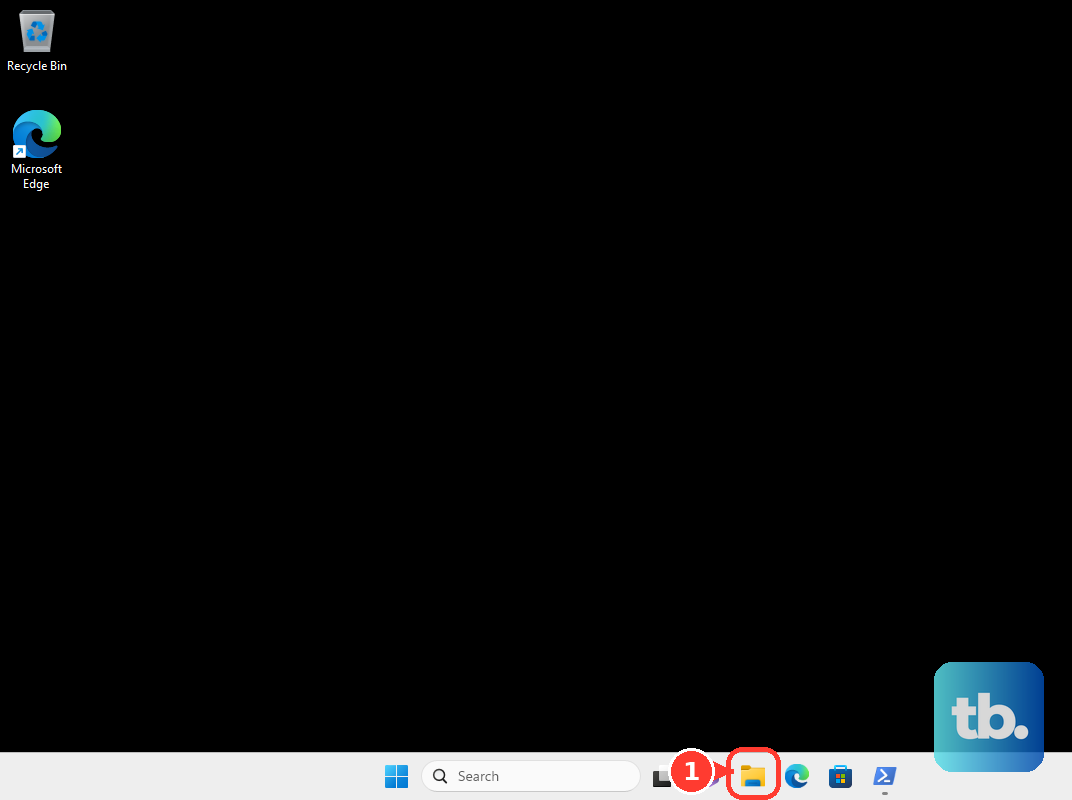
Open File Explorer from Start, the File Explorer taskbar icon, or Windows logo key + E.
In Windows 11, select View, then Show, then Preview pane. In Windows 10, select View, then Preview Pane. If Preview pane is unavailable on a managed PC, ask your IT admin to review the Turn off Preview Pane policy.
Select one PDF file and wait for the preview area to load.
Allow preview handlers in File Explorer
The most common cause after the pane is visible is that File Explorer is not allowed to use installed preview handlers.
Open File Explorer and select See more (...).
Choose Options.
Switch to the View tab.
Under Advanced settings, select Show preview handlers in preview pane.
Choose OK, then close and reopen File Explorer.
When Windows blocks a downloaded PDF
Windows can intentionally stop File Explorer previews for files downloaded from the internet. The preview pane may show The file you are attempting to preview could harm your computer. If you trust the file and the source you received it from, open it to view its contents.
Right-click the PDF in File Explorer, choose Properties, and stay on the General tab. If the security message appears, select Unblock.
Choose Apply, then OK. If the warning stays in File Explorer, sign out of Windows and sign back in.
Choose the right default PDF app
A conflicting PDF app registration can keep previews from loading cleanly.
Open Settings, then go to Apps and Default apps.
Type .pdf in the search box and select the .pdf result.
Choose the PDF app you want Windows to use, such as Adobe Acrobat Reader, Microsoft Edge, or Foxit PDF Reader.
If that does not fix the preview pane, turn on the app’s preview feature or use PowerToys.
Enable Adobe PDF thumbnails
The most common Adobe-specific mix-up is expecting this setting to fix the right-side Preview pane.
Open Acrobat or Acrobat Reader.
Open the hamburger menu and choose Preferences.
Select General.
Turn on Enable PDF thumbnail previews in Windows Explorer.
Choose OK.
If Acrobat Reader asks to add the feature to the installation, select Yes and wait for Acrobat Reader to finish configuring it.
Update or repair Acrobat
Use this when Adobe’s thumbnail checkbox is missing, Acrobat is installed but acting strangely, or the Acrobat preview component is damaged.
To update Acrobat, open Menu, then Help, then Check for updates.
Choose Download when an update is offered.
Follow the on-screen instructions.
If prompted, select Quit Acrobat, then choose Retry.
Close the updater after the update succeeds.
To repair Acrobat, open Control Panel, then Programs, then Programs and Features.
Select Adobe Acrobat and choose Change.
In Adobe Acrobat - Setup, choose Next, then Repair.
Complete the repair and restart your device.
Install a working PDF preview handler
If Windows has no working PDF app or preview handler, install a supported PDF reader and then set it as the default app for PDF files.
For Acrobat Reader, use Adobe’s official Acrobat Reader download page in a supported browser with JavaScript enabled. Download Acrobat Reader, run the installer, and follow the installation prompts. Adobe’s install guide for Acrobat Reader covers the same steps on Windows.
After installation, test the PDF again in File Explorer. If you also need PDF thumbnails, open Acrobat Reader Preferences and confirm Enable PDF thumbnail previews in Windows Explorer.
Foxit PDF Reader is another supported option for Windows 10 and Windows 11. Install Foxit PDF Reader for Windows, keep the Shell Extension component if the installer offers component choices, and set Foxit as the default PDF app through Settings, Apps, Default apps, and .pdf.
Use PowerToys for PDF previews
Install Microsoft PowerToys from the Microsoft Store, the Microsoft PowerToys GitHub releases page, or Windows Package Manager. PowerToys requires Windows 11 or Windows 10 version 2004 or newer and an x64 or ARM64 processor; if your PC does not meet those requirements, use the PDF reader steps above.
With Windows Package Manager, run winget install --id Microsoft.PowerToys --source winget.
Open PowerToys Settings.
Go to File Explorer add-ons.
Under Preview Pane previewers, set PDF files (.pdf) to On.
Under Thumbnail previews, set PDF files (.pdf) to On.
In File Explorer, select View, then Show, then Preview pane. On Windows 10, select View, then Preview Pane.
Confirm Show preview handlers in preview pane is still selected in File Explorer options.
Restart Windows if PDF thumbnails do not appear right away. If the PDFs are in a path managed by a cloud storage service such as OneDrive, that service may supply the thumbnails instead of PowerToys.
PowerToys preview handlers can override other installed preview handlers, so switch the PDF option back Off if another PDF app or Outlook PDF previews stop working the way you prefer.
Fix stubborn PDF thumbnails
This fixes PDF icons that are blank, stale, or wrong.
Select the taskbar search box and type disk cleanup.
Choose Disk Cleanup.
Select the Windows drive, usually C:, then choose OK.
Select Thumbnails.
Choose OK.
Select Delete files.
Reopen File Explorer so Windows can rebuild the thumbnails.
Handle work PC restrictions
On managed PCs, PDF previews can be blocked by security rules for downloaded files or file shares. Ask your IT admin to review Attachment Manager settings, trusted-zone settings, and Site to Zone Assignment List policy for trusted internal locations.
For a personal PC, use Properties, General, and Unblock only for files you trust. For a work PC, do not bypass a company policy yourself.
Older Acrobat XI and Reader XI thumbnail behavior is not a current fix for modern 64-bit Windows systems. Use a supported PDF app, the Windows preview-handler setting, or PowerToys instead.
Frequently Asked Questions
Why does File Explorer show a security warning instead of previewing my PDF?
Windows may treat the PDF as downloaded from the internet and block the preview. If you trust the file and its source, right-click it, open Properties, and use Unblock.
Does Adobe’s thumbnail setting fix the File Explorer Preview pane?
No. Adobe’s setting is for PDF thumbnail previews in Windows Explorer. The right-side Preview pane still needs a working preview handler and the Windows preview-handler setting enabled.
Can PowerToys fix PDF preview not working in File Explorer?
Yes. PowerToys File Explorer add-ons include PDF support for the Preview pane and thumbnails. It can override other installed preview handlers, so turn it off again if it disrupts another PDF app or Outlook previews.
What should I do if only PDF thumbnails are wrong?
Clear the Windows thumbnail cache with Disk Cleanup and reopen File Explorer. That rebuilds thumbnail icons, but it does not repair the right-side Preview pane.