Windows Explorer Preview pane can stop showing files, leave the right panel blank, or work for one file type and fail for another. The fastest fix is usually a File Explorer setting, a blocked downloaded file, or a missing preview handler. Start with the quick checks below, then jump to the file type that is giving you trouble.
1. Turn On The Preview Pane First
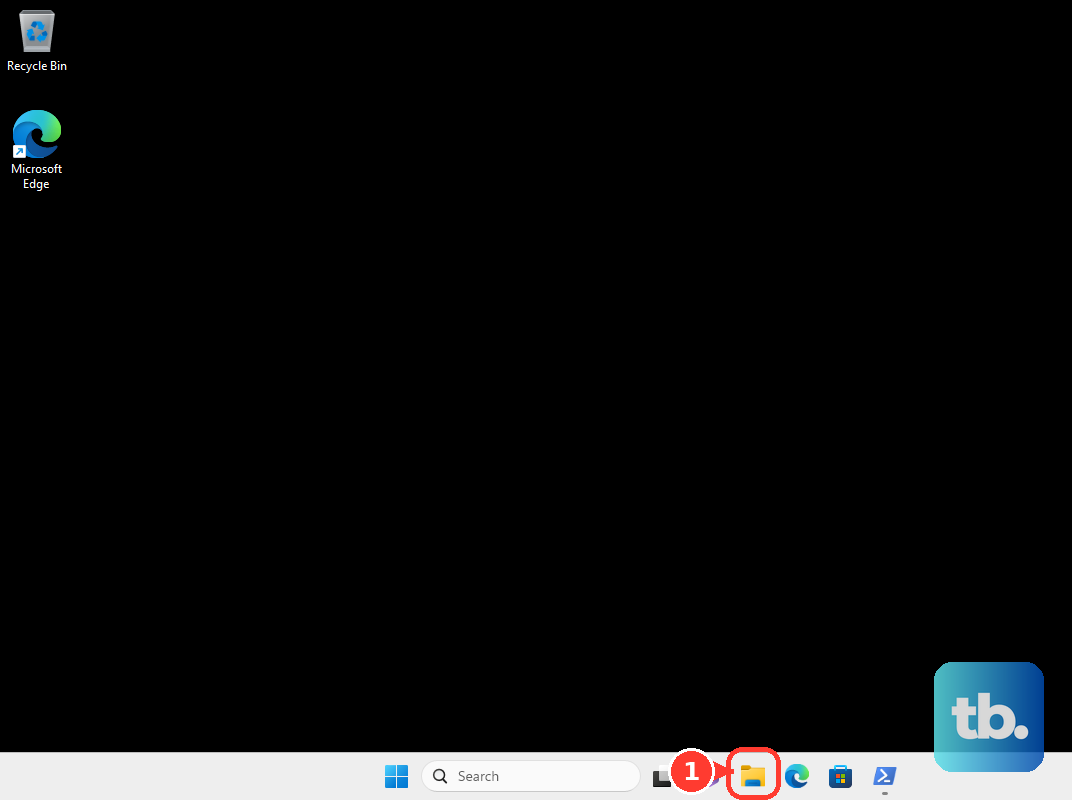
Start with the switch itself. Open File Explorer, select View, choose Show, then select Preview pane. Select a file and check the pane on the right.
The keyboard shortcut does the same job faster. Open File Explorer, select a file, then press Alt + P to show or hide the Preview pane.
On Windows 10, use File Explorer > View > Preview Pane. Windows 10 is now legacy, so use the Windows 11 path above on current PCs.
2. Allow Preview Handlers In File Explorer
- 1.Open File Explorer.
- 2.Select See more.
- 3.Choose Options.
- 4.Open the View tab.
- 5.Under Advanced settings, select Show preview handlers in preview pane.
- 6.Select Apply, then OK.
This setting lets File Explorer use preview handlers from PowerToys, Adobe, Office, and other supported previewers. If that box is off, the pane can appear even while supported previews fail.
3. Unblock Trusted Downloads That Refuse To Preview
If local files preview but downloaded files do not, Windows is blocking those previews on purpose. On Windows 11, security updates released on or after October 14, 2025 automatically disable File Explorer previews for files marked as downloaded from the internet or opened from an Internet Zone file share.
- 1.In File Explorer, right-click the file.
- 2.Select Properties.
- 3.Open the General tab.
- 4.Select Unblock.
- 5.Select Apply, then OK.
Only unblock files you trust. If the preview still looks blocked after that, sign out of Windows and sign back in.
For a batch of trusted files, open PowerShell. Run Unblock-File "C:\Path\File.ext" for one file, or run Get-ChildItem "C:\Path\Folder" -File -Recurse | Unblock-File for a folder after reviewing the files and their source.
4. Add File Type Support With PowerToys
File Explorer does not preview every format by itself. Microsoft PowerToys adds Preview Pane support for Scalable Vector Graphics, Markdown, Source code files, Portable Document Format, G-code, Binary G-code, and QOI.
Install or update PowerToys from the Microsoft Store, the official GitHub releases page, or winget install --id Microsoft.PowerToys --source winget. PowerToys supports Windows 11 and Windows 10 version 2004/build 19041 or newer on x64 or ARM64.
After installing it, open PowerToys Settings > File Explorer add-ons. Turn on the previewer you need, then confirm Show preview handlers in preview pane is selected in File Explorer options.
PowerToys also includes Peek. Select a file in File Explorer, press Space, use the arrow keys to move between files, and press Enter or select Open with to open the file in its default app.
5. Repair PDF Previews The Current Way
For PDFs, use a current PDF preview handler instead of old browser plug-in fixes. Install Acrobat Reader from Adobe’s official Acrobat Reader download page, then open the installer from Downloads and follow the prompts.
- 1.Open Acrobat or Acrobat Reader.
- 2.Select Help.
- 3.Choose Check for updates.
- 4.Follow the updater prompts.
Next, set the PDF app. Open Settings > Apps > Default apps, search for PDF or Adobe Acrobat, then set .pdf to Adobe Acrobat or Adobe Acrobat Reader.
If Acrobat components are damaged, open Acrobat or Acrobat Reader, choose Help, then select Repair Installation. You can also use Control Panel > Programs > Programs and Features, select Adobe Acrobat or Adobe Acrobat Reader, choose Change, select Next, choose Repair, then restart the PC.
If PowerToys conflicts with another PDF previewer, open PowerToys > File Explorer Add-ons and turn off Portable Document Format preview. For thumbnails only, use Acrobat or Acrobat Reader > Preferences > General > Enable PDF thumbnail previews in Windows Explorer. That setting fixes thumbnails, not the right-side Preview pane.
6. Restore Office Previews For Word Excel And PowerPoint
When Word, Excel, PowerPoint, Visio, or related Microsoft 365 files fail in the Preview pane, repair Office.
On Windows 11, right-click Start, open Installed apps, select the More icon next to Microsoft 365 or Office, choose Modify, select Quick Repair or Online Repair, then select Repair.
The Control Panel route works too. Open Control Panel > Programs > Programs and Features, select Microsoft 365 or Office, choose Change or Modify, then run the repair.
If repair does not restore the Office preview handlers, reinstall Microsoft 365 from https://m365.cloud.microsoft/apps by signing in and choosing Install apps. For Office 2024, sign in at https://m365.cloud.microsoft/apps and choose Install apps. For Office 2021, 2019, or 2016, use the Microsoft account dashboard and choose Office apps > Install.
7. Restart Explorer Then Update Windows
A stuck File Explorer process can keep the Preview pane broken after you change the right settings. Press Ctrl + Shift + Esc, find Windows Explorer in Task Manager, right-click it, then select Restart.
If Windows Explorer is not listed, select File > Run new task, type explorer.exe, then press Enter.
After that, update Windows. Open Start > Settings > Windows Update > Check for updates, choose Download & install when offered, and restart when prompted.
8. Use System Repair When File Explorer Fails Broadly
Use these steps when File Explorer has wider problems, not when Windows is intentionally blocking a downloaded file.
First, run Windows component repairs. Search for Command Prompt, right-click Command Prompt, choose Run as administrator, select Yes, run DISM.exe /Online /Cleanup-image /Restorehealth, press Enter, then run sfc /scannow.
If previews still fail broadly, isolate third-party startup conflicts with a clean boot. Select Search, type msconfig, open System Configuration, go to Services, select Hide all Microsoft services, choose Disable all, open Task Manager from the Startup tab, disable startup items, then restart. Re-enable services and startup items after testing.
Skip old Acrobat instructions that mention Display PDF in browser. That setting was for Acrobat or Reader X and earlier web PDF viewing, not the current Windows 11 File Explorer Preview pane.
9. Check Policy On Work Or School PCs
Managed PCs can hide the Unblock option or preserve internet zone information by policy. When downloaded files are blocked and Unblock is missing, contact your IT team and mention Attachment Manager policies for zone information.
Admins can restore the unblock control by setting User Configuration > Windows Components > Attachment Manager > Hide mechanisms to remove zone information to Disabled. They can also use the MDM policy ./User/Vendor/MSFT/Policy/Config/AttachmentManager/HideZoneInfoMechanism.
For future downloads, admins can use User Configuration > Administrative Templates > Windows Components > Attachment Manager > Do not preserve zone information in file attachments > Enabled. That removes Windows’ ability to make the same risk assessment for future downloads, so it belongs on managed, trusted workflows only.
Frequently Asked Questions
Why does File Explorer preview some files but not downloaded files?
Windows security updates released on or after October 14, 2025 block previews for files marked as downloaded from the internet or opened from an Internet Zone file share. Use Properties > General > Unblock for trusted files.
Does Alt + P fix the File Explorer Preview pane?
Alt + P shows or hides the Preview pane. It fixes cases where the pane is simply turned off, but it does not repair missing preview handlers or unblock protected files.
Why are PDF thumbnails working but the Preview pane is still blank?
PDF thumbnails and the right-side Preview pane are separate Windows Explorer features. Adobe’s thumbnail option fixes thumbnails, while Preview pane problems need a working Adobe or PowerToys PDF preview handler.
Can PowerToys replace the Preview pane?
PowerToys can add more File Explorer preview handlers and includes Peek, which opens a separate preview when you select a file and press Space. Peek does not override Windows security blocks for unsafe files.
Why do OneDrive previews disappear in File Explorer?
For synced OneDrive files, right-click the file and choose Always keep on this device when thumbnails do not appear. In OneDrive web views, PDFs and images larger than 100 MB do not generate previews or thumbnails.