

To fix no sound during iPhone calls, press Volume Up while the call is connected, then expand the call banner, tap Audio, and choose iPhone. If you still cannot hear the caller, compare speakerphone with the receiver and check for blocked openings. Start with these checks before moving to software updates or resets.
The short version
- Call volume: Press Volume Up during a connected call to raise the other person’s voice.
- Audio destination: Tap Audio and select iPhone to hear the call through your phone.
- Receiver check: Remove obstructions, clean the openings carefully, and compare the receiver with speakerphone.
- Next steps: Use app or network fixes when the problem affects that app or connection.
| Check or fix | When to use it |
|---|---|
| Raise connected-call volume | The caller is silent or too quiet |
| Change the audio destination | Sound may be going to an accessory |
| Close iPhone Duo | You cannot select the receiver while it is open |
| Disconnect Bluetooth accessories | A headset, speaker, or vehicle is connected |
| Change default call routing | Calls keep using an unintended destination |
| Check wired headphones | Call audio fails through a wired headset |
| Remove obstructions and clean openings | The receiver, speaker, or microphone is blocked |
| Compare the loudspeaker and receiver | You need to identify which audio output fails |
| Retry later or elsewhere | Calls have silence, static, or crackling with poor reception |
| Check Mute | The other person cannot hear you |
| Record microphone samples | Your outgoing voice is missing or unclear |
| Select the microphone input | Multiple audio devices are connected |
| Restart iPhone | Basic audio checks have not helped |
| Force restart | The phone is unresponsive |
| Update iOS | A compatible software update is available |
| Check app microphone permission | A third-party app cannot transmit your voice |
| Close and reopen the calling app | The app is unresponsive |
| Update the calling app | An App Store update is available |
| Reinstall the calling app | A third-party app keeps malfunctioning |
| Reconnect with Airplane Mode | You suspect a cellular connection problem |
| Update carrier settings | Your carrier offers an update |
| Enable Wi-Fi Calling | Cellular reception is poor and your setup supports it |
| Troubleshoot Wi-Fi Calling | Calls using that connection fail |
| Repair the local Wi-Fi connection | Internet-dependent calls have connectivity problems |
| Consult your network administrator | A work or school configuration controls networking |
| Reset network settings | Network-related call problems persist |
| Reset all settings | Incorrect or damaged settings cause persistent problems |
| Run Apple Support diagnostics | Relevant checks have not resolved the problem |
| Arrange service | Receiver or speaker audio remains missing |
Raise the volume while the call is connected
Keep the call connected and press Volume Up on your iPhone. Adjusting volume during the call changes the incoming call audio. Start here before using the ringtone slider, which provides a separate loudspeaker check.
Send call audio to the right destination
Expand the call banner, tap Audio, and choose iPhone. Then try the speaker or a connected headset to compare the sound. This helps distinguish a receiver problem from an accessory or connection problem.
On iPhone Duo, close the device before tapping Audio, then iPhone. You cannot select the iPhone destination while the device is open or partially folded.
For Bluetooth headphones, speakers, or a vehicle connection, open Settings > Bluetooth, turn off Bluetooth, and test another call. Alternatively, open Control Center, tap the Bluetooth button, then tap it again to disconnect accessories temporarily. That control has exceptions and does not completely disable Bluetooth.
On iOS 27, if calls keep going to an unintended destination, open Settings > Accessibility > Touch > Call Audio Routing and choose the intended destination. This setting controls routing for Phone and FaceTime calls, including the speaker, a Bluetooth headset, or a hearing device.
With wired headphones, inspect the cable, connector, remote, earbuds, and port for damage or debris. Reconnect the plug firmly and remove a case that prevents full insertion. Try another compatible pair if sound remains missing.
Check the receiver and compare speakerphone
Remove the case, film, and screen protector to uncover the receiver, speaker, and microphone openings. Before cleaning, unplug cables and turn off your iPhone. Gently remove debris with a clean, dry, non-metallic, soft-bristled brush, avoiding moisture, compressed air, and damage to the receiver mesh.
After turning the phone back on, open Settings > Sounds & Haptics and drag the volume slider under Ringtone back and forth. On iOS 26, drag the slider below Ringtone and Alerts instead. This tests the loudspeaker separately from the call receiver. If you hear no test sound or the speaker control is dimmed, service may be needed.
Make another call and compare speakerphone with the receiver. If speakerphone also produces silence, static, or crackling, end the call and retry later or somewhere with better reception. If audio remains missing after the relevant checks, continue to diagnostics or service.
Check the microphone when callers cannot hear you
When the other person cannot hear your voice, expand the call controls and check Mute. If it is enabled, tap Mute to turn it off. This controls your outgoing speech.
Open Voice Memos, tap Record, and speak toward the bottom of your iPhone. Stop the recording and play it back to check your voice. For speakerphone problems, record a video in Camera while speaking toward the top of the phone, repeat with the other camera, and play both recordings.
If you use a wired headset, confirm that it includes a microphone and that its microphone opening is clear. With multiple audio devices connected in a supported calling app, open Control Center during the call and select Phone Controls or the corresponding app controls. Beside Audio Input, tap the device and select the intended microphone.
Restart your iPhone and update iOS
On iPhone X and later, hold either Volume Up or Volume Down together with the Side button until the power-off slider appears. Drag the slider, wait 30 seconds, then hold the Side button until the Apple logo appears. On iPhone SE (2nd or 3rd generation), hold only the Side button to display the slider, then follow the same shutdown and startup steps.
If the phone is unresponsive and you cannot restart normally, force restart your iPhone. On current iPhones using this sequence, quickly press and release Volume Up, quickly press and release Volume Down, then hold the Side button until the Apple logo appears and release it. On iPhone Duo, Volume Up is the volume button nearest the Side button.
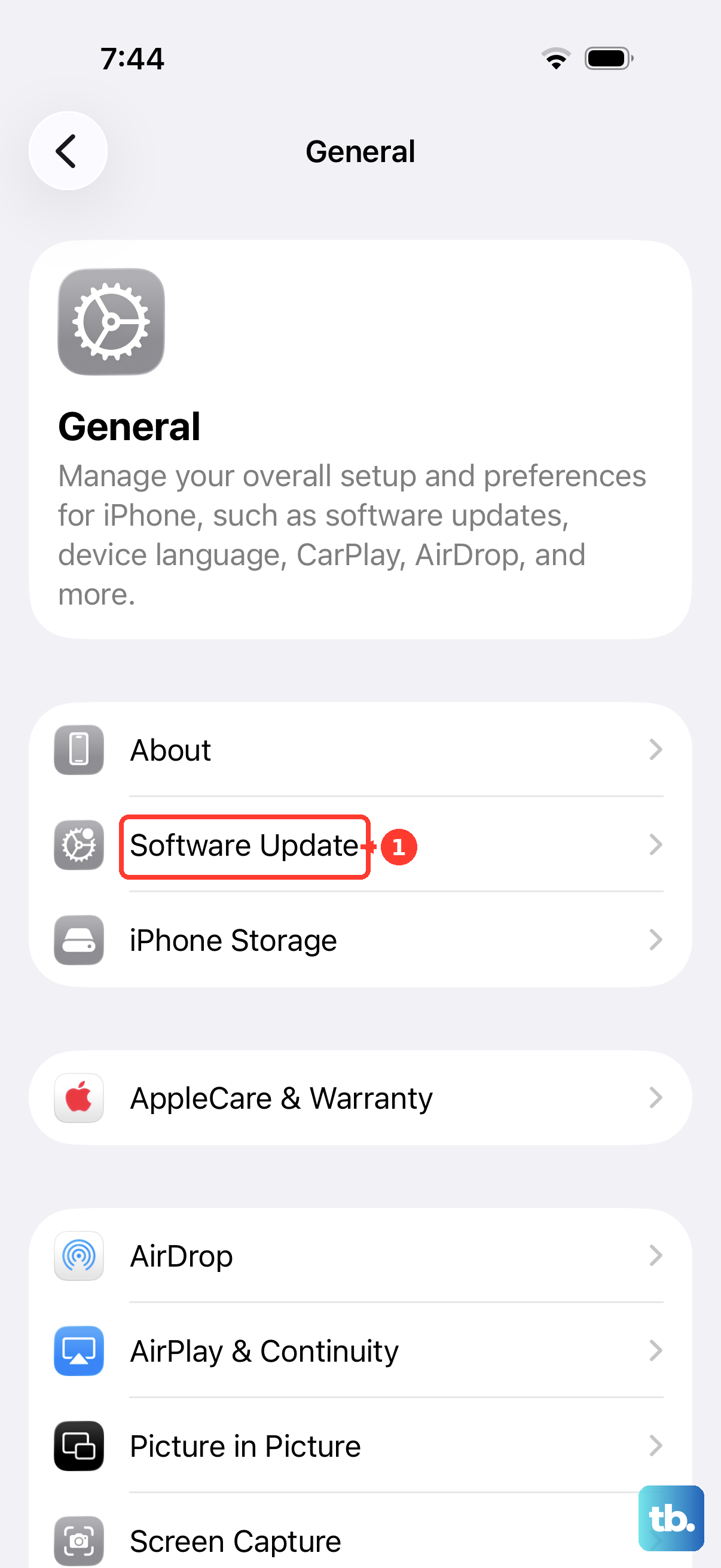
For an iOS update, back up your iPhone and connect it to power and Wi-Fi. Open Settings > General > Software Update, then tap Download and Install if offered. Install the newest compatible update presented for your device; compatibility varies by model.
Fix sound problems limited to one calling app
For missing outgoing audio in a third-party calling app, open Settings > Privacy & Security > Microphone and enable the affected app. If it is already enabled or absent from the list, contact the app’s developer. Microphone permission controls access for your outgoing voice.
When the calling app is unresponsive, return to the Home Screen, then swipe up and pause to open the app switcher. On a Home-button model, double-click Home instead. Find the affected app, swipe its preview upward, and open it again. Apple recommends closing an app when it is unresponsive rather than routinely closing every app.
You can update the affected calling app through the App Store. Open the App Store, tap your profile icon, then tap App Updates and install an available update for that app.
Deleting a third-party calling app may lose local app data, so preserve any app data you need before proceeding. To delete the malfunctioning app, touch and hold it, tap Remove App, tap Delete App, then tap Delete. Download it again from its official App Store listing and retest the call.
Check the connection when calls have network problems
For suspected cellular connection problems, end the call, open Settings, and turn on Airplane Mode. Wait five seconds, turn it off, and retry. If reception remains poor, try another location or call again later.
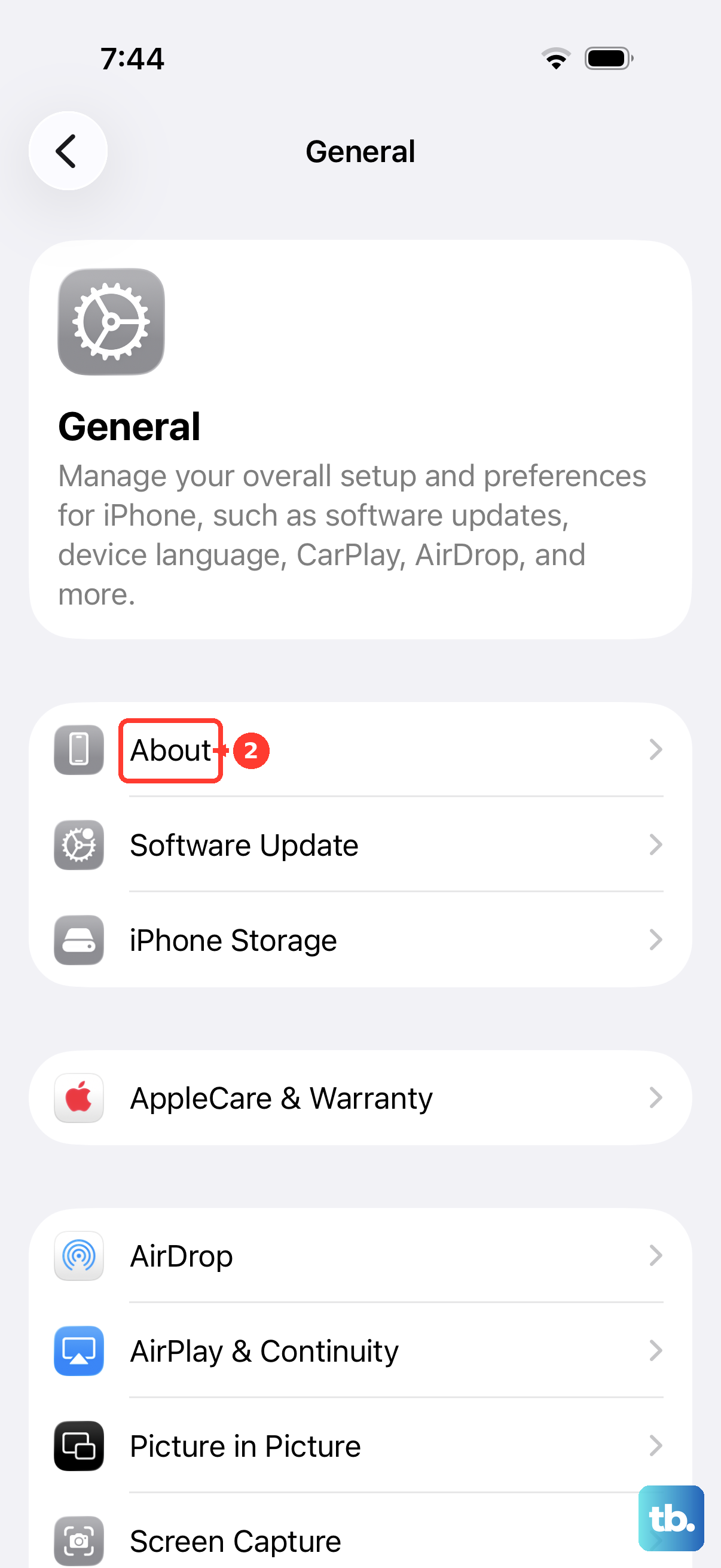
Connect to Wi-Fi or cellular data and open Settings > General > About to check for a carrier-settings update. Tap Update when offered. A mandatory update may instead show OK after installation.
Where your carrier, plan, region, and iPhone support Wi-Fi Calling, open Settings > Cellular and select the relevant line if you use multiple SIMs. Open Wi-Fi Calling, turn on Wi-Fi Calling on This iPhone, and tap Enable. Supply the emergency-services address requested by your carrier.
For a failing Wi-Fi Calling connection, check carrier support and software updates, then try another Wi-Fi network or restart your iPhone. You can also turn Wi-Fi Calling off and back on under Settings > Cellular, selecting your line when needed, then opening Wi-Fi Calling. Apple advises waiting two minutes between these troubleshooting steps.
For internet-dependent calling with local connection problems, open Settings > Wi-Fi and select a working network. Move within router range or try another available network or band. Restart your router and modem if needed; if other devices also cannot access the internet, contact your internet provider.
Use settings resets only after simpler checks
For a work or school configuration, consult IT before resetting networking. You can inspect the configuration under Settings > General > VPN & Device Management. A network reset does not remove all managed configuration.
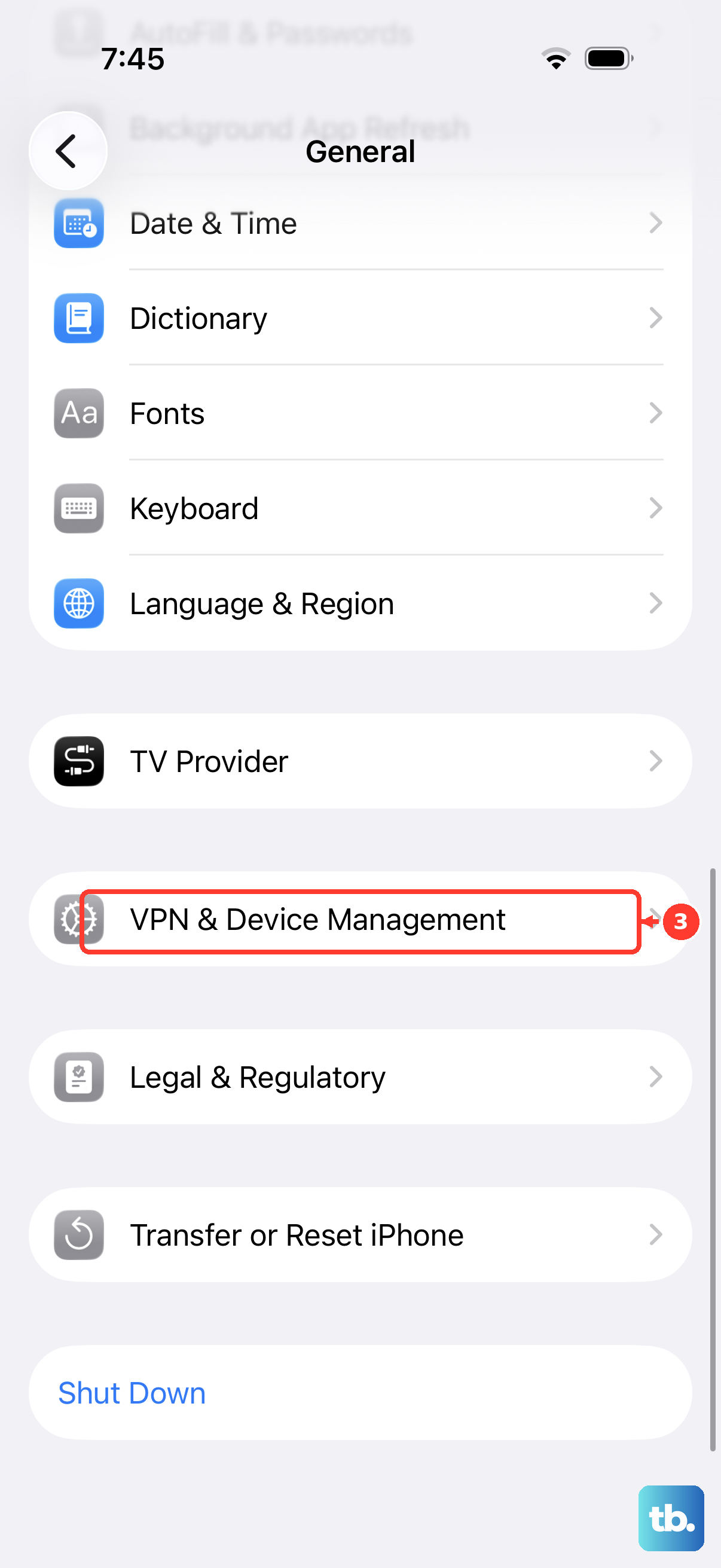
Resetting network settings removes saved Wi-Fi passwords and other network configuration, including applicable VPN and APN settings. For persistent network-related call problems, open Settings > General > Transfer or Reset iPhone > Reset, then tap Reset Network Settings. Reserve this step for connection problems that remain after the simpler network checks.
Resetting all settings keeps personal content but resets system preferences, network settings, pairings, and other configuration that you must set up again. For a persistent problem caused by incorrect or damaged settings, open Settings > General > Transfer or Reset iPhone > Reset, then tap Reset All Settings. Apple describes this broader reset as rarely necessary.
Get diagnostics or arrange service
On iPhones running iOS 18 or later, you can use additional guided troubleshooting and diagnostics through Apple Support, subject to app and regional availability. Install or update the app from the official Apple Support listing, then use its guided help for your iPhone. The app also provides support contact and service-booking options.
If receiver or speaker audio remains missing after the relevant checks, open Apple’s sound support options and select Get service. Service availability and cost depend on your device and coverage.
Frequently Asked Questions
What should you check if your iPhone does not ring before you answer?
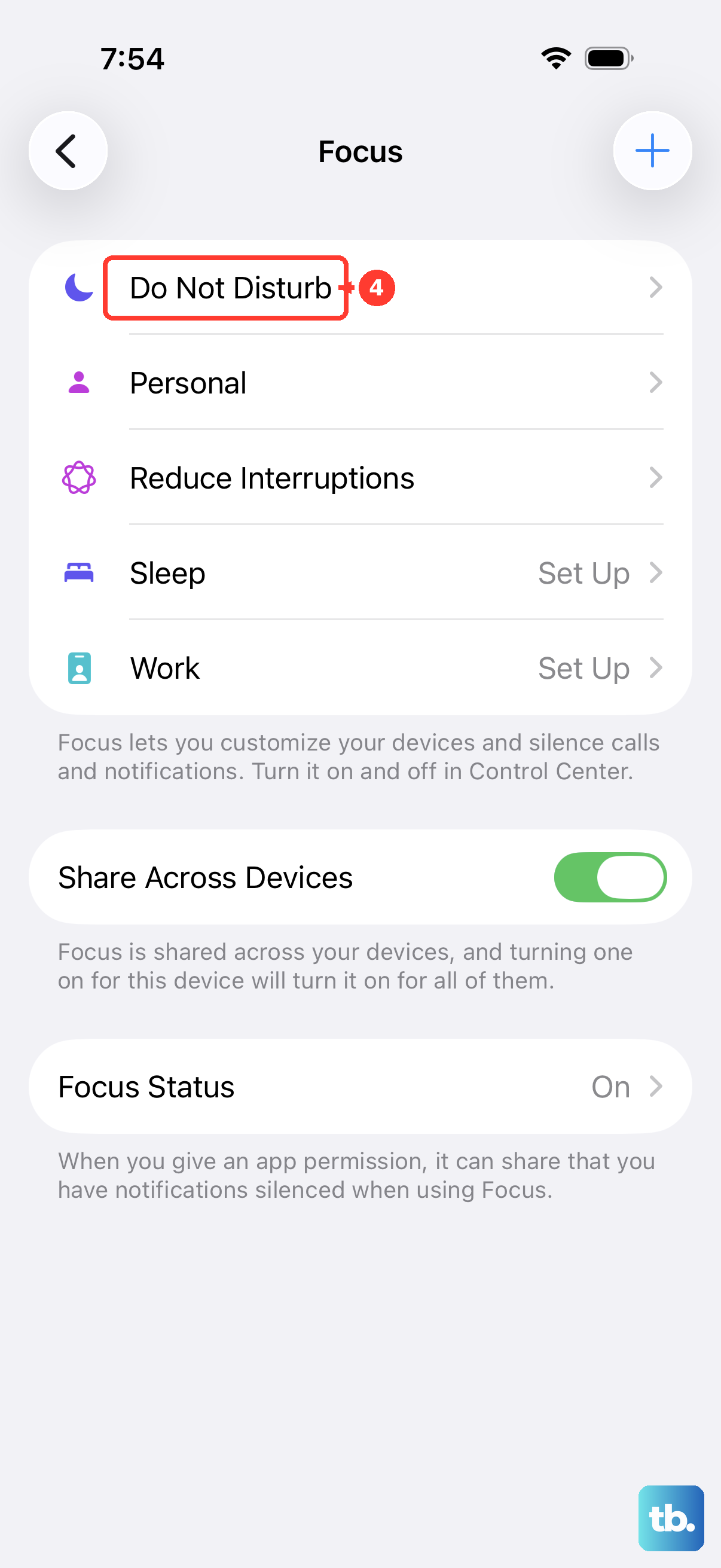
On a Ring/Silent-switch model, move the switch toward the display until orange is hidden. On an Action-button model, turn off Silent mode in Control Center. Also open Settings > Focus > Do Not Disturb and make sure Do Not Disturb is off. These checks address incoming-call alerts.
Can Phone Noise Cancellation help you hear calls?
On iPhone 12 and earlier where the setting is available, open Settings > Accessibility > Audio & Visual and turn Phone Noise Cancellation off or on to compare receiver audibility. It adjusts listening comfort and background noise rather than guaranteeing a repair for silence. Apple limits this feature to those older models, so on iPhone 13 or later, use the volume, routing, and receiver checks.
What can you change if call audio is difficult to hear through one headphone?
Open Settings > Accessibility > Audio & Visual and center the Balance slider. If you need to hear audio through one side, turn on Mono Audio.
How can you make quiet calls easier to hear with supported headphones?
With supported Apple or Beats headphones on iOS 14 or later, open Settings > Accessibility > Audio & Visual > Headphone Accommodations and turn on Headphone Accommodations and Phone. Adjust amplification or tap Customize Audio, then tap Use Custom Settings after the listening setup. AirPods Pro Hearing Assistance can override these settings.
Will Voice Isolation fix a silent iPhone receiver?
Voice Isolation affects your outgoing speech rather than the receiver. For ordinary phone calls, you need an iPhone XR, XS, or later with iOS 16.4 or later. During a supported call, open Control Center > Phone Controls and choose Voice Isolation under Audio & Video.