


To fix Kernel Security Check Failure in Windows 11, undo recent hardware or driver changes, install applicable updates, then repair Windows system files if crashes continue. Use Safe Mode first if Windows cannot stay running long enough to make those changes. There is no single fix for every crash with this stop code, so start with what changed before the problem and check stability after each repair.
The short version
- Start with recent changes: Remove newly added hardware or roll back the driver installed just before the crashes began.
- Use Safe Mode when needed: Open Windows recovery tools to reach Safe Mode when normal startup keeps failing.
- Repair Windows: Install updates, then run DISM followed by System File Checker.
- Check hardware before resetting: Test memory and investigate reported hardware errors before reinstalling Windows.
| Fix or check | When to use it | Main limitation |
|---|---|---|
| Restart | An isolated crash | Recurring crashes need investigation |
| Remove new hardware | Crashes follow a hardware addition | Internal components require model-specific instructions |
| Isolate external peripherals | A connected device may be involved | Dell documents this procedure for its PCs |
| Safe Mode | Normal startup keeps failing | Provides repair access rather than a cure |
| Roll back a driver | Crashes follow a driver update | Requires a retained previous driver |
| Search for a driver update | An affected device needs an update | A compatible update must be available |
| Install a manufacturer driver | Automatic updating does not help | Must match the device and Windows architecture |
| Reinstall a driver | Updating the affected driver fails | Manual installation may be needed afterward |
| Install Windows updates | Applicable fixes are available | Installation may require a restart |
| Install optional drivers | Windows offers relevant hardware updates | Choose drivers for the affected hardware |
| Remove implicated software | A recent app or service is involved | Requires identifying the relevant application |
| Perform a clean boot | The conflicting software is unclear | Restore startup settings after diagnosis |
| Run DISM | Windows components need repair | A suitable repair source must be available |
| Run System File Checker | Protected system files need repair | Run after DISM completes |
| Test memory | Crashes persist or RAM is suspected | The test does not repair defective memory |
| Check the disk | File-system errors need investigation | Cannot repair physically failing storage |
| Address overheating | A Dell PC has thermal symptoms | Servicing depends on the model |
| Use System Restore | A restore point predates the crashes | Can roll back installed software |
| Run Startup Repair | Windows cannot start | Addresses only certain startup problems |
| Uninstall an update | Crashes follow a Windows update | Some updates cannot be removed |
| Reinstall through Windows Update | Windows starts but earlier repairs fail | Management policies can hide the option |
| Repair with installation media | The Windows Update reinstall is unavailable | Start setup from working Windows |
| Reset Windows | Less disruptive repairs fail | Removes applications and settings |
Restart and disconnect recently added hardware
Allow Windows to finish collecting error information and restart after an isolated crash. Once the desktop is usable, save your work and select Start > Power > Restart. If the computer remains frozen, follow the steps to restart a computer that is unresponsive.
If you added hardware just before the crashes started, shut down the PC and disconnect the new peripheral. Start Windows again and check whether the crash returns. For an internal component, follow the PC manufacturer's service instructions.
On a Dell PC, you can also isolate existing USB drives, printers, external storage, and webcams. Disconnect external peripherals except the keyboard and mouse, then restart. If stability returns, reconnect devices individually and check after each connection.
Use Safe Mode if Windows keeps crashing
Skip this step when the desktop stays usable long enough for repairs. Otherwise, hold Shift while selecting Power > Restart from the sign-in screen. From a working desktop, you can instead open Settings > System > Recovery, then select Restart now beside Advanced startup.
When neither route is accessible, interrupt startup with the power button at the Windows or manufacturer logo twice. On the third start, select Advanced options. If recovery requests your BitLocker recovery key, open your Microsoft account recovery keys on another device, sign in, and match the key ID shown on the affected PC. Enter the corresponding 48-digit key.
In Windows Recovery Environment, select Troubleshoot > Advanced options > Startup Settings > Restart. Press 4 or F4 for Enable Safe Mode, then perform the relevant driver or software removal steps below. Restart normally afterward to check whether the crash returns.
Roll back or update the affected driver
If crashes began immediately after a driver update, reverse that change first. Right-click Start, open Device Manager, expand the device category, and right-click the affected device. Select Properties > Driver > Roll Back Driver, choose the applicable reason, then select Yes. Restart if requested.
Rollback requires administrator permissions and a previous driver retained by Windows. If that option is unavailable, or no driver update preceded the crashes, right-click the affected device and select Update driver > Search automatically for drivers. Complete any offered update.
You can also download a driver from the device manufacturer's official website, matching the exact device, Windows version, and architecture. Extract the package if necessary, then right-click the device in Device Manager, select Update driver, and select Browse my computer for drivers. Select Browse..., choose the extracted folder, then select OK > Next > Close.
If updating does not help, try reinstalling the affected driver. In Device Manager, right-click the device and select Uninstall device > Uninstall, then restart the PC. Windows attempts to reinstall the driver, but some devices require manual installation afterward.
Install applicable Windows fixes through Settings > Windows Update > Check for updates. Restart when requested. If updating fails, use the Windows Update troubleshooter before continuing.
For optional drivers, open Advanced options in Windows Update and turn on Receive updates for other Microsoft products. Under Additional options, select Optional updates. Choose drivers relevant to the affected hardware, select Download and install, and restart afterward.
Remove conflicting software and isolate startup services
Recent antivirus software, VPNs, utilities, or games can be relevant when an associated driver or service is implicated. Open Settings > Apps > Installed apps, open the app's More menu, and select Uninstall. Complete the publisher's removal wizard, then check whether Windows remains stable.
A clean boot helps narrow down conflicts when no single app stands out. Sign in as an administrator, search for msconfig, and open System Configuration. Select Services, check Hide all Microsoft services, then select Disable all > Apply.
Next, open Startup > Open Task Manager. Under Startup apps, record which items are enabled, then disable them; the steps to stop apps from opening on startup explain those controls. Close Task Manager, select OK in System Configuration, and restart.
If the crashes stop, reenable items in batches to identify the conflicting software or service. Restore the original startup configuration after isolating the cause. If crashes continue during a clean boot, move on to system-file and hardware checks.
Repair Windows system files
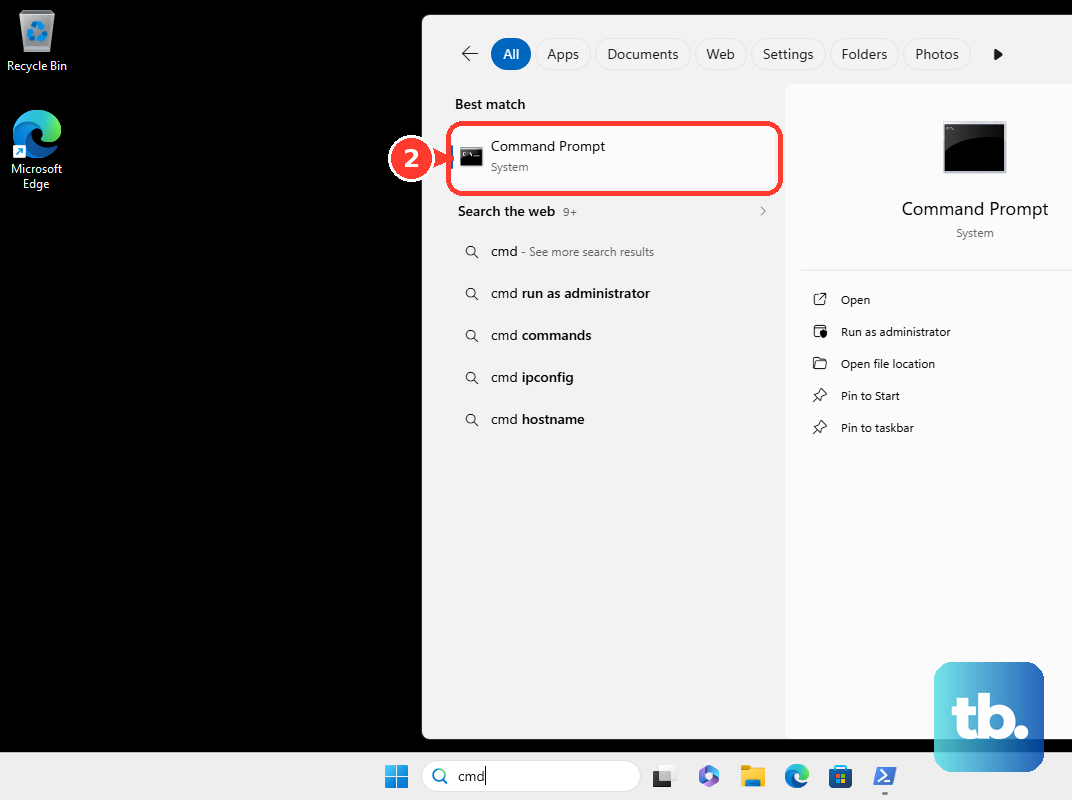
DISM repairs the Windows component store before System File Checker checks protected system files. Search for Command Prompt, right-click it, and select Run as administrator. Run this command and wait for it to finish:
DISM.exe /Online /Cleanup-image /RestorehealthAfter DISM completes, run the following command in the same elevated window. Keep the window open until verification reaches 100%:
sfc /scannowIf Windows Resource Protection cannot perform the operation, Microsoft recommends retrying System File Checker in Safe Mode. If DISM cannot obtain repair files through Windows Update, it needs a suitable repair source; the repair reinstall below provides another recovery route. These commands target the running Windows installation, so use the recovery options below if Windows cannot start.
Check memory and storage for errors
Save your work, search for Windows Memory Diagnostic from Start, and open it. Select Restart now and check for problems. After testing, inspect the notification or open Event Viewer > Windows Logs > System and look for MemoryDiagnostics-Results.
Memory errors need hardware investigation rather than repeated Windows repairs. Record the results and contact the PC manufacturer for model-specific servicing or replacement. A passing memory test does not conclusively exclude an intermittent hardware fault.
For an online check of an NTFS Windows drive, open Command Prompt as administrator and run the following command. Substitute the affected volume's letter if it is not C:
chkdsk C: /scanIf logical file-system errors need repairing, run the command below. When Windows offers to schedule the repair at the next restart, type Y, press Enter, and restart:
chkdsk C: /fCHKDSK cannot repair physically failing hardware, so back up accessible files before further disk investigation. If diagnostics report a hardware failure, record the result and contact the manufacturer for repair.
On a Dell PC with thermal symptoms, place the computer on a hard, flat surface with unobstructed vents. Power it off and unplug it before cleaning dust from vents and fan intakes with compressed air; follow the steps to clean a laptop fan safely when cooling needs attention. Compare stability under light and heavy workloads afterward.
Undo system changes with recovery tools
System Restore can reverse system changes when you have a restore point from before the crashes. Open Control Panel > Recovery > Open System Restore, select Next, and choose the earlier restore point. Select Show more restore points if needed. Select Scan for affected programs to review affected software, then select Next > Finish.
Personal files remain, but affected installed software and system changes can be rolled back. When Windows will not start, reach the same tool through Troubleshoot > Advanced options > System Restore in recovery. Without an existing restore point, use another recovery option.
For startup failure, select Startup Repair > Restart from Advanced options. Supply your BitLocker recovery key if requested and allow the repair to complete. If Windows still cannot start, consider the reset route below after backing up accessible files.
If crashes began immediately after a Windows update, Microsoft recommends trying the Windows Update repair reinstall described below before removing the update. To remove an implicated update, open Settings > Windows Update > Update history > Uninstall updates, then select Uninstall beside it. Some updates cannot be removed, and removing a security update also removes its protections.
Reinstall Windows before resetting
When Windows starts but earlier repairs fail, open Settings > System > Recovery. Under Fix problems using Windows Update, select Reinstall now > OK. Keep the PC connected to power and the internet, then restart when required. This reinstall preserves apps, files, and settings.
If that option is unavailable, you can use compatible installation media for an in-place repair. While signed in to Windows, connect the media, open its setup.exe in File Explorer, and select Yes. Select Change what to keep, choose Keep personal files and apps, then select Next > Install. The steps to reinstall Windows and choose what stays explain the recovery routes.
Back up your files before considering a reset. Open Settings > System > Recovery > Reset PC, or use Troubleshoot > Reset this PC in recovery. Choose Keep my files to retain personal files while removing applications and settings, then select Cloud download or Local reinstall. Review the proposed removals and complete the wizard; cloud download requires internet access.
Persistent crashes or reported hardware errors warrant manufacturer support before further reinstalls. Record the stop code, any named module, and diagnostic results so a technician can investigate. Reinstalling Windows does not replace defective memory or other failing hardware.
Frequently Asked Questions
What does Kernel Security Check Failure mean?
KERNEL_SECURITY_CHECK_FAILURE is bug check 0x139. It means Windows detected corruption of a critical kernel data structure, but the code alone does not identify the cause.
Should you turn off Memory integrity or stack protection?
Neither setting is a general fix for this stop code. Microsoft documents a specific driver-loading conflict involving Memory integrity, and Epic documents an Easy Anti-Cheat conflict involving Kernel-mode Hardware-enforced Stack Protection. Seek a compatible driver first because disabling either protection reduces security.
Should you use Driver Verifier to find the faulty driver?
Driver Verifier is intended for testing and debugging computers and can deliberately cause crashes. Use it only under appropriate technical guidance rather than as a routine repair on your everyday PC.
How can you read the error when the PC restarts too quickly?
In Windows recovery, select Troubleshoot > Advanced options > Startup Settings > Restart, then press 9 or F9 for Disable automatic restart on system failure. This keeps the error visible so you can record it, but it does not repair the cause.
Does a named Windows component prove that Windows caused the crash?
No, a Windows component named in a crash dump is not automatically the underlying culprit. A technician can compare multiple crash dumps and event-log entries before attributing the failure to a driver or component.
Is the old Hardware and Devices troubleshooter still the right fix?
Microsoft lists the legacy Hardware and Devices troubleshooter for removal with MSDT retirement. Use the relevant supported Get Help troubleshooter or your manufacturer's current hardware diagnostics instead.
Why is the Windows Update repair reinstall missing?
The option depends on your installed Windows version, updates, and management settings. Organizational policies controlling Windows Update can make it unavailable, so contact your administrator if your PC is managed.