

To fix iPhone internet not working on cellular data, turn on Cellular Data, check the affected app’s cellular permission, then turn Airplane Mode on for at least 15 seconds and off again. If the connection still fails, restart your iPhone and check that the correct cellular line is active.
The short version
- Start with Settings: Enable Cellular Data and allow the affected app to use it.
- Reconnect: Cycle Airplane Mode, then restart your iPhone if necessary.
- Check your line: Confirm that your active data plan is selected, especially with Dual SIM.
- Save resets for later: Check carrier service, updates, and interfering network software before resetting network settings.
| Fix | When to use it | Main consideration |
|---|---|---|
| Enable Cellular Data | Apps cannot connect over cellular | Turn it off and back on if already enabled |
| Allow app access | Only certain apps fail | Check each affected app’s cellular switch |
| Disconnect Wi-Fi | Your iPhone remains on Wi-Fi without internet | Retry a website and another app over cellular |
| Cycle Airplane Mode | The cellular connection has stopped working | Leave it on for at least 15 seconds |
| Restart your iPhone | Reconnecting has not helped | Use a normal shutdown when possible |
| Force restart | Your iPhone is unresponsive | Use the button sequence below |
| Enable the cellular line | A Dual SIM or eSIM line is off | Contact your carrier if the line is missing |
| Select the data SIM | You use Dual SIM | Choose the number with the active data plan |
| Allow data switching | Data drops during calls on the other line | Requires carrier support |
| Enable Data Roaming | You are outside your home carrier’s network | Check roaming charges first |
| Try LTE | You want to narrow down a 5G connection problem | Options depend on your carrier and region |
| Check carrier service | You have missing service or persistent failures | Your carrier checks coverage, outages, and account restrictions |
| Check data usage | Your connection is slow | Review allowance and congestion restrictions |
| Reseat the physical SIM | Your iPhone has a SIM tray | Ask your carrier about a damaged or poorly fitting SIM |
| Unlock the SIM | You see a SIM PIN prompt | Use the known PIN and never guess |
| Activate a missing eSIM | Your carrier needs to assign a line | Arrange activation through your carrier |
| Update carrier settings | Problems persist or follow a SIM change | Check About while connected to Wi-Fi |
| Update iOS on your iPhone | A compatible update is offered | Back up and connect to power and Wi-Fi |
| Update through Finder | An on-device update cannot complete | Requires macOS Catalina or later |
| Update through Apple Devices | You use a compatible Windows PC | Install Apple Devices and connect your iPhone |
| Update the affected app | Other apps connect successfully | Check for an available app update |
| Reinstall the affected app | The app still malfunctions | Deletion can remove local app data |
| Disable interfering network features | You use a VPN, filter, or security app | Ask your administrator about required settings |
| Disable Private Relay for the line | Websites fail with Private Relay enabled | Changes browsing privacy |
| Correct APN settings | Your carrier identifies an APN problem | Use only carrier-provided values |
| Reset network settings | Earlier checks have failed | Removes saved networks and unmanaged VPN settings |
| Get Apple support | Your carrier has ruled out account and network problems | Diagnostics or hardware service may be needed |
Turn on cellular data and check app access
Open Settings > Cellular and turn on Cellular Data. If it is already enabled, turn it off and back on, then retry the connection. When only one app fails, scroll to the app list, tap Show All if necessary, and turn on that app’s switch.
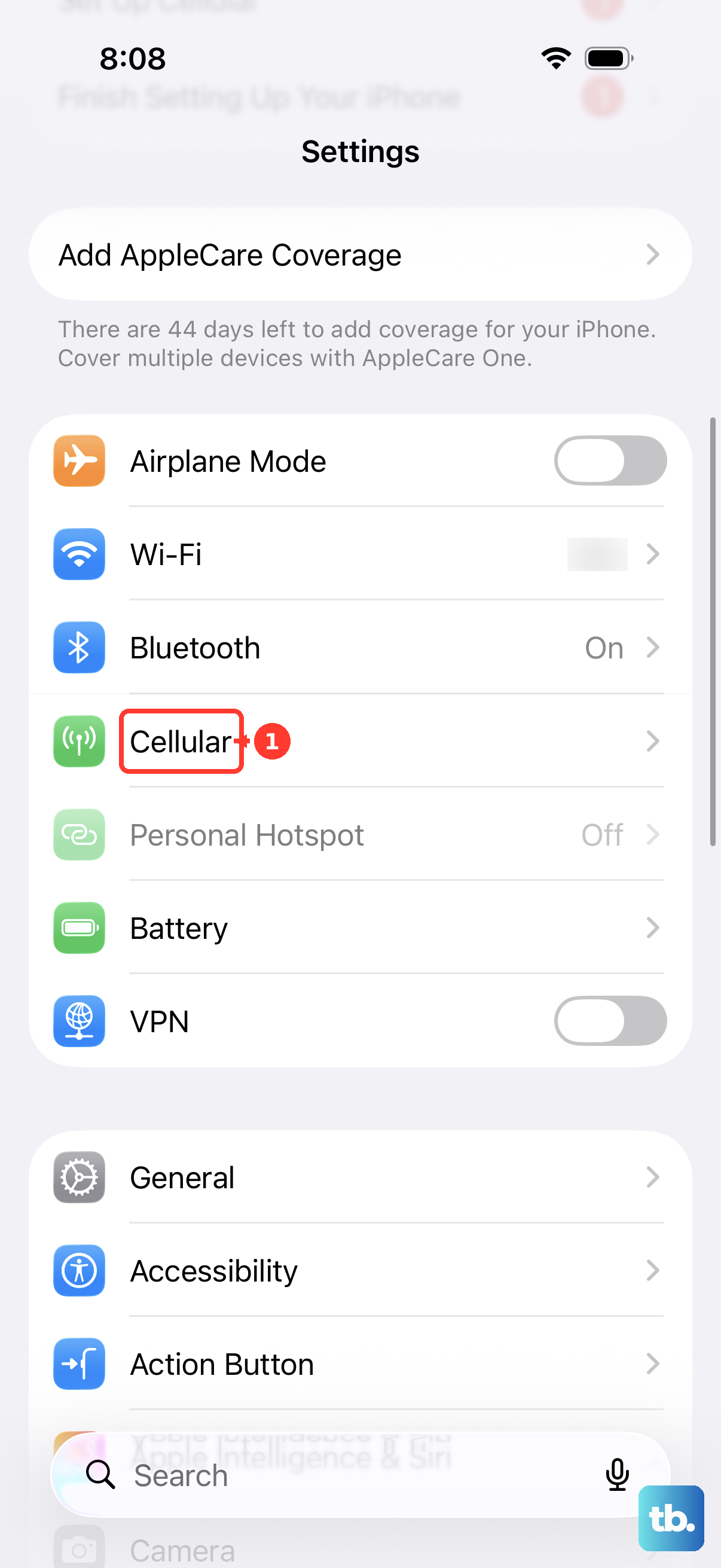
Disconnect an unusable Wi-Fi connection before checking cellular access. Open Settings > Wi-Fi and turn off Wi-Fi, then retry a website and another app with Cellular Data enabled. If only one app still fails, follow the app checks below.
Reconnect and restart your iPhone
In Settings, turn on Airplane Mode, wait at least 15 seconds, then turn it off. Retry your connection before moving on. If cellular internet still fails, open Settings > General > Shut Down and drag the slider, then hold the Side button to turn your iPhone on again.
If your iPhone is unresponsive and you cannot shut it down normally, use a force restart for your iPhone. On current models, quickly press and release Volume Up, then Volume Down, and hold the Side button until the Apple logo appears. Release the Side button when the logo appears; on iPhone Duo, Volume Up is the volume button nearest the Side button.
Check your data line and roaming settings
On a Dual SIM or eSIM iPhone, open Settings > Cellular, select the affected line, and enable Turn On This Line. If the line is missing, contact your carrier. With Dual SIM, also open Settings > Cellular > Cellular Data and select the number with your active data plan.
Only one number uses cellular data at a time. If internet access drops during a call on the other line, open Settings > Cellular > Cellular Data and turn on Allow Cellular Data Switching. This requires carrier support, and call-related switching does not work while data roaming.
When you are outside your home carrier’s network, check roaming charges with your carrier before enabling roaming. Open Settings > Cellular > Cellular Data Options and turn on Data Roaming. With multiple lines, select the relevant line first.
On a 5G-capable iPhone with a compatible plan, you can try LTE to check whether the problem persists without 5G. Open Settings > Cellular > Cellular Data Options > Voice & Data and select LTE; select your line first with Dual SIM. Carrier and regional options differ, and 5G Auto provides automatic fallback.
Check carrier service and your SIM
If your iPhone shows SOS, No Service, or Searching, contact your carrier to check coverage and outages. Ask it to confirm your account status, data-plan provisioning, any device block, and any required IMEI registration. Move into coverage if necessary, and have your carrier resolve account or network problems.
Slow service can also reflect your plan’s high-speed data allowance or congestion. Review your carrier’s usage and plan information, then ask your carrier to resolve allowance or plan restrictions. Congestion-related slowing may require waiting or changing location.
On an iPhone with a physical SIM tray, remove the physical SIM card and reinsert it. Ask your carrier for a replacement if the SIM is damaged, fits incorrectly, or was transferred from another device. Skip this step on an eSIM-only model.
If you see a SIM PIN prompt after restarting or reinserting the SIM, use your known SIM PIN and do not guess. Open Settings > Cellular > SIM PIN, selecting the number first with Dual SIM, enter the known PIN when requested, and tap Done. If the PIN is unknown or the SIM is blocked, obtain the PIN or PUK from your carrier.
For a missing eSIM line, ask your carrier to arrange activation, which requires a compatible model and participating carrier. When your carrier assigns a supported eSIM, open Settings, tap Carrier Cellular Plan Ready to Be Installed, then tap Continue and check service after activation. Apple advises against deleting an eSIM as an independent troubleshooting step.
Install carrier settings and iOS updates
Connect to working Wi-Fi, then open Settings > General > About. Install a carrier settings update when one is offered. Check this especially after changing your SIM or carrier.
Next, back up your iPhone and connect it to power and Wi-Fi. Open Settings > General > Software Update, then tap Download and Install when an update is offered. Install the compatible version offered for your model.
If an on-device update cannot complete, you can update through a computer. On a Mac running macOS Catalina or later, back up and connect your iPhone, select it in Finder, then choose General > Check for Update > Download and Update. Enter your iPhone passcode if requested.
On a compatible Windows PC, install Apple Devices through Apple’s Windows app download page, then connect your iPhone. Open Apple Devices, select your iPhone in the sidebar, and choose General > Check for Update > Update.
Fix app failures and check network software
When other apps connect successfully, update the affected iPhone app. Open App Store, tap your profile icon, choose App Updates, and install an available update. This addresses an app-specific failure rather than a carrier or modem problem.
If the app remains faulty, deleting and reinstalling it can remove local app data. To proceed, touch and hold the app, tap Remove App, tap Delete App, then tap Delete. Redownload it from its official App Store listing.
A VPN, filter, firewall, or security app can interfere with connectivity. Open the relevant app and disable its VPN or network-filtering features, then restart your iPhone and retry. In Settings, search for VPN, profile, firewall, and filter to locate additional configurations. If your iPhone is managed by work or school, ask your administrator about required settings and have them correct managed network restrictions.
If websites fail with iCloud+ Private Relay enabled, turning it off for your cellular line changes browsing privacy. Open Settings > Cellular, then tap Cellular Data Options for one line or select the relevant line under SIMs for multiple lines. Turn off Limit IP Address Tracking and retry.
Check APN settings before resetting your network
If your carrier identifies an APN problem, edit its values only with your carrier’s guidance. Open Settings > Cellular > Cellular Data Network and enter the carrier-provided values; changes save automatically. An alternative path is Settings > Mobile Data > Mobile Data Options > Mobile Data Network.
When your carrier hides APN controls, ask it to handle the correction. For a managed iPhone or organization-provided profile, ask your administrator to correct the APN. If you use custom APN values, recheck them after an iOS update.
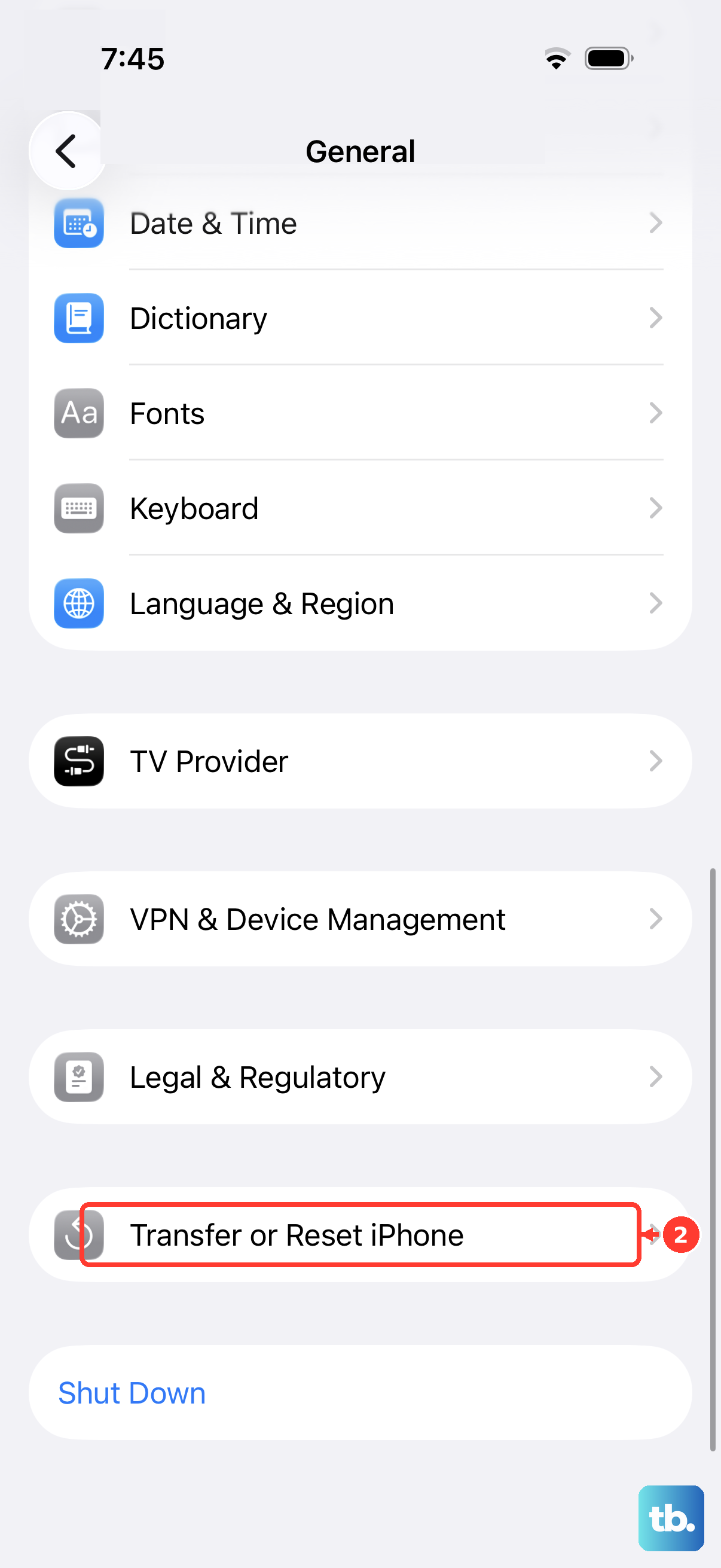
Resetting network settings removes saved networks and unmanaged VPN settings, and roaming may turn off, but personal content remains. After the earlier checks fail, open Settings > General > Transfer or Reset iPhone > Reset > Reset Network Settings. Retry cellular data and check Data Roaming again if you need it outside your home network. Managed profiles require separate handling by your administrator.
Get help when cellular data still fails
Once your carrier has ruled out account and network problems, contact Apple for hardware diagnosis and service. Using a working connection, install or update the Apple Support app and open it for guided troubleshooting. On iPhones running iOS 18 or later, Apple offers additional cellular diagnostics, though availability varies.
Sign in only through Apple’s own app or website, and never share a code, password, or remote access with someone who contacts you. The Apple Support app also offers chat and service booking in supported regions.
Frequently Asked Questions
Why do downloads pause even though cellular browsing works?
Low Data Mode can restrict background tasks and downloads without causing a complete loss of connectivity. For 5G, open Settings > Cellular > Cellular Data Options > Data Mode and select Standard. For LTE or 4G, turn off Low Data Mode under Settings > Cellular, selecting the relevant line first when necessary; its exact location can vary by carrier.
What should you check if only App Store downloads fail?
Open Settings > Apps > App Store and turn on Cellular Data. Review the App Store’s cellular download settings as well, since downloads can be restricted to Wi-Fi independently of other apps.
Does Connectivity Assist fix a cellular connection that is unavailable?
Connectivity Assist supplements poor Wi-Fi with cellular data; it does not repair an unavailable cellular connection. On iOS 27, open Settings > Wi-Fi, keep Wi-Fi enabled, scroll down, and turn on Connectivity Assist. It does not apply during international roaming, with cellular Low Data Mode, or in some streaming apps.
What should you do if your iPhone says Cellular Update Failed?
Back up your iPhone, connect it to an updated computer, and tap Trust if requested. Select your iPhone, then General in Finder or Apple Devices. On Mac, hold Command while clicking Check for Update; on Windows, hold Control while clicking Check for Update. Click Download and Update, and keep your iPhone connected.
Can an incorrect clock be related to connection failures?
An incorrect clock can be associated with connection failures. Using a working connection, open Settings > General > Date & Time and enable Set Time Automatically. Some versions label this setting Set Automatically.