

To fix iPhone Continuity Camera not working, enable Continuity Camera on your iPhone, lock and mount it near your Mac, and select it in your video app. If it still does not connect, check Wi-Fi, Bluetooth, and the Apple Account on both devices, then try USB. For a paused session, tap Resume and remount the phone.
The short version
- Start with the phone: Enable Continuity Camera, then mount your locked iPhone horizontally with its rear cameras facing you.
- Select the camera: Choose your iPhone in the video app instead of waiting for automatic selection.
- Check wireless conflicts: Stop active internet sharing, Sidecar, AirPlay to the Mac, and iPhone Mirroring before reconnecting.
- Try USB: Connect directly to the Mac and complete the accessory and computer trust approvals when prompted.
| Problem | Fix to start with |
|---|---|
| iPhone never appears | Check compatibility, enable Continuity Camera, and lock and mount the phone |
| The wrong camera or microphone opens | Select the iPhone in the video app and audio settings |
| Wireless connection fails | Enable Wi-Fi and Bluetooth and stop conflicting sharing features |
| iPhone disappears or USB fails | Reconnect by USB and check accessory approval, trust, and cable recognition |
| Only an app or website fails | Allow camera access in Mac and browser settings |
| The failure continues across apps | Restart both devices and install compatible updates |
| Camera access is restricted | Check Screen Time or contact your device administrator |
| Photo or scan insertion fails | Use a supported insertion app and allow local networking |
| Apple TV cannot connect | Reconnect through your profile or the displayed QR code |
Check the iPhone setting and position
For the Mac webcam feature, you need an iPhone XR or later running iOS 16 or later, plus a Mac running macOS Ventura 13 or later. Both devices need the same Apple Account with two-factor authentication. Check the account used by each device, not just the account used for media purchases.
On your iPhone, open Settings > General > AirPlay & Continuity and turn on Continuity Camera. On older releases, the parent menu is named AirPlay & Handoff. If you just restarted the iPhone, unlock it once, then lock it again before reconnecting.
Mount the iPhone securely in landscape orientation within 30 feet (10 meters) of the Mac. Keep its screen off and its rear cameras unobstructed and facing you. Landscape positioning matters for automatic discovery, including on desktop Macs without an integrated webcam.
A phone call or using the iPhone can interrupt the session. Finish the call, lock and remount the phone, and restart video in the Mac app if necessary. For a paused session, tap Resume and remount the iPhone.
Select your iPhone in the video app
In FaceTime on the Mac, open Video and select your iPhone. In Photo Booth, open Camera and choose the iPhone. Trying another supported app helps you check whether the failure is confined to your usual calling app.
In QuickTime Player, choose File > New Movie Recording and reveal the recording controls. Open the down-arrow menu and select your iPhone.
In Zoom, click your profile picture, open Settings > Video & effects, and select your iPhone under Camera. During a meeting, open the up-arrow beside Video, choose Video settings, and select the iPhone under Camera. Check the preview.
In Google Meet, open More > Settings > Video > Camera before joining or during a meeting, then select the iPhone. Under Audio, select the intended Microphone, then close settings.
For Teams on Mac, open Settings and more > Settings > Devices > Video settings > Camera and choose the iPhone. Personal Teams also exposes Devices through the menu beside your profile picture. During a personal Teams meeting, open More > Video effects and settings > Settings to choose the video device.
If Teams still has no picture, close other applications using the camera, then select Camera in the meeting controls to enable video. If your desktop edition offers it, open Settings > Devices > Audio settings and select Make a test call. Check the camera preview and device report; this test is unavailable in Teams on the web.
If the picture works but iPhone audio does not, open the Mac’s System Settings > Sound > Input and select the iPhone. Choose the intended microphone in the calling app’s audio settings too. On a Mac without a microphone, keep the iPhone stationary in landscape orientation with its screen off.
Restore the wireless connection
On the iPhone, open Settings > Wi-Fi and turn on Wi-Fi, then open Settings > Bluetooth and turn on Bluetooth. Inspect these switches in Settings because dimmed Control Center buttons can disconnect networks or accessories while leaving Continuity connectivity available. On the Mac, open System Settings > Wi-Fi, then System Settings > Bluetooth, and enable both.
If the iPhone is sharing cellular internet, open Settings > Personal Hotspot and turn off Allow Others to Join. The alternate path is Settings > Cellular > Personal Hotspot. Move connected devices to another network and confirm the Mac is no longer using the iPhone hotspot, because same-account and family devices can use Instant Hotspot without that switch.
When the Mac is sharing its internet connection, open the Apple menu > System Settings > General > Sharing and turn off Internet Sharing. For an active Sidecar session, open the Mac’s Control Center > Screen Mirroring and deselect the connected iPad. Alternatively, tap the Disconnect icon at the bottom of the Sidecar sidebar on the iPad.
If an iPhone or iPad is mirroring to the Mac through AirPlay, open that device’s Control Center > Screen Mirroring and tap Stop Mirroring. On supported combinations using iOS 18 or later and macOS Sequoia 15 or later, quit the iPhone Mirroring app on the Mac before retrying. If the wireless connection still fails, try a direct USB connection.
Connect by USB and approve the connection
Connect the iPhone directly to the Mac using USB, or unplug and reconnect an existing cable. If you previously tapped Disconnect or moved out of range, connect by USB and remount the phone to restore camera and microphone availability. USB also supplies power and avoids the wireless Wi-Fi optimization disconnect.
On a Mac laptop with Apple silicon, unlock the Mac and reconnect the iPhone, then click Allow when the accessory permission alert appears. Unlock the connected iPhone, select it in Finder, and click Trust. Tap Trust on the iPhone, then lock and remount it for webcam use.
If Finder does not recognize the phone, try another cable that supports both data transfer and charging, then another Mac USB port. Choose View > Show Sidebar in Finder if the sidebar is hidden. If connecting produces no sound or vibration, disconnect the cable and inspect the iPhone charging port for debris.
If the trust prompt is missing or rejects your response, reconnect the cable and restart both devices using the steps below. Repeat the trust approvals afterward. Keep the phone locked and mounted when returning to the video app.
If trust still fails, the next reset changes your location and privacy settings. Open Settings > General > Transfer or Reset iPhone > Reset > Reset Location & Privacy. Reconnect afterward and tap Trust.
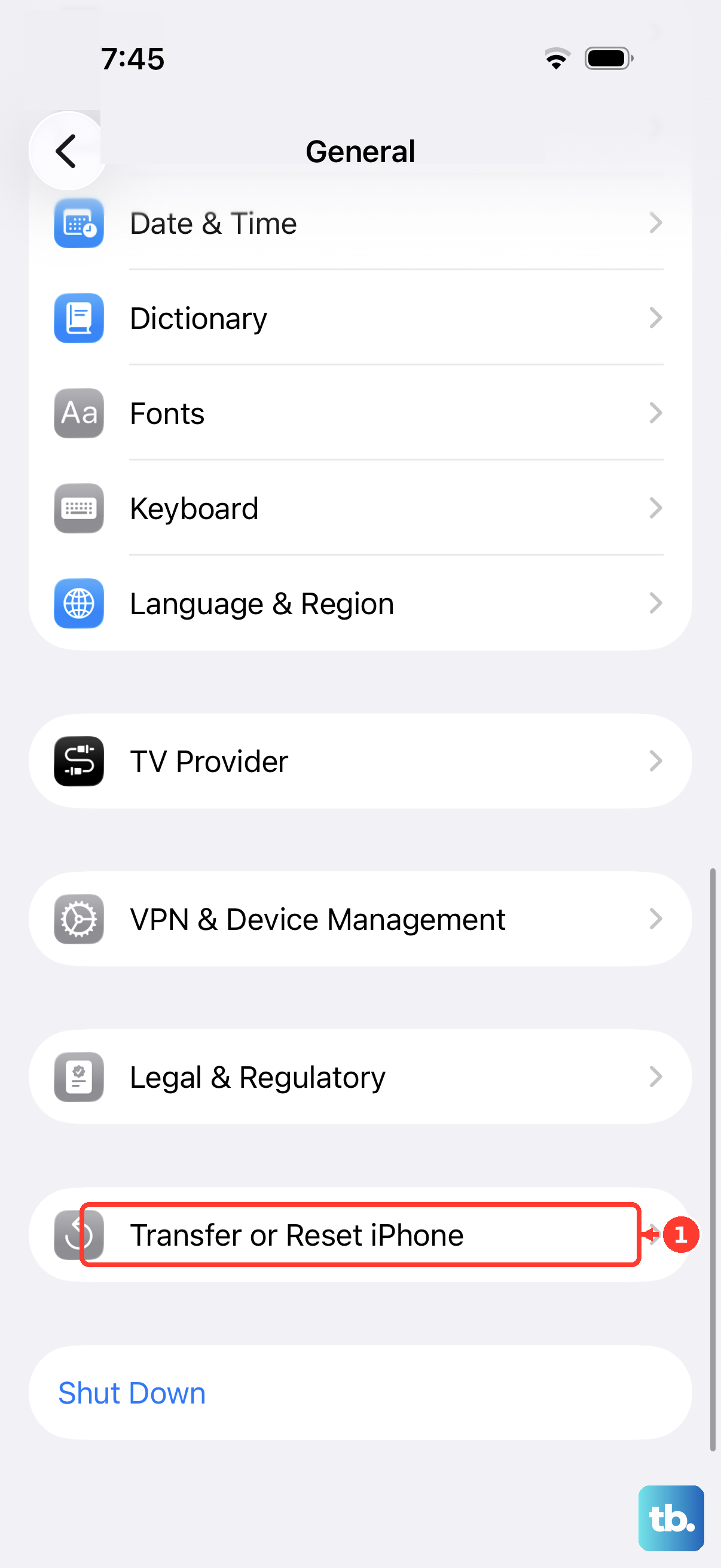
For a continuing computer-trust failure, Apple also lists a network reset as a later troubleshooting step. This removes saved network passwords and resets cellular, VPN, and APN settings. Return to Settings > General > Transfer or Reset iPhone > Reset and choose Reset Network Settings.
Allow camera access for the app or website
For a third-party Mac app or browser, open the Apple menu > System Settings > Privacy & Security > Camera and enable the affected app. Quit and reopen it if requested. FaceTime and Photo Booth already have camera access and do not need an entry in this list.
In Safari, choose Safari > Settings > Websites > Camera, select the calling website, and allow camera access. Website permission is separate from choosing the iPhone in the calling service. Check both when a browser call still uses the wrong camera or shows no video.
In Chrome, open More > Settings > Privacy and security > Site settings > Camera. Open the blocked website, set its permission to Allow, and select the iPhone from the camera dropdown. Repeat under Microphone if audio is blocked, and restart Chrome after changing macOS permissions.
For a new Chrome permission prompt, select Allow while visiting the site. If your browser is managed, your organization’s policy can prevent permission changes. Ask your administrator to check that restriction if you cannot change the setting.
For Firefox, press Command + I, open Permissions, and find Use the camera. Uncheck Use Default and choose Allow. Repeat for Use the microphone if needed; the calling service must also support your browser.
Alternatively, click Firefox’s permissions icon beside the address. Removing a saved permission clears that website’s camera or microphone permission state. Click the X beside the affected permission, revisit the website, and click Allow.
Restart and update both devices
On a responsive iPhone, open Settings > General > Shut Down, then drag the power slider. Hold the Side button to turn it back on. On the Mac, choose the Apple menu > Restart, then click Restart.
If ordinary shutdown is impossible, force restart an unresponsive iPhone by quickly pressing and releasing Volume Up, quickly pressing and releasing Volume Down, then holding the Side button until the Apple logo appears. After restarting, unlock the iPhone once and relock it before reconnecting. A responsive phone only needs the ordinary restart.
Back up the iPhone, connect it to power and Wi-Fi, and open Settings > General > Software Update. Install the compatible update offered using Download and Install or Update Now, depending on the displayed label. On the Mac, open the Apple menu > System Settings > General > Software Update and click Update Now when an update is offered.
Update the video app too if the failure is limited to that application. For a Mac App Store app, open App Store > Updates and click Update beside it. For software obtained elsewhere, follow the developer’s update instructions.
Check camera restrictions
On macOS 27, open the Apple menu > System Settings > Screen Time > Content & Privacy Restrictions > Other Features and set Camera to Allowed. On iOS 27, open Settings > Screen Time > Content & Privacy Restrictions > Other Features and allow Camera. Your family organizer may need to make this change.
For a managed iPhone, Mac, or Apple TV, ask your device administrator to inspect the Use of cameras restriction and permit camera use. On Apple TV, this restriction removes FaceTime and prevents third-party Continuity Camera use. The administrator’s controls depend on the device-management software.
Fix photo and document insertion
Inserting a photo or scan into a Mac app has different requirements from using the iPhone as a webcam. You need iOS 12 or later and a compatible Mac running macOS Mojave 10.14 or later, with Wi-Fi, Bluetooth, and the same two-factor-protected Apple Account on both devices.
Supported insertion apps include Finder, Freeform, Mail, Messages, Notes, and TextEdit. You can also use Keynote 8.2 or later, Numbers 5.2 or later, and Pages 7.2 or later.
In a supported app, hold Control and click the insertion location, then choose Take Photo or Scan Documents. If the menu shows Insert from iPhone or iPad, select it first. The equivalent command may appear in File or Insert. For a photo, operate the shutter and tap Use Photo.
To scan a document with iPhone manually, press the shutter or either Volume button, then adjust the corners. Tap Keep Scan, then tap Save.
Keep the devices within 30 feet (10 meters) while inserting photos or scans. If a VPN is active, check its configuration and permit local networking. The exact control depends on your VPN provider.
Reconnect your iPhone to Apple TV
Apple TV video calls require an iPhone XR or later running iOS 17 or later and Apple TV 4K (2nd generation or later) running tvOS 17 or later. Open FaceTime or a compatible conferencing app on Apple TV and select your profile. Alternatively, select Other, scan the displayed QR code with the iPhone Camera app, and tap Connect to Apple TV, then complete the additional confirmation on your iPhone.
For a configuration with Dedicated Camera, keep the iPhone connected to power and positioned horizontally near the TV. Its connection controls are under Settings > Remotes and Devices > Dedicated Camera. If a compatible Apple TV calling app needs updating, open App Store > Purchased, select the app, and select Update.
Frequently Asked Questions
Why does the background look blurry when the camera works?
On macOS Sonoma 14 or later, open the menu-bar Video menu during the call and turn off Portrait to remove its blur effect. Portrait with Continuity Camera supports iPhone XR or later.
Why does Center Stage not follow me?
Continuity Camera Center Stage requires iPhone 11 or later, excluding iPhone SE models. On current macOS, open the menu-bar Video menu during a call and turn on Center Stage. Open its adjacent arrow to choose Main or Ultra Wide when those options are available on your iPhone.
How do I make Desk View visible to other participants?
With your video app open, choose the menu-bar Video > Desk View, adjust the setup slider, phone angle, and lighting, then click Start Desk View or Share Desk View. In FaceTime, select Share Desk View if needed; in another app, share the Desk View window using its screen-sharing control. To redo framing, choose View > Return to Setup. Apple lists iPhone 11 or later for Desk View, excluding iPhone 16e and iPhone SE models; check lens availability for newer models.
What can I check when Google Meet connects but looks poor?
During the affected meeting, open More options > Troubleshooting & help. Review the device and network recommendations shown for the detected problem.
Why does Teams stop video when my Mac locks?
Teams can turn off its camera and microphone when the computer running it locks. Open Settings and more > Settings > Privacy, then find Turn off my camera and mic when my screen locks. If that behavior is unwanted, disable Turn off my camera and mic when my screen locks, then restart Teams.
How do I select the iPhone for Head pointer?
On current macOS, open the Apple menu > System Settings > Accessibility > Pointer Control. Click the information button beside Head pointer, open Camera Options, and choose your iPhone.
How do I change camera effects on Apple TV?
Hold the remote’s TV button to open Control Center, then open the Continuity Camera tab. Adjust Center Stage, Portrait, or Reactions there. Available effects depend on your iPhone hardware.
Can I stop approving the USB accessory every time?
On a Mac laptop with Apple silicon, open the Apple menu > System Settings > Privacy & Security > Accessories > Allow accessories to connect. Choose Automatically allow when unlocked if you want accessories approved automatically while the Mac is unlocked.