


To fix iCloud contacts not syncing with Mac, turn on Contacts in iCloud settings, confirm both devices use the same Apple Account, and check which account holds the missing contacts. Compare the Mac with iCloud.com to determine whether the contacts have reached iCloud or are missing only from the Mac. Start with these checks before importing contacts or restoring an older collection.
The short version
- Check the account: Enable Contacts for the same Apple Account on your Mac and the device containing your contacts.
- Check the list: Select All Contacts in Mac Contacts to reveal entries across accounts.
- Compare the cloud copy: Check iCloud.com to distinguish an upload problem from a Mac display or download problem.
- Protect existing contacts: Export a backup before restoring an older iCloud contacts archive.
| Check or action | When to use it |
|---|---|
| Check Apple System Status | Rule out an iCloud Contacts outage |
| Enable iCloud Contacts on the Mac | Check the account and sync setting |
| Show all contact lists | Find entries hidden by the selected list |
| Compare contacts on iCloud.com | Separate upload problems from Mac problems |
| Enable Contacts on the source device | Phone or tablet contacts have not reached iCloud |
| Refresh the source contact list | Check the iPhone or iPad copy |
| Change the source default account | Save future phone or tablet contacts to iCloud |
| Enable another contacts account | Missing entries belong to another provider |
| Change the Mac default account | Save future Mac contacts to iCloud |
| Export contacts from the Mac | Prepare a backup or transfer file |
| Import a vCard into iCloud | Copy contacts from another location |
| Quit and reopen Contacts | Recover from an app problem |
| Restart the Mac | Reopening Contacts has not helped |
| Try a working network | iCloud or other internet services cannot connect |
| Run Wireless Diagnostics | Investigate a Wi-Fi connection problem |
| Correct date and time settings | The Mac’s clock or time zone is wrong |
| Install a macOS update | A compatible update is available |
| Enable browser data access | Access to iCloud.com data is disabled |
| Refresh the browser session | The iCloud.com contact list is stale |
| Remove Safari website data | The browser copy still malfunctions |
| Restore an iCloud contacts archive | Contacts were deleted and an archive is available |
| Check contact limits | A large collection or import has problems |
Check iCloud settings and service status
Check Apple System Status for iCloud Contacts. If Apple reports a service problem, wait for service recovery before changing account settings.
On macOS 15 or later, open the Apple menu > System Settings, select your name, then choose iCloud. Next to Saved to iCloud, click See All and turn on Contacts. Confirm that the Apple Account matches the one on the device containing the contacts.
Find the account holding your missing contacts
In Mac Contacts, choose View > Show Lists, then select All Contacts. Inspect the individual account lists to identify where the missing entries are stored. If they appear under another account, check that account’s settings before using iCloud recovery.
Sign in only through Apple’s own app or website, and never share a code, password, or remote access with someone who contacts you. Open iCloud Contacts on a computer or tablet and sign in with the same Apple Account. Compare those contacts with the Mac and the source device.
If the contacts appear on iCloud.com but not on the Mac, focus on the Mac’s settings, selected lists, and connection. If they are absent from iCloud.com too, check the source device and the account storing them. This comparison helps you decide whether to troubleshoot syncing or copy contacts that belong to another account.
Check the iPhone or iPad sending the contacts
When the missing contacts originate on an iPhone or iPad, open Settings, select your name, then choose iCloud > See All and turn on Contacts. Earlier interfaces use Show All instead of See All. Confirm that this device uses the same Apple Account as the Mac.
Open Contacts on that device and swipe down on the contact list to refresh it. Tap Lists, then select All iCloud to check the iCloud account specifically. This refresh gesture applies to iPhone and iPad Contacts.
For new contacts on iOS or iPadOS 18 or later, open Settings > Apps > Contacts > Default Account, then select iCloud. Existing contacts in other accounts remain there. Changing the default account will not move those older entries into iCloud.
Handle contacts saved outside iCloud
For an existing separate account, choose Contacts > Accounts on the Mac to open Internet Accounts. Select the account and turn on Contacts. This can reveal contacts from Google, Exchange, or another supported provider that you mistook for missing iCloud entries.
To save future Mac contacts to iCloud, choose Contacts > Settings > General. When multiple accounts are configured, open Default Account and choose iCloud. This setting appears when you have multiple accounts and controls new contacts without moving existing entries.
To copy local or other-account contacts into iCloud, select those contacts in Mac Contacts and choose File > Export > Export vCard. Choose a location and click Save. On iCloud.com, sign in to the intended Apple Account, select the Add button on the right, choose Import vCard, and select the vCard file.
Imported contacts enter All Contacts on iCloud.com. This copies them into iCloud without maintaining synchronization with their original provider. Use the import when you want those entries in iCloud, keeping that limitation in mind.
Reopen Contacts and restart the Mac
With Contacts active, press Command + Q, then reopen the app. Check the contact list again after this general app recovery step.
Force quitting can lose unsaved changes. If Contacts is unresponsive, force quit the frozen Mac app by pressing Option + Command + Esc, selecting Contacts, and clicking Force Quit. Reopen Contacts afterward.
If reopening the app does not help, choose the Apple menu > Restart. Use the forced shutdown procedure for restarting an unresponsive computer only when the Mac cannot restart normally.
A forced shutdown may lose unsaved work. If the Mac cannot restart, hold its power button for up to 10 seconds until it turns off, then press and release the power button to start it. On a Mac laptop with Touch ID, the Touch ID button is the power button.
Check the connection and Mac settings
When iCloud or other internet services cannot connect, click the Wi-Fi status menu and choose a working network. Enter its password if requested, click Join, and test iCloud again. If another network works, investigate the original router, internet provider, VPN, or network security software.
For a Wi-Fi connection problem, hold Option while clicking the Wi-Fi status menu, then choose Open Wireless Diagnostics. Follow the analysis instructions and inspect the Info buttons in the Summary pane. Wireless Diagnostics does not change network settings.
Check the Mac’s clock in System Settings > General > Date & Time. Turn on Set time and date automatically and Set time zone automatically using your current location. If the time server needs correcting, click Set, enter the appropriate network time server, and click Done.
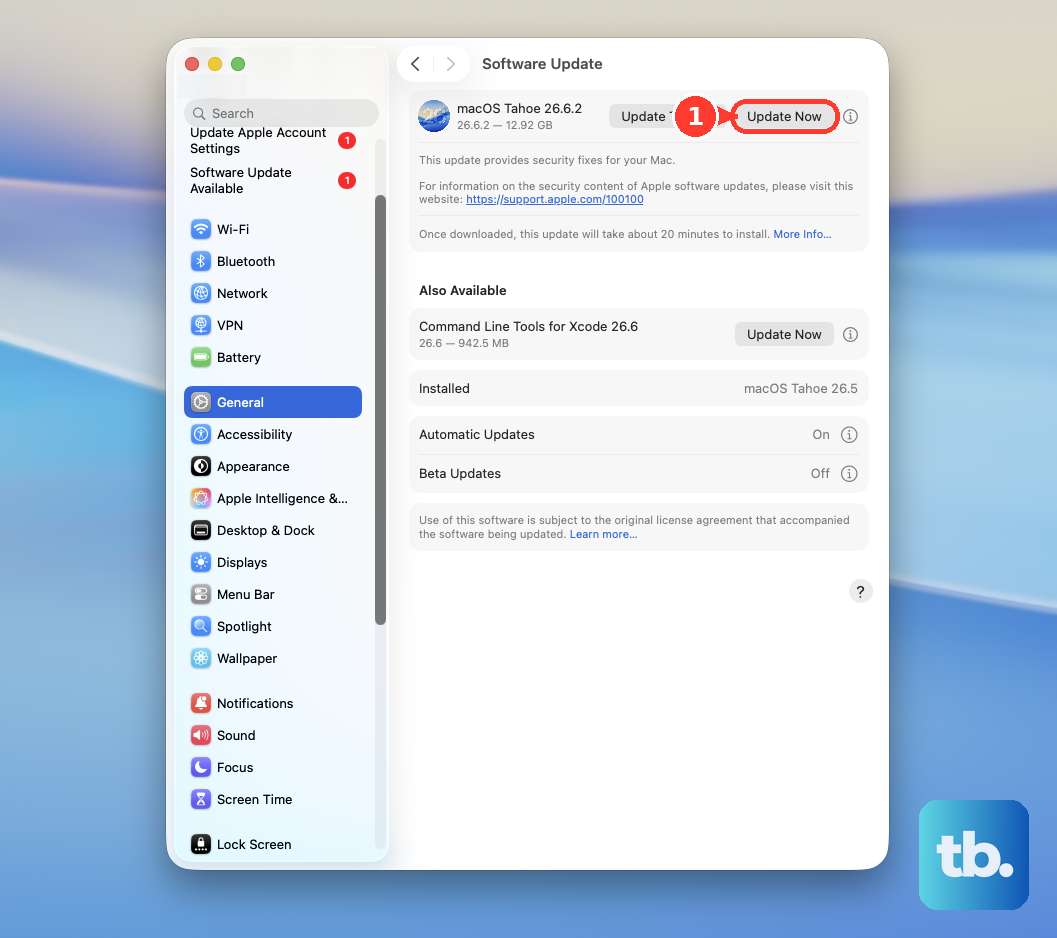
Next, open the Apple menu > System Settings > General > Software Update. Click Update Now when an update is available. Software Update offers software compatible with your Mac.
Fix access to the browser copy
If iCloud.com data access is disabled, on macOS 26.4 or later open the Apple menu > System Settings, select your name, then choose iCloud > Data Access on iCloud.com. Turn on Allow Data Access. On macOS 13.1 through 26.3, the toggle is Access iCloud Data on the Web. This setting controls browser access, not native Contacts syncing.
For a stale iCloud.com display, open another app there, such as Mail, then return to Contacts. If necessary, sign out of iCloud.com and sign back in. Compare the browser copy with Mac Contacts again afterward.
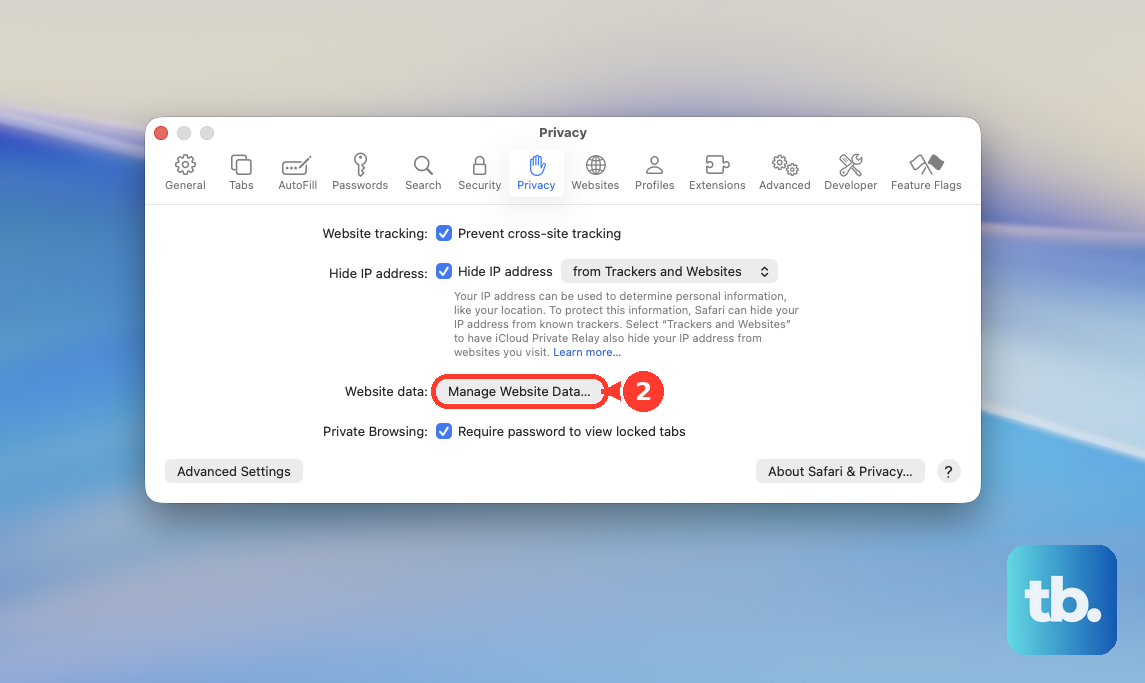
Removing Safari website data may sign you out. If the iCloud browser copy remains stale or malfunctions in Safari, choose Safari > Settings > Privacy > Manage Website Data. Select the iCloud website entry, click Remove, then reopen iCloud.com and sign in again.
Recover deleted contacts or check a large collection
Use contact recovery when entries were deleted from iCloud and an archive is available. First, make a complete Mac Contacts backup by choosing File > Export > Contacts Archive. Choose a location and click Save to create an .abbu backup. You can also export the current cloud copy using the browser export steps below.
Restoring an archive replaces contacts across devices, so back up current contacts before proceeding. Sign in to iCloud.com, scroll to the bottom, and select Data Recovery > Restore Contacts. Beside an available archive from before the deletion, select Restore, then select Restore again. iCloud preserves the previous current version.
If the problem concerns a large collection or import, check its size against iCloud Contacts limits. The limits are 50,000 cards, 256 KB per card or group, 224 KB per photo, 48 MB of total card text, and 200 MB of total card photos. Reduce oversized imports or contact content where necessary.
Frequently Asked Questions
Can I export all my iCloud contacts without fixing syncing first?
Yes, you can save the cloud copy from Contacts on iCloud.com. Select the Select Menu button, then choose Select All Contacts. Select the Actions button, then choose Export vCard. This saves a copy without repairing syncing.
How do I bring a saved vCard into Mac Contacts?
In Contacts, choose File > Import, select the vCard file, and click Add. Alternatively, double-click the vCard or drag it onto the Contacts icon or contact list. Review any duplicates. This is a manual transfer or recovery operation, not proof that automatic syncing is repaired.
Where can I check an account’s update interval?
For an account that exposes these controls, choose Contacts > Settings > Accounts and select the affected account. Select Enable this account. If you see Fetch, open it and choose an available update interval. These controls depend on the account type.
Which contact photo formats does iCloud support?
You can use JPEG, BMP, PNG, and GIF photos in iCloud Contacts. Check the photo format when preparing contact content for an import.
Can I add a separate contacts account directly in Mac Contacts?
Yes, choose Contacts > Add Account, select its provider, click Continue, and enter its credentials. This adds a separate contacts account.
Can a work or school policy prevent contacts from uploading?
Yes, Apple’s device management restrictions include an iCloud Contacts restriction that prevents contacts from uploading to iCloud. On a managed Mac, ask your administrator to check that restriction in the organization’s policy. The administrator’s exact console path depends on the management product.