

To fix Google Chrome running slowly on Windows 11, update Chrome, close unused tabs, and disable unnecessary extensions before resetting or reinstalling the browser. If only websites load slowly, compare the same page in another browser to separate a Chrome problem from a connection problem. These steps use Windows 11 menus.
The short version
- Start small: Update Chrome, save unfinished work, and restart the browser.
- Reduce the workload: Close unused tabs and turn off unnecessary extensions.
- Match the fix: Adjust Memory Saver for inactive tabs and investigate the connection when other browsers also load pages slowly.
- Reset later: Try a fresh profile before resetting settings or reinstalling Chrome.
| Fix or check | When it helps | Main consideration |
|---|---|---|
| Update Chrome | General browser sluggishness | Relaunch if offered |
| Restart Chrome | Browser remains sluggish | Save unfinished work |
| Close unused tabs | Too many open pages | Close tabs you no longer need |
| Pause downloads and quit unused apps | Memory or network pressure | Retest with only the affected tab |
| Force-close Chrome | Chrome is frozen or stuck | Unsaved work may be lost |
| End a Chrome task | An unnecessary task consumes memory | Unsaved task work is lost |
| Disable or remove extensions | Extensions cause slow browsing | Managed extensions may resist removal |
| Adjust Memory Saver | Many inactive tabs | Inactive tabs reload when revisited |
| Keep selected sites active | Repeated tab reloading causes delays | Exempted sites retain memory |
| Use performance alerts | Chrome detects poor performance | Act when Chrome recommends deactivation |
| Reload without cached content | One page behaves poorly | Checks only that page |
| Try Incognito | A website is slow in normal browsing | Allowed extensions can still run |
| Delete one website’s data | A single site has stored-data problems | Can sign you out of that site |
| Delete selected browsing data | Broader stored-data problems | Cookies can sign you out |
| Compare another browser | Websites load slowly | Helps distinguish browser and connection problems |
| Improve Wi-Fi | Connection-related delays | Available bands depend on hardware |
| Restart networking equipment | Pages fail across browsers | Follow your model’s restart procedure |
| Preload pages | Faster navigation on a working connection | Uses additional network resources |
| Test graphics acceleration | Rendering or graphics-driver problems | Restore it if disabling does not help |
| Turn off Energy Saver | Responsiveness suffers on a battery device | Also try connecting power |
| Restart Windows | Other applications are sluggish too | Save your work |
| Disable startup apps through Settings | Unnecessary apps launch with Windows | Applies to registered startup apps |
| Disable startup apps through Task Manager | You want to inspect startup impact | Disable unnecessary entries |
| Install Windows and driver updates | System or graphics-related problems | Driver availability depends on hardware |
| Scan Windows for malware | Your PC uses Microsoft Defender Antivirus | Use Windows malware scanning |
| Create a fresh profile | A profile-specific problem is suspected | Test before adding extensions |
| Reset Chrome settings | Earlier fixes have failed | Extensions and several settings reset |
| Uninstall Chrome | You are preparing to reinstall | The existing profile may remain |
| Download and reinstall Chrome | Persistent browser problems | Use Google’s Windows installer |
| Report the problem | Performance problems persist | Supports investigation rather than immediate repair |
Update Chrome and restart it
Open More > Help > About Google Chrome. Chrome checks for updates automatically. Save unfinished work before restarting the browser, then select Relaunch if offered.
For a normal browser restart, save unfinished work, select More > Exit, and reopen Chrome from Start or its desktop shortcut. Close unwanted tabs with their Close button or press Ctrl + W on an unwanted tab. Pause unnecessary downloads and quit unused applications, then retest with only the affected Chrome tab open.
If Chrome is frozen or stuck in the background, you can force quit a frozen app through Windows Task Manager. Force-closing Chrome may lose unsaved work. Press Ctrl + Alt + Delete, open Task Manager, and under Processes, select Google Chrome or chrome.exe, then select End task and reopen Chrome.
Find heavy tasks and disable extensions
Open Chrome’s More > More tools > Task Manager, or press Shift + Esc. Select Memory to sort tabs, extensions, and background tasks by memory usage. Look for an unnecessary task using a large amount of memory.
Ending a task loses unsaved work in that task. Select the unnecessary task, then select End Process. Check Chrome’s responsiveness again before moving on to extensions.
Open More > Extensions > Manage extensions. Turn unnecessary extensions off, then check Chrome again. Re-enable them individually and compare performance after each one to identify which extension causes the slowdown.
Removing an extension uninstalls it from Chrome. To uninstall an unnecessary extension, select Remove, then confirm Remove. If your administrator prevents removal of a managed extension, ask the administrator to review it.
Adjust Memory Saver for your tabs
For a browser with many open tabs, open More > Settings > Performance and turn on Memory Saver. Choose Balanced, the recommended option, or choose Moderate or Maximum. Inactive tabs reload when you return to them, so consider that tradeoff when choosing a level.
If repeated reloading is the slowdown you notice, keep the affected website active. In Performance, under Always keep these sites active, select Add > Add sites manually, enter the website address, and select Add. Exempted sites retain memory, so reserve this for tabs you need to keep active.
Keep Performance issue alerts enabled on the same settings page. When Chrome detects poor performance and recommends deactivating tabs, select Fix now.
Check a slow website and its stored data
On an affected page, press Shift + F5 or Ctrl + Shift + R to reload while bypassing cached content. This checks an individual page rather than changing browser-wide performance. Next, open More > New Incognito window, or press Ctrl + Shift + N, and try the same website.
If the site works normally in Incognito, investigate extensions and stored browsing data. Extensions explicitly allowed in Incognito can still run there. If disabling extensions did not resolve the issue, try deleting data only for the affected website before clearing broader categories.
Deleting a website’s data can sign you out of that site and removes its stored site data. Open More > Settings > Privacy and security > Third-party cookies > See all site data and permissions. Search for the website, select Delete beside it, and confirm Delete.
Clearing cached files removes the stored cache and can initially slow page loads while it rebuilds; deleting cookies can also sign you out. Open More > Delete browsing data, or press Ctrl + Shift + Delete, and choose All time. Check Cached images and files, adding Cookies and other site data only if you need a site-data reset. Leave unrelated categories unselected and select Delete data.
Check the connection when pages load slowly
Try the same page in another browser when the delay is in loading websites rather than Chrome’s menus or typing. If the page is also slow or fails there, investigate the website or connection. Try another device on the same network to help narrow down the problem.
For Wi-Fi, move closer to the router and try again. If your router and adapter offer separate 2.4 GHz and 5 GHz networks, try the other band. Restart the modem and router using the procedure for your model, and contact the website owner or internet provider when appropriate.
If the connection works normally but you want faster navigation in Chrome, open More > Settings > Performance and enable Preload pages. Choose Standard preloading or Extended preloading. Preloading can use additional network resources, so it is a navigation option rather than a repair for a failing connection.
Check graphics acceleration and Energy Saver
For rendering-related lag or graphics-driver problems, open More > Settings > System and turn off Use graphics acceleration when available. Save unfinished work, restart Chrome, and compare performance. Restore the setting if disabling it does not help, because turning acceleration off is not a universal improvement.
On a Windows 11 device with a battery, Chrome’s Energy Saver can affect responsiveness, particularly for video, gaming, and background updates. Open More > Settings > Performance and turn off Energy Saver to compare. Alternatively, select Energy Saver beside the address bar and choose Turn off now, or connect power.
Reduce competing Windows activity
When other applications are also sluggish, check Windows alongside Chrome. Save your work, then select Start > Power > Restart. After restarting, compare Chrome’s responsiveness before opening unused applications.
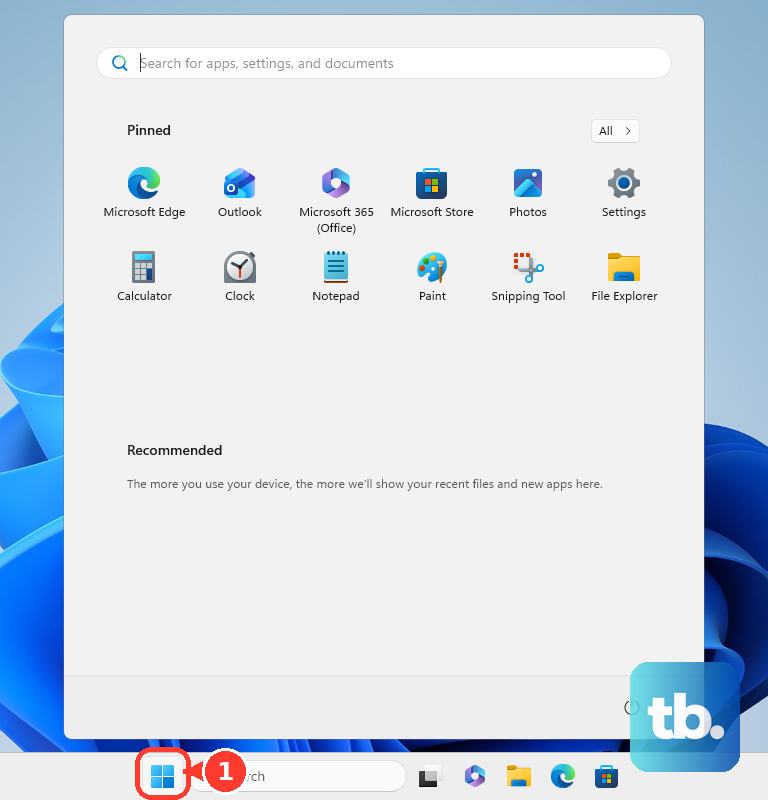
You can stop apps opening on startup to reduce unnecessary startup activity. Open Start > Settings > Apps > Startup and set unnecessary applications to Off. For another view, right-click Start, open Task Manager > Startup apps, inspect startup impact, and select an unnecessary application followed by Disable.
Install available updates through Settings > Windows Update > Check for updates, selecting Download & install when offered. Also inspect Advanced options > Optional updates for driver updates; availability depends on your hardware. For a graphics-related problem, you can also follow the steps to find and update your graphics driver.
If your PC uses Microsoft Defender Antivirus, open Settings > Privacy & security > Windows Security > Virus & threat protection > Quick scan. Google retired the Chrome Cleanup Tool, so use Windows malware scanning and Chrome’s current reset controls instead.
Try a fresh profile before resetting Chrome
A fresh profile helps isolate profile-specific problems while preserving your original profile. Select Profile > Add Chrome profile, then choose a name, photo, and color scheme. Try browsing before adding extensions or signing into your Google Account.
If earlier fixes have failed, resetting Chrome is another option. Resetting changes extensions and several site and startup settings, while keeping bookmarks and passwords. Open More > Settings > Reset settings > Restore settings to their original defaults, then confirm Reset settings.
Reinstall Chrome if the slowdown persists
Uninstalling removes the Chrome application, but it does not necessarily create a clean browser profile. Close all Chrome windows, then open Start > Settings > Apps > Installed apps. Beside Google Chrome, select More > Uninstall, confirm Uninstall, and select Yes if Windows requests permission.
Get the Windows installer appropriate to your computer from Google’s official Chrome download page. Run the installer, select Run if prompted, and select Yes if Windows requests permission to make changes. Open Chrome and check its performance again.
For a persistent performance problem, select More > Help > Report an issue..., or press Alt + Shift + I. Describe the slowdown and the steps that reproduce it. Reporting the issue supports investigation rather than providing an immediate repair.
Frequently Asked Questions
Can I see a tab’s memory usage without opening Chrome Task Manager?
You can inspect memory consumption by hovering over tabs. Open More > Settings > Appearance, and under Tab hover preview card, enable Show tab memory usage. Hover over a tab to see its memory consumption.
How can I make Chrome open fewer pages at startup?
Open More > Settings > On startup and select Open the New Tab page. Choosing a single startup page may reduce the work Chrome does when it opens.
Can Chrome keep running after I close its windows?
Yes, Chrome has a setting for background operation after its windows close. Open More > Settings > System and turn off Continue running background apps when Google Chrome is closed. This reduces activity after closing Chrome rather than directly accelerating an active page. If your administrator controls the setting, ask them to set BackgroundModeEnabled to false.
Is Windows Efficiency mode the same as Chrome Energy Saver?
No, Windows Efficiency mode is separate from Chrome’s Energy Saver. For an affected Chrome process with the control available, open Task Manager > Processes, expand the Chrome group, right-click an individual process showing the green double-leaf icon, and select Efficiency mode to turn it off. Treat this as a diagnostic check, not a guaranteed persistent fix.
What if an administrator controls Chrome’s performance settings?
Ask your administrator to review the policy for the setting you need to change. For memory saving, they can enable HighEfficiencyModeEnabled or leave it unset for user control. For a diagnosed graphics problem, they can set HardwareAccelerationModeEnabled to false and restart Chrome after you save unfinished work. On a battery-powered device, they can set BatterySaverModeAvailability to 0 to disable battery saving or leave it unset for user control.