

Restart Docker Desktop, then stop Docker and restart the WSL runtime if the engine stays stuck starting on Windows with the WSL 2 backend. If that does not help, update WSL and Docker, then use the startup error to check virtualization or configuration. Back up Docker’s data before cleanup, factory reset, or reinstallation.
The short version
- Start with a restart: Restart Docker Desktop through its troubleshooting menu or the Desktop CLI.
- Refresh WSL: Save your WSL work, stop Docker, and shut down the WSL runtime before reopening Docker.
- Check prerequisites: Update WSL and Docker, then check the virtualization features required by your backend.
- Protect local data: Back up Docker’s virtual disk before cleanup, factory reset, or uninstalling.
| Fix or check | When to use it | Main consideration |
|---|---|---|
| Restart through Docker’s menu | The interface responds | Start with the application restart |
| Restart through the Desktop CLI | The Dashboard is inaccessible | Requires the Desktop CLI |
| Restart Windows | After installations or system changes | Save your work first |
| Restart WSL | Docker uses WSL 2 | Stops every running WSL distribution |
| Install or update WSL | WSL is missing or outdated | Use the download fallback if needed |
| Download the WSL installer | Terminal or Store installation is unavailable | Match your processor architecture |
| Update Docker Desktop | An application update is available | Administrator privileges may be required |
| Install Windows updates | Windows components need updating | Complete required restarts |
| Read Docker logs | The cause remains unclear | Match the repair to the startup error |
| Collect diagnostics | You need support for an unresolved hang | Keep the Diagnostic ID |
| Enable Virtual Machine Platform | The WSL 2 prerequisite is disabled | Restart Windows afterward |
| Enable other backend features | You use Hyper-V or Docker VMM | Enable only the required features |
| Enable firmware virtualization | CPU virtualization is disabled | Follow your manufacturer’s instructions |
| Restore hypervisor startup | Another configuration disabled its launch | Use an administrator terminal |
| Select the WSL 2 backend | You want to use WSL 2 | The setting can already be enabled and hidden |
| Switch to Linux containers | The wrong container mode is selected | Requires an installation supporting switching |
| Correct daemon configuration | A configuration change preceded the failure | Preserve a copy before editing |
| Restore WSL configuration | Resource or kernel customization preceded the failure | Restore previous working values |
| Correct VM resources or disk location | The error identifies a specific shortage or access problem | Controls depend on the backend |
| Repair Windows components | WSL itself reports unexpected failures | Run DISM before System File Checker |
| Back up Docker’s virtual disk | You are considering destructive recovery | Fully stop Docker before copying |
| Clean up Docker data | Local engine data is damaged | Deletes local containers and images |
| Reset Docker Desktop | You need destructive recovery and controls remain accessible | Back up first |
| Uninstall Docker Desktop | The installation needs replacement | Deletes local Docker data |
| Download and reinstall Docker Desktop | You have removed the damaged installation | Match the installer to your processor |
Restart Docker Desktop and Windows
Open the Docker taskbar menu, select Troubleshoot, then choose Restart Docker Desktop. You can also open Troubleshoot through the Dashboard’s question-mark icon. If the interface does not respond and the Desktop CLI is installed, run this command in PowerShell:
docker desktop restartAlternatively, stop Docker and start it again through the CLI. Run the first command below, wait for it to finish, then run the second:
docker desktop stopdocker desktop startAfter the restart, check Docker Desktop’s application state. Run this command in PowerShell:
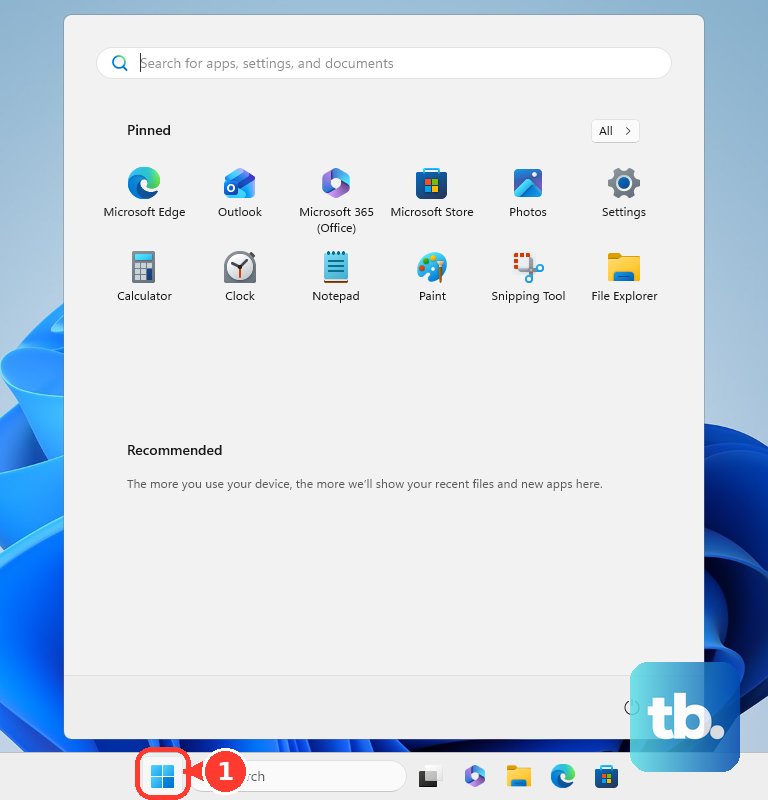
docker desktop statusA Windows restart is particularly relevant after an installation, update, or Windows-feature change. Save your work, then on Windows 11 select Start > Power > Restart. Open Docker Desktop after signing back in.
Restart the WSL runtime
If Docker uses the WSL 2 backend, stop Docker Desktop before restarting the shared WSL runtime. The following command terminates every running WSL distribution and the shared WSL 2 virtual machine, so save your work in all WSL distributions before running it in PowerShell.
wsl --shutdownStart Docker Desktop again after the command finishes. Shutting down WSL does not unregister your distributions. If the engine remains stuck, check and update WSL next.
Update WSL and Docker Desktop
For the WSL 2 backend, open PowerShell as administrator and check your installed WSL version with the command below. Docker requires WSL 2.1.5 or later and recommends a newer supported release.
wsl --versionFor an existing WSL installation, run the update command below. Restart Windows if requested before retrying Docker.
wsl --updateIf Store delivery is unavailable, use the web-download option. Run this alternative update command:
wsl --update --web-downloadIf WSL is absent, install it without adding a separate Linux distribution. Run this command in the administrator PowerShell window and restart if requested:
wsl --install --no-distributionWhen installation through the terminal or Microsoft Store is unavailable, get the installer from Microsoft’s WSL releases. Choose a stable release and the installer matching your processor architecture.
Next, check for a Docker Desktop update through the current Desktop CLI. Run the first command to check availability, then the second to apply an update; an all-users installation may require administrator privileges.
docker desktop update --check-onlydocker desktop updateOn Windows 11, also open Start > Settings > Windows Update > Check for updates. Install applicable updates and complete any required restart before opening Docker again.
Use logs to identify the next fix
If restarts and updates do not help, inspect Docker’s startup error and logs before changing more settings. With the current Desktop CLI installed, run:
docker desktop logsUse the error to distinguish virtualization, disk-access, configuration, and policy failures before choosing a repair. If you need help with an unresolved hang, open Troubleshoot > Get support > Upload, then copy the Diagnostic ID. Select Contact support for an eligible subscription or select Report a Bug.
A startup error can also offer Gather diagnostics. If the interface cannot open, collect diagnostics through the Desktop CLI:
docker desktop diagnoseDiagnostics help investigate the hang but do not automatically repair the engine. Keep the Diagnostic ID for your support request or bug report, including if the problem survives reinstallation.
Enable the virtualization features your backend needs
The WSL 2 backend needs Virtual Machine Platform. Search Start for Windows features, open Turn Windows features on or off, and select Virtual Machine Platform. Select OK, then restart Windows; administrator access may be required.
For a supported x86-64 Hyper-V configuration with an all-users installation, open Turn Windows features on or off and select Hyper-V and Containers. For Docker VMM, select Windows Hypervisor Platform and Virtual Machine Platform. Enable the features for your selected backend, choose OK, and restart Windows.
If firmware virtualization is disabled, use Windows recovery to get to your PC’s BIOS. On Windows 11, open Settings > System > Recovery. Under Advanced startup, select Restart now.
On Windows 10, open Settings > Update & Security > Recovery, then select Restart now under Advanced startup. In recovery, choose Troubleshoot > Advanced options > UEFI Settings > Restart. The firmware option is also labeled UEFI Firmware Settings.
Enable virtualization using your PC manufacturer’s instructions, save, and restart. Firmware labels vary by manufacturer, and Surface devices already have virtualization enabled.
If virtualization features are installed but another program or configuration disabled hypervisor launch, restore its startup setting. Open an administrator terminal, run the command below, then restart Windows:
bcdedit /set hypervisorlaunchtype autoCorrect the backend or recent configuration changes
On a WSL-capable installation, open Docker Desktop’s Settings > General to select the WSL 2 backend. Select Use WSL 2 based engine, then select Apply. Docker says this option can be enabled automatically and hidden on compatible systems, so you may already be using it when the checkbox is missing.
If Windows containers are selected when you need Linux containers, open the Docker taskbar menu and select Switch to Linux containers. This applies to installations supporting engine switching. Linux and Windows containers have different prerequisites.
If the failure followed a daemon configuration change, preserve a copy of $HOME/.docker/daemon.json before editing. Open Docker Desktop’s Settings > Docker Engine, undo the change associated with the failure, and correct invalid JSON. Use a text editor if settings cannot open.
For a WSL 2 failure that followed resource or kernel customization, review %UserProfile%\.wslconfig. Restore the previous working values for the affected memory, processors, swap, kernel, or kernelModules settings. Apply this reversal only when the failure followed those changes.
Stop Docker Desktop before restarting WSL with the command below. It terminates all running WSL distributions, so save your WSL work before running it.
wsl --shutdownReopen Docker after the runtime shuts down. If a startup error instead identifies a resource shortage or inaccessible disk location, open Docker Desktop’s Settings > Resources > Advanced and correct that specific problem.
Depending on your backend, the controls include Memory limit, Disk usage limit, and Disk image location. WSL memory limits are configured through WSL rather than Docker’s Hyper-V resource sliders. No single allocation fixes every startup hang.
Repair Windows when WSL itself fails
If WSL itself reports unexpected failures, damaged Windows components may need repair before Docker can start. You can repair Windows using Command Prompt with Microsoft’s component-repair tools. Open an administrator terminal and run this command first:
DISM /Online /Cleanup-Image /RestoreHealthAfter it completes, run System File Checker with the command below. These tools repair Windows components rather than reset Docker’s local data.
SFC /SCANNOWComplete any required restart, then retry WSL and Docker Desktop. If WSL works but Docker still hangs, use Docker’s logs and diagnostics to investigate before proceeding to destructive recovery.
Back up before resetting or reinstalling Docker
When Docker cannot start, preserve its data by copying the backend’s virtual disk to a safe location. Fully stop Docker Desktop before copying the file. Use your configured disk location if you previously changed it.
For WSL 2, copy %LOCALAPPDATA%\Docker\wsl\disk\docker_data.vhdx. For Hyper-V, copy %ProgramData%\DockerDesktop\vm-data\DockerDesktop.vhdx; for Docker VMM, copy %LOCALAPPDATA%\Docker\vm-data\DockerDesktop.vhdx. A backup preserves data but does not repair the engine, and restoring a corrupt disk can restore the problem.
When local engine data is damaged, Docker offers a cleanup option that retains settings. Cleanup destroys local containers and images, so back up the virtual disk first. Open the Docker menu, select Troubleshoot, then select Clean up data.
A factory reset is another recovery option when troubleshooting controls remain accessible. Resetting Docker Desktop to factory defaults is destructive, so back up the virtual disk before proceeding. Open the Docker menu, select Troubleshoot, then select Reset to factory defaults.
Uninstalling deletes local Docker containers, images, volumes, and related data, so copy the virtual disk before removing Docker. That virtual disk holds Linux-container data. If you use Windows containers, also back up their data separately; Docker Engine on Windows stores it under C:\ProgramData\docker by default unless data-root was changed. On Windows 11, open Settings > Apps > Installed apps, find Docker Desktop, open More, and select Uninstall. On Windows 10, the app-removal surface in Settings is Apps & features.
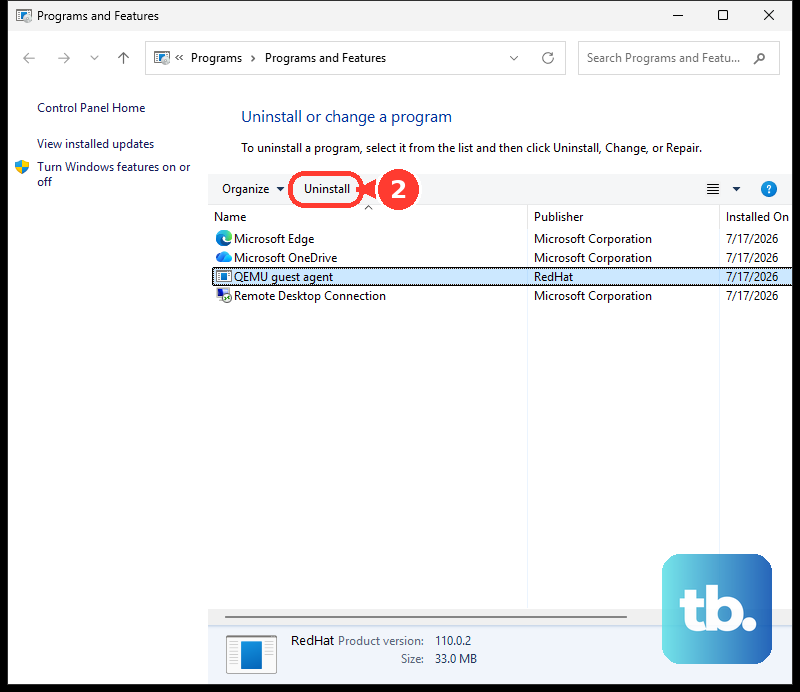
Alternatively, open Control Panel > Programs > Programs and Features, select Docker Desktop, and choose Uninstall. Select Uninstall again to confirm Docker’s removal.
Get the replacement installer from the official Docker Desktop download page and use it to reinstall Docker Desktop. Choose the Windows AMD64 download for Intel or AMD x86-64 PCs, or the Windows ARM64 download for Windows Arm PCs. Docker identifies Windows Arm support as Early Access.
Frequently Asked Questions
Should you restart com.docker.service for a WSL 2 startup hang?
Investigate com.docker.service only when using features that require it, such as affected Hyper-V or Windows-container configurations. Per-user installations do not install this service, and ordinary WSL 2 operation does not require docker-users membership.
Can antivirus software stop Docker from starting?
Docker documents antivirus virtualization conflicts, including failures associated with ERROR_NOT_SUPPORTED. For Avast’s documented conflict, open Menu > Settings > Troubleshooting and uncheck Enable hardware-assisted virtualization. Apply that change only when antivirus interference is the cause.
Can Docker VMM replace WSL 2?
Docker VMM is a Beta alternative for current Windows x86-64 Docker Desktop installations, including per-user and all-users installations, and is unsupported on Windows Arm. It requires Windows Hypervisor Platform, Virtual Machine Platform, firmware virtualization, and at least 4 GB allocated to the Docker Linux VM. In Docker Desktop, open Settings > General > Virtual Machine Manager, select Docker VMM, then select Apply & restart.
Should you follow older instructions that edit settings.json?
Docker renamed settings.json to settings-store.json, so older instructions target an outdated filename. Use Docker’s current settings controls, or its factory-reset option after backing up, instead of blindly applying those edits.
Can you enable virtualization with a startup key?
For HP’s documented OMEN, Victus, Spectre, ENVY, and Pavilion BIOS layouts, turn on the PC and immediately press F10. Open Configuration > Virtualization Technology, select Enable, then press F10 to save and exit. That key and menu path are not universal.