


To fix Discord when it won’t open, fully close the app and its background processes, reopen it, then restart your device if it still fails. Clear Discord’s cache next, and reinstall if necessary. For a stalled loading screen or updater, check Discord’s service status and your connection before reinstalling.
The short version
- Start with a full close: Stop Discord’s background processes before opening it again.
- Match the symptom: Check your connection for loading failures, and clear the cache or reinstall for local app problems.
- Check your Mac version: Current Discord requires macOS 13 or later.
- Keep access available: Use Discord in a supported desktop browser while troubleshooting the installed app.
| Fix | When to use it | Main catch |
|---|---|---|
| Fully close Discord | App does not respond | Stop its background processes too |
| Restart your device | Reopening does not help | Retry Discord after startup |
| Check Discord Status | Connections or sessions fail | Wait for an active incident to recover |
| Use Discord in a browser | You need access during repairs | Does not repair the installed app |
| Try another network | Loading or updating stalls | On mobile, compare Wi-Fi and cellular |
| Disconnect your VPN temporarily | Discord fails while connected | Controls vary by VPN |
| Check configured proxies | A proxy causes connection failures | Required proxies need administrator help |
| Clear desktop cache | Restarting does not help | Quit Discord first |
| Check compatibility | You use an older operating system | Current Mac app requires macOS 13+ |
| Install system updates | A compatible update is available | Restart afterward |
| Reinstall on Windows | Installation or updating fails | Clean removal deletes local settings |
| Reinstall on Mac | Installation is damaged or updater stalls | Remove Discord’s support folders too |
| Reinstall on Linux | The installed package needs replacing | Choose your distribution’s package |
| Clear Android cache or storage | Force stopping does not help | Clearing storage requires signing in again |
| Update the mobile app | An update is available | Use Google Play or the App Store |
| Reinstall on iPhone | Closing and updating do not help | Deletion removes local app data |
| Reload Chrome or try Incognito | Discord web fails to load | Applies to desktop Chrome |
| Disable Chrome extensions | Browser loading problems persist | Re-enable extensions individually |
| Clear Chrome cookies and cache | Discord still fails in Chrome | You must sign in again |
| Update or switch browsers | One browser keeps failing | Use a supported browser version |
| Clear Safari website data | Discord works in a private window | Retry in a normal window afterward |
| Turn off hardware acceleration | Desktop Discord opens before crashing | Settings must be accessible |
| Reduce animated content | Discord crashes after loading | Settings must be accessible |
| Address the AMD driver issue | Game startup triggers the documented crash | Specific to the identified driver regression |
| Contact Discord Support | Relevant fixes have failed | Include errors and attempted fixes |
Fully close Discord and restart your computer
On Windows 10 or Windows 11, close Discord from the system tray, then press Ctrl + Shift + Esc to open Task Manager. Select each Discord process and choose End task. Once every Discord process has stopped, reopen the app.
On a Mac, press Command + Q to quit Discord. If it is unresponsive, press Option + Command + Esc, select Discord, and click Force Quit. Open Discord again after it closes.
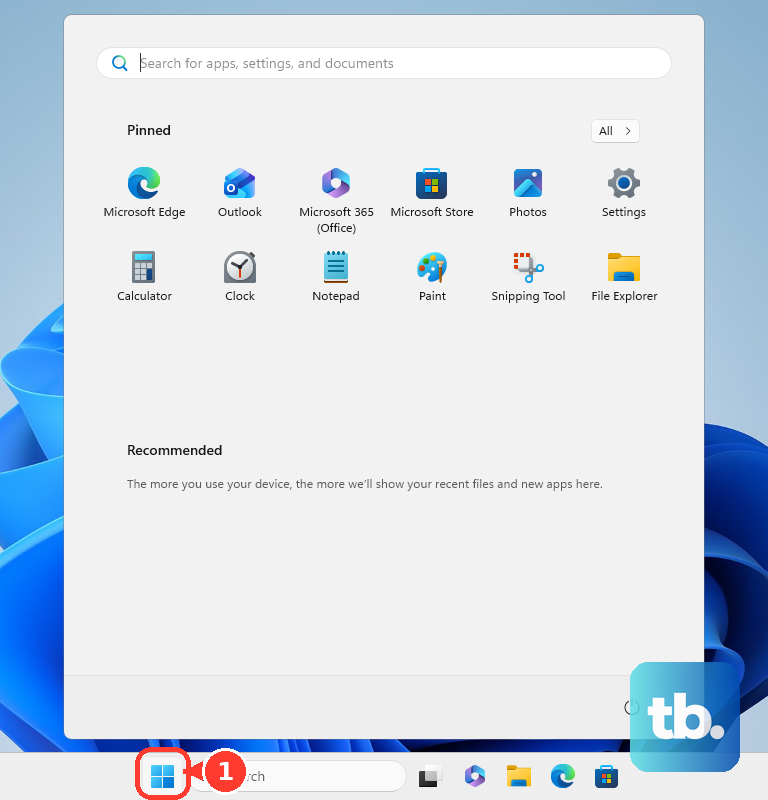
If the app still will not open, restart your computer. On Windows, select Start > Power > Restart; on Mac, choose Apple menu > Restart. Retry Discord once the computer starts.
Check the service and your connection
Open Discord Status in a browser and check active incidents and component status. If an incident affects connections or sessions, wait for recovery before trying again.
For access while troubleshooting, open the Discord login page in a supported desktop browser and sign in. This lets you use Discord while you repair the installed app. If the interface opens but phone verification blocks your login, follow the steps to fix Discord phone verification problems.
For a stalled loading screen or updater, try another network. On a phone, switch between Wi-Fi and cellular data, then retry. If you are connected to a VPN, temporarily disconnect it through its own controls and test Discord again.
For a proxy-related failure on Windows 11, open Settings > Network & internet > Proxy. Edit your manually configured proxy, turn off Use a proxy server, and select Save. Disable Use setup script if that script is responsible.
On current macOS, open Apple menu > System Settings > Network, select the active service, then open Details > Proxies. Turn off an unwanted configured proxy and retry Discord. On either platform, ask your administrator before changing a required workplace or school proxy.
Clear Discord’s desktop cache
Fully quit Discord before clearing its cached files. On Windows, press Windows + R, enter the following folder path, and press Enter.
%appdata%\discord\CacheDelete the cached contents inside that folder, then reopen Discord. Keep this cleanup limited to the cache; use the complete folder removal below only if you need a clean installation.
On Mac, open Finder and press Shift + Command + G. Enter this path and press Return.
~/Library/Application Support/discord/CacheDelete the cached contents, then launch Discord again. If a window opens but stays gray, continue with the steps to fix Discord’s gray screen.
Check compatibility and install updates
For Windows and Mac installations, current Discord requires Windows 10 or later, or macOS 13 or later. Discord says newer app versions prevent launching on macOS 12. If your Mac cannot upgrade to a compatible release, use Discord in a supported desktop browser.
On a Mac with System Settings, open Apple menu > System Settings > General > Software Update. Install an offered compatible update or upgrade, then restart. A Mac running macOS 12 or earlier needs an upgrade to macOS 13 or later before you install current Discord.
On Windows 11, open Start > Settings > Windows Update and select Check for updates. Install available updates and restart before trying Discord again. For mobile, check that you have Android 7 or later with factory-installed Google Play Services, or iOS 16 or later.
Reinstall a damaged desktop installation
For ordinary removal on Windows 11, open Start > Settings > Apps > Installed apps. Find Discord, open its menu, and select Uninstall. Complete removal, then get a fresh installer from the official Discord download page and run it.
If ordinary reinstallation fails, or Discord shows a startup JavaScript error or failed update, use the clean installation procedure on Windows 10 or Windows 11. End every Discord process in Task Manager and close Discord’s browser sessions. Press Windows + R, enter the following location, and press Enter.
%appdata%Delete the Discord folder inside that location. Open the Run dialog again with Windows + R, enter the next location, and press Enter.
%localappdata%Delete the Discord folder there as well, then restart Windows. This removes local settings and installation files. Download a fresh official installer and run it after the restart.
For a clean installation on macOS 13 or later, quit Discord with Command + Q and stop remaining Discord processes in Activity Monitor. In Finder, press Shift + Command + G to visit each of these locations separately.
~/Library/Application Support/Library/Application SupportMove any Discord folder you find in those locations to Trash, then remove Discord from Applications. Empty Trash, restart your Mac, and download Discord again. Open Discord.dmg and drag Discord into Applications.
On a supported Linux distribution, download the appropriate official package for your distribution. For a Debian or Ubuntu package installation, run the following command, replacing package.deb with the downloaded filename, then follow the package manager’s prompts.
sudo apt install ./package.debFix Discord on Android or iPhone
On a current Pixel phone, open Settings > Apps > See all apps > Discord > Force stop, then tap OK. Reopen Discord. Other Android manufacturers may use different menus.
If it still fails on Pixel, return to Discord’s app settings and open Storage & cache, then tap Clear cache. Try opening Discord before taking the next step. If necessary, return and tap Clear storage, then OK; this erases local app data and requires signing in again.
Update the Android app through Google Play Store by tapping your profile icon and opening Manage apps & devices. Under Updates available, update Discord. On Pixel, check the operating system through Settings > System > Software update.
On an iPhone with Face ID, swipe up from the bottom and pause, find Discord, then swipe its preview upward. On a supported Home-button iPhone, double-click Home and swipe Discord’s preview upward. Reopen the app, and restart the iPhone if closing it does not help.
For an iPhone X or later, hold either Volume button and the Side button until the power-off slider appears. Drag it, wait 30 seconds, then hold the Side button until the Apple logo appears. On iPhone 8 and iPhone SE second or third generation, use the Side button alone to bring up the slider.
Open the App Store, tap your profile icon, then open App Updates and install an available Discord update. If no app update is available, check for an operating-system update. If Discord still will not open, touch and hold it, then tap Remove App > Delete App > Delete. Download it again from the App Store; deletion removes locally stored app data.
Repair Discord loading in a browser
In desktop Chrome, select Reload this page, then test Discord through More > New Incognito window if reloading fails. To test extensions, open More > Extensions > Manage extensions and turn them off. If Discord works, re-enable extensions individually to identify the one interfering.
For persistent Chrome loading problems, open More > Delete browsing data and set Time range to All time. Select Cookies and other site data and Cached images and files, deselect unrelated categories, then select Delete data. Reload Discord and sign in again.
Check Chrome for updates through More > Help > About Google Chrome, then select Relaunch when offered. If the problem persists, test another supported browser. Discord lists minimum versions of Chrome 108, Firefox 142, Edge 86, Opera 72, and Safari 15.4.
In Safari on Mac, press Command + R, then test File > New Private Window. If Discord works privately, open Safari > Settings > Privacy > Manage Website Data, select Discord, and click Remove, then Done. Retry in a normal window.
Address crashes after Discord starts
If desktop Discord opens far enough to reach its settings, open User Settings > Advanced and turn off Hardware Acceleration. Skip this step when Discord cannot launch at all.
For crashes after loading, open User Settings > Accessibility. Turn off Automatically play GIFs when Discord is focused and Play animated emoji. These controls require Discord to stay open long enough to change them.
If Discord crashes when starting a game and you have AMD driver 26.5.1, also identified as 32.0.31007.1017, address that specific graphics-driver issue. You can find and update your graphics driver and obtain a compatible package from AMD Drivers and Support. Discord has not identified a confirmed fixed-driver version, so an arbitrary update is not a guaranteed cure.
For compatible AMD Radeon hardware running Windows 11 21H2 or later, or Windows 10 64-bit 1809 or later, run the compatible installer and select Yes. Review the agreements, then select Accept & Express Install for standard installation. For a clean installation, open Additional Options and use Factory Reset if available before installing. AMD says this removes previous driver packages and prevents rollback.
Send persistent failures to Discord Support
When the relevant fixes fail, open Discord’s support portal and select Sign in, then Submit a request. Describe whether no window opens, the updater stalls, or Discord opens and crashes, and include the troubleshooting you have already attempted. Attach relevant errors, then select Submit.
Frequently Asked Questions
Why does the Discord icon on my iPhone have a cloud symbol?
A cloud symbol means Discord was offloaded. Tap the icon to reinstall it. Offloading preserves the app’s documents and data.
Should I use Discord Canary or PTB when the regular app fails?
Official test clients can help isolate a stable-client problem, but they can introduce additional bugs. If you already use PTB or Canary, install the stable desktop client instead. On iOS, open TestFlight, select Discord, and tap Stop Testing, then install the App Store version.
Can I use my regular Discord account to sign in to Discord Support?
Discord Support uses a separate Support account. If you need to create one, select Sign Up in the support portal and activate the account through email.
What if Discord will not download from Google Play?
For a store download or installation failure, open Settings > Apps > Google Play Store and open its storage controls. Clear the store’s cache, then its local data if necessary, and confirm when prompted. On current Pixel phones, the controls are under Storage & cache and are named Clear cache and Clear storage; other Android devices may use different labels.
Why can’t I delete Discord from my iPhone before reinstalling?
Parental controls can prevent app removal. Check those controls and set Deleting Apps to Allow, then retry deleting Discord. If device management prevents removal, contact the device administrator.