

Discord keybinds break in game when Discord cannot capture the shortcut, the game has higher Windows permissions, or Push to Talk is set up in the wrong client. Start with the desktop app and the keybind itself, then move through admin mode, overlay settings, microphone access, and reinstall steps.
Start with the desktop app and a fresh keybind
Get the basics right first, because Discord custom keybinds are desktop-only and browser Push to Talk works only while the browser window is focused.
- 1.Install Discord from the official download page, then open the Discord desktop app and sign in.
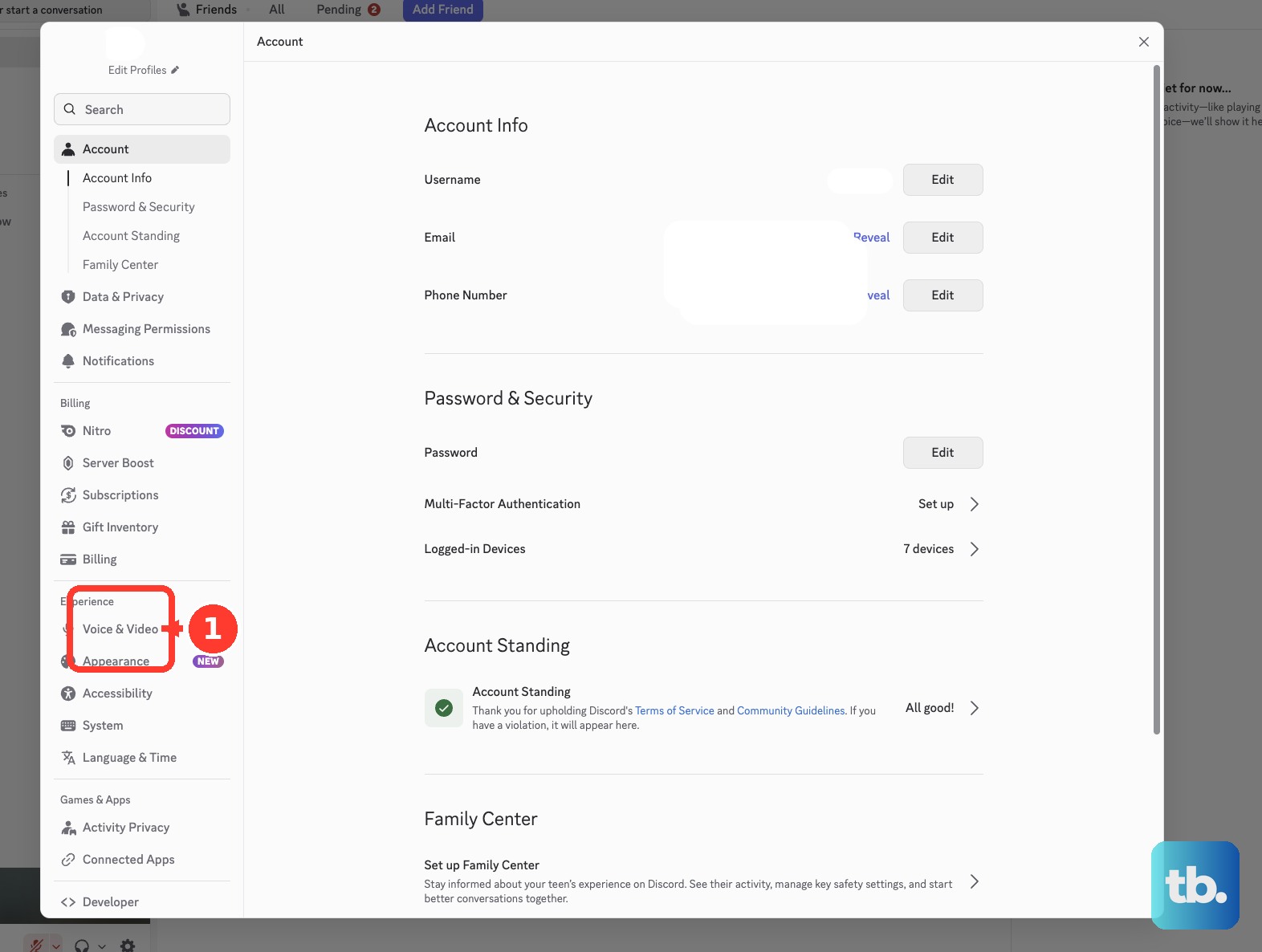
- 2.Open User Settings, go to Voice & Video, set Input Mode to Push to Talk, and record the shortcut again.
- 3.Go to User Settings and Keybinds, select the broken keybind, or choose Add a Keybind.
- 4.Pick the action you need, such as Push to Talk, Toggle Mute, Toggle Deafen, Toggle Overlay, or Toggle Overlay Lock.
- 5.Click the blank keybind box, press the key or key combination, make sure the keybind is enabled, then leave the Keybinds page to re-enable keybinds.
Match Discord to an admin game
The most common Windows cause is a game running as administrator while Discord is not, which stops Discord from seeing your Push to Talk keypress in game.
Fully close Discord first, including any copy still open in the system tray.
Right-click the Discord shortcut and choose Run as administrator.
Rejoin voice and test Push to Talk inside the game.
When Discord offers Discord System Helper in Game Overlay, Keybinds, Voice & Video, or Windows Settings, press Install and follow the administrator prompts.
To remove that helper later, open User Settings, go to Windows Settings, and select Uninstall for Discord System Helper.
Fix overlay shortcuts that do nothing
Discord Game Overlay works on Windows 10 and Windows 11. It does not function on macOS or Linux.
If your broken keybind is for the overlay, open Discord desktop, go to User Settings, then Overlay, and turn on Enable Overlay.
Launch the game and press the overlay keybind. The default is Shift plus the backtick key.
Inside the overlay, use the pin icon to show or hide in-game windows for Notifications, Voice, Video, Activity, or Streams.
For the revamped overlay, open the game's video or display settings and change true fullscreen to windowed fullscreen, borderless windowed, or windowed.
If this method fails, manually add the running game in Discord under User Settings, Registered Games, Add it, then select the game.
Refresh Discord and check voice status
Press Ctrl + R on Windows or Linux, or Command + R on Mac, to refresh Discord.
Completely quit Discord next. Close the desktop window and also quit the system tray or menu-bar instance before reopening it.
Look beside your avatar in the bottom-left corner of Discord.
If the mic icon or headset icon has a slash through it, click the mic or headset icon to unmute or undeafen.
When Push to Talk works in some places but not one server or channel, ask a server owner or admin to check Connect and Speak permissions and remove any server mute or deafen.
Test in a voice channel after each change so you know which setting fixed it.
Set the microphone path
This fixes cases where the keybind registers, but nobody hears you.
Open User Settings in Discord and go to Voice & Video.
Under the Voice tab, choose the correct Input Device.
Choose the correct Output Device.
Adjust Input Volume.
Adjust Output Volume.
Check the physical mute switch or button on your headset or microphone.
Reseat the USB plug or audio input jack.
Try a different USB port for a USB microphone.
Test the microphone in another app, then return to Discord and try Push to Talk again.
Allow Windows and Mac privacy permissions
The most common permission problem is that the keybind fires, but Discord cannot access the microphone or cannot monitor keyboard input while the game is active.
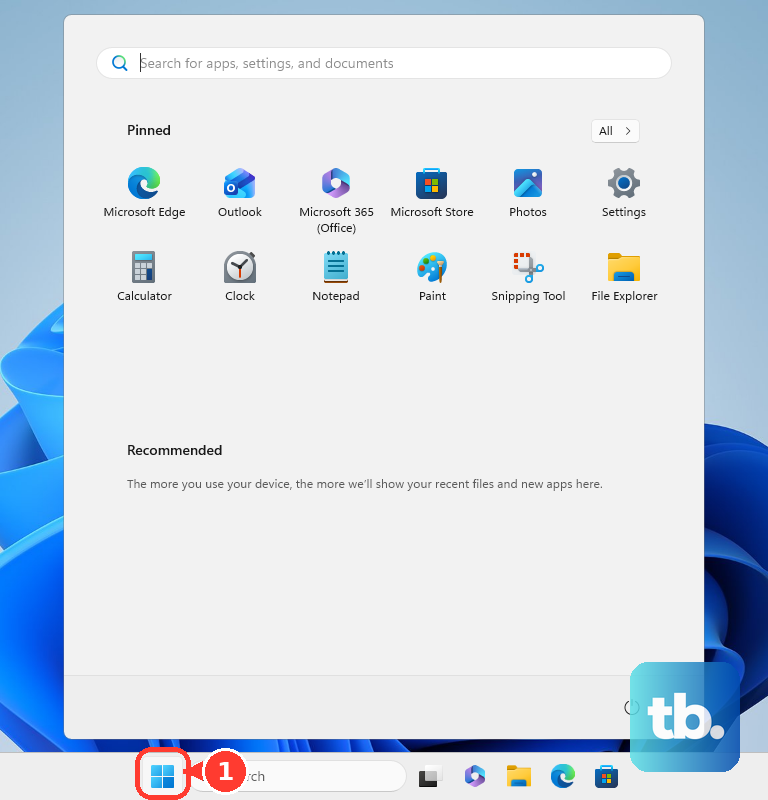
On Windows 11, open Start, Settings, Privacy & security, then Microphone. On Windows 10, open Start, Settings, Privacy, then Microphone.
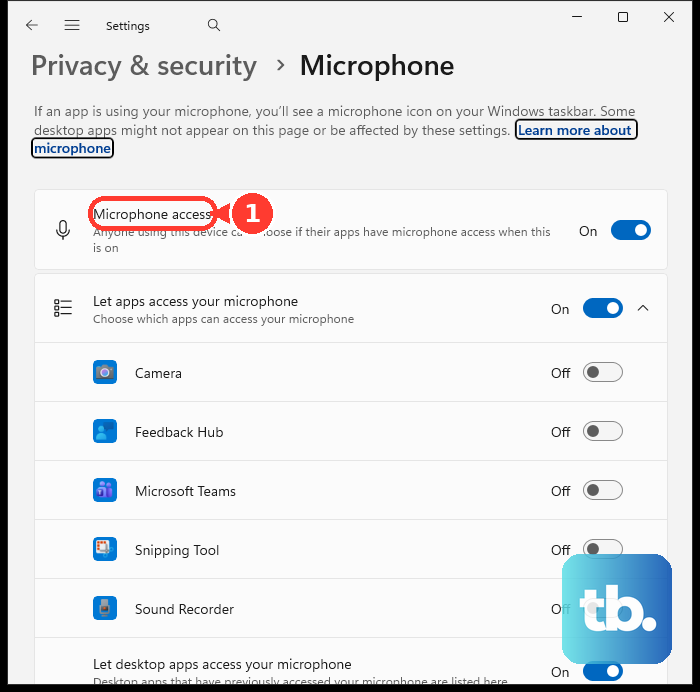
Turn on Microphone access, turn on Let apps access your microphone, and turn on Let desktop apps access your microphone, the single switch that covers Discord along with every other desktop app Windows lists there. On Windows 10 the same three controls are named Microphone access for this device, Allow apps to access your microphone, and Allow desktop apps to access your microphone.
On macOS, open the Apple menu, System Settings, Privacy & Security, then Microphone, and turn access on for Discord.
If Discord cannot detect global keyboard input, open Input Monitoring in Privacy & Security and turn on Discord when it appears.
For a denied helper-style permission on Mac, open Privacy & Security, then Accessibility, and turn on Discord. If Discord is not listed, use the add button, select Discord, and choose Open.
Clear shortcut conflicts in Windows
Windows accessibility toggles and Xbox Game Bar shortcuts intercept repeated keys, held keys, or modifier-heavy combinations before Discord gets them.
- 1.Press and hold Right Shift for eight seconds to turn Filter Keys on or off.
- 2.Press Shift five times to turn Sticky Keys on or off.
- 3.Press Num Lock for five seconds to turn Toggle Keys on or off.
- 4.Open accessibility settings with Windows + U to review keyboard accessibility options directly.
- 5.Press Windows + G, open Settings, More settings, then Shortcuts, and replace any Game Bar shortcut that conflicts with Discord.
Repair reset or reinstall Discord
Use this when Discord settings look corrupted or keybind behavior stays broken after the app refresh.
First try User Settings, Voice & Video, Debugging, then Reset Voice and Video Settings. This resets voice and video settings that affect input mode, devices, sensitivity, and related voice behavior.
On Windows 11, open Start, Settings, Apps, Installed apps, choose the More icon next to Discord, then open Advanced options and select Repair when it appears. If Repair is missing or does not fix it, use Reset.
On Windows 10, open Start, Settings, Apps, then Apps & features, choose Discord, open Advanced options, and use Repair or Reset when shown. Not every Discord installation exposes these Windows repair options.
For a lighter cleanup, fully close Discord and delete the Discord cache folder. On Windows, remove %appdata%/discord/Cache; on Mac, remove ~/Library/Application Support/discord/Cache, then reopen Discord.
For a clean Windows reinstall, close Discord from the system tray, open Run, enter %appdata%, and delete the Discord folder. Open Run again, enter %localappdata%, delete the Discord folder there, restart Windows, then reinstall Discord from the official download page.
Escalate work or school devices
This fixes keybind problems caused by managed-device restrictions, not normal home PC settings.
On a managed Windows PC, ask your device administrator to allow Discord elevation or Discord System Helper installation when administrator approval is blocked.
Ask the administrator to check whether keyboard-filtering rules are suppressing your Discord shortcut, especially on Enterprise, Education, IoT Enterprise, or LTSC editions.
On a managed Mac, ask the administrator or MDM owner to allow the needed privacy permissions for Discord, such as microphone, input monitoring, or accessibility access.
Frequently Asked Questions
Why does Discord Push to Talk work in the app but not in my game?
The game is running as administrator while Discord is not, or Discord is open in a browser. Use the Discord desktop app and run Discord as administrator on Windows when the game is elevated.
Can Discord browser Push to Talk work while I am playing a game?
No. Discord browser Push to Talk works only when the browser window is focused, so the desktop app is required for in-game keybinds.
Why does my overlay keybind not open Discord in game?
Discord Game Overlay works on Windows 10 and Windows 11. The revamped overlay works in windowed fullscreen, borderless windowed, or windowed mode, not true fullscreen.
What should I do if the keybind works but nobody hears me?
Unmute and undeafen in Discord, choose the correct input device in Voice & Video, allow microphone access in Windows or macOS, and check the physical mic mute switch.