

Your mic passes Discord's test, then goes silent in a voice channel. That points to a transmission setting, mute control, channel permission, browser permission, OS microphone access, or voice-processing option after Discord has already detected the mic. Start inside Discord, then move outward to the device, browser, and mobile checks that match where you use it.
Confirm Discord is using the right microphone
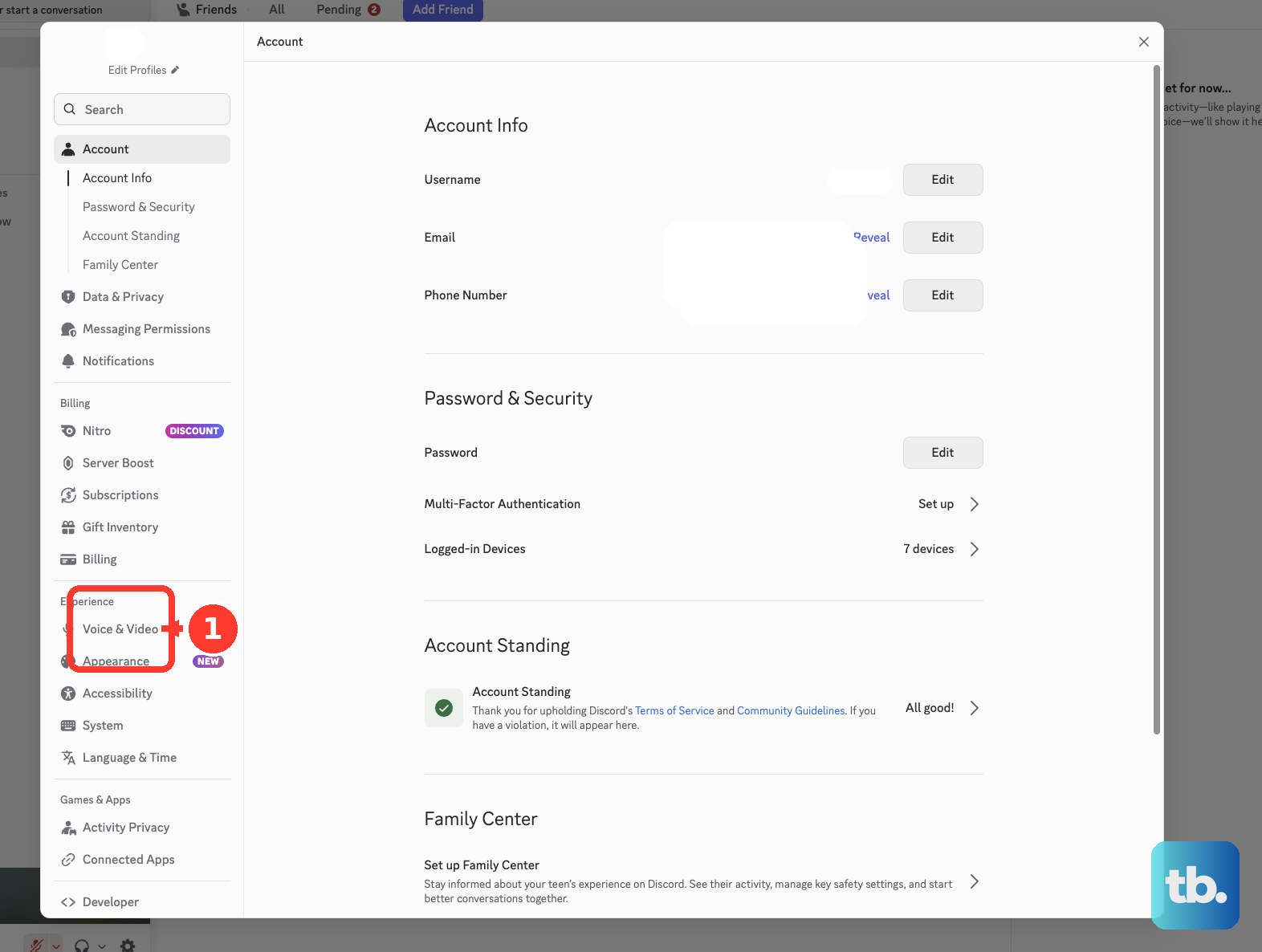
Open Discord on desktop or in a supported desktop browser, then select the User Settings cogwheel.
Go to Voice & Video, open Voice, and use Mic Test.
Select Let's Check, speak normally, then select Stop Testing.
Stay on the same screen and set Input Device to the microphone you want Discord to use.
Move Input Volume to the right, then join the channel again and speak at your normal distance from the mic.
Mic Test runs only on desktop and supported desktop browsers; mobile users need the mobile voice settings below.
Switch out of Push to Talk or set the keybind
Use this when the mic test works, but your voice never transmits in a server or call. Discord can hear the mic during testing, then wait for a Push to Talk key before sending your voice.
Open User Settings, choose Voice & Video, and check Input Mode.
Choose Voice Activity when you want Discord to transmit whenever you speak.
Choose Push to Talk when you want manual transmission, select the Edit Keybind icon, and press the shortcut key.
Hold that shortcut while speaking.
Adjust Push to Talk Release Delay when Discord cuts off the end of your words.
Browser Push to Talk works only while the browser window is focused. Use the Discord desktop app for system-wide Push to Talk.
Fix input sensitivity that cuts off speech
The most common voice-setting cause is input sensitivity that does not trigger on normal speech, even though the test hears the microphone.
Go to User Settings, open Voice & Video, and keep Voice Activity selected under Input Mode.
Turn on Automatically determine input sensitivity and test a real voice channel again.
Turn Automatically determine input sensitivity off if quiet speech still fails, then move the input sensitivity slider until your regular speaking voice is detected without opening the mic for background noise.
Clear mute controls and server blocks
Look near your avatar and inside the call or voice-channel controls for the microphone icon and headset icon. If either icon has a slash, select it to clear Mute or Deafen.
When the issue happens only in one server or channel, server mute, server deafen, or missing voice permissions is blocking speech. Ask a server owner or admin to confirm that your voice-channel permissions include Connect and Speak.
Admins can check channel access from Edit Channel and Permissions, or review role permissions from Server Settings, Roles, and Permissions. Members without Manage Roles, Manage Channels, or Manage Permissions cannot change those server-side controls, so ask the server owner, an admin, or a moderator who holds those permissions.
Reset Discord voice settings and reduce processing
Use this when the input, volume, mute, and voice-mode settings are correct but other people still cannot hear you reliably. It also fits after changing headsets, webcams, audio interfaces, or voice-processing options.
Open User Settings, go to Voice & Video, then open the Debugging tab.
Select Reset Voice and Video Settings, then return to Voice & Video and choose your microphone again if Discord changes it.
Open the Voice tab and turn off Noise Suppression, then test in the channel again.
Turn off Enable Quality of Service High Packet Priority in Voice & Video when voice connection or transmission remains unreliable.
Allow the mic in Windows and macOS
On Windows 11, open Start, Settings, Privacy & security, and Microphone. Turn on Microphone access, Let apps access your microphone, and Let desktop apps access your microphone.
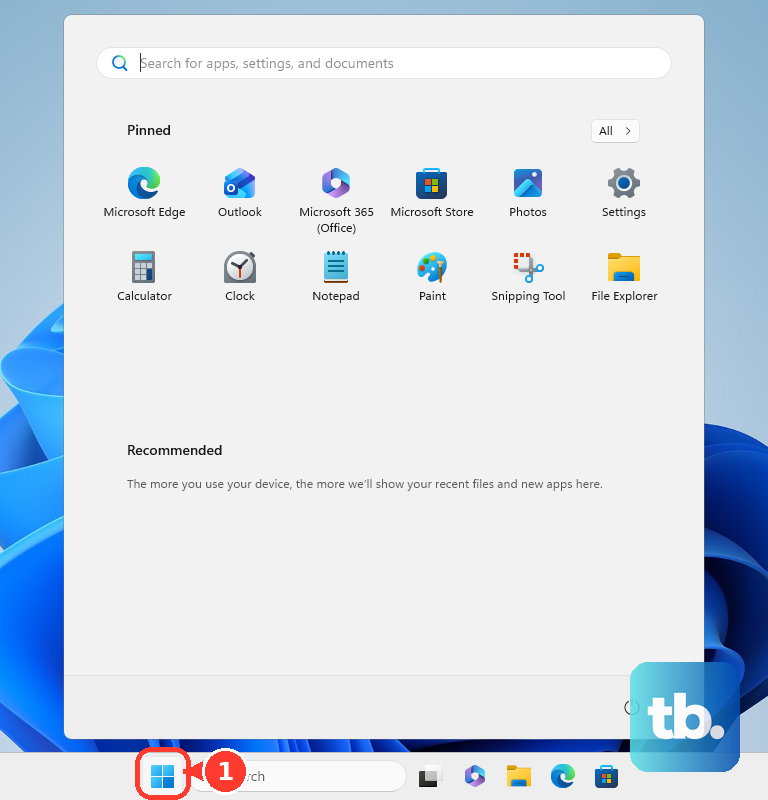
For Windows input selection, open Start, Settings, System, Sound, and Input, then select your microphone. Open Properties, use Start test, speak, choose Stop test, select Play, and adjust Input volume.
On a Mac, open the Apple menu, then System Settings, Privacy & Security, and Microphone, and turn access on for Discord or the browser you use for Discord. Then open System Settings, Sound, and Input, select the microphone, and adjust the input settings.
When Apple Mic Modes are available while Discord or your browser is using audio input, click the Mic Modes icon in the menu bar and choose Standard under Mic Mode.
Check the hardware path and restart cleanly
Check the headset cable, USB plug, webcam cable, audio interface, or 3.5 mm jack, and make sure it is fully connected.
Try another available USB port or input jack.
Turn off the hardware mute switch on the headset cable, mic boom, keyboard, laptop, USB dongle, dock, webcam, or audio interface.
Refresh Discord with Ctrl+R on Windows or Linux, or Cmd+R on Mac.
Completely quit Discord, reopen it, and test voice again.
Restart the computer, phone, or tablet if Discord still behaves differently in the test than it does in a real call.
On Windows, right-click the Discord shortcut and choose Run as administrator when games or other elevated apps interfere with voice or Push to Talk.
If the mic still fails after the restart, update or reinstall Discord from https://discord.com/download and retest before changing more settings.
Fix Discord in a browser
When Discord works in the app but not in the browser, reset the browser's microphone permission for discord.com.
- 1.In Chrome, open Settings, Privacy and security, Site Settings, and Microphone, remove Discord from Not allowed to use your microphone, then choose Allow when Discord asks again.
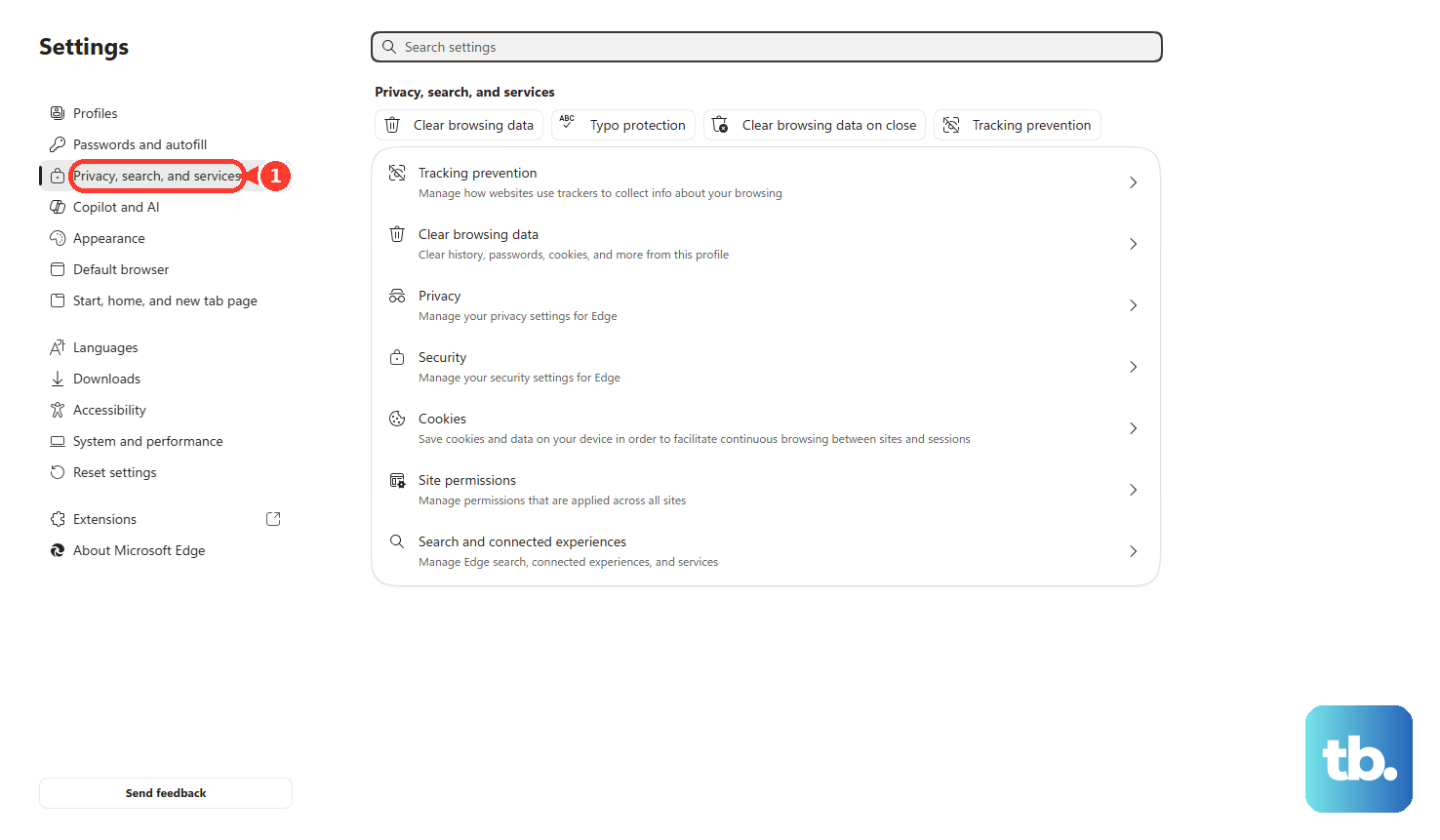
- 2.In Microsoft Edge, open Settings, Privacy, search, and services, Site Permissions, and All sites, select discord.com, and set Microphone to Allow.
- 3.In Firefox, open Settings, Privacy & Security, Permissions, Microphone, and Settings..., set discord.com to Allow, then select Save Changes.
- 4.In Safari on Mac, open Safari, Settings, Websites, and Microphone, then set discord.com to Allow or Ask.
- 5.If the browser keeps failing, open https://discord.com/app in another supported desktop browser, or install the desktop app from https://discord.com/download.
Fix mobile app and managed device limits
Use this when the problem is on the Discord mobile app, or when a school or work device locks microphone controls. Discord does not support Discord in a mobile browser, so use the iOS or Android app.
On iPhone or iPad, open Settings, Privacy & Security, and Microphone, then turn on Discord. You can also check Settings, Apps, Discord, and Microphone.
On Android, open Settings, Apps, Discord, Permissions, and Microphone, then choose Allow only while using the app or Allow.
In Discord mobile, tap your avatar, open the cogwheel, and go to Voice. Test Auto Sensitivity, Noise Suppression, Echo Cancellation, Noise Reduction, and Automatic Gain Control one at a time.
On iPhone 15 and later, turn off Low Power Mode from Settings, Battery, Power Mode, and Low Power Mode. On iPhone 14 and earlier, turn it off from Settings, Battery, and Low Power Mode. On Android, turn off Battery Saver from Settings, Battery, and Battery Saver. If your phone does not show that path, check your device maker's support site for its battery saver or low power mode.
Switch from Wi-Fi to cellular data, or from cellular data to Wi-Fi, then test Discord voice again.
On a managed school or work device, contact IT if microphone access is locked, Discord is blocked, or browser microphone permissions cannot be changed. Those restrictions stop Discord voice even when the mic itself passes a test.
On desktop, you can also switch Audio Subsystem between Standard and Legacy in User Settings, Voice & Video, and Audio Subsystem, then retest.
Frequently Asked Questions
Why does Discord's mic test work but nobody hears me?
The test proves Discord can receive microphone input. A real call can still be blocked by Push to Talk, input sensitivity, mute or deafen controls, server permissions, browser permissions, or OS microphone access.
Is Push to Talk the reason my Discord mic seems broken?
Yes, when Push to Talk is selected and no keybind is being held. Switch to Voice Activity for automatic transmission, or set a Push to Talk keybind and hold it while speaking.
Why does my Discord mic fail only in one server?
That points to server-side mute, deafen, or channel permissions. Ask a server owner or admin to confirm that your voice-channel permissions include Connect and Speak.
Should I reinstall Discord for this problem?
Reinstall after checking input device, input volume, voice mode, sensitivity, mute controls, permissions, and voice settings. Remove Discord, then install a fresh copy from discord.com/download or the official mobile app store.