


Fix brightness keys on Windows 11 by checking your keyboard’s function mode when the Windows brightness slider works, or updating the graphics driver when the slider also fails. Start with the slider to choose the right repair and get a temporary brightness control. These steps use Windows 11 menus.
The short version
- Test the display: Move the Brightness slider in Settings to choose your next fix.
- Check the keyboard mode: On Dell laptops and compatible keyboards, try the brightness key alone and with Fn.
- Follow your model: Use the function-key controls and software supported by your laptop manufacturer.
- Check the graphics driver: Update it if the slider also fails, or consider a rollback if the problem began after a driver update.
| Check or fix | When to use it |
|---|---|
| Settings brightness slider | First test for a supported built-in display |
| Taskbar brightness slider | Temporary control without the keyboard |
| Monitor buttons or joystick | External monitor brightness trouble |
| Restart and connection checks | Unresponsive laptop or external keyboard |
| Filter keys | Brief keypresses are ignored |
| Fn with the brightness key | Dell laptops and compatible keyboards |
| Fn + Esc | Function-mode trouble on supported Dell keyboards |
| Mobility Center function control | Dell systems with Function Key Row |
| ASUS hotkey mode | Supported ASUS laptops with app controls |
| HP Action Keys Mode | HP notebooks exposing this BIOS setting |
| ASUS System Control Interface driver | Supported ASUS function-mode shortcut trouble |
| ASUS app updates | Applicable model-specific driver updates |
| Windows optional driver updates | Brightness slider also fails |
| Manual graphics driver installation | You have the correct manufacturer package |
| Dell AMD driver fix | Affected Inspiron 15 3525 and Vostro 3525 laptops |
| Graphics driver rollback | Trouble began after a driver update |
| Graphics driver reinstallation | Driver trouble persists after updating |
| Content brightness control | Brightness changes with screen content |
| Energy saver brightness control | The screen dims during energy saving |
| Windows system-file repair | Earlier fixes have not helped |
Test brightness without the keyboard
Open Start > Settings > System > Display, then move the Brightness slider. If the screen becomes brighter or darker, concentrate on the keyboard mode and manufacturer controls next. You can also change brightness on Windows 11 by selecting the Network icon on the right side of the taskbar and moving its Brightness slider.
These Windows controls apply to supported built-in displays. For an external monitor, use its physical buttons or joystick and follow its model-specific brightness menu. Laptop brightness keys may control only the built-in screen, so use the external monitor’s own controls when it does not respond.
Keep using the slider as a workaround when it works. If it also fails to change the built-in screen’s brightness, complete the restart and connection checks, then move to the graphics-driver fixes.
Restart and check for ignored keypresses
Save your work and restart the PC, then test the brightness controls again. For an external keyboard, reconnect its USB cable or receiver. On a laptop, disconnect unnecessary external devices before retesting.
When keys respond slowly or brief presses are ignored, search for Accessibility keyboard settings and open it. Turn off Filter keys, then test the brightness key again. This addresses ignored presses, but it is not a guaranteed brightness-specific repair.
Check the function mode for your keyboard
On a Dell laptop or compatible external keyboard, hold Fn and press the brightness key, identified by its display-brightness symbol. Test the same key without Fn as well. The key’s position depends on the model, so follow the printed symbol.
Supported Dell keyboards let you switch function-key mode with Fn + Esc. Press that combination, then test the brightness key again. Repeating the combination restores the previous mode; this shortcut is not universal across manufacturers or models.
Some Dell systems also expose a function-key control in Windows. Search for Mobility Center, open it, and select your preferred behavior from the Function Key Row dropdown if it appears. Dell says this control may be absent depending on the operating-system version; when it is missing, use the supported keyboard shortcut or your model’s function-key controls.
For a supported ASUS laptop with ASUS System Control Interface V2 or later, open MyASUS, then select Device Settings. Go to input Device Settings, find Fn Function key, and choose the hotkey mode for direct brightness-key operation. Supported models also switch this setting with Fn + Esc; on models without that shortcut, use the app control.
Enable direct brightness keys on HP notebooks
On HP notebooks exposing Action Keys Mode, choosing Enabled lets you use the printed brightness action without holding Fn. Choosing Disabled requires Fn with the function key. Use this procedure only on notebooks with that setting.
With the computer off, turn it on and immediately press F10 repeatedly. Open System Configuration > Action Keys Mode, press Enter, and choose Enabled. Press F10 to save and restart, then try the brightness key alone.
If your notebook does not expose Action Keys Mode, follow its model-specific function-key controls instead. If changing the mode does not help, use the Windows slider result to decide whether to continue with manufacturer software or graphics-driver repairs.
Update ASUS function control software
On supported ASUS Windows 11 notebooks, the ASUS System Control Interface driver supports Fn + Esc. To obtain it, open MyASUS or use ASUS Support and get the current package for your exact model and Windows version. Install the package, then retest the shortcut on a model that supports it.
ASUS says its listed screen-brightness keys do not need a separate hotkey utility. Update the system-control driver for supported function-mode features without assuming that every failed brightness key means a utility is missing.
To get applicable updates through the app, open MyASUS, then select System Update. The app checks automatically; install the offered model-specific driver updates. When System Update is absent, use the ASUS Download Center to identify your model and obtain its supported graphics or system-control package.
Use the package supplied for your model and installed Windows version. If function-mode controls work but the screen still will not change brightness, move on to the graphics driver.
Update the graphics driver
Start with Windows Update when the brightness slider also fails. Open Start > Settings > Windows Update > Advanced options, then turn on Receive updates for other Microsoft products. Under Additional options, open Optional updates, select the applicable driver updates, and select Download and install.
Save your work and restart afterward, then test both the slider and the keyboard. Optional drivers appear only when offered. If no applicable update appears, obtain the correct graphics package from your PC manufacturer.
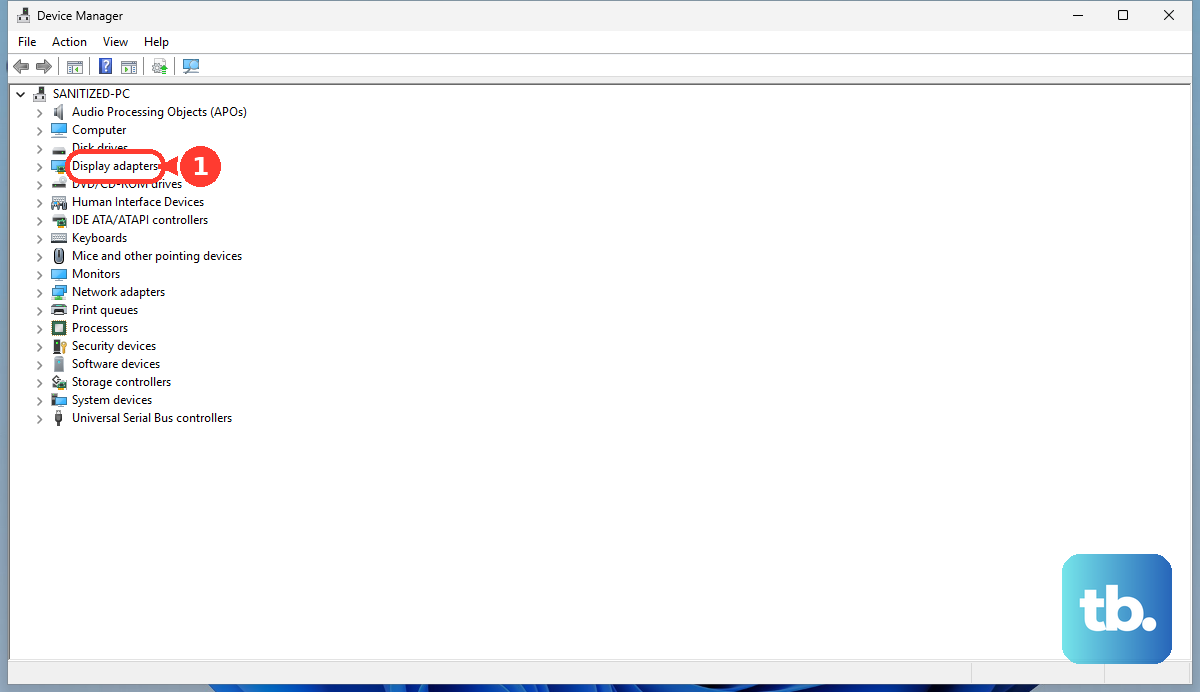
To find and update your graphics driver using a downloaded package, right-click Start, select Device Manager, and expand Display adapters. Right-click the relevant adapter, select Update driver, then choose Browse my computer for drivers. Select Browse..., choose the extracted driver folder, select OK, then select Next. The package must match your model, Windows version, and architecture.
Dell has a specific fix for the Inspiron 15 3525 and Vostro 3525 when the brightness indicator moves but the screen’s actual brightness does not change. For those models and that symptom, install Dell’s AMD graphics driver version 31.0.21910.1006, A05 or later. Use Dell’s driver download page, identify the PC by model or Service Tag, and open Drivers & Downloads for its supported package.
Roll back or reinstall a troublesome driver
If brightness stopped working immediately after a graphics-driver update, consider a rollback. It requires administrator access and an available previous driver. Rolling back replaces the current graphics driver with the previous version.
Open Device Manager > Display adapters, right-click the adapter, and select Properties. Open the Driver tab, select Roll Back Driver, choose the applicable reason, and select Yes. Save your work and restart if prompted; when a previous driver is unavailable, continue with the correct manufacturer package instead.
For persistent driver trouble, you can uninstall and reinstall the graphics driver. Save your work before proceeding. Uninstalling removes the display adapter device, and Windows attempts to reinstall its driver after a restart.
In Device Manager, expand Display adapters, right-click the relevant adapter, and select Uninstall device. Select Uninstall, then restart so Windows can attempt reinstallation. If that attempt fails, install the correct manufacturer graphics package using the manual procedure above.
Stop automatic brightness changes
When the keys change brightness but the screen then adjusts itself, check automatic brightness controls. On PCs exposing the content-based setting, open Start > Settings > System > Display > Brightness. Set Change brightness based on content to Off; this addresses automatic changes rather than a physically broken key.
On Windows 11 versions with the energy-saving brightness control, open Start > Settings > System > Power & battery > Energy saver. Turn off Lower screen brightness when using energy saver. If either control is absent, skip that setting and continue with the repairs that match your slider and keyboard behavior.
Repair Windows system files
If the earlier fixes have not helped, try Windows system-file repair. This repairs general corruption, and Intel includes it in brightness troubleshooting. Search for Command Prompt, right-click it, select Run as administrator, and select Yes.
Run the following command first. Wait for it to complete successfully before starting the second command.
DISM.exe /Online /Cleanup-image /RestorehealthNext, run SFC to repair Windows files with the command below. Wait for verification to finish, then test brightness again.
sfc /scannowIf the keys remain unresponsive but the Windows slider works, keep using the slider while checking your model’s function-key controls and applicable manufacturer updates. For an external display, continue using its physical brightness controls.
Frequently Asked Questions
Do any HP notebooks use a different function mode shortcut?
HP documents Fn + left Shift for the ProBook 440 G5, 450 G5, and 470 G5, plus the EliteBook 830 G5, 840 G5, and 850 G5. Press those keys together to switch the mode; when the Fn light is on, hold Fn with the function key to activate its default action. Confirm Windows 11 eligibility for your individual configuration before applying Windows 11 instructions to these models.
Can I adjust brightness by voice while the keys are broken?
Yes, if Voice access is already enabled in a supported language and the brightness slider works. Open Settings > System > Display so the slider is visible, then say Move brightness right four times. This bypasses the hardware keys.
Will a clean boot prove that another app is blocking brightness keys?
A clean boot can help isolate interference from startup apps or services, but a failed brightness-key test is inconclusive. Microsoft notes that your computer might temporarily lose some functionality in a clean boot environment.
Can the Windows graphics reset shortcut help?
Pressing Windows + Ctrl + Shift + B resets the graphics driver without restarting Windows. Microsoft includes it in blank-screen troubleshooting. You can try it for a stalled brightness response, but it is not a brightness-specific repair.