

To fix an iPhone that won't make calls, turn Airplane Mode on for at least 15 seconds, turn it off, then retry the call. If calling still fails, restart your iPhone, check that your cellular line is enabled, and install carrier settings and iOS updates. Follow the steps that match the problem, such as missing cellular service, one failed number, or a frozen calling app.
The short version
- Reconnect first: Toggle Airplane Mode and try calling from another location.
- Check the line: On a Dual SIM iPhone, enable the intended line and select it before dialing.
- Update next: Check for carrier settings and iOS updates before resetting network settings.
- Reset carefully: A network reset removes saved Wi-Fi passwords and network, VPN, and APN settings.
- Escalate persistent failures: Ask your carrier to check the account and network before arranging hardware service.
| Fix | When to use it |
|---|---|
| Toggle Airplane Mode | Calls fail, especially with SOS, No Service, or Searching |
| Try another location | You need to check whether coverage is the problem |
| Restart the iPhone | Calling still fails after reconnecting |
| Force restart | The iPhone is unresponsive and normal shutdown is unavailable |
| Close and reopen the calling app | The app itself stops responding |
| Enable the cellular line | Your Dual SIM iPhone has a disabled line |
| Restore a missing line | Your carrier needs to provision an eSIM or supply a SIM |
| Reseat or replace a physical SIM | A model with a SIM tray has a SIM connection problem |
| Choose another active line | You want to try the other SIM before dialing |
| Change Default Voice Line | Your Dual SIM iPhone uses the wrong default line |
| Resolve a SIM PIN prompt | Your SIM or eSIM is locked |
| Update carrier settings | Especially after changing a SIM, eSIM, or carrier |
| Update iOS | Your iPhone has an available software update |
| Reinstall the current software | You see Cellular Update Failed after an update |
| Enable Wi-Fi Calling | Coverage is weak and your carrier supports the feature |
| Repair Wi-Fi Calling | Calls fail over a working Wi-Fi connection |
| Try cellular calling with Wi-Fi off | You use T-Mobile and need to isolate a Wi-Fi Calling problem |
| Dial the complete number manually | One saved contact fails |
| Adjust Communication Limits | Screen Time blocks the intended call |
| Change the default calling app | Calls open in an unintended app |
| Update the third-party calling app | Only that app malfunctions |
| Reset network settings | Simpler connection, line, and update checks have failed |
| Contact your carrier | Activation, account restrictions, or network faults need checking |
| Run Apple Support diagnostics | You have iOS 26 or later and diagnostics are available |
| Arrange hardware service | The carrier has ruled out account and network faults |
Reconnect to cellular service
Open Settings, turn on Airplane Mode, and wait at least 15 seconds. Turn it off and try making the call again. Apple recommends this reconnection step when your iPhone shows SOS, No Service, or Searching.
Next, move to another location and retry the call. This helps distinguish a coverage problem from a device problem. If calls work elsewhere, try Wi-Fi Calling where cellular coverage is weak, provided your carrier supports it.
Restart your iPhone or reopen a frozen app
For a normal restart, open Settings > General > Shut Down, then drag the Power Off slider. After the phone shuts down, hold the Side button until the Apple logo appears. Retry the call once the iPhone has started.
When the iPhone is unresponsive and normal shutdown is unavailable, force restart your iPhone using the sequence for your model. On current models covered by Apple's iOS 27 instructions, quickly press and release Volume Up, then quickly press and release Volume Down. Hold the Side button until the Apple logo appears, then release it.
If only the calling app is frozen, close and reopen it. On a Face ID iPhone, swipe up from the bottom and pause; on a model with a Home button, double-click the Home button. Find the calling app, swipe its preview upward, then reopen it. Use this step for an unresponsive app; cellular connection failures need the network and line checks below.
Check your SIM and outgoing line
On a Dual SIM iPhone, open Settings > Cellular, select the affected line, and enable Turn On This Line. If the line is missing, ask your carrier to provision an eSIM or supply a SIM for your model. On an iPhone with a physical SIM tray, remove and reinsert the SIM; request a replacement from your carrier if it is damaged or does not fit correctly.
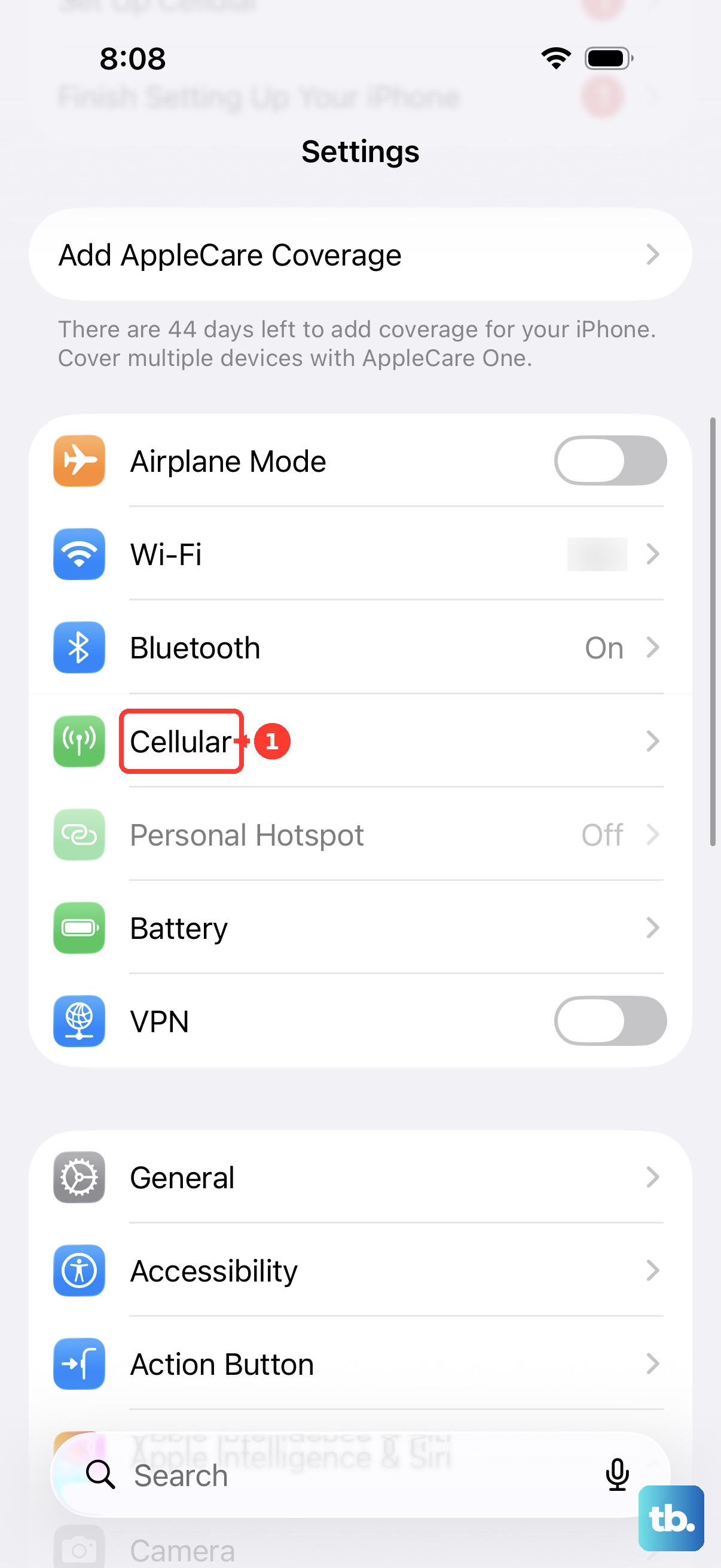
To try another active line, open Phone > Keypad, tap the line shown at the top, and choose the other line before dialing. On Dual SIM iPhones using the iOS 26 menus, you can also open Settings > Cellular > Default Voice Line and select the intended line. A contact's preferred line can override that default.
If a SIM PIN prompt appears after restarting, enter the correct SIM PIN. If you do not know the PIN or PUK, contact your carrier instead of guessing. To check SIM PIN settings, open Settings > Cellular > SIM PIN, selecting the line first on a Dual SIM iPhone.
Install carrier settings and iOS updates
Connect your iPhone to Wi-Fi or cellular service, then open Settings > General > About. When a carrier settings update is offered, tap Update. A mandatory update may install first and display OK afterward. Check especially after changing your SIM, eSIM, or carrier.
Before updating iOS, back up your iPhone and connect it to power and Wi-Fi. Open Settings > General > Software Update, then tap Download and Install when offered and follow the displayed instructions. If the update button uses different wording, follow the instructions displayed on your iPhone. Install the latest version offered for your model.
If you see Cellular Update Failed after an update, Apple's procedure reinstalls the current software. Back up the iPhone, connect it to an updated computer, and tap Trust on the unlocked phone when prompted. Select the iPhone in Finder or Apple Devices and open General; in iTunes, open Summary.
On a Mac, hold Command while clicking Check for Update; on Windows, hold Ctrl while clicking Check for Update. Click Download and Update to reinstall the current software. If the alert persists, continue to Apple Support for help.
Use Wi Fi Calling when reception is weak
With a supported iPhone and carrier, Wi-Fi Calling lets you make calls over a working Wi-Fi connection. Open Settings > Cellular, select your line when using Dual SIM, and open Wi-Fi Calling. Turn on Wi-Fi Calling on This iPhone, tap Enable, and complete the carrier's emergency-address setup when requested. If the option is missing, confirm support with your carrier and continue with the cellular checks.
When Wi-Fi Calling itself fails, confirm carrier support and update the software first. Restart the iPhone, try another Wi-Fi network, then turn Wi-Fi Calling off and back on. Test after each action, allowing two minutes between steps. Contact the carrier if activation fails.
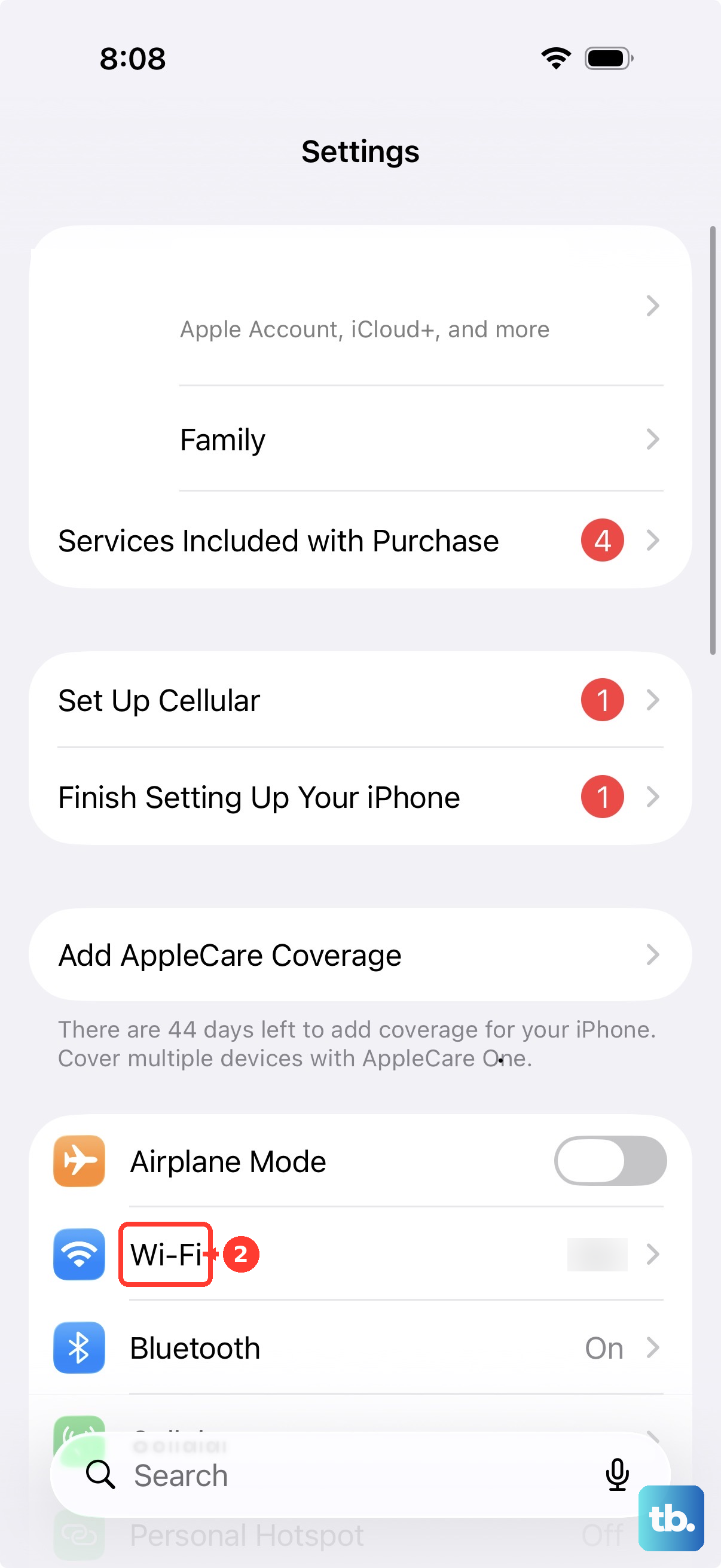
If the Wi-Fi connection is weak, follow the steps to fix a weak Wi-Fi signal. For T-Mobile customers, another check is to open Settings > Wi-Fi, turn off Wi-Fi, and retry the call in an area with cellular coverage. This helps distinguish a Wi-Fi Calling problem from a cellular calling problem.
Check failed numbers and calling restrictions
If one saved contact fails, open Phone > Keypad and enter the complete number manually, including the required country and area codes. For an international prefix, hold 0 until + appears, then finish entering the number and tap Call. This lets you try the number without relying on the saved entry.
Red names or numbers can indicate a Screen Time communication restriction. In the iOS 27 menus, open Settings > Screen Time > Communication Limits > During Screen Time, then select Everyone if appropriate. For restrictions while paused, open When Device Paused or Unavailable and select Everyone, or adjust Always Allowed. Have the parent or person controlling Screen Time make protected changes.
When calls open in an unintended app, open Settings > Apps > Default Apps > Calling and select Phone. The category depends on app and regional support. If it is missing, open Phone directly and place the call from Keypad.
For a malfunctioning third-party calling app, update the app on your iPhone. Open App Store, tap your profile icon, then open App Updates and update the affected app. If the app still fails, check the internet connection and any network-filtering software affecting it.
Reset network settings after simpler fixes fail
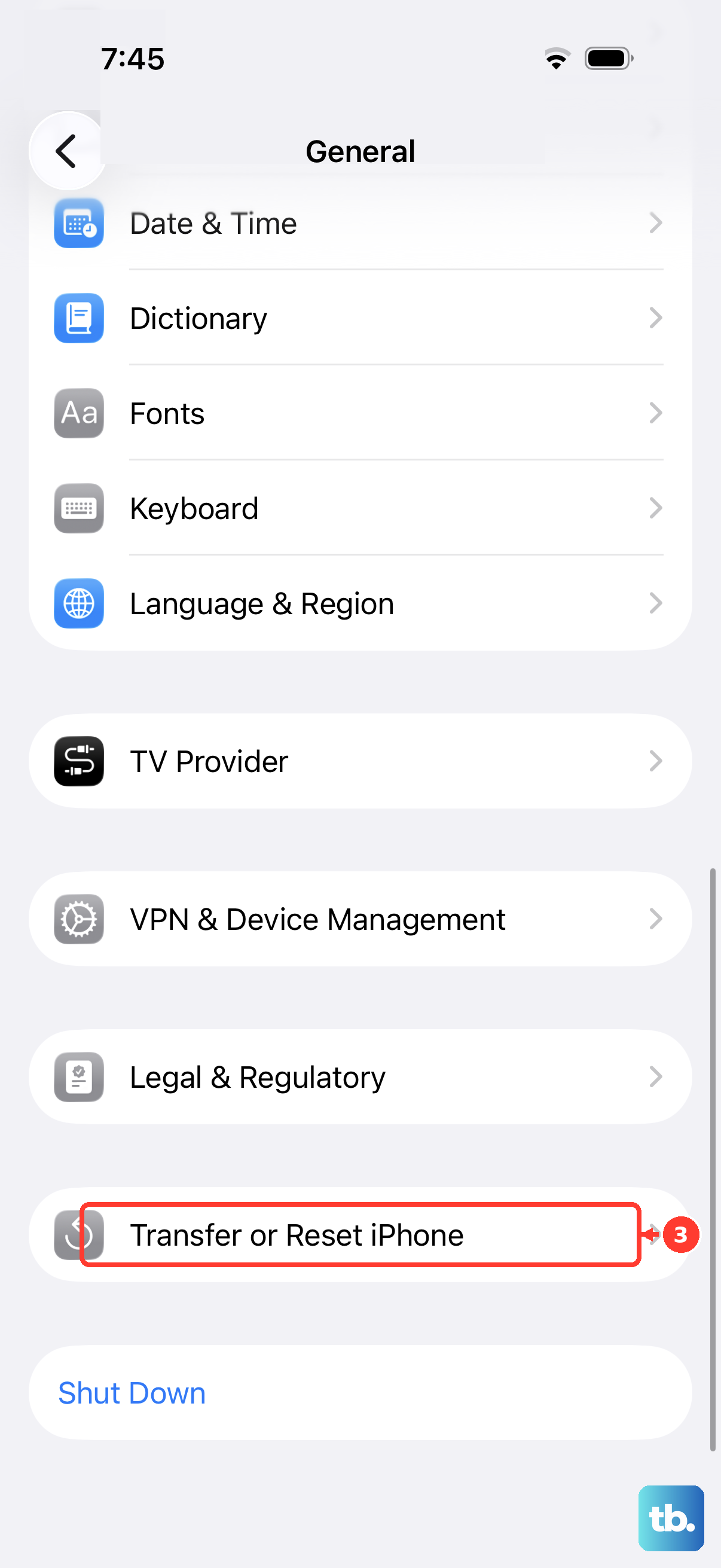
Resetting network settings removes saved Wi-Fi passwords and network, VPN, and APN settings. After checking reception, restarting, confirming your line, and installing updates, open Settings > General > Transfer or Reset iPhone > Reset > Reset Network Settings. Reconnect to Wi-Fi afterward and retry the call. If calls still fail, ask your carrier to check the account and network.
Get carrier help and hardware support
Contact your carrier through its official support channels and ask it to check activation, billing restrictions, coverage, outages, and device barring. For an imported iPhone, ask whether its IMEI requires registration. Your carrier must handle account corrections.
After the carrier rules out account and network faults, seek Apple service if hardware failure is suspected. On iOS 26 or later, the latest Apple Support app can provide additional diagnostics where available, along with guided help and repair-booking options in selected countries and regions. If app diagnostics are unavailable, continue with Apple's service options.
Sign in only through Apple’s own app or website, and never share a code, password, or remote access with someone who contacts you. Use Apple's own support channels when arranging help for a persistent calling failure.
Frequently Asked Questions
Does turning on Data Roaming fix calls while traveling?
Data Roaming alone does not establish voice-roaming entitlement. For international roaming connectivity, open Settings > Cellular, turn on Cellular Data, select the relevant line when necessary, then open Cellular Data Options > Data Roaming and enable it when required by your travel service. Ask your carrier to check voice-calling access separately.
Why does tapping a recent call open details instead of calling?
In the Phone app's Unified layout on iOS 26 and newer, open Phone > Calls, select the person or number, tap Call, and choose the number. To enable one-tap dialing, open Settings > Apps > Phone and enable Tap Recents to Call. The Classic layout uses Recents.
Should you turn off Do Not Disturb to fix outgoing calls?
Turning off Do Not Disturb addresses missed incoming calls rather than normal outgoing-call failures. If incoming calls are the problem, open Settings > Focus > Do Not Disturb and turn it off.
Can you make calls from a Mac or iPad while troubleshooting?
With a supported carrier and compatible devices, you can use another Apple device for Wi-Fi calls after enabling Wi-Fi Calling. On iPhone, open Settings > Cellular, select the relevant line, then open Calls on Other Devices and enable Allow Calls on Other Devices and the desired device. On iPad, enable Settings > Apps > FaceTime > Calls from iPhone; on Mac, enable FaceTime > Settings > Calls from iPhone. Use the same Apple Account on the devices.
Can a VPN interfere with internet calling?
VPN, firewall, parental-control, or security-app filtering can interfere with internet-based calling or Wi-Fi connectivity. Open the installed app and temporarily disable its network-filtering features; in Settings, you can also search for VPN, profile, firewall, and filter. Restart after making changes. If your iPhone or network is managed by work or school, ask the administrator to review the restrictions before modifying managed settings.
How can you update iOS through a computer?
On a Mac with macOS Catalina or later, back up your iPhone, connect it, and select it in the Finder sidebar. Open General > Check for Update > Download and Update, then enter the iPhone passcode if requested. On a Windows PC running Apple Devices, connect the iPhone, open Apple Devices, and select the iPhone in the sidebar. Select General, then Check for Update if needed, followed by Update.