Your iPhone may sit on the Apple logo and progress bar long enough to look frozen. The fix depends on what still works: the progress bar, the normal iPhone interface, the buttons, or a computer connection. Start with the least disruptive Apple-supported steps, then move to recovery mode and erase options only when the update path fails.
Give the update time to finish
Start here when your iPhone shows the Apple logo with a progress bar after an update, restore, erase, or migration.
- 1.Connect the iPhone to power and keep it connected.
- 2.Check the progress bar before assuming the screen is frozen.
- 3.Press a button once if the bar appears unchanged.
- 4.When an updating message appears, keep waiting because the update is still running.
- 5.Move on only when the progress bar has not moved for at least one hour.
Restart when the screen still responds
This fixes a stuck screen that still responds well enough to show the power-off slider.
On iPhone X, iPhone 11, iPhone 12, iPhone 13, or later, press and hold either volume button and the side button until the power-off slider appears.
Drag the power-off slider, then wait 30 seconds for the iPhone to turn off.
Press and hold the side button until the Apple logo appears.
On iPhone 6, iPhone 7, iPhone 8, or iPhone SE 2nd or 3rd generation, press and hold the side button until the power-off slider appears, drag it, wait 30 seconds, then hold the side button until the Apple logo appears.
On iPhone SE 1st generation, iPhone 5, or earlier, press and hold the top button until the power-off slider appears, drag it, wait 30 seconds, then hold the top button until the Apple logo appears.
Use Control Center or Settings
Use this method when the update did not fully lock the phone and the normal iPhone interface still opens. It gives you a clean shutdown before you try the update again.
Open Control Center, touch and hold the Power button in the top-right corner, then drag the power-off slider.
Press and hold the side button until the Apple logo appears.
You can also open Settings, go to General, tap Shut Down, then drag the power-off slider. Turn the iPhone back on with the side button.
Force restart a frozen iPhone
When the software update screen is fully frozen or the iPhone is unresponsive, use the force restart button sequence for your model.
On an iPhone with Face ID, press and quickly release the volume up button, press and quickly release the volume down button, then press and hold the side button until the Apple logo appears.
On iPhone 7 or iPhone 7 Plus, press and hold the side button and volume down button at the same time until the Apple logo appears.
On iPhone 6s or earlier, press and hold the Home button and the side or top button until the Apple logo appears.
Delete the downloaded update
A stored update package is the first item to remove when the iPhone boots normally but the update will not install cleanly.
Open Settings, go to General, then open iPhone Storage.
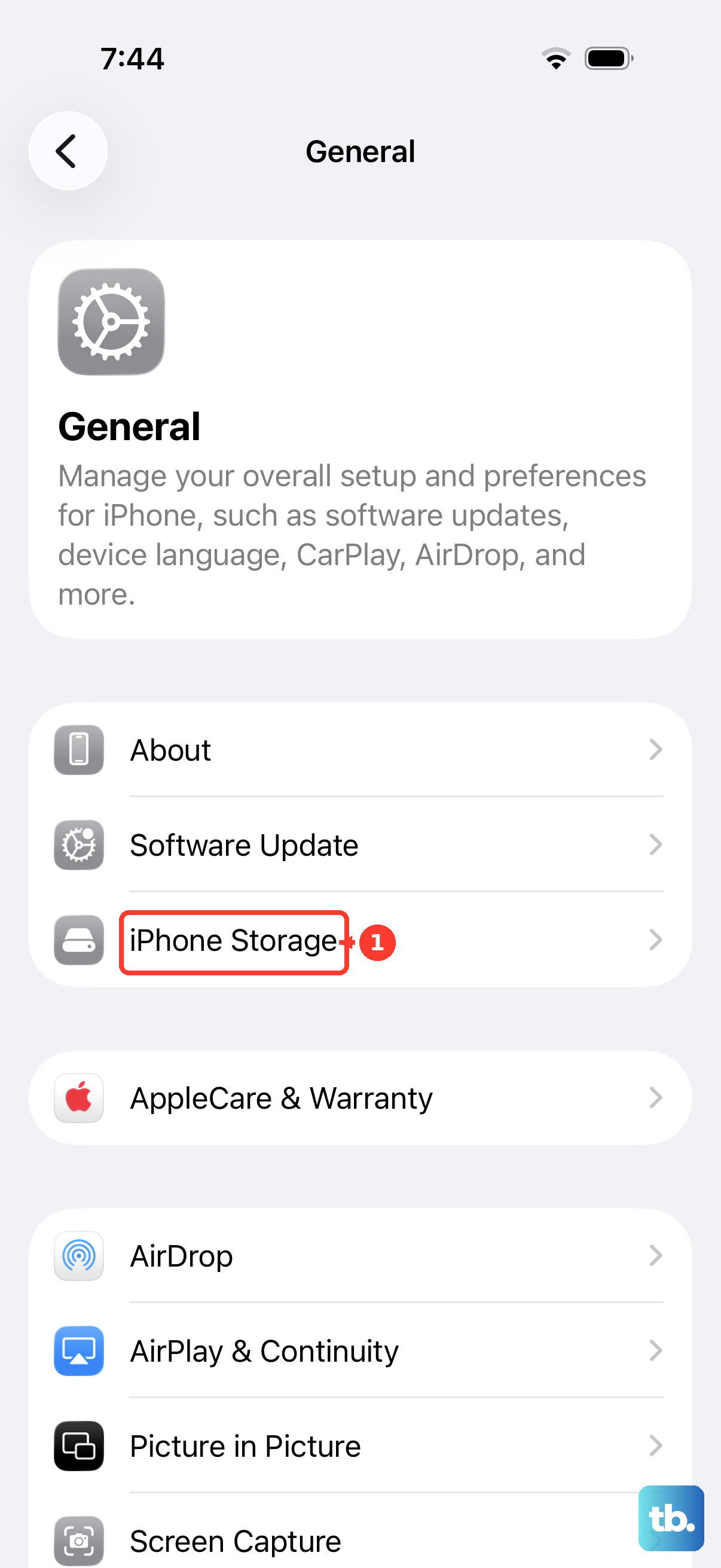
Find the update in the list, tap it, then tap Delete Update.
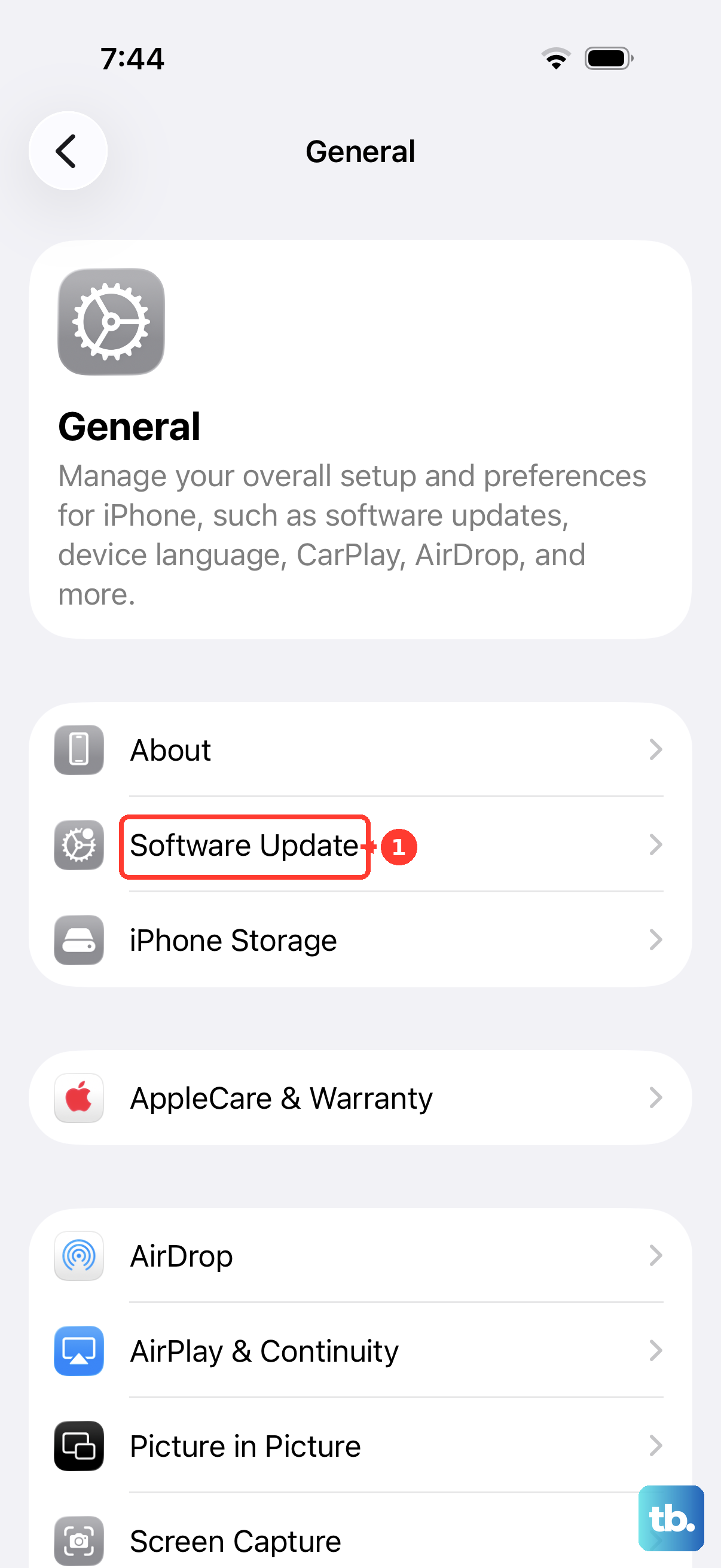
Return to Settings, open General, then tap Software Update and download the latest update again.
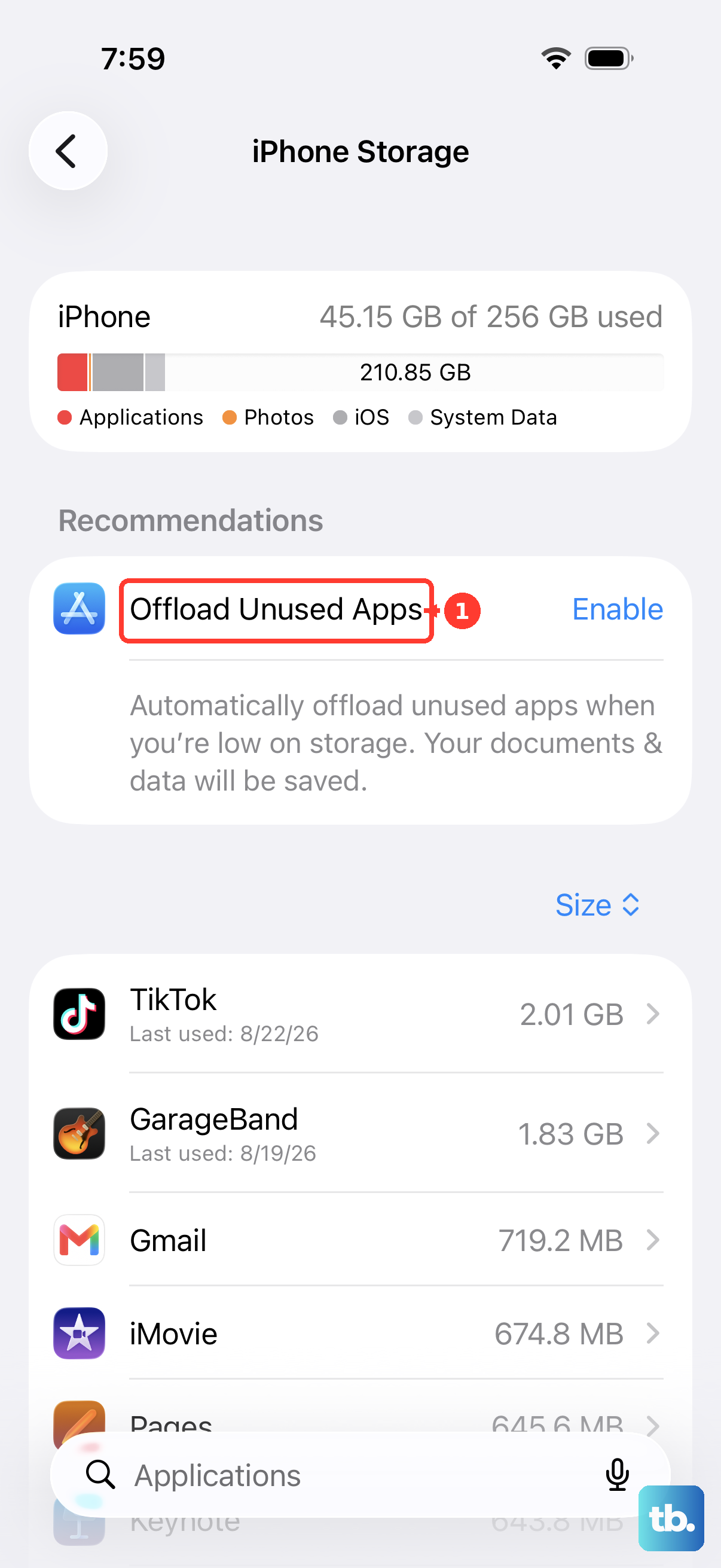
If storage is blocking the update, stay in iPhone Storage and tap Enable next to Offload Unused Apps before retrying.
Retry the update on Wi-Fi
Once the iPhone is responsive again, run the normal update path with power, Wi-Fi, and a backup in place.
- 1.Back up your iPhone.
- 2.Plug the iPhone into power.
- 3.Connect the iPhone to Wi-Fi.
- 4.Open Settings, then General, then Software Update.
- 5.Tap Download and Install and follow the onscreen instructions.
Update from a computer before erasing
When the iPhone will not finish the update by itself, use a computer update before choosing any erase option.
On a Mac with macOS Catalina or later, open Finder, connect the iPhone, select it in the left sidebar, open General, choose Check for Update, then choose Download and Update.
On Windows, use the Apple Devices app, connect the iPhone, select it in the sidebar, open General, then choose Update. Choose Check for Update first when the Update button is not shown.
iTunes belongs to older setups: Windows PCs with iTunes, or Macs with macOS Mojave or earlier. On modern Macs, use Finder; on Windows, use Apple Devices first.
If the computer update does not work, use recovery mode and choose Update before trying Restore.
Move to recovery mode after an hour
A progress bar that has not moved for at least one hour is the sign to move to recovery mode.
Connect the iPhone to a computer. On a Mac with macOS Catalina or later, use Finder; on a PC, use the latest Apple Devices app or iTunes.
For iPhone 8 or later, press and release volume up, press and release volume down, then hold the side button until the recovery mode screen appears.
For iPhone 7 or iPhone 7 Plus, press and hold volume down and the Sleep/Wake button, and keep holding volume down until the recovery mode screen appears.
For iPhone 6s or earlier, press and hold Sleep/Wake and Home, and keep holding Home until the recovery mode screen appears.
When the computer offers Update or Restore, choose Update first.
If recovery mode update fails, repeat the recovery mode path and choose Restore only after you accept that restoring erases the iPhone.
Erase only after update options fail
An erase or restore is the last resort because it removes the data on the iPhone and installs the latest software.
If the iPhone appears in Finder or the Apple Devices app, create a backup, turn off Find My iPhone from Settings, select the device on the computer, then choose Restore iPhone. Confirm with Restore again.
If the iPhone still opens Settings, create a backup, open Settings, go to General, tap Transfer or Reset iPhone, then tap Erase All Content and Settings. Enter your device passcode and Apple Account password when prompted.
For supported newer devices showing Apple’s nearby-device restore animation, connect the stuck device to power, place it near another unlocked iPhone or iPad that is already connected to Wi-Fi and running iOS 18 or later or iPadOS 18 or later, tap Continue on the Restore Nearby iPhone message, enter the six-digit code, then tap OK when Restoring iPhone appears.
On a work or school iPhone, device management can defer or enforce update timing. When Settings shows update status you cannot change, contact the organization that manages the device instead of trying profile or policy fixes yourself.
Frequently Asked Questions
How long should I wait before assuming my iPhone is stuck on the software update screen?
Keep the iPhone connected to power and wait while the update continues. If the progress bar has not moved for at least one hour, use the computer recovery mode update path.
Will force restarting my iPhone erase anything?
Apple’s restart and force restart steps do not erase the iPhone. Erase happens when you choose Restore or use an erase/reset option.
Should I choose Update or Restore in recovery mode?
Choose Update first. Restore erases the iPhone, so it belongs after the recovery mode update attempt fails.
Can I fix this without a computer?
Yes, when the iPhone still responds. Waiting, restarting, force restarting, deleting the downloaded update, freeing storage, and retrying from Software Update all happen directly on the iPhone.











