
Seeing that update progress bar stuck on your iPhone 16 screen is a real headache. Whether it's frozen at "Preparing Update," stuck on the Apple logo, or just refusing to download from the start, here are the steps to install the latest version of iOS.
Force Restart Your iPhone 16
If the progress bar is moving slowly, keep your iPhone connected to power and give the update time to finish. If the phone is frozen, try a force restart. On your iPhone 16, quickly press and release the Volume Up button, then quickly press and release the Volume Down button. Finally, press and hold the Side button until you see the Apple logo appear, then let go.
Check Your Wi-Fi and Internet
Connect to a solid Wi-Fi network for the update download. Open Safari and try loading a website to test it. If it's slow, restart your router using its instructions. Avoid downloading other content during the update, and try another Wi-Fi network if the download still fails.
Free Up a Lot of Storage
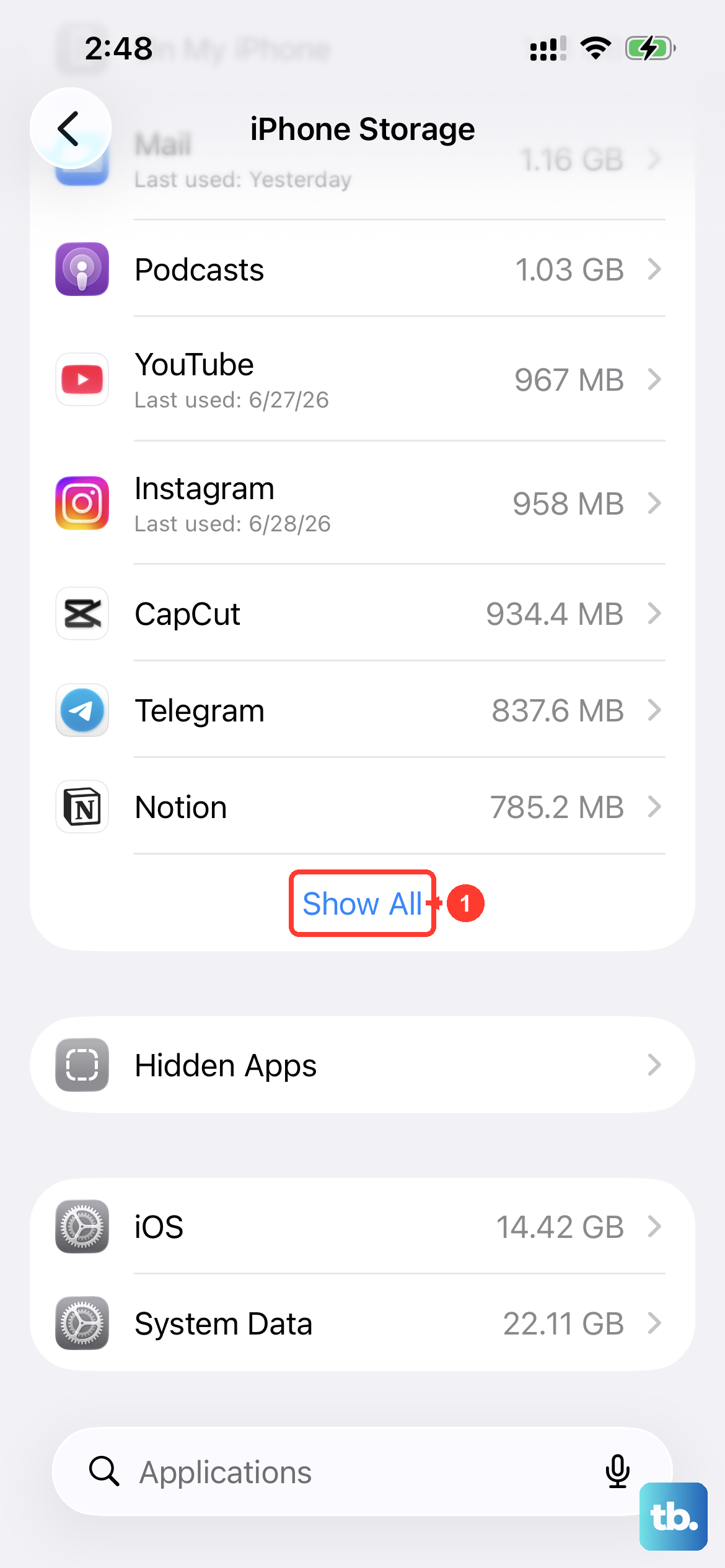
Your iPhone 16 needs breathing room. A major iOS update can need several gigabytes of free space. Head to Settings > General > iPhone Storage to see what's available. The quickest win is to offload unused apps, which removes the app but keeps its documents and data.
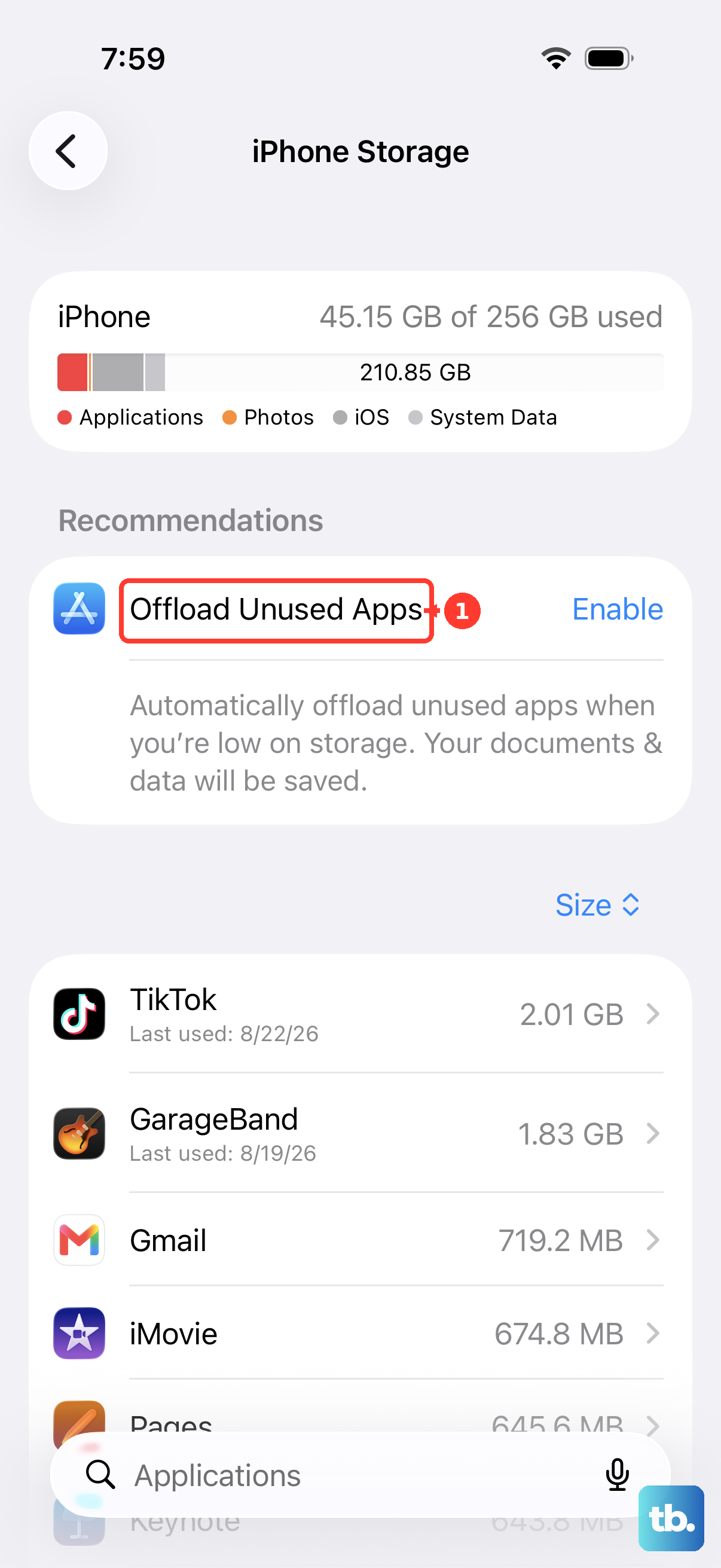
You can also review large video files or message attachments. Once you've cleared enough space, go back to Settings > General > Software Update and try the download again.
Delete the Downloaded Update File
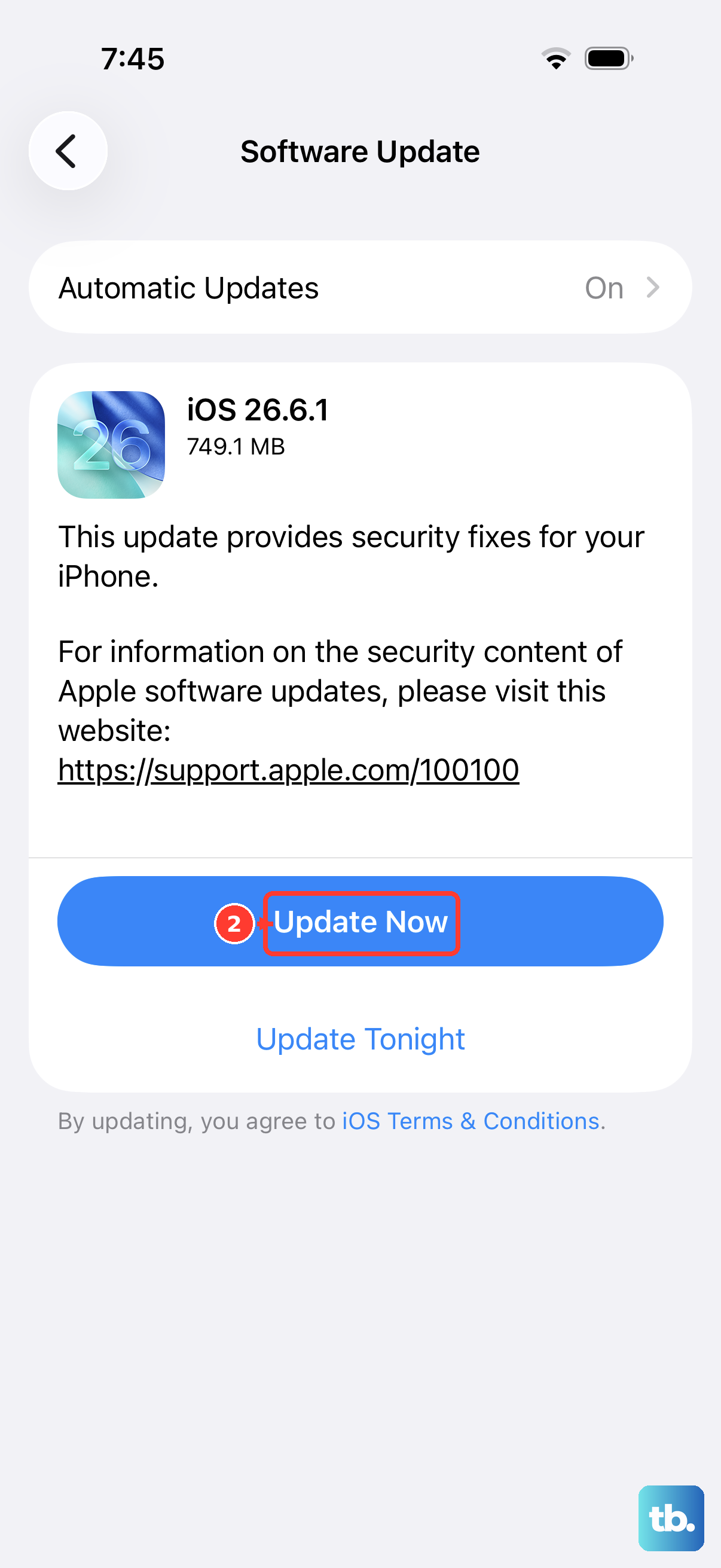
If the update still won't install, delete it and download it again. Go back into Settings > General > iPhone Storage and scroll down. Find the update in the list of apps. Tap on it and select Delete Update to remove the downloaded update.
After it's gone, return to Settings > General > Software Update and download the update again. If the update isn't listed in iPhone Storage or the problem returns, update using a computer.
Reset Your Network Settings
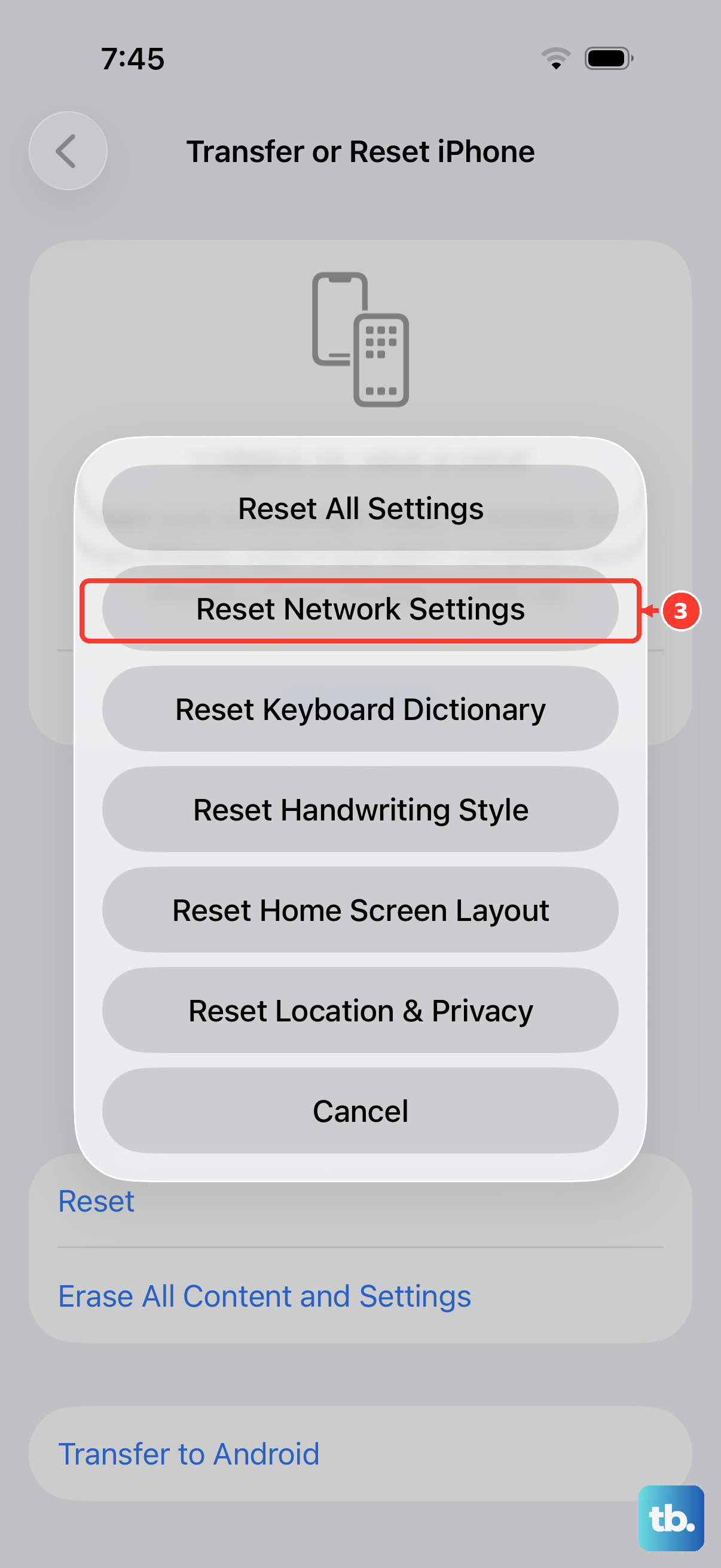
If other connection fixes fail, try resetting your network settings. Go to Settings > General > Transfer or Reset iPhone > Reset. Tap on Reset Network Settings. You'll need to re-enter your Wi-Fi password afterward.
This removes saved Wi-Fi networks and passwords, cellular settings, and VPN and APN settings, including work or school network configurations. Rejoin your Wi-Fi network before trying the update again.
Update Using a Computer
When the over-the-air update just won't cooperate, using a Mac or PC is your best bet. Connect your iPhone 16 to your computer with a USB-C cable. On a Mac with macOS Catalina or later, open Finder. On a Windows PC, open the Apple Devices app or iTunes. On a Mac with macOS Mojave or earlier, open iTunes.
Back up your iPhone before updating. In Finder, select your iPhone in the sidebar, click General, then Check for Update and Download and Update. In the Apple Devices app or iTunes, select your iPhone and follow the update prompts. You may still need to free up storage on the phone.
Check Apple's Server Status
Sometimes, your iPhone can't reach the update server. Pull out another device and visit apple.com/support/systemstatus to check for listed service outages. If you see an "Unable to Check for Update" or "Unable to Download" alert, try the update again on the same network.
If the alert returns, try another Wi-Fi network or update using a computer. VPN or proxy connections may also prevent your iPhone from reaching the update servers, so check those connections before trying again.
Try Updating at an Off-Peak Time
If you're still having trouble, try the download again later, when your network is less busy. Avoid downloading other content during the update. Download time depends on the update's size and your internet speed, and you can keep using your iPhone 16 while it downloads.
Ensure Your iPhone is Compatible
This is a quick check, but it's worth confirming. The iPhone 16 supports iOS 27, but if you're managing an older device, it might not be eligible. You can verify your model in Settings > General > About.
If an update doesn't appear on your iPhone 16, try updating using a computer. If you're troubleshooting for an older phone, check whether its model is on the supported devices list for the latest version of iOS.