


To fix an Acer desktop sending no signal to the monitor, check monitor power, select the connected input, reseat the video cable, and connect it to the dedicated graphics card if your desktop has one. Try a direct connection and a known-good cable before moving on to power resets or Windows repairs.
A monitor displaying a no signal message is different from a black Windows screen with a cursor. Watch whether the Acer logo appears during startup, because Windows fixes need working startup video, another usable display, or a recovered session.
The short version
- Start at the monitor: Check its power connection and manually select the input used by your video cable.
- Use the correct output: Connect to the dedicated graphics card when your Acer desktop has one.
- Simplify the connection: Test one monitor directly with a known-good cable, without docks or converters.
- Separate hardware from Windows: Use Windows recovery and driver fixes when startup video works but the picture disappears as Windows loads.
- Escalate persistent failures: Follow your model’s service instructions or arrange repair when basic checks and cross-testing do not restore video.
| Fix | When to use it | Next step if it fails |
|---|---|---|
| Monitor power and input | No picture or wrong selected source | Check the cable and desktop output |
| Cable and graphics card output | Monitor reports no signal | Try another output or connection type |
| Direct connection and another display | Adapters or faulty equipment are possible | Power-reset and check startup behavior |
| Power resets and peripheral removal | Connection checks do not help | Check whether startup video appears |
| Windows display controls | Windows loads or another screen works | Try low-resolution startup or Safe Mode |
| Startup options and graphics driver repair | Acer logo appears before video fails | Undo recent Windows changes |
| Windows recovery | Software changes or Windows startup failure | Consider reset for confirmed Windows problems |
| BIOS defaults and hardware service | External checks fail; BIOS changes require visible firmware | Arrange model-specific diagnosis or repair |
Check monitor power and select the right input
Reseat the monitor’s power cable and any external power adapter connections, then connect it directly to a working wall outlet. Hold its Power button for two to three seconds and check the power indicator. If it still has no power, test a compatible replacement power cable or adapter.
Use the monitor’s controls to select the socket your cable connects to, such as HDMI, DisplayPort, DVI, VGA, or USB-C. Select it manually instead of relying only on automatic input detection.
Monitor menus vary by model. On an Acer Predator XB273U F, open MENU > System > Input, then select HDMI1(2.0), HDMI2(2.0), or DP to match the connection. If the correct input still reports no signal, check the cable and computer output next.
Reseat the cable and use the graphics card output
Check that the video cable runs from the desktop’s video output to the monitor’s matching input. Disconnect and reconnect both ends securely, then substitute a known-good cable of the same type. Check for a picture after each change so you can identify which connection restores it.
If your Acer has a dedicated graphics card, connect the monitor to that card’s outputs. These are usually below the motherboard’s USB and network ports. Check this before using a motherboard video socket.
Try another available video output on the graphics card or computer, then select the corresponding monitor input. You can also try another supported connection type, such as HDMI instead of DisplayPort. If the picture returns through the alternative connection, use it while troubleshooting the original cable or connection.
Remove adapters and test another display
Disconnect docks, dongles, video converters, and unnecessary adapters, then connect one monitor directly to the desktop. When the computer and monitor have compatible ports, use a cable that does not need a converter. Keep this simpler setup while working through the remaining fixes.
For USB-C video, the desktop port, cable, adapter, and monitor must support the required display Alternate Mode. Connect directly to the appropriate USB-C port and try a compatible replacement cable. There is no software switch that adds Alternate Mode to unsupported hardware, so use another supported video connection when necessary.
Connect the monitor to another working computer, then test your Acer desktop with another known-good monitor. If the original monitor works on the other computer, focus next on the Acer and its connection. If another monitor works on your Acer, return to the original monitor’s power, input, and cable checks.
Power reset the desktop and check startup behavior
Shut down the desktop and disconnect nonessential peripherals, leaving the monitor, keyboard, and mouse connected. Unplug the desktop’s power cable, hold its Power button for 30 seconds, then reconnect power and turn it on. If the system is frozen, follow the steps to restart a computer that is unresponsive before continuing.
For an Acer monitor, disconnect its power, hold its Power button for 30 seconds, then reconnect power and turn it on. Select the correct input again and check for a picture. Special monitor reset mechanisms vary by model, so follow the instructions for your exact monitor.
During startup, check the desktop’s power indicator, fans, startup sounds, repeating beeps, and diagnostic lights. Press Caps Lock or Num Lock and watch the keyboard LEDs for a response. Note whether the Acer logo appears: if the picture disappears only when Windows starts, continue with the Windows fixes below. If no startup picture appears with a known-good monitor and cable, move to the hardware service steps.
Restore the Windows display connection
Use these Windows 11 steps when Windows has loaded or you have another working display. Press Windows + Ctrl + Shift + B to restart the graphics driver. A beep or brief screen flicker indicates that Windows responded.
Press Windows + P and choose Duplicate, Extend, or Second screen only to suit your setup. Without visible output, Microsoft says to press Windows + P, then P, then Enter to cycle projection modes. Try this when an additional monitor is inactive.
On a working screen, open Start > Settings > System > Display, expand Multiple displays, and select Detect. If Windows recognizes the affected monitor, select it and set Display resolution to a supported value, normally the option marked (Recommended). Then open Advanced display, select that monitor, and use Choose a refresh rate to select a supported rate.
Restart through Start > Power > Restart after making changes. If video still disappears as Windows loads, move to low-resolution startup or Safe Mode.
Recover usable video and repair the graphics driver
When the Acer logo appears but Windows video fails, enter Windows Recovery Environment. From a usable session, open Settings > System > Recovery > Advanced startup and select Restart now, or hold Shift while selecting Power > Restart. If Windows cannot load, interrupt startup at the logo twice; on the third start, select Advanced options.
Choose Troubleshoot > Advanced options > Startup Settings > Restart. Press 3 or F3 for Enable low-resolution video, then correct the resolution and refresh rate through Windows display settings. This option uses the current graphics driver with reduced resolution and refresh rate.
For driver troubleshooting, return to Startup Settings and press 4 or F4 for Enable Safe Mode. If the failure began after a graphics-driver update, open Device Manager > Display adapters, right-click the GPU, and select Properties > Driver > Roll Back Driver. Rollback requires administrator permission and a retained previous driver; use a reinstall route when that option is unavailable.
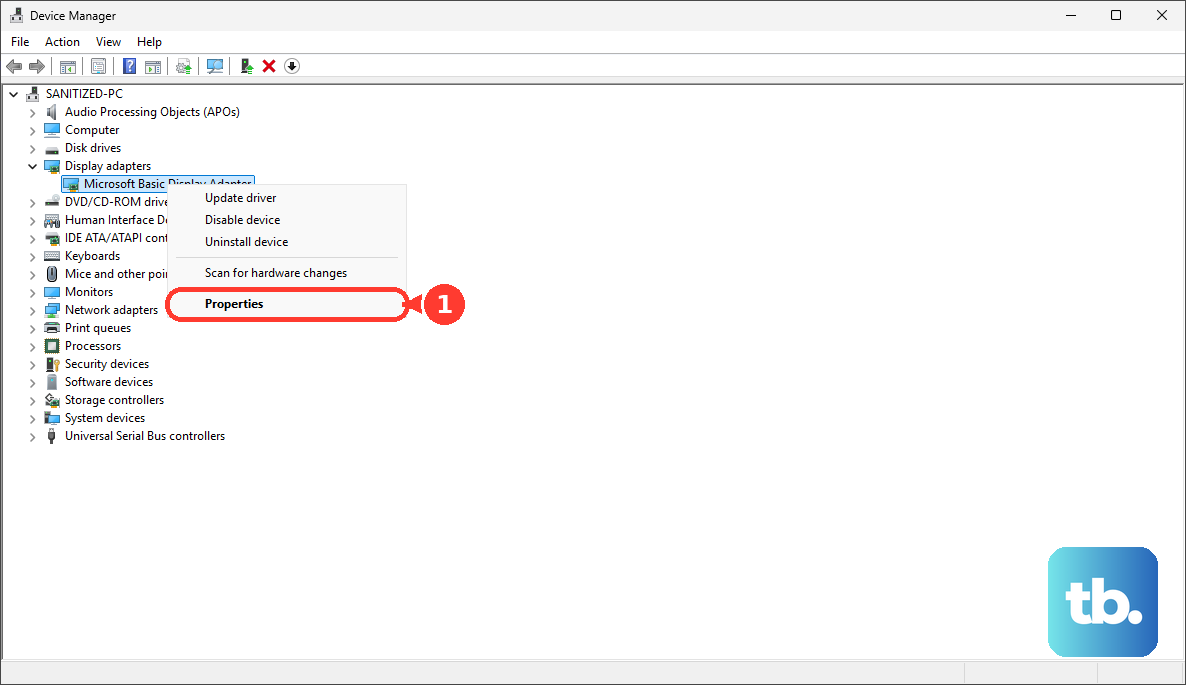
To reinstall the graphics device, right-click it under Display adapters, select Uninstall device, then confirm with Uninstall and restart. Windows attempts to reinstall its driver. If you still need the model-specific package, open Acer’s Drivers and Manuals and identify your desktop by serial number, SNID, or part number.
Open Drivers, select Operating System, and download the matching graphics package. Extract it, run Setup, and follow the installation prompts.
With video restored, open Settings > Windows Update > Check for updates, install offered updates, and restart. Check Advanced options > Optional updates for offered driver updates. Select the appropriate update and choose Download and install, then restart again.
Undo Windows changes when the problem persists
If video fails only after startup software loads, isolate the conflict with a clean boot using an administrator account. On a managed PC, involve IT if policy restricts these changes. Run the following command to open System Configuration.
msconfigOn Services, select Hide all Microsoft services, then Disable all and Apply. Open Startup > Open Task Manager > Startup apps, then stop apps from opening on startup by disabling enabled items and restarting. Re-enable items systematically to identify the conflict, then restore normal startup afterward.
For a recent software or driver change, use Troubleshoot > Advanced options > System Restore in recovery. Select an available restore point from before the problem, then choose Next and Finish. If the problem began after a Windows update, use Advanced options > Uninstall Updates > Uninstall latest quality update instead.
If Windows itself fails to start after firmware video appears, select Troubleshoot > Advanced options > Startup Repair > Restart and follow the repair process. Reserve a Windows reset for confirmed Windows problems after less disruptive repairs fail. A reset removes applications and settings, and Remove everything also removes personal files.
On Acer desktops with recovery access, press Alt + F10 at the Acer logo, then select Troubleshoot > Reset this PC. Choose Keep my files or Remove everything, then Cloud Download or Local Reinstall. Select Reset to begin.
Check BIOS defaults and arrange hardware service
If external connection checks do not help, consider BIOS defaults when you can see the firmware screen. Power off completely, start the desktop, and press Delete at the Acer logo to get to BIOS on Windows. Some Acer models use F2 instead, so confirm the key for your model.
Press F9, then Enter to load defaults, followed by F10, then Enter to save and exit. Do not attempt this sequence blindly when no firmware image is visible.
Consider a BIOS update only when Acer offers a relevant fix for your exact model and you have a usable update environment. Find the matching BIOS package through Acer’s support downloads, download and extract it, then run the included updater as its instructions direct. Allow the update to finish.
For a serviceable desktop, power it off and unplug it before following its service instructions to reseat removable RAM and test one module at a time. If your desktop has a removable NVIDIA graphics card, follow its service instructions to reseat the card and check its GPU and power supply connections. Access and component procedures depend on the model, so leave this work to a technician if you are not comfortable following the service instructions.
Arrange repair if the desktop still produces no startup picture with a known-good monitor and cable, or its beeps and diagnostic lights indicate a startup problem. Have the serial number or SNID and warranty status ready. Persistent failures at this stage need model-specific diagnosis.
Frequently Asked Questions
Can an HDMI splitter give my Acer desktop two separate extended screens?
A splitter duplicates an existing signal rather than creating independent extended displays. Check your graphics card’s supported display count before adding more monitors.
What should I change if the signal disappears only after inactivity?
In Windows 11, open Settings > System > Power & battery > Screen, sleep, & hibernate timeouts and adjust Turn my screen off after and Make my device sleep after for plugged-in operation. On an Acer Predator XB273U F, set MENU > System > Deep Sleep to Off to check its sleep behavior; this does not repair missing computer output.
How do I unlock the input controls on an Acer Predator XB273U F?
When OSD Locked appears, hold Navi Key - Center for more than three seconds, then change the input. Other monitor models require their own unlock sequence.
Could DisplayPort compatibility settings help on an Acer RX271?
On an Acer RX271, open MENU > System > DP Format and select the compatible format, DP 1.1 or DP1.2, specified for your connection. Use this as a compatibility check for that monitor, rather than a general fix for every no signal problem.
Do NVIDIA firmware tools apply to every Acer desktop with NVIDIA graphics?
No, each tool applies only to specified GPUs and a particular startup-display issue. Separate tools cover listed older Maxwell and Pascal cards, certain RTX 30-series cards, RTX 4090 and RTX 4080 cards, and RTX 5060-series cards. Confirm your exact GPU and the tool’s supported products before considering a firmware update.
Will I need a BitLocker key to use Windows recovery?
Windows recovery may require your BitLocker key before you can continue. Have it available before starting recovery procedures.
Is the hardware reset different for an Acer Chromebox?
Yes, Google says to turn off the Chromebox, remove its power cable, and reconnect it. Use that ChromeOS sequence for your Chromebox instead of Windows recovery and driver steps.