


To fix a Meta Quest 3 that won't connect to a PC, open Meta Horizon Link, restart both devices, then check your USB connection or Air Link pairing. For wired Link, turn off Use Air Link before reconnecting. If you only need photos or videos, connect a data-capable USB cable and select Allow inside the headset.
The short version
- Start here: Open Meta Horizon Link on a compatible Windows PC and restart both devices.
- Wired Link: Turn off Use Air Link and try another suitable USB cable or port.
- Air Link: Connect both devices to the same network and confirm the matching pairing codes.
- File transfer: Connect a data-capable cable and select Allow inside the headset.
| Fix | When to use it |
|---|---|
| Install and open Meta Horizon Link | Preparing the PC for Link |
| Check PC compatibility | Before troubleshooting PC VR |
| Restart the headset | Connection fails during normal use |
| Force-restart the headset | Normal restart is unavailable |
| Close background apps and restart the PC | Link detection or compatibility problems |
| Enable Link | Checking the headset's connection setting |
| Turn off Use Air Link | Testing a USB connection |
| Reconnect wired Link | Launching PC VR over USB |
| Change or reseat the USB connection | Cable or port problems |
| Run USB Test | Headset is detected but bandwidth is poor |
| Pair Air Link again | Wireless PC VR will not connect |
| Check the network and restart the router | Air Link still fails |
| Update Horizon OS | Checking headset software |
| Update NVIDIA drivers | Compatible NVIDIA-equipped PC |
| Update AMD drivers | Compatible AMD-equipped PC |
| Allow the app through Windows Firewall | Firewall filtering blocks the connection |
| Reinstall Meta Horizon Link | Earlier connection checks fail |
| Free installation storage | Link will not install because space is short |
| Reduce graphics settings | Detected headset has unstable performance |
| Reset graphics preferences | Returning custom graphics settings to defaults |
| Clear numerical debug overrides | Oculus Debug Tool values were changed |
| Use CPU video processing | OBS or XSplit runs alongside Link |
| Authorize USB file transfer | Copying media to Windows |
| Recover the USB notification | Headset charges but files are missing |
| Contact Meta support | Applicable connection checks fail |
| Reset through the phone app | Last resort with a paired phone |
| Reset with headset buttons | Last resort without the paired phone app |
Check Link and restart both devices
For PC VR, install and open Meta Horizon Link before connecting your Quest 3. On the official Meta setup page, select Download Meta Horizon Link App, then install the application. These Link instructions apply to compatible Windows 10 and Windows 11 PCs.
Your PC needs an Intel i5-4590 or AMD Ryzen 5 1500X or better, at least 8 GB of RAM, and a supported graphics card. You can check RAM on your computer before continuing. Compare your exact GPU model with Meta's PC compatibility table; RTX 50-series GPUs are supported, while Intel Arc and workstation GPUs are unsupported.
While wearing the powered-on headset, hold its Power button until the Power off screen appears, then select Restart. Close unnecessary programs on the PC, restart your computer, and reopen Meta Horizon Link. Retry your connection once both devices are ready.
If the headset is unresponsive and normal restart is unavailable, hold Power for at least 30 seconds, then wait 30 seconds. If it does not restart automatically, press Power again.
On the current Navigator interface, press the controller's Meta button, then open Quick controls > Settings > Link. Turn on Link. Meta says this setting is enabled automatically on the latest Horizon OS, but check it before retrying.
Check the cable and USB connection
Before testing wired Link, open Quick controls > Link in the headset and turn off Use Air Link. Connect a USB-C 3.2 cable rated for at least 5 Gbps to the PC's USB 3.2 port and the headset. Press Meta, select Quick controls > Link, choose the connected computer, then select Launch.
If the PC still does not detect the headset, try another USB port or cable. Reverse the USB-C plugs and retry the connection. When using a USB 3 adapter, check its compatibility and orientation; if you use a PCI-E card, check its cable seating too.
Once Meta Horizon Link detects your Quest 3, select Devices, choose the headset, then open USB Test > Test Connection. If bandwidth is poor, test another cable or adapter. If the headset is missing from the app, move to the software checks below because the USB test requires a detected headset.
Reconnect Air Link on the same network
Connect the headset and PC to the same network before pairing Air Link. Press Meta in the headset and open Quick controls > Link. Turn on Use Air Link, select your PC, and choose Pair.
Compare the pairing codes shown on the headset and computer. When they match, click Confirm on the PC, then select Launch in the headset. If the connection still fails, restart your router and retry pairing.
Update the headset and graphics driver
To update the Quest 3, press Meta and open Quick controls > Settings > General > Software update. Download an offered update. For automatic updates, leave the headset charged, powered on, connected to Wi-Fi, and stationary.
Meta recommends current graphics drivers for Link problems. You can find and update your graphics driver using your actual GPU model and Windows version.
For NVIDIA graphics, open NVIDIA's driver download page and use Manual Driver Search, or use the NVIDIA App offered there. For AMD graphics, open AMD's driver download page and use Search or Browse Products. Select the driver for your GPU and operating system.
Check firewall filtering and reinstall Link
If Windows Firewall is blocking the connection application, allow that application through it. On Windows 10 or Windows 11, open Windows Security > Firewall & network protection > Allow an app through firewall, then select Change settings. Choose Allow another app and browse to the affected application's executable; its displayed name depends on your installation.
On a managed computer, you may need an administrator to allow the application. Ask the administrator to make the change if you cannot adjust the firewall settings yourself.
When the connection still fails after the earlier checks, reinstall Meta Horizon Link. Uninstalling removes the PC application. On Windows 11, open Start > Settings > Apps > Installed apps, find Meta Horizon Link, open More, and select Uninstall.
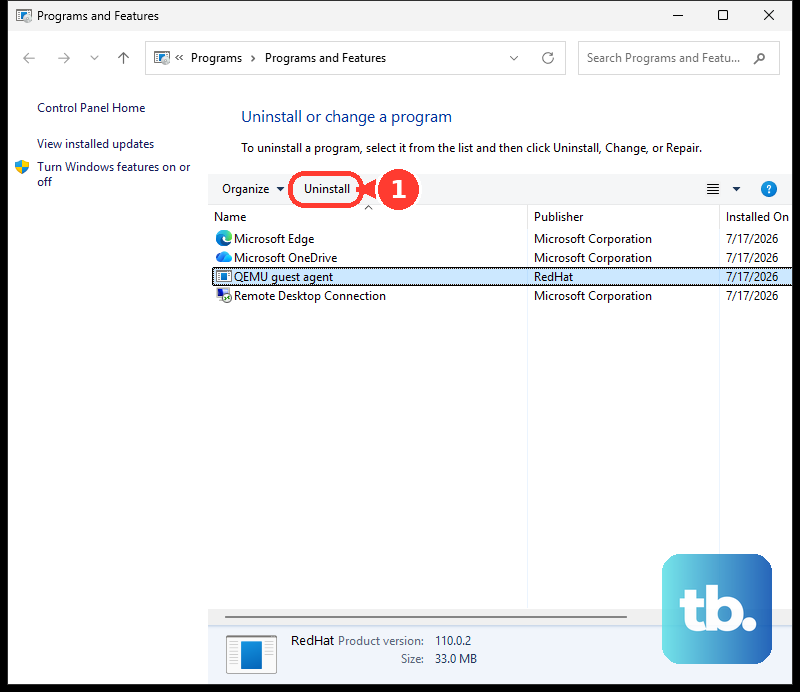
On Windows 10, or as an alternative on Windows 11, open Control Panel > Programs > Programs and Features. Uninstalling through this route also removes the PC application. Right-click Meta Horizon Link and select Uninstall. Reinstall it from Meta's setup page linked above, then open it before reconnecting your headset.
If the installer fails because storage is short, free at least 9 GB by moving files. Retry the installation after enough storage is available.
Adjust settings when Link connects but runs poorly
For a detected headset with unstable Link performance, open Devices in Meta Horizon Link, select your headset, and open Graphics preferences. Reduce Refresh rate or Render resolution, then select Save. These controls require a detected headset, so return to the cable or pairing checks if the app cannot see yours.
Resetting graphics preferences replaces your custom graphics settings with their defaults. To do that instead, select Reset to default in Graphics preferences, then select Save. Retry Link with those defaults.
If you previously changed numerical settings in Oculus Debug Tool, returning them to 0 replaces those custom numerical overrides. Set those values to 0, then restart Link. If OBS or XSplit is running alongside Link, configure it to use CPU video processing; the configuration path depends on the application.
Allow USB access when you only need files
Transferring photos or videos is separate from running PC VR, so Link's gaming hardware requirements do not apply. Connect the Quest 3 to Windows with a data-capable USB-C cable. Put on the headset and select Allow to approve file access.
On the PC, open File Explorer > This PC, select your Quest, and open Internal shared storage. If the headset charges but does not appear for file transfer, select the headset's bell icon and look for the USB connection notification. Recheck that your cable carries data, then approve the transfer request.
Get help before a factory reset
If your Quest 3 still will not connect after the applicable checks, select Get support on Meta's Link setup page and choose the affected product and problem. A factory reset is a last resort after updates and restarts. Use the phone method below when the headset is paired with the Meta Horizon mobile app.
A factory reset erases local content, so back up first and charge the headset to at least 50%. In Meta Horizon on your phone, select Menu > Devices, choose your headset, then open Headset settings > Advanced settings > Factory Reset. Tap Reset.
If you cannot use the paired phone app, a hardware factory reset also erases local content, so back up first and charge the headset to at least 50%. Power off the headset, then hold Power and Volume Down for 10 to 15 seconds. Highlight Factory Reset and press Power, then highlight Yes, erase and factory reset and press Power again.
If the headset displays No command, hold Power for three seconds. Press Volume Up once, then release both buttons.
Frequently Asked Questions
Where are Quest 3 recordings stored after connecting to Windows?
Your recorded videos are in Oculus\VideoShots within Internal shared storage. Your screenshots are in Oculus\Screenshots.
Will leaving the Public Test Channel immediately roll back the headset software?
Leaving the headset Public Test Channel does not immediately roll back its software. In the Meta Horizon mobile app, select Menu > Devices, choose your headset, then open Headset settings > Advanced settings and turn off Public Test Channel. Your headset keeps its installed test version until a newer public version becomes available.
Is casting to a computer the same as using PC VR?
Casting displays your headset's view on the PC rather than running PC VR games. Browser casting requires the same Meta account and Wi-Fi network on both devices. If browser casting fails, make sure your browser is logged in with the same Meta account as your headset.
Why does Mixed Reality Link fail with error -2015.2 or -2100.2?
Microsoft identifies a driver issue affecting Mixed Reality Link on RTX 50-series PCs running NVIDIA driver 616.56. If that matches your setup and error, update to driver 616.86 or later and reconnect. This fix applies to desktop viewing through Mixed Reality Link.
Can Steam Link connect a Quest 3 to a PC instead?
Yes, you can use Steam Link as an alternative PC VR connection. It requires Horizon OS v74 or later, Windows 10 or later, a supported GPU, and at least 5 GHz Wi-Fi 5. Run Steam and SteamVR on the PC while signed into Steam, then connect the headset to the same network. Install and open Steam Link on the headset, then complete its pairing instructions.