

To fix a computer that turns on but shows no display, check the monitor’s power, select the correct input, and reconnect the video cable at both ends. If the screen stays blank, try another cable or monitor before moving to startup recovery or internal hardware checks.
Notice whether you ever see the manufacturer’s logo or a working startup screen. A screen that goes black after Windows starts needs different steps from one that never shows an image. The Windows shortcuts and menus below use Windows 11.
The short version
- Start outside: Check monitor power, input selection, cable connections, and the graphics output.
- Separate the symptoms: Windows display shortcuts need Windows running, while recovery menus need working recovery video.
- Respect startup activity: Do not force a shutdown during firmware updates or ASUS memory training.
- Match your hardware: Use internal repairs and diagnostic shortcuts only for the models that support them.
| Check or fix | When to use it | What you need |
|---|---|---|
| Monitor power, input, and cable | An external display stays blank | Monitor controls and a working cable |
| Graphics output connection | A desktop has separate graphics outputs | The output supported by your hardware |
| Another screen and accessory isolation | A Windows display remains blank | Another monitor or the laptop screen |
| Windows display detection | An external display is unused | Another working screen |
| Graphics driver shortcut | Windows is running behind a blank screen | Keyboard access |
| Projection shortcut | Windows output is routed elsewhere | Keyboard access |
| Windows Explorer restart | The desktop is blank, often with a pointer | Visible Task Manager |
| ASUS memory training wait | The screen is blank after specified hardware or firmware changes | Connected power and uninterrupted startup |
| Forced Windows restart | The computer cannot restart normally | No firmware update or memory training underway |
| HP power reset | A covered HP PC starts without a picture | The model’s battery instructions |
| Windows Safe Mode | The picture disappears as Windows starts | Visible recovery |
| Low-resolution video | A resolution or refresh-rate change caused the problem | Visible startup settings |
| Recommended resolution | The desktop works after display recovery | A working Windows screen |
| Supported refresh rate | The selected rate prevents normal display | A working Windows screen |
| Graphics driver update | Windows needs a compatible display driver | Safe Mode or another working display |
| Graphics driver rollback | The problem followed a driver update | A previous driver and administrator permissions |
| Startup Repair | Windows startup still fails | Visible recovery |
| Graphics card checks | A serviceable desktop produces no picture | Disconnected power and the service manual |
| ASUS removable RAM checks | A compatible ASUS motherboard fails to display | The recommended memory slot and compatible RAM |
| ASUS CPU and power checks | The problem follows a component upgrade | The exact motherboard’s support information |
| Mac external display reconnection | A connected Mac display stays blank | A direct, compatible connection |
| Mac restart | The Mac is stuck on a blank screen | The power or Touch ID button |
| macOS Recovery | Mac startup troubleshooting needs recovery tools | The procedure for your processor type |
| Mac startup disk repair | Recovery produces a usable image | Disk Utility |
| Chromebook hardware reset | A supported Chromebook remains blank | The correct model procedure |
| Dell laptop LCD self-test | You need to check the built-in screen | A Dell laptop supporting LCD BIST |
| Dell monitor diagnostics | You need to check the monitor independently | The exact monitor’s user guide |
| Manufacturer service | Applicable checks fail to restore an image | Model details and diagnostic results |
Check the monitor and graphics connection
Connect the monitor to a working outlet and turn it on. Use its physical controls to select the input matching the connected video cable. Input names and button locations vary by monitor, so check the labels on your screen and its ports.
Reconnect the video cable securely at both ends, then try a cable you know works. On a desktop with a separate graphics card installed, connect the monitor to that card’s output. Use a motherboard display connector only when the processor has integrated graphics and the system supports that output.
On a Windows PC, try another monitor if the first stays blank. This helps separate a display or connection problem from a computer startup problem. If neither monitor shows an image, continue with the checks that match your computer.
Disconnect accessories and test one screen
On a Windows laptop, disconnect external displays and peripherals, then test the built-in screen. Once it works, reconnect accessories individually to identify which connection brings the problem back.
With at least one working screen on Windows 11, open Start > Settings > System > Display, expand Multiple displays, and select Detect. If Windows detects the external display but leaves it unused, press Windows + P and choose Duplicate or Extend.
Try the Windows display shortcuts
If Windows 11 is running, press Windows + Ctrl + Shift + B to reset the graphics driver. A beep or screen flicker can indicate that Windows received the shortcut. This does not repair a failure before the computer completes its initial hardware checks.
If output has been routed to another display, press Windows + P, press P again, then press Enter to change projection mode. Repeat if necessary to try another mode.
A blank desktop with a visible pointer can respond to restarting Windows Explorer. Press Ctrl + Shift + Esc, then, if Task Manager displays, right-click Windows Explorer and select Restart. If the shortcut produces no visible window, move on to the restart or recovery steps.
Restart only after ruling out startup activity
On ASUS devices covered by its no-display guidance, a blank screen after a BIOS update, battery disconnection, RAM replacement, or EC/RTC reset can be memory training. Connect power and allow approximately 5 to 10 minutes, with the duration depending on memory. Do not force a shutdown during that period or interrupt a firmware update.
A forced shutdown can lose unsaved work. For an unresponsive Windows PC that cannot restart normally, hold Power for 20 seconds, then start it again; your manufacturer’s specific power procedure takes precedence. For other ways to restart an unresponsive computer, use the method that matches the controls you can still access.
HP PCs covered by its blank-screen procedure have a separate power reset. Turn the computer off, disconnect its AC adapter, removable media, and nonessential peripherals, then hold Power for approximately 15 seconds with the adapter disconnected. Reconnect the adapter and turn on the computer, following your model’s instructions for battery handling.
Recover Windows and repair the graphics driver
Use Windows recovery when Windows starts but the screen becomes blank, after excluding firmware updates and memory training. Forced shutdowns can lose unsaved work. Interrupt startup twice by holding Power to shut down; the next startup should enter recovery.
Once recovery is visible, choose Troubleshoot > Advanced options > Startup Settings > Restart. Press 4 or F4 for Safe Mode, or 5 or F5 for Safe Mode with Networking. If recovery never produces an image, move to hardware checks or service.
An encrypted device may request its BitLocker recovery key. On another device, open the Microsoft recovery-key page, sign in to the relevant Microsoft account, and match the recovery-key ID shown on the affected PC. For a work or school device, contact its administrator or use your organization’s recovery-key access process.
If the blank screen followed a resolution or refresh-rate change, choose Enable low-resolution video on the same startup settings screen using its displayed number or function key. After recovering the desktop, on Windows 11 open Settings > System > Display, select the affected display, and choose its recommended value under Display resolution. You can also restore your screen’s normal size if the recovered picture looks wrong.
To correct the refresh rate on Windows 11, open Start > Settings > System > Display > Advanced display. Select the affected display and choose a supported value under Choose a refresh rate. Available rates depend on the display and connection.
For a graphics driver update, right-click Start, open Device Manager, and expand Display adapters. Right-click your graphics adapter and choose Update driver > Search automatically for drivers. Use a working alternate display or Safe Mode as needed, and follow the steps to find and update your graphics driver when you need help identifying it.
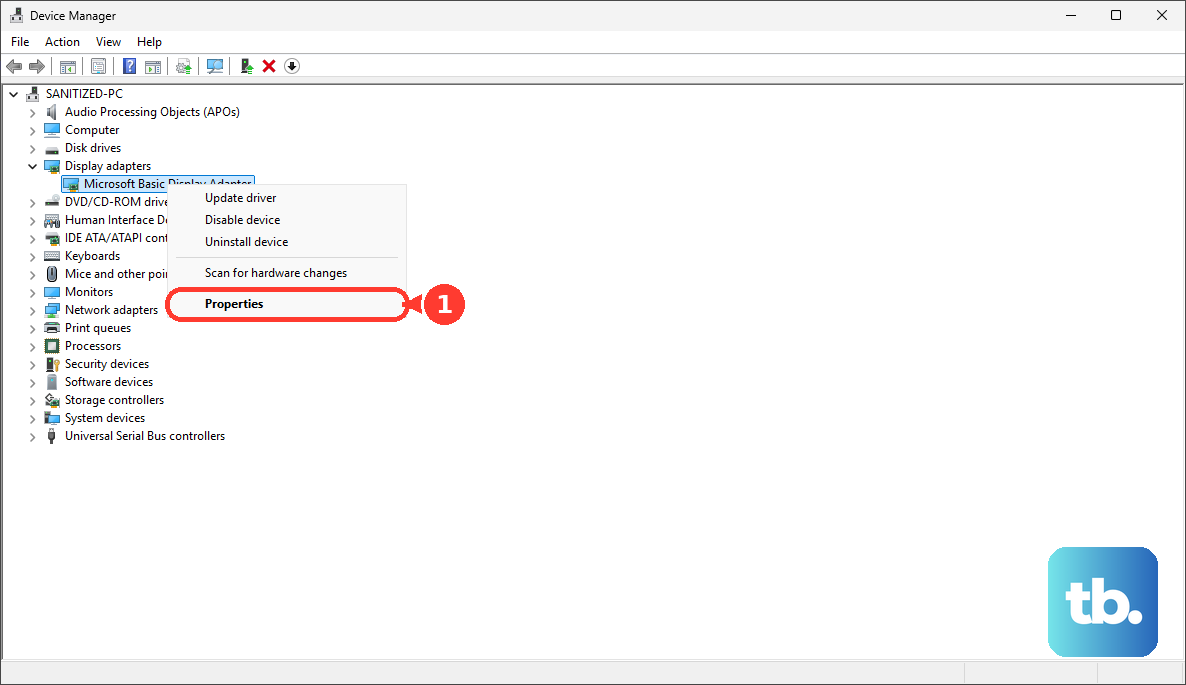
If the problem began after a driver update, rolling back replaces the current driver with the previous version and requires administrator permissions. In Device Manager, right-click the adapter under Display adapters, select Properties > Driver > Roll Back Driver, choose the applicable reason, and select Yes. Restart if requested; if a previous driver is unavailable, continue with the compatible-driver update route.
For a Windows startup failure that persists with working recovery video, choose Troubleshoot > Advanced options > Startup Repair > Restart. Let Windows diagnose startup problems. This tool addresses startup failures, not a failed panel or graphics card.
Check serviceable desktop hardware
Internal work requires disconnected power and the exact computer’s service manual. On a serviceable desktop, shut down and disconnect power before reseating the graphics card in the primary PCIe slot and reconnecting its required power cables. If a PCIe riser connects the card, bypass it and connect the card directly; a compatible working replacement card is another test option.
For an ASUS motherboard with removable RAM, disconnect power and reseat the memory. Test one module at a time in the slot recommended by the manual. If that fails, check the motherboard’s memory compatibility list before trying compatible replacement RAM.
After an upgrade on an ASUS desktop motherboard, check the motherboard and CPU power connections with power disconnected. On the model’s support page, open CPU/Memory Support > CPU Support to check processor compatibility and the required BIOS version. Leave CPU/socket repair and power-supply replacement to service if you are inexperienced with those jobs.
Use the matching Mac startup steps
For a Mac using an external display, disconnect the display from the Mac and power, then reconnect it. Connect directly to the Mac instead of through a hub or dock. Check that the cable or adapter supports the required video mode and that the Mac supports the number of connected displays.
If the Mac remains stuck, hold Power or Touch ID for up to 10 seconds until it turns off. Press it again to start the Mac.
To enter recovery on an Apple silicon Mac, start from shutdown and hold Power until startup options appear, then click Options > Continue. On an Intel Mac, turn it on and immediately hold Command + R until an Apple logo or globe appears. Select the startup volume and an authorized user if requested, then enter that user’s password.
With recovery visible, select Disk Utility > Continue, then choose View > Show All Devices. Starting with the last volume, select First Aid, then Run, and repeat upward through volumes, volume groups, containers, and finally the storage device. Quit Disk Utility and choose Apple menu > Restart.
If disk repair does not resolve the blank screen, start up from macOS Recovery again, select Reinstall macOS, then Continue, and choose Macintosh HD if you are asked to pick a disk. Reinstalling macOS doesn’t remove your apps or personal data, but back up first if possible.
If the Mac does not start up from Recovery and it has Apple silicon or the Apple T2 Security Chip, its firmware can be revived or restored from another Mac running macOS 14 or later using a USB-C cable that supports data and charging. Reviving keeps your data, while restoring erases the Mac. If the Mac still starts up to a blank screen, arrange service. Provide the Mac model, whether an external display works, and any diagnostic results.
Try a Chromebook hardware reset
A Chromebook hardware reset can delete some files in Downloads. On most supported Chromebooks, turn the device off, hold Refresh, and tap Power. Release Refresh when startup begins.
Supported ChromeOS tablets use a different combination: hold Volume Up + Power for at least 10 seconds, then release them. Model-specific exceptions exist, so confirm the procedure for your Chromebook before proceeding. If the screen remains blank, contact the manufacturer for service.
Run supported diagnostics or arrange repair
On a Dell laptop with LCD self-test support, shut down, disconnect accessories, and connect the charger. Hold D, press Power, and release D when colors appear. Inspect the patterns, record any LED codes, and press Esc to exit; if repeating the procedure correctly still produces no image, contact Dell.
Dell monitor diagnostics use model-specific controls. Find your exact monitor’s user guide, open Troubleshooting, and follow Built-in diagnostics. Record defects visible during the independent test and contact support if they persist.
Diagnostics identify faults but do not necessarily repair them. If the applicable checks still leave you without a usable image, arrange manufacturer service and provide the model, whether another display works, and any diagnostic results.
Frequently Asked Questions
What should you try if the image is barely visible?
On a functioning Windows 11 screen, select the taskbar Network icon and raise Brightness. For an external monitor without a Windows brightness slider, use the monitor’s physical brightness controls.
What if a Mac screen goes blank immediately after changing resolution?
In macOS 26, wait 15 seconds for the resolution change to revert automatically. If it does not revert, press Esc.
Can Intel Graphics Command Center enable a blank external display?
On a compatible Intel graphics system with another working screen, search Windows for Intel Graphics Command Center, open it, and select Display. Under Connected Displays, open the affected display’s three-dot menu and select Enable.
What should you try first on a Surface with a blank screen?
Disconnect accessories, the Type Cover, and Surface Dock, then connect the intended power supply and charge for at least 15 minutes. Close and reopen the lid or keyboard, then press Power. If those checks fail, use Surface support from another working device.