

You need to change a Windows password, and the correct button depends on the account type on the PC. A local account, personal Microsoft account, and work or school account each use a different reset path. Start with the route that matches how you sign in, then move to the lockout options if you no longer know the password.
1. Start in Settings when you know the current password
Use this first when you are already signed in to Windows 11 or Windows 10 and you know the existing password.
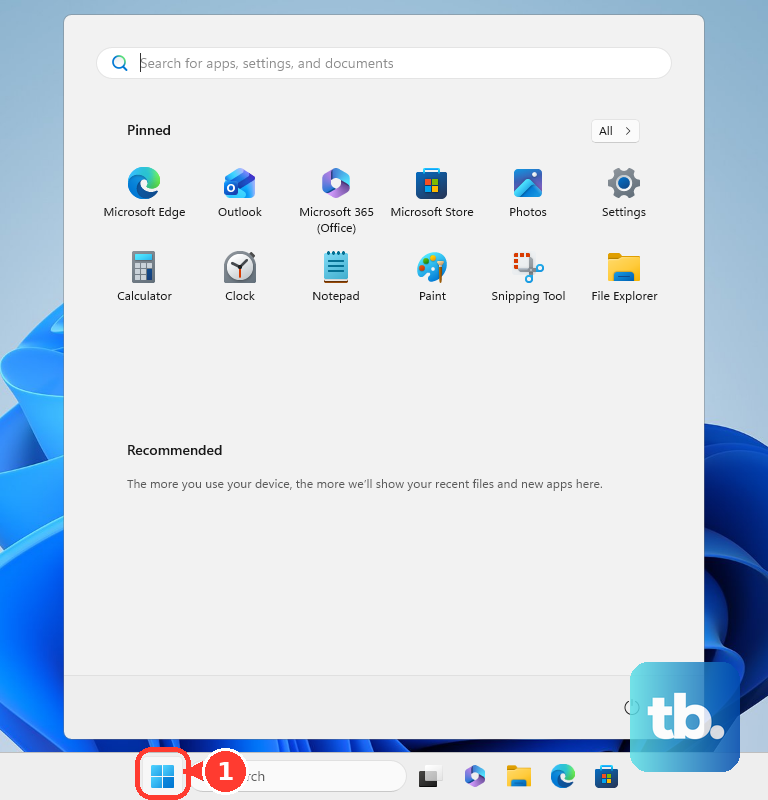
- 1.Select Start, then open Settings.
- 2.Select Accounts.
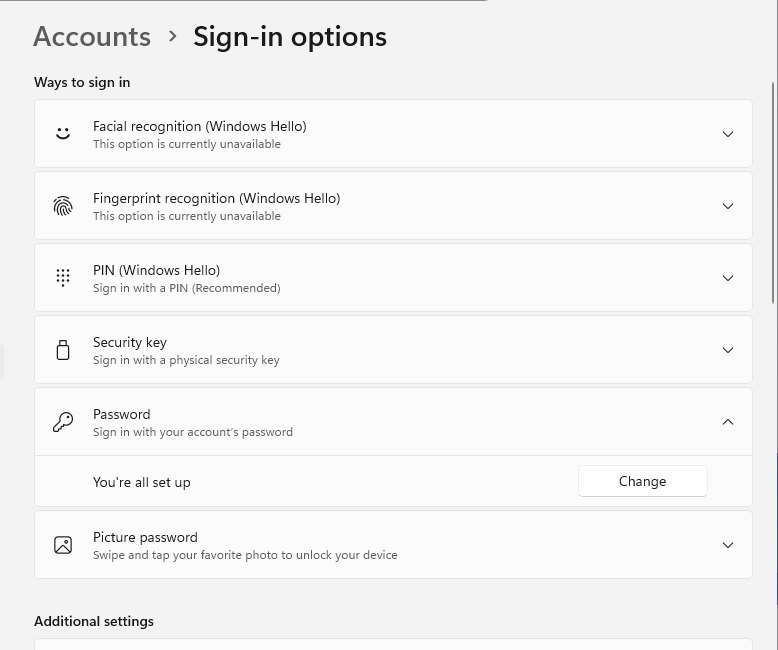
- 3.Select Sign-in options.
- 4.Select Password.
- 5.Select Change.
- 6.Enter the old password, then create the new password.
For a local account, Windows changes the password stored on that computer. For a Microsoft account, follow the prompts after Change. If Windows asks for the current Microsoft account password and you do not know it, select Forgot my current password and verify the account.
2. Change a personal Microsoft account password online
If the PC uses a personal Microsoft account, the web route changes the same account used for Windows, Outlook.com, Xbox, Microsoft Teams Free, and the Microsoft account dashboard.
Go to account.microsoft.com, then select Security and choose Change Password. Enter the new password, then select Save. Use this when you still know the Microsoft account password and simply want to replace it.
3. Reset a forgotten Microsoft account password
On the Microsoft account sign-in page, select Forgotten your password?, or open Microsoft’s Reset password page. Enter the username for the account, then select Next. Choose a verification method, retype the part of the email address or phone number it asks for, select Get code, and enter the code. Type the new password, then select Next.
This reset works from any browser, including a phone or another computer. At the Windows sign-in screen, select I forgot my password. Another Windows route is Sign-in options, then Web sign-in, then Forgot my password.
4. Recover a local account from the sign-in screen
A local Windows account does not reset through the Microsoft account website. Use the sign-in screen only when security questions were configured for that local account.
At the Windows sign-in screen, select the password entry button, then select OK. Select Reset password, answer the security questions created with the account, and enter a new password.
A password reset disk is another local-account option, but it must already exist before the password is forgotten. At the local-account reset flow, select Use a password reset disk and follow the prompts.
To create one in advance, sign in with the local account and plug in a USB flash drive. Search for Control Panel, then search inside Control Panel for create password reset. Select Create a password reset disk and finish the wizard.
5. Use an administrator account for another local user
When you can sign in with an administrator account on the same PC, reset another local account through Computer Management.
Open Computer Management, expand Local Users and Groups, and select Users. Right-click the user account, then select Set Password.... Enter and confirm the new password.
This applies to local accounts. Local Users and Groups is not generally available in Windows Home editions.
6. Press Ctrl Alt Del for a signed-in password change
The Windows security screen gives signed-in users another current password-change route where the account and device policies permit it.
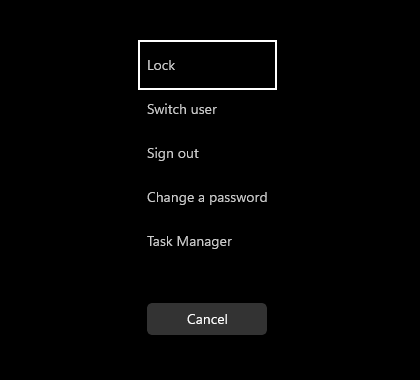
Press Ctrl + Alt + Del, then select Change a password. Enter the current password, then enter the new password as prompted. This route is commonly used for local, domain, and work or school Windows sign-ins.
7. Handle work or school passwords through Microsoft portals
For a Microsoft work or school account with a known password, sign in to myaccount.microsoft.com. Select Change Password in the left navigation pane, then type the old password. Create and confirm the new password, then select Submit.
For a forgotten work or school password, start at mysignins.microsoft.com/security-info. At the sign-in screen, select Can't access your account?. Enter the work or school email address or username and the characters shown on screen, then select Next. Verify your identity with the configured method, then change the password.
This reset works when the organization has enabled self-service password reset and the user has registered security info.
8. Avoid shortcuts that change the wrong thing
Control Panel is documented for creating a local-account password reset disk, not as the current main consumer path for changing a Windows 11 or Windows 10 password. Use Settings, the Windows sign-in screen, Computer Management, or the correct Microsoft account portal instead.
Credential Manager and browser password managers store saved credentials. They do not change the Windows account password.
The Windows Hello passwordless setting is also separate. Go to Start, Settings, Accounts, Sign-in options, then under Additional settings, turn on For improved security, only allow Windows Hello sign-in for Microsoft accounts on this device. In Windows 10, the setting is named Require Windows Hello sign-in for Microsoft accounts. This removes password sign-in on that device; it does not change the Microsoft account password.
Frequently Asked Questions
Which password should I change if I use a PIN to sign in to Windows?
Change the account password, not the PIN. For a Microsoft account, use Settings or account.microsoft.com. The PIN is a separate Windows sign-in option.
Can I change another person's Windows password from my account?
Yes, for another local account when your account is an administrator on that PC. Use Computer Management, then Local Users and Groups, Users, Set Password.
Can PowerShell reset a local Windows password?
Yes. Microsoft documents Set-LocalUser for local Windows accounts, but it says not to set a password this way when the user account is connected to a Microsoft account.
Can a Microsoft 365 admin reset a business user's password?
Yes. In the Microsoft 365 admin center, an admin with the required role goes to Users, Active users, selects the user, chooses Reset password, then creates or autogenerates the password.