

To export your Outlook calendar in classic Outlook for Windows, open Calendar, select your calendar, then choose File > Save Calendar to save an ICS file. Use More Options to choose the dates and detail included. For a personal Outlook.com account, you can also publish the calendar in a browser and download it through its ICS link. Because publishing lets anyone view your calendar, select Unpublish afterward.
The short version
- Calendar file: In classic Outlook, select File > Save Calendar to export an ICS snapshot.
- Browser route: In Outlook.com, publish your calendar under Shared calendars, then use its ICS link to download it and select Unpublish afterward.
- Outlook backup: Export your calendar folder to PST in classic Outlook or in new Outlook for Windows where PST export is available.
- Other formats: Use classic Outlook for CSV rows, or print your calendar for a visual record.
| Option | Where to use it | Result |
|---|---|---|
| Save a calendar | Classic Outlook for Windows | Whole calendar or selected dates as ICS |
| Publish and download | Outlook.com in a browser | ICS file or updating subscription |
| Publish a feed | New Outlook for Windows or Outlook on the web, subject to permissions | ICS subscription link |
| Classic Outlook PST export | Classic Outlook for Windows | Calendar folder or account backup |
| New Outlook PST export | New Outlook for Windows with PST export available | Selected mailbox or specific folders |
| Apple Calendar export | Mac with the calendar synchronized | ICS copy or calendar archive |
| Save an individual item | Classic Outlook for Windows | One event or recurring series as ICS |
| Forward as iCalendar | Classic Outlook for Windows | ICS attachment you can save |
| Attach a calendar | Classic Outlook for Windows | Calendar snapshot in an email |
| CSV export | Classic Outlook for Windows | Calendar rows for Excel |
| Print a calendar | Outlook for Windows, Outlook.com or Outlook on the web on Windows | Visual record |
| Android calendar synchronization | Outlook for Android with a supported account | Events in default calendar apps |
| Install classic Outlook | Windows | Access to classic Outlook export tools |
| Administrator calendar publishing | Exchange Online | Published calendar information |
| Administrator PST export | Exchange Server Subscription Edition | Calendar data in a PST file |
| Microsoft Purview eDiscovery export | Eligible organizational accounts with permissions and licensing | Mailbox search results exportable to PST |
| Outlook VBA export | Classic Outlook for Windows with VBA permitted | Programmatic ICS file |
| Microsoft Graph extraction | Supported Outlook.com and Microsoft 365 accounts | Event data for custom conversion |
Save the whole calendar or selected dates as ICS
In classic Outlook for Windows, open Calendar and select the calendar you want to export. These steps apply to classic Outlook in Microsoft 365, Outlook 2024, and Outlook 2021. Select File > Save Calendar, then enter a name in File name.
Select More Options, then under Date Range, choose Whole calendar or Specify dates. Choose the Detail level, select OK, then select Save. The file is a snapshot, so export it again if you need subsequent calendar changes included.
Download or publish your calendar in a browser
For a personal Outlook.com account, you can download an ICS file through a browser, including when your usual Outlook app runs on Mac or mobile. Publishing lets anyone view your calendar or subscribe to it, so choose how much detail people can see before you publish. Open Calendar, open your calendar settings, then select Calendar > Shared calendars. Under Publish a calendar, choose the calendar and detail permissions, then select Publish. Use the generated ICS link to download the file. If you only needed a one-time download, select Unpublish under Publish a calendar.
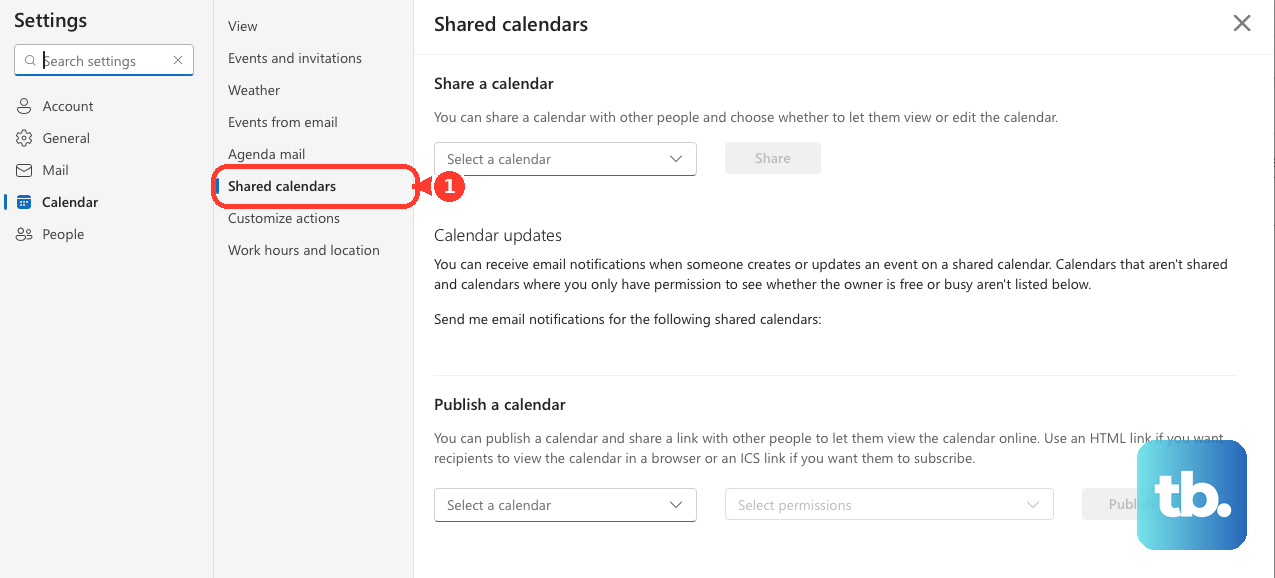
For an updating subscription, give the ICS link to another calendar application instead. Publishing also lets you share your Outlook calendar and set permissions for viewing. Select Unpublish when you want to stop publishing.
In new Outlook for Windows or Outlook on the web, select Calendar > View > Calendar settings > Calendar > Shared calendars. Under Publish a calendar, choose the calendar and permissions, then select Publish. Copy the ICS link for a subscription in another application, or select Unpublish to stop publication.
Account permissions and organizational sharing policies govern whether you can publish through new Outlook or Outlook on the web. If publishing is restricted, use classic Outlook's file export tools for a calendar copy. For an Exchange Online shared mailbox that the ordinary interface cannot publish, an authorized administrator can use the publishing procedure below.
Export your calendar to a PST file
In classic Outlook for Windows, select File > Open & Export > Import/Export. Choose Export to a file and select Next, then choose Outlook Data File (.pst) and select Next again. Select the Calendar folder for a calendar-only export, then select Next.
Choose Browse, select the destination and filename, and select OK > Finish. If Outlook displays the optional password dialog, complete it to finish the export. This route applies to classic Outlook for Windows, including Microsoft 365 and Outlook 2024, and can also export an Outlook.com account added to the app.
In new Outlook for Windows with PST export available, select Settings > Files > Export > Get started. Follow the steps in the wizard to select the mailbox or specific folders you want to export. If that entry is missing, use classic Outlook's PST route, installing it as described below if needed.
Use a synchronized calendar on Mac or Android
On Mac, Apple Calendar can export an Outlook or Exchange calendar accessible and synchronized in that app. If you need to connect a supported account first, open Apple Calendar and select Calendar > Add Account. Select the calendar in the sidebar, then choose File > Export > Export. Choose a location and select Export to save an ICS file containing Apple Calendar's synchronized copy.
In Outlook for Android, open the account's Settings > Calendar and turn on Sync calendars. This makes events available in your default calendar apps with two-way synchronization, rather than creating a downloadable backup file. The option applies to Microsoft 365, Outlook.com, and supported on-premises hybrid modern authentication accounts. For a personal Outlook.com account, use the browser download route when you need an ICS file.
Save one event or attach a calendar snapshot
For a single calendar item in classic Outlook for Windows, open the item and select File > Save As to save an ICS file. If it is a recurring meeting and you want the series included, open the entire series before saving. This individual-item route applies to classic Outlook in Microsoft 365 and Outlook 2021.
To create an ICS attachment in classic Outlook, select the appointment, open the Forward arrow on Appointment, and select Forward as iCalendar. In the resulting message, right-click the ICS attachment and select Save As. Choose a location, then select Save. Sending the message is optional, and this exports one appointment or meeting rather than your whole calendar.
To attach a calendar snapshot to an email in classic Outlook, open a new message and select Attach file > Attach Item > Calendar. Choose Date Range, Details, and the applicable calendar options, then select Insert. New Outlook does not support attaching calendar information this way, so use its publishing route or export through classic Outlook instead.
Create spreadsheet rows or a printable record
For calendar rows you can use in Excel, open classic Outlook for Windows and select File > Open & Export > Import/Export. Choose Export to a file and select Next, then choose Comma Separated Values and select Next. Select the calendar and choose Next. Choose the output location and complete the export wizard.
For a visual record, in new Outlook for Windows, Outlook.com or Outlook on the web on Windows, select Calendar > Home > Print. Choose Calendar, View, and the time range, then select Print. Under Printer, choose Microsoft Print to PDF, then select Print and save the output. The result is a visual record rather than an importable calendar.
In classic Outlook for Windows, select Calendar > File > Print, or press Ctrl + P. Choose the printer and Print Options, then print.
Get classic Outlook when export controls are missing
If you use Windows and need classic Outlook's export controls, open Microsoft's classic Outlook installation page. Select the language, then select Download. Complete installation and add your account before using the applicable ICS, PST, or CSV export steps.
You can also add an Outlook.com account to classic Outlook and export it there. Select its calendar for an ICS export or its Calendar folder in the PST wizard. This gives you a desktop route when the export controls you need are missing from new Outlook.
Use administrator export tools for organizational calendars
For Exchange Online calendar publishing, including shared mailboxes that the ordinary interface cannot publish, you need an authorized administrator. Connect to Exchange Online PowerShell and adjust the date range and detail level for the intended publication. Run the following command with the appropriate user identity.
Set-MailboxCalendarFolder -Identity <user>:\Calendar -PublishEnabled:$True -PublishDateRangeFrom ThreeMonths -PublishDateRangeTo SixMonths -DetailLevel LimitedDetailsRetrieve the publication information with the following command. Use the same user identity as in the publishing command.
Get-MailboxCalendarFolder -Identity <user>:\CalendarFor Exchange Server Subscription Edition, an administrator with the Mailbox Import Export role can export calendar data using New-MailboxExportRequest. Supply -Mailbox, a UNC destination path to a PST file through -FilePath, and -IncludeFolders "#Calendar#". Add -ExcludeDumpster if recoverable items should be excluded. This cmdlet is unavailable in Exchange Online.
For eligible Microsoft 365 organizational accounts with eDiscovery permissions and licensing, open Microsoft Purview > eDiscovery > Cases. Select the case, then Searches and the relevant mailbox search. Ensure the search includes the calendar items you need, then select Export and supply Export name and the applicable export options.
Monitor Process manager until the export completes, then open the export's Overview. Select the package under Export packages, then select Download packages. Mailbox results can be exported to PST through this route; it is not an Outlook.com consumer self-service feature.
Automate calendar export with VBA or Microsoft Graph
If you develop a classic Outlook for Windows VBA solution and VBA is permitted, obtain the calendar Folder and call GetCalendarExporter. Configure the CalendarSharing object's date range and detail properties, then call SaveAsICal with the destination filename. Microsoft's ExportEntireCalendar example includes private details and attachments, so review those settings before use. New Outlook does not support VBA macros.
For supported Outlook.com personal accounts and Microsoft 365 work or school accounts, an authorized application can extract events with Microsoft Graph. Use an appropriate calendar-read permission and request the desired calendar and period through this endpoint.
GET /me/calendars/{id}/calendarView?startDateTime={start_datetime}&endDateTime={end_datetime}Collect the returned events for the desired period, following each @odata.nextLink until you have every page of results, then save or transform the JSON into the format you need. This requires a custom extraction workflow rather than a built-in ICS export button.
Frequently Asked Questions
Can I export several calendars together from Apple Calendar?
Yes, Apple Calendar on Mac can create an archive of all its calendars. Choose File > Export > Calendar Archive, choose a location, then select Save. Any Outlook calendar included is Apple Calendar's synchronized copy.
How do I include the rest of my mailbox in a PST export?
In classic Outlook's PST export wizard, select the account instead of only the Calendar folder. Select Include subfolders, then continue with the destination and filename steps. This creates an account backup rather than a calendar-only export. Classic Outlook downloads only the past year of email by default, so to include all of it, first select Account settings > Account Name and Sync Settings and move the slider to All.
What is the HTML link next to the published ICS link?
When you publish a calendar in new Outlook for Windows or Outlook on the web, the HTML link provides a browser view of the calendar. Use it when you want someone to view the published calendar in a browser.
Do I need a subscription to export my Outlook.com mailbox through classic Outlook?
Microsoft says you can export an Outlook.com mailbox through classic Outlook in Reduced Functionality Mode without a subscription or trial. That option applies to the Outlook.com mailbox export route.
What happens if I turn off calendar synchronization on Android?
Turning off Sync calendars removes the synchronized calendar and events from Android's default calendar apps. That switch controls synchronization rather than creating or saving an export file.